
When I first started building business applications in Power Apps, one challenge kept coming up: creating dynamic lists of numbers without storing them anywhere. One example is to generate numbers 1–10 for ratings.
Traditionally, developers solved these problems by storing numbers in SharePoint lists or collections. But Power Apps gives us something much more efficient: the Sequence function.
The Sequence function automatically generates a table of numbers. This means we can create dynamic rows instantly without needing external data sources.
In this tutorial, I’ll walk through how the Power Apps sequence function works and how you can apply it in real Power Apps development. We will cover:
- How the Sequence function works internally
- How to generate dynamic numbers in galleries
- How to create ratings, pagination, and calendar days
- How to combine Sequence with ForAll for looping
- How experienced developers use it to generate temporary datasets
- Common mistakes developers make when using Sequence
- Best practices for using Sequence in production Power Apps
By the end of this tutorial, you’ll not only understand the function syntax but also know when and where to use it in real business applications.
What Is the Sequence Function in Power Apps?
The Sequence function in Power Apps creates a table of numbers automatically.
Instead of storing numbers in a list, Power Apps generates them dynamically.
Basic Syntax
Sequence(Records, Start, Step)
Parameters
| Parameter | Description |
|---|---|
| Records | Number of rows to generate |
| Start | Starting number (optional) |
| Step | Increment value (optional) |
What the function returns
Sequence always returns a single-column table called Value.
Example:
Sequence(5)
Returns:
1
2
3
4
5
This table can be used directly in:
- Galleries
- ForAll loops
- Collections
- Dropdowns
- Calculations
Basic Example: Generate Numbers 1 to 10
Let’s start with the simplest example. You can generate numbers 1 to 10.
Formula
Sequence(10)
Output
1
2
3
4
5
6
7
8
9
10
This means Power Apps creates 10 rows automatically.
Where to use it
Common places:
- Gallery Items property
- Dropdown Items property
- Temporary data generation
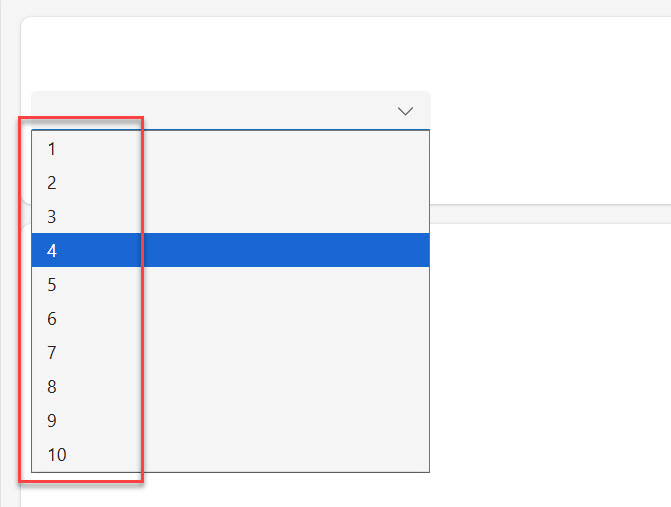
You can see in the screenshot below that I have used the Sequence function to bind items in a Power Apps dropdown control.
Example 1: Display Numbers in a Gallery
One of the easiest ways to visualize Sequence is by using a Gallery control in Power Apps.
Step 1: Insert a Gallery
Open a Power Apps canvas app, then click on Insert → Vertical Gallery
Step 2: Set the Items Property
Sequence(10)
Step 3: Display the value
Inside the gallery, add a text label.
Set the Text property to:
ThisItem.Value
Result
The gallery will display:
1
2
3
4
5
6
7
8
9
10
This is the most basic use of Sequence.
Example 2: Start the Sequence from a Different Number
In the previous example, the Sequence function started generating numbers from 1. That happens because 1 is the default starting value when we only provide the number of records.
However, in many real-world scenarios, we may want the sequence to start from a different number. For example, we might need to generate values starting from 10, 100, or even a negative number.
To control where the sequence begins, we use the Start parameter.
Syntax
Sequence(Records, Start)
Where:
- Records → Number of rows Power Apps should generate
- Start → The number where the sequence should begin
If the Step parameter is not specified, Power Apps automatically uses Step = 1, meaning the numbers will increase by one each time.
Example: Start Sequence from 10
Suppose we want to generate 5 numbers starting from 10.
Sequence(5,10)
Explanation
- 5 → Generate 5 rows
- 10 → Start from the number 10
- Step → Defaults to 1
Output
10
11
12
13
14
Instead of starting from 1, the sequence now begins from 10 and continues increasing by one.
Here, in the Power Apps canvas app, I used a modern text label and added the formula in the Text property. You can see the exact output in the screenshot below:
Text property:
Concat(Sequence(5,10), Value & Char(10))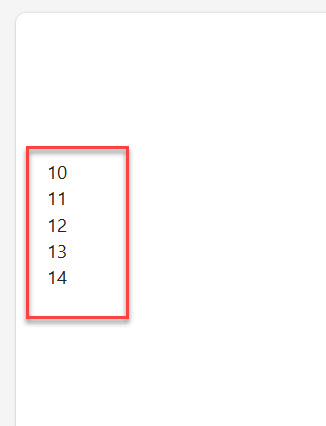
Ensure the Autoheight property is set to True.
Example: Display Order Numbers
In some business applications, you might want to display order numbers starting from a specific value.
For example, if order numbers begin at 1000, you could generate them like this:
Sequence(10,1000)
Output:
1000
1001
1002
1003
1004
1005
1006
1007
1008
1009
This can be useful when generating temporary order numbers, ticket IDs, or batch numbers inside an app.
Check out Power Apps Modern Date Picker with Time
Example: Generating Page Numbers Starting from a Specific Page
Imagine you are building a pagination control and want page numbers to start from Page 5 instead of Page 1.
You could generate page numbers like this:
Sequence(5,5)
Output:
5
6
7
8
9
These values can be displayed in a gallery to create pagination buttons.
For example, the label inside the gallery could display:
"Page " & ThisItem.Value
Result:
Page 5
Page 6
Page 7
Page 8
Page 9
Example: Starting from Negative Numbers
The Start parameter also works with negative numbers.
Sequence(5,-3)
Output:
-3
-2
-1
0
1
This can be useful in scenarios where numbers represent offsets, relative positions, or calculations.
Read Calculate the Difference Between Two Dates in Power Apps
Example 3: Use Custom Step Values
So far, our examples have increased numbers by 1 each time, which is the default behavior of the Sequence function. However, in many real-world scenarios, we may want numbers to increase by a different interval.
This is where the Step parameter becomes useful.
The Step parameter controls how much the number increases (or decreases) for each row generated by the Sequence function.
Syntax
Sequence(Records, Start, Step)
Where:
- Records → Number of rows to generate
- Start → The number where the sequence begins
- Step → The increment between each value
If Step is not provided, Power Apps automatically assumes Step = 1.
Example: Generate Numbers with Step Value 2
Let’s generate numbers that increase by 2 instead of 1.
Sequence(5,1,2)
Explanation
- 5 → Create 5 records
- 1 → Start from 1
- 2 → Increase by 2 each time
Output
1
3
5
7
9
Instead of counting like 1,2,3,4,5, Power Apps now skips numbers and increases by two each time.
Example: Decreasing Numbers with Negative Step
The Step parameter can also be negative, which means the sequence decreases instead of increasing.
Example:
Sequence(5,10,-1)
Explanation:
- Start at 10
- Decrease by 1
- Generate 5 records
Output:
10
9
8
7
6
This approach is useful when creating reverse counters or countdown-style logic.
Real Business Scenario 1: Rating System (1–5)
In many business apps, we build feedback forms or surveys.
Instead of storing rating numbers in SharePoint, we can generate them dynamically.
Items property for Gallery
Sequence(5)
Display rating text
Add a label:
"Rating: " & ThisItem.Value
Example output:
Rating: 1
Rating: 2
Rating: 3
Rating: 4
Rating: 5
You can also add icons or buttons for selection.
Check out Power Apps Multiple IF Statements
Real Business Scenario 2: Generate Calendar Days
Suppose you are building a leave management system.
You may want to show days 1–31 for a month.
Formula
Sequence(31)
Bind this to a Gallery or Dropdown.
Example dropdown Items property:
Sequence(31)
Display:
ThisItem.Value
Users can now select a day of the month easily.
Real Business Scenario 3: Creating Dynamic Form Rows
Sometimes we need to create multiple rows of inputs dynamically.
Example:
A travel request form where employees can add multiple expense entries.
Instead of storing empty records, we generate rows.
Gallery Items property
Sequence(5)
Inside each row:
- Text input for expense
- Dropdown for category
- Date picker
This creates 5 input rows automatically.
Real Business Scenario 4: Creating Pagination
Pagination is common in large data apps.
Example:
You want to show 10 records per page.
First, calculate the total pages.
Example formula
RoundUp(CountRows(MyList)/10,0)
Now generate page numbers.
Sequence(RoundUp(CountRows(MyList)/10,0))
Display this in a gallery to create page navigation buttons.
Example label text:
"Page " & ThisItem.Value
Using Sequence with ForAll (Powerful Pattern)
Experienced Power Apps developers often combine Sequence + ForAll.
This acts like a loop.
Example: Create multiple records
Suppose we want to create 10 records in a SharePoint list.
ForAll(
    Sequence(10),
    Patch(
        MyList,
        Defaults(MyList),
        {
            Title: "Task " & Value
        }
    )
)
Explanation:
- Sequence creates numbers 1–10
- ForAll loops through them
- Patch creates records
Result:
Task 1
Task 2
Task 3
...
Task 10
This pattern is extremely useful.
Creating a Power Apps Collection with Sequence
Sometimes we want to store generated numbers in a collection.
Example
ClearCollect(
    colNumbers,
    Sequence(10)
)
Now the collection contains:
1
2
3
4
5
6
7
8
9
10
You can use it across the app.
Advanced Example: Create Calendar Grid
Let’s build a simple calendar layout.
Generate 35 cells (5 weeks)
Sequence(35)
Convert sequence to dates
Example:
AddColumns(
    Sequence(35),
    "Date",
    DateAdd(StartOfMonth(Today()), Value-1)
)
This creates a dynamic calendar dataset.
Now a gallery can display:
- Day number
- Full date
- Events
Advanced Example: Generate Time Slots
Example requirement:
Create meeting slots from 9 AM to 5 PM.
Formula
Here is the formula that you can use to create meeting slots using the Sequence function.
AddColumns(
    Sequence(9),
    "TimeSlot",
    Text(Time(9 + Value - 1,0,0),"hh:mm AM/PM")
)
Output:
09:00 AM
10:00 AM
11:00 AM
...
05:00 PM
Perfect for booking systems.
Advanced Tips Experienced Developers Use
Here are some advanced tips that even experienced developers use.
1. Combine Sequence with AddColumns
This helps create structured temporary tables.
Example:
AddColumns(
    Sequence(5),
    "Label",
    "Item " & Value
)
Result:
| Value | Label |
|---|---|
| 1 | Item 1 |
| 2 | Item 2 |
| 3 | Item 3 |
2. Create Dynamic Input Rows
Example:
Sequence(Slider1.Value)
If slider value = 10
The gallery automatically creates 10 rows.
3. Generate Index Numbers
Developers often want row numbers in a gallery.
Example:
AddColumns(
    MyCollection,
    "RowNumber",
    CountRows(Filter(MyCollection, ID <= ThisRecord.ID))
)
But sometimes Sequence can simplify numbering logic.
4. Create Testing Data Quickly
Sequence is perfect for generating test data.
Example:
ForAll(
    Sequence(50),
    Collect(
        colTestData,
        {
            Name: "User " & Value
        }
    )
)
This creates 50 records instantly.
Common Mistakes Developers Make
Here are some mistakes that developers usually make.
Mistake 1: Forgetting the Value column
Sequence returns a column named Value.
Wrong:
ThisItem.Number
Correct:
ThisItem.Value
Mistake 2: Using Sequence for Large Data
Sequence is not meant for generating thousands of rows unnecessarily.
Use it carefully for:
- UI elements
- Small loops
- Temporary tables
Mistake 3: Misunderstanding Start Parameter
Example:
Sequence(5,10)
Some developers expect:
10,20,30,40,50
But it actually produces:
10,11,12,13,14
Step must be used for larger increments.
Mistake 4: Not Using Collections When Needed
Sequence recalculates every time.
If used frequently:
Store results in a collection.
Example:
ClearCollect(colDays, Sequence(31))
Best Practices for Production Power Apps
When building real business apps, I follow these practices and thought to share them with you.
Use Sequence for UI Generation
Great for:
- Rating controls
- Pagination
- Calendar grids
- Time slots
- Input rows
Avoid Large Sequences
Do not generate huge tables unnecessarily.
Example to avoid:
Sequence(10000)
This may affect performance.
Use With AddColumns for Structured Data
Sequence becomes powerful when paired with:
- AddColumns
- ForAll
- With
- Collect
Use Meaningful Variable Names
Example:
ClearCollect(colPageNumbers, Sequence(10))
Instead of generic names.
Cache When Needed
If the sequence is used repeatedly:
ClearCollect(colNumbers, Sequence(50))
This improves performance.
When Should You Use Sequence?
Use Sequence when you need:
- Temporary number lists
- Dynamic UI rows
- Loops with ForAll
- Calendar generation
- Pagination
- Testing data
Avoid it when:
- You already have a data source
- You need thousands of rows
Conclusion
The Sequence function in Power Apps is one of those small features that becomes extremely powerful once you understand how to use it properly.
Instead of storing number lists in SharePoint or manually creating collections, Sequence allows you to generate tables dynamically inside your app.
In this tutorial, we learned:
- What the Sequence function in Power Apps is
- How the syntax works
- Practical examples with galleries
- Real business use cases
- Advanced patterns using ForAll and AddColumns
- Common mistakes developers make
- Best practices for production apps
Once you start combining Sequence with functions like ForAll, AddColumns, and Patch, you’ll realize it can simplify many problems in Power Apps development.
You may also like:

I’m Bijay Kumar, a Microsoft Business Application MVP specializing in Power Automate. I have been honored 11 times. With over 18 years in the IT industry, I have practical experience in Power Apps, Power Automate, Power BI, Power Pages, and SharePoint Online. I also co-authored the book Microsoft Power Platform—A Deep Dive. Currently, I develop various apps using Power Apps and automate business processes for many clients in the USA using Power Automate. Read more.