
You send out a daily sales summary email from Power Automate.
The numbers look good. But the date line says “2026-06-24T14:32:10Z” instead of a nice, human format like “24th Jun 2026, 02:32 PM”. Your manager skims the email, gets confused, and writes back: “What time zone is this? And why does it look so technical?”
If this sounds familiar, you’re not alone. Flows love technical date formats. People don’t. You need a clean, readable date with the correct st / nd / rd / th suffix like 1st, 2nd, 3rd, 4th in your Power Automate emails, Teams messages, and approvals.
In this tutorial, I’ll show you 2 ways to format dates with st / nd / rd / th in Power Automate: using a single expression inside your action, and using a Compose-first approach to keep things clean.
Format Dates with Ordinal Suffixes (st, nd, rd, th) in Power Automate
Let’s pick a simple, relatable example: daily sales report emails.
You want the email subject line to look like this:
Daily Sales Report – 24th Jun 2026, 02:32 PMBehind the scenes, your flow has the raw UTC date-time from utcNow():
2026-06-24T14:32:10ZYour goal is to turn that raw value into a friendly string with:
- The day: 24
- The suffix: th
- A space
- The month and year: Jun 2026
- A comma and the time: 02:32 PM
All of this is done with one Power Automate expression using functions like concat(), formatDateTime(), int(), mod(), greaterOrEquals(), and lessOrEquals().
The final expression does exactly that:
concat(
    formatDateTime(utcNow(), 'dd'),
    if(
        or(
            and(
                greaterOrEquals(int(formatDateTime(utcNow(), 'dd')), 11),
                lessOrEquals(int(formatDateTime(utcNow(), 'dd')), 13)
            ),
            equals(mod(int(formatDateTime(utcNow(), 'dd')), 10), 0)
        ),
        'th',
        if(
            equals(mod(int(formatDateTime(utcNow(), 'dd')), 10), 1),
            'st',
            if(
                equals(mod(int(formatDateTime(utcNow(), 'dd')), 10), 2),
                'nd',
                if(
                    equals(mod(int(formatDateTime(utcNow(), 'dd')), 10), 3),
                    'rd',
                    'th'
                )
            )
        )
    ),
    ' ',
    formatDateTime(utcNow(), 'MMM yyyy, hh:mm tt')
)
Let’s unpack this step by step in plain English.
Step 1 – Understand the Key Date Functions
Before touching the big expression, you need to understand the building blocks.
In Power Automate, two core date functions do the heavy lifting:
- utcNow() – Returns the current date and time in UTC
Example output:
2026-06-24T14:32:10Z- formatDateTime(timestamp, formatString) – Converts a date-time into a formatted text string
Example:
formatDateTime(utcNow(), 'dd')Output:
24Example:
formatDateTime(utcNow(), 'MMM yyyy, hh:mm tt')Output:
Jun 2026, 02:32 PMIn your daily sales email, use utcNow() to get “now” and formatDateTime() to show it in a friendly format.
Step 2 – Build the Base Date String
First, ignore the st / nd / rd / th suffix.
Just build a simple date-time string that looks like:
24 Jun 2026, 02:32 PMYou can do this in any text field inside your flow (for example, Subject in Send an email (V2)):
formatDateTime(utcNow(), 'dd MMM yyyy, hh:mm tt')Here’s what each part of the format string means:
- dd – Day as two digits → 24
- MMM – Month as short text → Jun
- yyyy – Year as four digits → 2026
- hh:mm – Hour and minute in 12-hour format → 02:32
- tt – AM/PM marker → PM
This is the base Power Automate date format you’ll build on.
Step 3 – Learn the Ordinal Suffix Rules
Now, you want to convert 24 to 24th, 21 to 21st, and so on.
These are called ordinal suffixes.
The rules are:
- Numbers ending in 1 → st (1st, 21st, 31st)
- Numbers ending in 2 → nd (2nd, 22nd)
- Numbers ending in 3 → rd (3rd, 23rd)
- All other numbers → th (4th, 5th, 6th, etc.)
- Special case: 11, 12, and 13 always use th
You’ll encode these rules in Power Automate using if(), and(), or(), mod(), and comparison functions.
Step 4 – Extract the Day Number
To decide which suffix to use, first get the day of the month as a number.
The expression does this with:
formatDateTime(utcNow(), 'dd')This gives you a text value, such as "24".
To use math functions like mod(), convert that text to a number with int():
int(formatDateTime(utcNow(), 'dd'))Now you have the day as an integer, such as 24.
This is what you’ll feed into your suffix logic.
Step 5 – Handle the Special “11–13” Case
Remember the rule: 11, 12, and 13 always get th.
The expression checks this first:
and(
    greaterOrEquals(int(formatDateTime(utcNow(), 'dd')), 11),
    lessOrEquals(int(formatDateTime(utcNow(), 'dd')), 13)
)
Breakdown:
greaterOrEquals(value, 11)– Is the day >= 11?lessOrEquals(value, 13)– Is the day <= 13?and(condition1, condition2)– Are both true at the same time?
If both are true, the day is 11, 12, or 13.
So the suffix must be th.
Step 6 – Use mod() to Get the Last Digit
If the day is not 11, 12, or 13, you look at the last digit.
The expression uses mod() to get that last digit:
mod(int(formatDateTime(utcNow(), 'dd')), 10)The mod() function returns the remainder when you divide a number by another number.
For day numbers:
mod(21, 10) → 1
mod(22, 10) → 2
mod(23, 10) → 3
mod(24, 10) → 4
That remainder is your last digit of the day.
You can now choose st, nd, rd, or th based on this digit.
Step 7 – Build the Suffix Selection Using if()
Next, you build a nested if() to choose the suffix.
Here is the core logic from the expression:
if(
    or(
        and(
            greaterOrEquals(int(formatDateTime(utcNow(), 'dd')), 11),
            lessOrEquals(int(formatDateTime(utcNow(), 'dd')), 13)
        ),
        equals(mod(int(formatDateTime(utcNow(), 'dd')), 10), 0)
    ),
    'th',
    if(
        equals(mod(int(formatDateTime(utcNow(), 'dd')), 10), 1),
        'st',
        if(
            equals(mod(int(formatDateTime(utcNow(), 'dd')), 10), 2),
            'nd',
            if(
                equals(mod(int(formatDateTime(utcNow(), 'dd')), 10), 3),
                'rd',
                'th'
            )
        )
    )
)
Let’s rewrite this in simple rules:
- If the day is 11–13, or the last digit is 0 → use th
- Else if the last digit is 1 → use st
- Else if the last digit is 2 → use nd
- Else if the last digit is 3 → use rd
- Otherwise → use th
The outer if() handles the 11–13 special case and also days ending with 0 (10, 20, 30).
The nested if() handles the last digit check for 1, 2, and 3, and defaults to th for the rest.
Step 8 – Concatenate Day + Suffix + Formatted Date
Finally, you put everything together using concat().
Here’s the full Power Automate expression again:
concat(
    formatDateTime(utcNow(), 'dd'),
    if(
        or(
            and(
                greaterOrEquals(int(formatDateTime(utcNow(), 'dd')), 11),
                lessOrEquals(int(formatDateTime(utcNow(), 'dd')), 13)
            ),
            equals(mod(int(formatDateTime(utcNow(), 'dd')), 10), 0)
        ),
        'th',
        if(
            equals(mod(int(formatDateTime(utcNow(), 'dd')), 10), 1),
            'st',
            if(
                equals(mod(int(formatDateTime(utcNow(), 'dd')), 10), 2),
                'nd',
                if(
                    equals(mod(int(formatDateTime(utcNow(), 'dd')), 10), 3),
                    'rd',
                    'th'
                )
            )
        )
    ),
    ' ',
    formatDateTime(utcNow(), 'MMM yyyy, hh:mm tt')
)
Breakdown in plain English:
formatDateTime(utcNow(), 'dd')→"24"- The big
if()→"th"(for day 24) ' '→ a spaceformatDateTime(utcNow(), 'MMM yyyy, hh:mm tt')→"Jun 2026, 02:32 PM"
concat() joins all of these pieces into one final string:
24th Jun 2026, 02:32 PMYou can paste this expression directly into:
- Email subject
- Email body
- Teams message text
- Approval title
- Any other text field in your flow
Your daily sales report now reads:
Daily Sales Report – 24th Jun 2026, 02:32 PMMethod 1 – Use the Expression Directly in Your Action
This is the fast, direct way.
Here, I have created an instant cloud flow in Power Automate to test this.
- Open your Send an email (V2) action.
- In the Subject field, click on the formula or expression icon and then enter the code below.
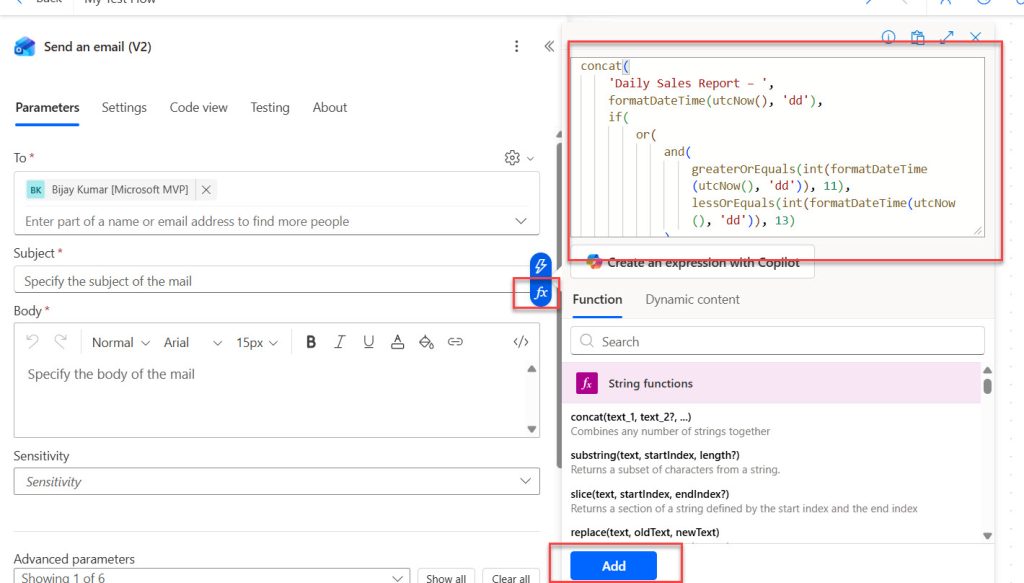
concat(
    'Daily Sales Report – ',
    formatDateTime(utcNow(), 'dd'),
    if(
        or(
            and(
                greaterOrEquals(int(formatDateTime(utcNow(), 'dd')), 11),
                lessOrEquals(int(formatDateTime(utcNow(), 'dd')), 13)
            ),
            equals(mod(int(formatDateTime(utcNow(), 'dd')), 10), 0)
        ),
        'th',
        if(
            equals(mod(int(formatDateTime(utcNow(), 'dd')), 10), 1),
            'st',
            if(
                equals(mod(int(formatDateTime(utcNow(), 'dd')), 10), 2),
                'nd',
                if(
                    equals(mod(int(formatDateTime(utcNow(), 'dd')), 10), 3),
                    'rd',
                    'th'
                )
            )
        )
    ),
    ' ',
    formatDateTime(utcNow(), 'MMM yyyy, hh:mm tt')
)- Save and run the flow.
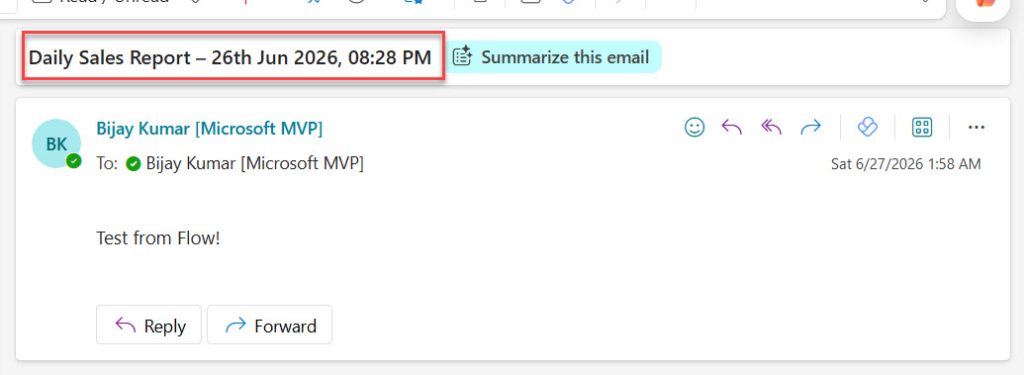
Your subject will show a clean Power Automate date format with ordinal suffix, perfect for sales reports.
After testing the flow, I can confirm I received the exact output in the email subject line. Here is a screenshot for your reference.
Method 2 – Use Compose to Simplify and Reuse
When you start using this date format in multiple actions, the long expression can become hard to maintain.
A cleaner approach is to use Compose actions to break the logic into smaller parts.
Here’s how.
Add a Compose – DayNumber action
Expression:
int(formatDateTime(utcNow(), 'dd'))Add a Compose – DaySuffix action
Expression:
if(
    or(
        and(
            greaterOrEquals(outputs('Compose_-_DayNumber'), 11),
            lessOrEquals(outputs('Compose_-_DayNumber'), 13)
        ),
        equals(mod(outputs('Compose_-_DayNumber'), 10), 0)
    ),
    'th',
    if(
        equals(mod(outputs('Compose_-_DayNumber'), 10), 1),
        'st',
        if(
            equals(mod(outputs('Compose_-_DayNumber'), 10), 2),
            'nd',
            if(
                equals(mod(outputs('Compose_-_DayNumber'), 10), 3),
                'rd',
                'th'
            )
        )
    )
)
Add a Compose – FormattedDateTime action
Expression:
formatDateTime(utcNow(), 'MMM yyyy, hh:mm tt')In your email Subject field, use:
concat(
    'Daily Sales Report – ',
    formatDateTime(utcNow(), 'dd'),
    outputs('Compose_-_DaySuffix'),
    ' ',
    outputs('Compose_-_FormattedDateTime')
)
This approach makes your Power Apps formula-style expression inside Power Automate more readable and easier to debug, especially in larger flows.
When to Use This Pattern
You’ll use this Power Automate date formatting pattern whenever:
- You send daily, weekly, or monthly reports.
- You generate sales summaries, scorecards, or temperature logs as emails.
- You build approval requests that show “Created on 3rd Jun 2026”.
- You log events, like “Order shipped on 21st Jan 2026, 11:15 AM”.
For example, with a daily sales amount of USD 1250, your email body might say:
Total sales for 24th Jun 2026, 02:32 PM: USD 1250.
The date formatting expression keeps that line readable and professional.
Conclusion
You learned how to take a raw UTC date-time, format it into a friendly string, and add the correct st / nd / rd / th suffix using Power Automate expressions.
Use Method 1 (single expression) when you just need the formatted date in one place, and Method 2 (Compose-based) when you want cleaner, reusable logic across multiple actions in a bigger flow.
I hope you found this article helpful.

Bijay Kumar is a Microsoft MVP in Business Applications with over 18 years of experience in the IT industry and more than 12 years as a Microsoft MVP, recognized for his contributions to the Microsoft community. He is the Founder of TSinfo Technologies and the creator of the popular technology platforms SPGuides.com and EnjoySharePoint.com. Bijay also runs the SPGuides YouTube channel, where he shares practical tutorials on Microsoft 365, SharePoint, Power Platform, and Copilot technologies. Read more.