
When I build a Canvas app for a service desk or leave-request process, I often see the same formula copied across labels, galleries, buttons, and forms. It works at first, but one small business-rule change can turn into a frustrating search through ten different screens.
That is where Power Apps user defined functions make a real difference. You write a reusable Power Fx formula once, pass values into it when needed, and call it like a built-in function such as If, Text, or Filter.
In this guide, I’ll show you how to create and use Power Apps user defined functions in a simple issue tracker app, with practical formulas you can adapt right away.
What Are Power Apps User Defined Functions?
Power Apps user defined functions, often called UDFs, let you create your own reusable Power Fx functions. A UDF accepts one or more parameters, runs a formula, and returns a result that you can use anywhere in the app.
Think of a UDF as a custom version of a built-in Power Fx function. For example, Power Apps already gives you Text() to format values and If() to evaluate conditions. With a UDF, you can create something like GetPriorityColor() or GetIssueStatusText() for rules that belong to your business app.
I use UDFs most often in Canvas apps because makers tend to repeat visual and validation logic across many controls. Instead of pasting the same nested If formula into every Gallery row and detail screen, you create one function and call it wherever you need it.
The basic syntax looks like this:
FunctionName(
    ParameterName: DataType
): ReturnType =
Formula;
Here is a simple example:
GetGreeting(UserName: Text): Text =
"Hello, " & UserName;
You can now call the function from a Label control’s Text property:
GetGreeting(User().FullName)
This formula returns a personalized greeting without repeating the concatenation logic across your app.
Check out Power Apps User Defined Functions Examples
Why Use Power Apps User Defined Functions?
The main reason to use Power Apps user defined functions is to reduce duplicate formulas. A formula copied into five controls becomes harder to test, explain, and maintain than a single reusable function.
For example, imagine an issue tracker built with a SharePoint list. Your team tracks support requests with values such as Low, Medium, High, and Critical. You may want every issue to show the correct priority color in a Gallery, a details screen, and a confirmation message.
Without a UDF, you might repeat this formula:
If(
    ThisItem.Priority.Value = "Critical",
    Color.Red,
    ThisItem.Priority.Value = "High",
    Color.Orange,
    ThisItem.Priority.Value = "Medium",
    Color.Gold,
    Color.Green
)
That approach works, but it creates a maintenance problem. If the business later adds an “Urgent” priority, you must update every copy.
With a UDF, you update the rule in one location. This gives your low-code app a cleaner structure and makes future changes much safer. Microsoft describes UDFs as custom functions that accept parameters and return values, similar to built-in Power Fx functions.
Pro Tip: In my experience, a UDF pays off as soon as I copy a formula for the second time. I stop and ask whether the rule belongs in one reusable function instead.
Read Add Named Formula in Power Apps
Enable Power Apps User Defined Functions
Before you create Power Apps user defined functions, check whether your app supports the feature. UDFs rely on the newer formula-analysis experience in Power Apps Studio, and the exact setting names can vary by app authoring version.
Open your Canvas app in Power Apps Studio and follow these steps:
- Select Settings from the top command bar.
- Open the Updates or Upcoming features section.
- Check the options available under the New, Preview, or Experimental tabs.
- Enable the setting for the newer analysis engine if your app shows it.
- Enable User-defined types when your environment still exposes it as a separate setting.
- Refresh Power Apps Studio if Power Apps asks you to do so.
You can see the exact output in the screenshot below:
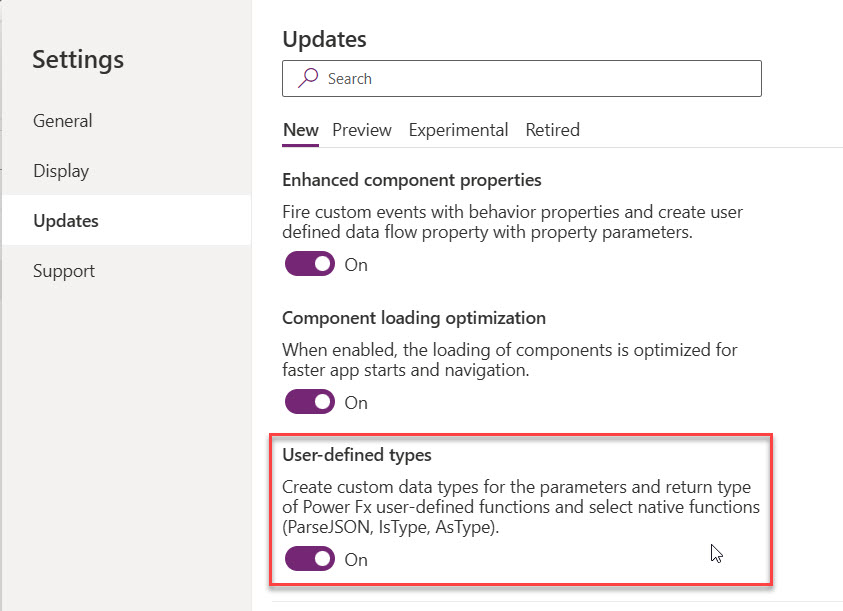
For newer Power Apps versions, UDFs are available for production use, and the separate preview switch has been removed. Microsoft notes that the new analysis engine includes UDF support and is enabled by default for new apps.
After you enable the required setting, select App in the Tree view and open Formulas. This is where you create app-level named formulas and UDFs.
Create Your First Power Apps User Defined Function
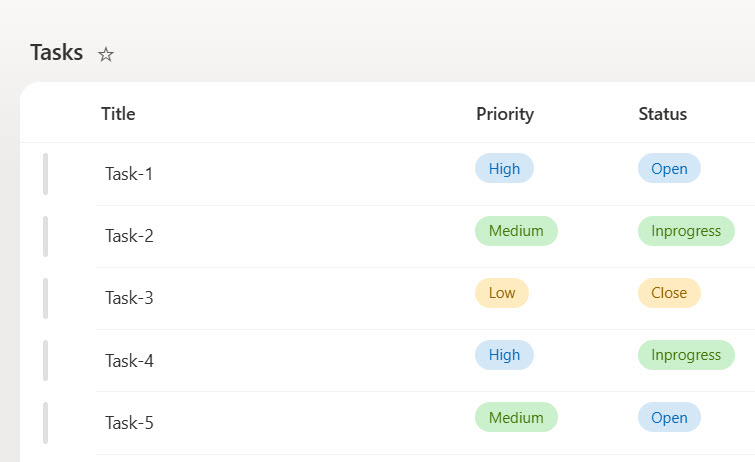
Let’s use a practical issue tracker example. Assume your app connects to an Issues SharePoint list with a Choice column named Priority.
Here I have a SharePoint Online list that has the Priority column, and you can see the screenshot below of what it looks like:
In the Power Apps canvas app, I have added a Power Apps gallery and bound the SharePoint list data. And this is how it looks:
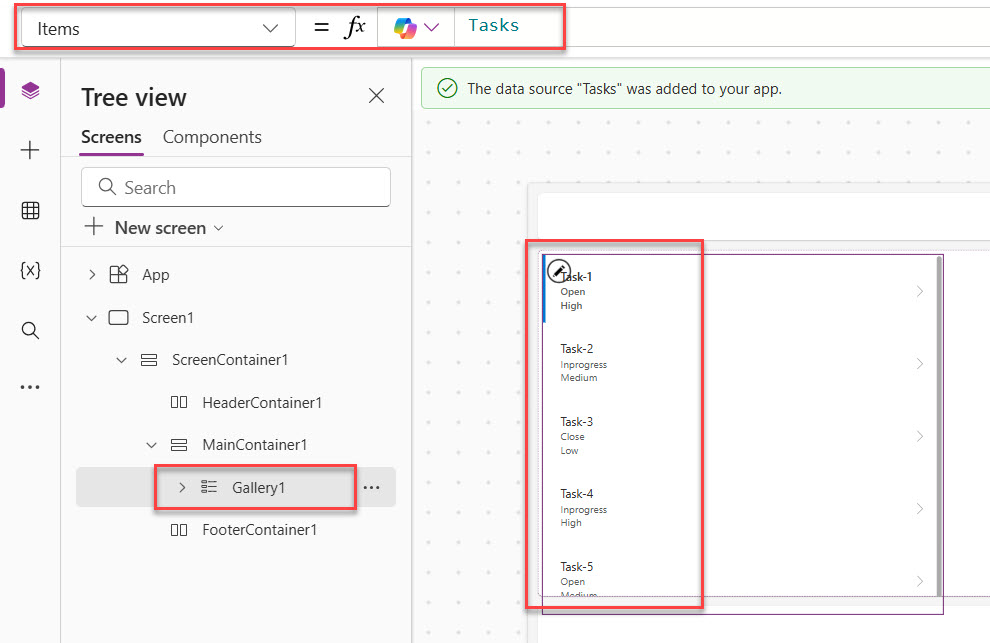
You want each issue priority to display a consistent color throughout the app.
Add the Function in App.Formulas
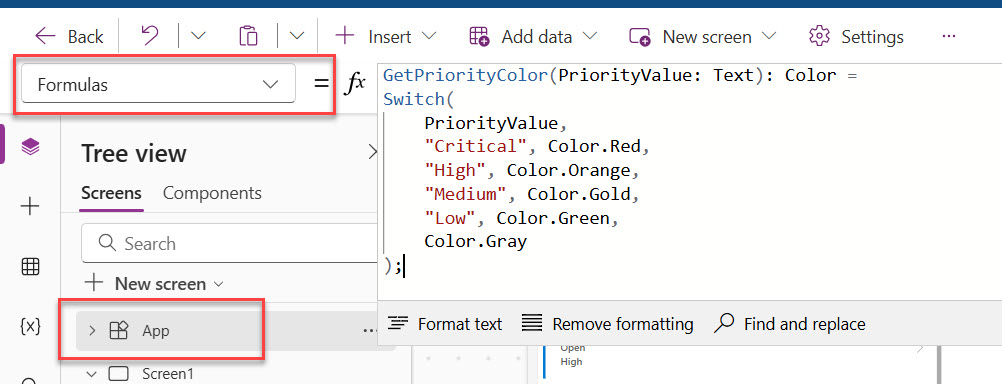
Select App from the left Tree view, then open the Formulas property. Add this formula:
GetPriorityColor(PriorityValue: Text): Color =
Switch(
    PriorityValue,
    "Critical", Color.Red,
    "High", Color.Orange,
    "Medium", Color.Gold,
    "Low", Color.Green,
    Color.Gray
);
This formula creates a function named GetPriorityColor.
PriorityValueis the input parameter.Textdefines the data type that the function expects.Colordefines the value type that the function returns.Switch()checks the priority value and returns the matching color.Color.Grayacts as a safe fallback when the value does not match any known priority.
You can see the formula like in the screenshot below:
I prefer Switch() here instead of multiple nested If() statements because the formula stays easier to scan when you add more priority levels later.
Use the Function in a Gallery
Now add a vertical Gallery named galIssues and set its Items property to your SharePoint list:
Issues
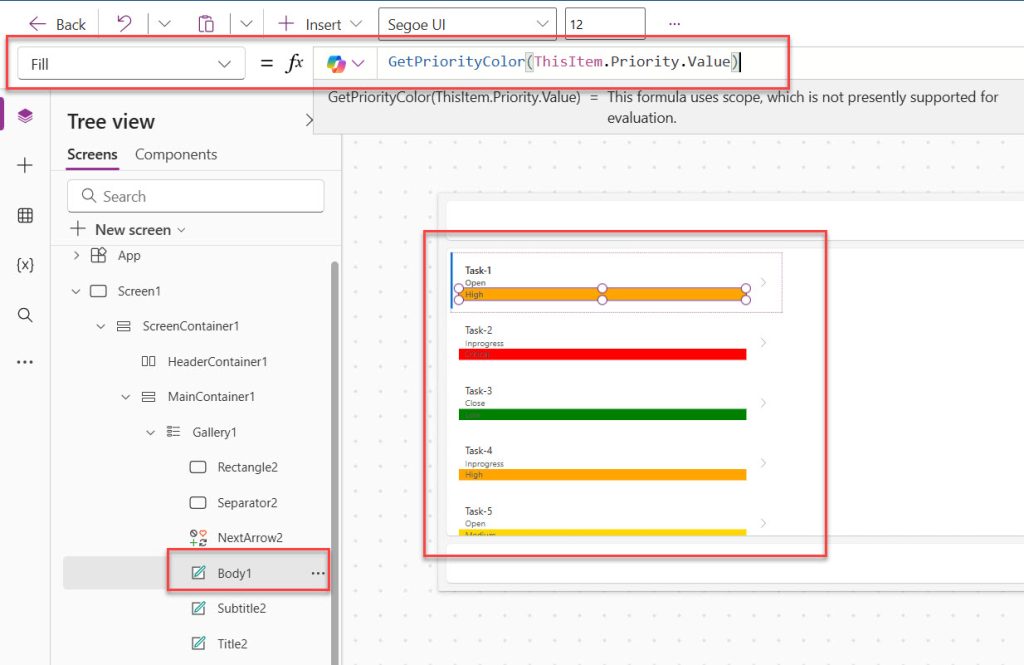
Inside the gallery, add a small Rectangle or Circle control to act as a priority indicator. Set its Fill property to:
GetPriorityColor(ThisItem.Priority.Value)
ThisItem.Priority.Value gets the Choice value from the current SharePoint record. The UDF sends back the matching color.
You can see the exact output in the screenshot below:
You can use exactly the same function on a details screen, an Edit Form, or a status label. That is the real benefit: the business rule stays in one place.
Check out How to Add Hover Effects to Power Apps Gallery
Power Apps User Defined Functions for Text
Colors are useful, but I get the most value from Power Apps user defined functions when I standardize repeated text and messages.
For the issue tracker, let’s create a UDF that returns a clear status message for users.
Add this formula under your first function in App.Formulas:
GetIssueStatusMessage(
    StatusValue: Text,
    AssignedToName: Text
): Text =
Switch(
    StatusValue,
    "New", "This issue is waiting for assignment.",
    "In Progress", "This issue is assigned to " & AssignedToName & ".",
    "Resolved", "This issue has been resolved.",
    "Closed", "This issue is closed.",
    "Status needs review."
);
This function accepts two text values:
StatusValuetells the function which status to evaluate.AssignedToNameprovides the person’s name when the issue is in progress.- The function returns one Text value for a Label control.
Set a Label control’s Text property to:
GetIssueStatusMessage(
    galIssues.Selected.Status.Value,
    galIssues.Selected.'Assigned To'.DisplayName
)
This formula reads the currently selected Gallery record, sends its status and assigned person to the UDF, and displays a useful message.
When you create a business app, small user-friendly messages like this improve the experience more than many makers expect. They tell users what happens next without forcing them to interpret raw status values.
Use UDFs for Validation Rules
Validation is another excellent use case for Power Apps user defined functions. Many apps repeat the same checks before they save records through a Form or Patch.
For example, your issue tracker may require a title and description before a user submits a new issue.
Create this function:
IsIssueReadyToSubmit(
    IssueTitle: Text,
    IssueDescription: Text
): Boolean =
!IsBlank(Trim(IssueTitle)) &&
!IsBlank(Trim(IssueDescription));
This function returns either true or false.
Trim()removes extra spaces at the beginning and end of a value.IsBlank()checks whether the cleaned value contains anything.!means “not,” so!IsBlank()confirms that the user entered a value.&&means both checks must return true.
If your text inputs are named txtIssueTitle and txtIssueDescription, set the DisplayMode property of your Save button to:
If(
    IsIssueReadyToSubmit(
        txtIssueTitle.Text,
        txtIssueDescription.Text
    ),
    DisplayMode.Edit,
    DisplayMode.Disabled
)
The button stays disabled until the user completes both fields. This gives immediate feedback and prevents incomplete records from reaching your SharePoint list.
You can also use the same UDF before saving through Patch:
If(
    IsIssueReadyToSubmit(
        txtIssueTitle.Text,
        txtIssueDescription.Text
    ),
    Patch(
        Issues,
        Defaults(Issues),
        {
            Title: txtIssueTitle.Text,
            Description: txtIssueDescription.Text,
            Priority: {Value: drpPriority.Selected.Value}
        }
    );
    Notify("Issue created successfully.", NotificationType.Success),
    Notify("Enter an issue title and description.", NotificationType.Error)
)
The function keeps the validation rule separate from the save logic. That makes the Patch() formula much easier to read and maintain.
Check out Get Manager Details for the Current User in Power Apps
UDFs vs Named Formulas
Named formulas and Power Apps user defined functions both live in App.Formulas, but they solve different problems.
A named formula stores a reusable value or calculation without parameters. A UDF accepts parameters, so it works with different input values each time you call it. Named formulas automatically stay current as their dependent values change.
| Requirement | Best option | Example |
|---|---|---|
| Reuse one calculated value | Named formula | AppTitle = "IT Service Desk"; |
| Reuse logic with different inputs | User defined function | GetPriorityColor(PriorityValue: Text): Color = ...; |
| Store a value that changes through a user action | Variable | Set(varCurrentUser, User()); |
| Store temporary screen-level state | Context variable | UpdateContext({locShowPanel: true}); |
Here is a named formula for your issue tracker:
AppTitle = "IT Service Desk";
You can then set a screen heading Label’s Text property to:
AppTitle
Use a named formula when the value does not need different inputs. Use a UDF when the logic must work with values such as priority, status, dates, numbers, or user input.
Behavior Functions in UDFs
A behavior function changes something in the app. Common examples include Set(), Collect(), Reset(), and Notify().
Power Apps supports UDFs that include these side-effect functions, but you should use them carefully. Microsoft recommends declarative formulas where possible, meaning formulas that calculate a result rather than change app state.
For example, this UDF resets a form and shows a success message:
ResetIssueForm(): Void = {
    ResetForm(frmIssue);
    Notify("The form has been reset.", NotificationType.Information)
};
You can call it from a button’s OnSelect property:
ResetIssueForm()
The curly braces mark a behavior formula. The function performs actions instead of returning a standard value such as Text, Number, or Boolean.
I use behavior UDFs sparingly. A function that quietly updates global variables, collections, and controls can become difficult for another maker to troubleshoot. Use them for a small, obvious action that you truly need in several places.
Things to Keep in Mind
- Use clear function names: Choose action-focused names such as
GetPriorityColor,IsIssueReadyToSubmit, andFormatRequestNumber. Avoid vague names likeFunction1orCheckData. - Keep each function focused: Let one UDF solve one problem. A function that validates input, patches SharePoint, sends a notification, and navigates screens becomes hard to reuse.
- Match parameter types carefully: A function that expects
Textneeds text input. For SharePoint Choice columns, pass.Value; for person fields, pass a text property such as.DisplayName. - Prefer declarative formulas: Use UDFs that return a value whenever possible. Keep
Set,Collect,Reset, and other behavior actions limited because they create hidden app state. - Test fallback values: Always include a default result in functions such as
Switch(). Real business data often contains blank, old, or unexpected values. - Do not treat UDFs as a delegation fix: A UDF can organize a formula, but it does not change whether a SharePoint or Dataverse query delegates to the server.
Frequently Asked Questions
What are Power Apps user defined functions?
Power Apps user defined functions are custom Power Fx functions that you create for reusable app logic. They can accept typed parameters and return a value such as Text, Number, Boolean, or Color.
Where do I create a user defined function in Power Apps?
Create a UDF in the App.Formulas property of a Canvas app. Select App in the Tree view, open Formulas, and add the function formula there.
Can I use user defined functions in Canvas apps?
Yes, UDFs support reusable logic in Canvas apps. You can call them from control properties such as Text, Fill, Visible, DisplayMode, and OnSelect.
Can a Power Apps UDF use Patch or Set?
Yes, UDFs can include behavior functions such as Set, Collect, Reset, and Notify. Use this pattern only when needed because declarative formulas are easier to maintain.
What is the difference between a named formula and a UDF?
A named formula gives a reusable name to one value or calculation without parameters. A UDF accepts parameters, which makes it suitable for reusable logic that handles different input values.
Do user defined functions improve Power Apps performance?
UDFs mainly improve readability, consistency, and maintenance. They can reduce duplicated formulas, but they do not automatically solve slow data queries, delegation warnings, or poor app design.
Power Apps user defined functions help you move repeated Power Fx logic into one reliable, reusable place. Start with small functions for colors, validation, and formatting, then add more only when they make your Canvas app easier to understand.
I hope you found this article helpful.
You may also like the following tutorials:
- Delegation in Power Apps
- Display Manager Name and Email in a Power Apps Gallery
- Get User Details in Power Apps

Bijay Kumar is a 13-times Microsoft MVP in Business Applications with over 18 years of experience in the IT industry, recognized for his contributions to the Microsoft community. He is the Founder of TSinfo Technologies and shares practical, tested tutorials on Power Apps, Power Automate, Copilot Studio, and Power BI here on Power Platform FAQs. Read more.