
A few years ago I built what I thought was a simple contract reminder flow. A SharePoint list of vendor contracts, a daily recurrence, and an email to the owner 30 days before expiry. It ran clean in testing. Two weeks later, the procurement lead asked me why nobody had been notified about a renewal that had already lapsed.
The problem wasn’t the logic. It was that I’d hardcoded a comparison against a date string that didn’t match SharePoint’s expected format, and the OData filter was silently returning zero items. No error, no failed run — just a green tick every morning and an empty loop. That’s the worst kind of bug, because nothing tells you it’s broken.
The fix was a single expression: addDays(utcNow(), 30, 'yyyy-MM-dd'). Since then I’ve used addDays() in almost every flow I’ve built that touches a date — due dates, reminders, archiving, staggered task creation. It’s a small function, but it quietly sits underneath a lot of real automation.
This tutorial covers everything about the Power Automate addDays() function, what it does, how to test it properly before it goes anywhere near production, and how to apply it to SharePoint scenarios that actually come up at work.
What Is the addDays() Function?
addDays() is a Power Automate expression that takes a date and adds (or subtracts) a number of days to it, then returns the result as a string.
The syntax is:
addDays('<timestamp>', <days>, '<format>')Three parts to understand:
- timestamp – the starting date. This must be a valid ISO 8601 string, for example
2026-09-03T00:00:00Z. - days – an integer. Positive adds days, negative subtracts them.
- format – optional. A .NET format string such as
yyyy-MM-ddordd/MM/yyyy. Leave it out and you get the full ISO timestamp back.
A quick example:
addDays('2026-09-03T00:00:00Z', 7)Returns: 2026-09-10T00:00:00.0000000Z
And with formatting:
addDays('2026-09-03T00:00:00Z', 7, 'dd/MM/yyyy')Returns: 10/09/2026
Why this matter?
Almost every business process has a date rule baked into it somewhere:
- Invoices are due 30 days after issue.
- Contracts need review 60 days before expiry.
- Leave requests older than 90 days get archived.
- Onboarding tasks are staggered across the first two weeks.
Without addDays(), you’d be forced to store these dates manually or calculate them outside the flow. With it, the logic lives in one place and updates itself every time the flow runs.
The other reason it matters — and this is what bit me in that contract flow — SharePoint date columns and OData filters both expect properly formatted date strings. addDays() gives you that formatting in a single expression, which avoids a whole category of silent filter failures.
Setting Up a Test Flow in Power Automate
Before wiring addDays() into production logic, test it in isolation. The fastest way is an instant cloud flow with a Compose action.
Step 1: Create the Instant Cloud Flow
- Go to make.powerautomate.com.
- Select Create → Instant cloud flow.
- Name it something like
Test addDays Expressions. - Choose Manually trigger a flow as the trigger.
- Click Create.
An instant flow is ideal here because you can run it on demand, as many times as you like, without touching any real data.
Step 2: Add a Compose Action
- Click + New step.
- Search for Compose and select it (it sits under Data Operation).
- In the Inputs field, click Expression in the dynamic content panel.
- Enter your expression and click OK.
Compose does one thing: it evaluates whatever you give it and shows the result in the run history. That makes it the perfect scratchpad for testing expressions.
Step 3: Run and Check the Output
Save the flow, click Test, choose Manually, and run it. Open the run history, expand the Compose action, and look at the Outputs section. That’s your result.
Add multiple Compose actions if you want to compare several expressions in one run. It’s a habit worth building — you’ll debug date logic far faster this way than by running the real flow repeatedly.
Core addDays() Examples
Let’s assume today’s date is 2026-09-05.
Add days to the current date
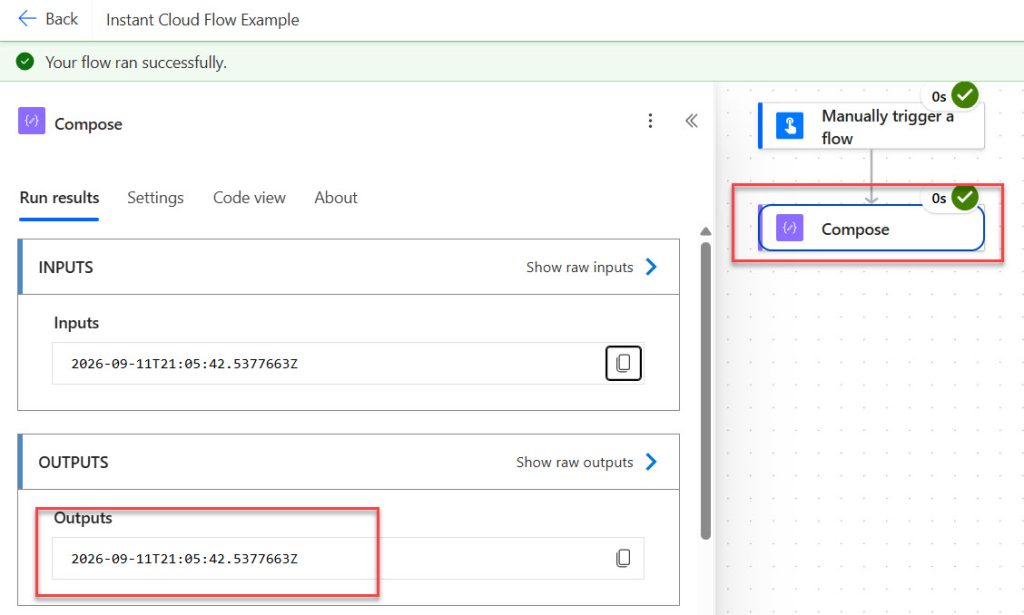
addDays(utcNow(), 7)Output: 2026-09-11T21:05:42.5377663Z
utcNow() returns the current UTC timestamp, so this is your go-to for “X days from now.”
Here is the exact output in the screenshot below:
Subtract days
addDays(utcNow(), -30, 'yyyy-MM-dd')Output: "2026-08-05"
A negative number moves backwards. This is how you build “last 30 days” logic.
Format the output for display
addDays(utcNow(), 14, 'dd MMMM yyyy')Output: 19 September 2026
Useful when the date is going into an email body or a Teams message rather than back into a data source. If you want more control over how dates read in text — like turning 19 into 19th — have a look at formatting dates with ordinal suffixes in Power Automate.
Add days to a date from another action
addDays(triggerOutputs()?['body/StartDate'], 5, 'yyyy-MM-dd')You can also use the dynamic content picker and wrap it in the expression editor. The key point is that the input must already be a valid date string. If it’s coming from a text column, you may need formatDateTime() around it first.
Chain it with other date functions
addDays(startOfMonth(utcNow()), 14, 'yyyy-MM-dd')Output: 2026-09-15
startOfMonth() gives you the first of the month, then addDays() moves you forward. Chaining is where these functions get genuinely powerful.
SharePoint Examples
Here’s where addDays() does real work.
Example 1: Set a Due Date on a New SharePoint Item
Scenario: Your team uses a SharePoint list called Support Tickets. When a ticket is created, it should get a due date five days out.
Flow setup:
- Trigger: When an item is created (SharePoint)
- Action: Update item
In the Due Date field, use:
addDays(utcNow(), 5, 'yyyy-MM-dd')SharePoint date columns accept yyyy-MM-dd reliably. If your column includes time, use:
addDays(utcNow(), 5, 'yyyy-MM-ddTHH:mm:ssZ')Example 2: Contract Expiry Reminders
This is the flow I mentioned at the top — here’s the version that actually works.
- Trigger: Recurrence (daily, 8:00 AM)
- Action: Get items (SharePoint)
In the Filter Query field:
ExpiryDate eq '@{addDays(utcNow(), 30, 'yyyy-MM-dd')}'This returns only contracts expiring exactly 30 days from today. Two things to watch:
- The expression must sit inside
@{ }when mixed with literal text in a filter query. - The internal column name matters, not the display name. Check it in list settings if the filter returns nothing.
That second point is what caught me out. My column displayed as “Expiry Date” but the internal name was Expiry_x0020_Date. The filter didn’t error — it just matched nothing.
If you’d rather catch a window instead of a single day:
ExpiryDate ge '@{addDays(utcNow(), 28, 'yyyy-MM-dd')}' and ExpiryDate le '@{addDays(utcNow(), 30, 'yyyy-MM-dd')}'I now default to windows rather than exact matches. If the flow fails one morning for an unrelated reason, an exact-day filter means that contract is missed forever.
Example 3: Archive Old Items
Scenario: Move Feedback list items older than 90 days into an archive list.
Get items filter query:
Created lt '@{addDays(utcNow(), -90, 'yyyy-MM-dd')}'Then loop through the results with Apply to each and create items in the archive list.
Example 4: Staggered Onboarding Tasks
Scenario: When HR adds a new starter to a SharePoint list, create three tasks at day 1, day 7 and day 30.
Use three Create item actions, each with a different expression against the start date:
addDays(triggerOutputs()?['body/StartDate'], 1, 'yyyy-MM-dd')
addDays(triggerOutputs()?['body/StartDate'], 7, 'yyyy-MM-dd')
addDays(triggerOutputs()?['body/StartDate'], 30, 'yyyy-MM-dd')
This is a good example of logic that would be painful to maintain manually and takes about ten minutes to build properly.
addDays() vs the Alternatives
addDays() isn’t the only option, and it isn’t always the best one.
addToTime()
addToTime(utcNow(), 2, 'Month', 'yyyy-MM-dd')addToTime() accepts a unit — Second, Minute, Hour, Day, Week, Month, Year. Use it when you’re working in anything other than days. “Two months from now” is not the same as “60 days from now,” and addToTime() handles month-length differences correctly.
Rule of thumb: days → addDays(). Anything else → addToTime().
getPastTime() and getFutureTime()
getPastTime(30, 'Day', 'yyyy-MM-dd')
getFutureTime(7, 'Day', 'yyyy-MM-dd')
These are shorthand for offsets from now. They’re more readable than addDays(utcNow(), -30) when the starting point is always the current time. But they can’t work from an arbitrary date, which is exactly what addDays() is for.
Calculating dates in Power Apps instead
If the date logic is purely for display in a canvas app, doing it in the app is often faster and avoids a flow run entirely. Power Fx has DateAdd() and DateDiff() for this — see calculating the difference between two dates in Power Apps.
The trade-off: app-side calculations don’t run when nobody has the app open. If the date needs to trigger something (an email, a status change, an archive), it belongs in a flow.
Calculated columns in SharePoint
SharePoint calculated columns can do simple date maths like =[Created]+30. They’re free, instant and require no flow.
But they only recalculate when the item is edited, they can’t trigger actions, and they’re awkward to filter on. Use them for static derived values, not for anything time-sensitive.
Common Issues
Time zones. utcNow() returns UTC. If your users are in Sydney or London, “today” in the flow may not match “today” on their screen. Wrap it with convertTimeZone() when the exact day matters:
addDays(convertTimeZone(utcNow(), 'UTC', 'AUS Eastern Standard Time'), 7, 'yyyy-MM-dd')Wrong input type. If the source column is single line of text rather than a date column, addDays() will fail. Convert it first with formatDateTime().
Filter query quoting. SharePoint OData filters need single quotes around date literals and @{ } around expressions. Missing either produces a vague error — or worse, no error and no results.
Working days. addDays() counts calendar days. There’s no built-in business-day function. If you need to skip weekends, you’ll need a loop with a dayOfWeek() check, or an approximation like adding weeks.
Record limits. Get items returns 100 records by default. If you’re filtering large lists, raise the top count and turn on pagination. The concept is similar to delegation in Power Apps — filter at the source, not after retrieval.
A blank due date is one of the most common reasons addDays() fails on SharePoint items. Here’s how to check for blank values before the calculation.
Choosing the Right Approach
The right approach depends on three questions:
- What unit are you working in? Days →
addDays(). Months, years, hours →addToTime(). - Where does the date come from? Always “now” →
getPastTime()/getFutureTime()for readability. From a record or variable →addDays(). - Does the date need to trigger something? Yes → build it in Power Automate. No, it’s display only → consider a Power Apps formula or a SharePoint calculated column instead.
For most SharePoint scenarios — due dates, reminders, archiving, expiry checks — addDays() with an explicit yyyy-MM-dd format is the safest default.
Wrapping Up
Power Automate addDays() is a small function, but it is widely used in many real business automations. Test it in an instant cloud flow with a Compose action, always format the output explicitly, use date ranges instead of exact matches in filter queries, and watch your time zones.
And when a flow runs green every day but nothing happens — check the filter query first. That one lesson has saved me more time than any other.
If you’re building out broader Power Platform skills, you might also find these useful:

Bijay Kumar is a 13-times Microsoft MVP in Business Applications with over 18 years of experience in the IT industry, recognized for his contributions to the Microsoft community. He is the Founder of TSinfo Technologies and shares practical, tested tutorials on Power Apps, Power Automate, Copilot Studio, and Power BI here on Power Platform FAQs. Read more.