
To build a Power Automate condition if blank check, add a Condition with empty(triggerBody()?['CustomerNotes']) on the left, choose is equal to, and enter the expression true on the right. The True branch runs when the field has no value.
That covers most flows, but blank isn’t always one thing. A SharePoint date can be null, an Excel cell can hold an empty string, and a Forms answer can be nothing but spaces.
Below are the exact expressions I use in the new designer for SharePoint, Forms, Excel, Dataverse, arrays, and trigger conditions, plus the errors that trip people up most.
What Does a Condition If Blank Do in Power Automate?
A Power Automate condition if blank means the flow tests whether a value has no usable content before it runs the next action.
In most flows, that means checking for null, an empty string, an empty array, or a missing property, then sending the run down the True or False branch.
Blank is a business idea, not one single data type. A missing due date, an optional Forms answer, and an empty SharePoint person column all look blank to a user, but they may arrive in the flow payload differently.
The most common solution is the empty() expression. For example, if the Comments field has no value, this expression returns true:
empty(triggerBody()?['Comments'])Key point: In the Condition action, compare the result to the expression
true, not the text string'true'.
Stop Sending Incomplete Emails
Blank checks prevent awkward messages like Hello , your request is approved. Instead, you can replace missing values with N/A, skip the email, or send the item to a data-quality review path.
Avoid Failed Date and Number Formatting
Functions such as formatDateTime() and formatNumber() expect a real value. If a SharePoint date or number column is blank, wrap the action in a condition or use an inline fallback before formatting.
If your flow also formats dates, this Power Automate formatDateTime guide pairs well with the examples below.
Keep Apply to Each Loops Clean
Blank rows from Excel, optional attachments, and empty arrays from Get items can create unnecessary loops. A blank check lets the flow stop early or filter out rows before the main business logic runs.
How Do You Use empty() in a Condition If Blank?
To use empty() in a Condition if blank, add a Condition action, put an empty(value) expression on the left side, choose is equal to, and put the expression true on the right side. The True branch runs when the value is blank.
Follow these steps in the new designer:
- Open your cloud flow and select + where the check should run.
- Select Add an action.
- Search for Condition and choose the Condition control.
- In the left value box, select fx and enter your
empty()expression. - Set the operator to is equal to.
- In the right value box, select fx and enter
true. - Put your blank-value actions in True and your normal actions in False.
For a SharePoint text column named Customer Notes, the expression might be:
empty(triggerBody()?['CustomerNotes'])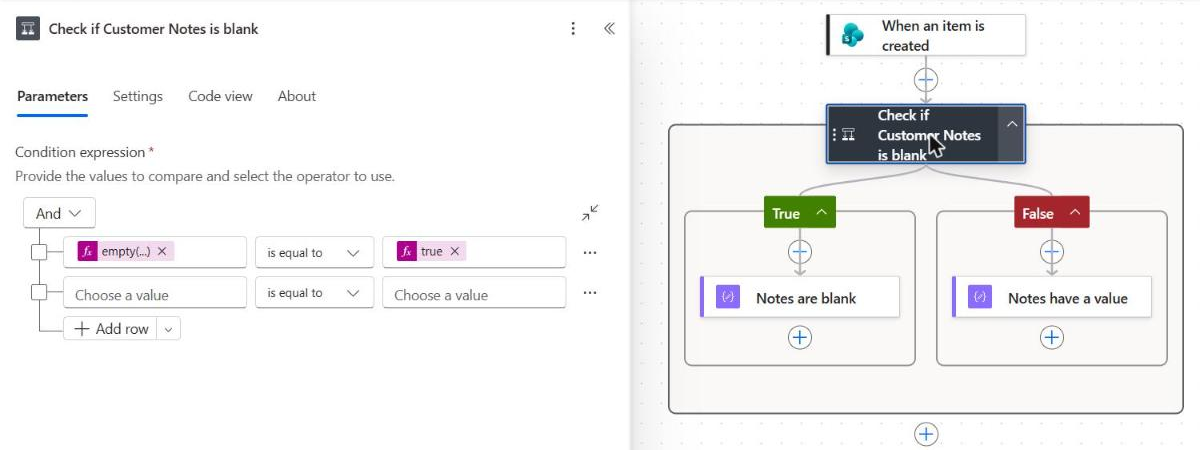
Watch out: If you type
truedirectly into the text box instead of using the expression editor, the designer may treat it as a string. Always use the fx expression value for booleans.
New to cloud flows? The step-by-step Power Automate tutorials cover triggers, actions, and expressions from the ground up.
1. Text Column Is Blank
Use empty() for normal blank text fields:
empty(triggerBody()?['Title'])This is the simplest expression for optional names, comments, descriptions, and single-line text columns.
2. Text Column Is Blank or Spaces Only
Use trim() when users enter spaces:
empty(trim(coalesce(triggerBody()?['CustomerNotes'], '')))coalesce() turns a null value into an empty string first. Then trim() removes spaces before empty() checks the result.
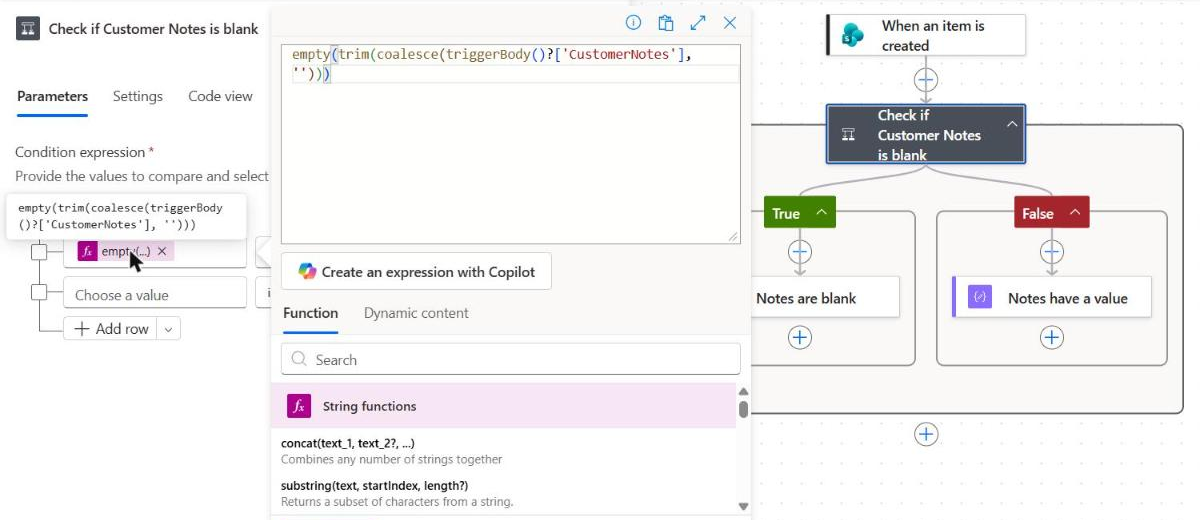
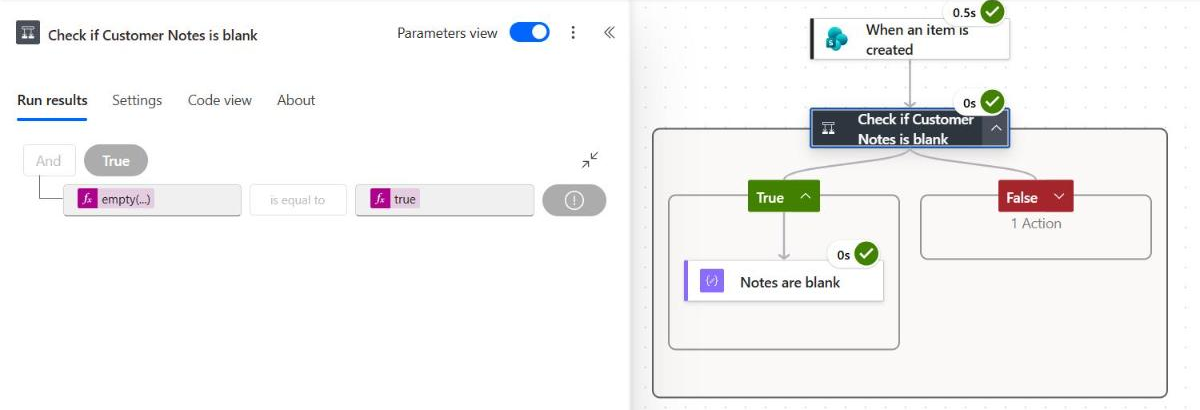
I tested this on a SharePoint item whose Customer Notes held only two spaces. Plain empty() would call that text, but the trimmed version sent the run down the True branch:
3. Field Is Not Blank
Wrap the blank check in not():
not(empty(triggerBody()?['CustomerNotes']))Use this when the Yes branch should run only when a user entered a value.
Is Blank Different From Null or Empty String?
Yes. In Power Automate, blank is the plain-English result you want, while null, '', [], and {} are different technical representations. The right expression depends on whether the connector returns a missing value, an empty text value, an empty collection, or an empty object.
| Value Type | Example | What It Means | Best Check |
|---|---|---|---|
| Null | null | No value exists | equals(value, null) or empty(value) |
| Empty string | '' | Text exists but has no characters | empty(value) |
| Whitespace string | ' ' | Text has spaces only | empty(trim(coalesce(value, ''))) |
| Empty array | [] | No rows or items | empty(array) or length(array) is 0 |
| Empty object | {} | Object has no properties | empty(object) |
| Missing property | property not present | Path cannot be found | Use ? safe navigation |
The Microsoft expression reference documents empty() for strings, arrays, and objects. In real connector payloads, nullable fields often work well with empty(), but equals(value, null) is clearer when you specifically want to detect null.
4. Compare Directly to Null
Use this when you want to know whether a property is truly null:
equals(triggerBody()?['DueDate'], null)In the Condition UI, you can also put the date field on the left and compare it to the expression null on the right.
5. Replace Null With a Safe Fallback
Use coalesce() when you want the first non-null value:
coalesce(triggerBody()?['CustomerName'], 'N/A')This is excellent for email bodies and table outputs. If the customer name is null, the flow uses N/A instead.
6. Use Safe Navigation for Missing Properties
The question mark operator prevents the flow from failing when a property path is missing:
triggerBody()?['AssignedTo']?['Email']Without ?, a missing person object can cause a runtime error before your condition gets a chance to decide what to do.
Which Blank Check Expression Should You Use?
Use empty() for most blank text, arrays, and objects; use equals(value, null) when you must distinguish null from an empty string; use length() when counting rows matters; use coalesce() when you need a fallback value instead of a Condition branch.
Here is the practical rule of thumb:
- Use
empty()for simple blank checks. - Use
not(empty())for not blank checks. - Use
equals(value, null)when the connector returns a true null. - Use
length(array)when you need the number of items. - Use
coalesce()when you want to display a default. - Use
trim()when users may enter spaces.
For flows that should not even start unless a value is present, use trigger conditions instead of adding a Condition after the trigger. This Power Automate trigger conditions tutorial explains that pattern in more depth.
7. Use length() for an Empty Array
This expression returns true when Get items returns no rows:
equals(length(body('Get_items')?['value']), 0)length() is useful when you also want to log how many records were found.
8. Use empty() for an Empty Array
This version is shorter and easier to read:
empty(body('Get_items')?['value'])Both approaches are valid. Choose the one that makes the flow easiest for your team to maintain.
9. Use an Inline if() to Show N/A
Use if() when you do not need a separate branch:
if(empty(triggerBody()?['CustomerName']), 'N/A', triggerBody()?['CustomerName'])This works well in email bodies, Teams messages, HTML table columns, and approval details.
How Do You Check Blank Fields by Connector?
Different connectors return blank values in different shapes. SharePoint choice and person columns are objects, Forms optional answers are usually text values, Excel empty cells often behave like empty strings, and Dataverse columns commonly return null when no value is stored.
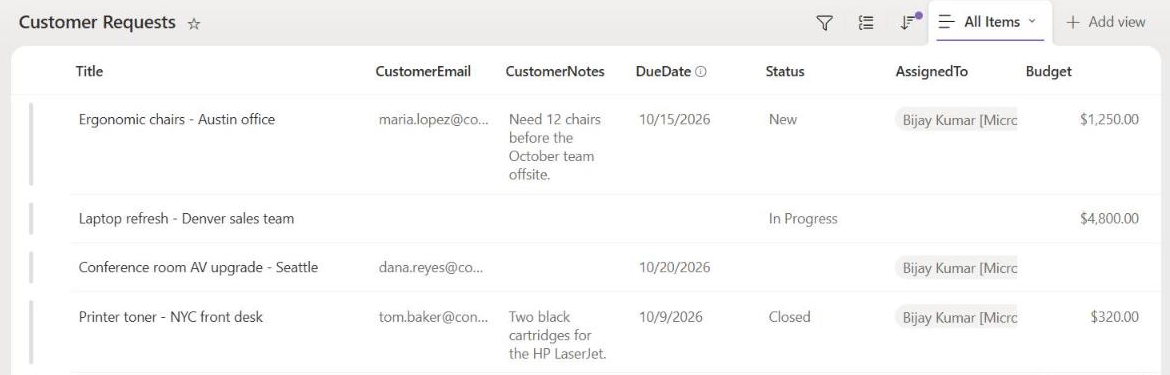
Here’s the demo SharePoint list I used for the examples below. Several rows have no email, notes, due date, status, or assigned person:
10. SharePoint Text, Date, and Number Columns
Text is straightforward:
empty(triggerBody()?['Title'])For a SharePoint date column named Due Date with internal name DueDate, check blank before formatting:
empty(triggerBody()?['DueDate'])For a number column named Budget, use the same pattern:
empty(triggerBody()?['Budget'])If you later calculate due dates, keep time zones and date-only columns in mind. This Power Automate addDays tutorial is useful when the blank date becomes a calculated deadline.
11. SharePoint Choice, Person, and Lookup Columns
Choice, person, and lookup fields are usually objects. Check the property you actually need:
empty(triggerBody()?['Status']?['Value'])empty(triggerBody()?['AssignedTo']?['Email'])empty(triggerBody()?['Project']?['Value'])Heads up: For multi-select choice, multi-person, or multi-lookup columns, the value is usually an array. Check the array itself with
empty()before using its first item.
12. Microsoft Forms Optional Questions
Optional Forms answers can be blank when the responder skips a question. Use the dynamic content token or the response body path generated by your flow:
empty(outputs('Get_response_details')?['body/r7c9f2b1a4d8e4a1a9f0d2a1c3b5e6f7'])For readability, consider renaming the Forms question action output in a Compose action first, then checking that Compose output.
13. Excel Empty Cells and Blank Rows
Excel Online empty cells often come through as empty strings. Check a specific cell like this:
empty(item()?['Email'])To remove blank rows from a table, add a Filter array action and keep rows where a required column is not blank:
not(empty(trim(coalesce(item()?['Email'], ''))))This avoids creating approvals, emails, or Dataverse rows for empty spreadsheet lines.
14. Dataverse Null Columns
Dataverse optional columns commonly return null when no value is stored. A direct null check is clear:
equals(outputs('Get_a_row_by_ID')?['body/emailaddress1'], null)For display values, use coalesce():
coalesce(outputs('Get_a_row_by_ID')?['body/emailaddress1'], 'N/A')If you store dates in variables before checking them, this guide to setting a variable to today’s date in Power Automate can help you keep the fallback logic consistent.
How Do You Check Empty Arrays and Attachments?
To check empty arrays and attachments, test the array returned by the previous action. Use empty(array) for a yes-or-no check, or equals(length(array), 0) when you also need the count for logging, branching, or troubleshooting.
15. Get Items Returned No Rows
For SharePoint Get items, the rows are in the value array:
empty(body('Get_items')?['value'])If the result is blank, you can skip the email, create a log entry, or terminate the flow successfully.
16. Filter Array Returned No Matches
For a Filter array action named Filter_active_requests, use the body output:
empty(body('Filter_active_requests'))This is one of the cleanest ways to stop a flow when no rows meet your criteria.
17. SharePoint Attachments Exist
After Get attachments, check the returned array:
not(empty(body('Get_attachments')))If the expression is true, the item has at least one attachment. If it is false, the attachments array is blank.
How Do You Handle Not Blank and Multiple Checks?
For not blank logic, wrap your blank expression in not(). For multiple fields, combine checks with or() when any blank value should trigger the branch, or and() when every required value must be present before the flow continues.
Use or() when missing any required value should send the record to an error path:
or(
  empty(triggerBody()?['Title']),
  empty(triggerBody()?['DueDate']),
  empty(triggerBody()?['AssignedTo']?['Email'])
)
Use and() when all fields must be filled before the flow continues:
and(
  not(empty(triggerBody()?['Title'])),
  not(empty(triggerBody()?['DueDate'])),
  not(empty(triggerBody()?['AssignedTo']?['Email']))
)
For trigger conditions, add the expression under the trigger Settings so the flow does not run unless the value is present:
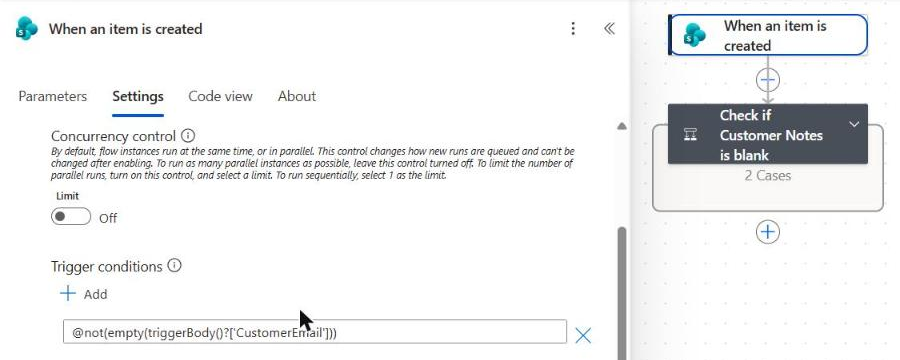
@not(empty(triggerBody()?['CustomerEmail']))Trigger conditions use the @ prefix because they are stored as expressions in the trigger settings.
In the new designer, select the trigger, open the Settings tab, and select + Add under Trigger conditions. Then paste the expression:
The same and/or thinking applies in canvas apps. If you build both, compare this with multiple If statements in Power Apps.
Why Is Your Blank Condition Not Working?
A blank condition usually fails for one of five reasons: the wrong property path, comparing to the string 'true' instead of the boolean true, spaces that count as text, the wrong data type, or an array checked like a single field.
| # | Problem | Fix |
|---|---|---|
| 1 | Condition compares to 'true' | Use the expression true, not a typed string. |
| 2 | SharePoint choice always looks blank | Check ?['Value'], not the whole choice object. |
| 3 | Person column fails | Use ?['Email'] or ?['DisplayName'] with safe navigation. |
| 4 | Excel row contains spaces | Use empty(trim(coalesce(value, ''))). |
| 5 | Date formatting fails | Check blank before formatDateTime(). |
| 6 | Get items condition never works | Check body('Get_items')?['value'], not the whole body. |
| 7 | Filter array output is misunderstood | Check body('Filter_array'), which is the filtered array. |
| 8 | Null expression is typed as text | Use fx and enter null. |
| 9 | Missing object property causes InvalidTemplate | Add ? safe navigation to each object level. |
| 10 | empty() receives a number in strict scenarios | Use equals(value, null) for nullable numbers or convert carefully. |
| 11 | Multi-select column treated as text | Check the array first, then loop or join values. |
| 12 | Trigger condition never fires | Use @not(empty(...)) in trigger settings and save the flow. |
The error The template language function ’empty’ expects its parameter to be an object, an array or a string usually means you passed a value type the function cannot evaluate in that context.
Check the run history output, confirm the property path, and use equals(value, null) for pure null comparisons.
Power Automate Condition If Blank Cheat Sheet
The Power Automate if blank cheat sheet is a quick set of expressions for the most common conditions: blank text, not blank text, null values, whitespace-only strings, empty arrays, SharePoint lookup fields, person email fields, and fallback display values.
| Scenario | Expression |
|---|---|
| Text is blank | empty(triggerBody()?['Title']) |
| Text is not blank | not(empty(triggerBody()?['Title'])) |
| Spaces count as blank | empty(trim(coalesce(triggerBody()?['Title'], ''))) |
| Value is null | equals(triggerBody()?['DueDate'], null) |
| Use fallback text | coalesce(triggerBody()?['CustomerName'], 'N/A') |
| Inline fallback | if(empty(triggerBody()?['CustomerName']), 'N/A', triggerBody()?['CustomerName']) |
| SharePoint choice blank | empty(triggerBody()?['Status']?['Value']) |
| SharePoint person email blank | empty(triggerBody()?['AssignedTo']?['Email']) |
| Get items returned no rows | empty(body('Get_items')?['value']) |
| Get items row count is zero | equals(length(body('Get_items')?['value']), 0) |
| Attachments exist | not(empty(body('Get_attachments'))) |
| Trigger only when not blank | @not(empty(triggerBody()?['CustomerEmail'])) |
Pro tip: Name your actions clearly before copying expressions.
body('Get_items')is easier to read and maintain thanbody('Get_items_3').
What Are the Best Practices for Blank Checks?
The best blank-check pattern is consistent, readable, and close to the point where bad data enters the flow. Normalize optional values early, name actions clearly, inspect run history before guessing, and choose one team standard for null, empty string, whitespace, and empty-array checks.
Normalize Values Before Business Logic
If a field is used many times, add a Compose action near the start of the flow and store the cleaned value there:
trim(coalesce(triggerBody()?['CustomerEmail'], ''))Then every later action can reference the Compose output instead of repeating a long expression. This also makes troubleshooting easier because the run history shows the normalized value in one place.
Dates work the same way. Once a date can never be blank, you can format it safely, even with ordinal suffixes like 1st and 22nd.
Keep Data Validation Separate From Processing
Put required-field checks before approvals, emails, updates, and child flows. If a required value is blank, send the item to a clear exception path, update a status column, or terminate the flow with a friendly message.
This structure is easier to maintain than hiding blank checks inside every action. It also helps business users understand why one item did not move forward.
Prefer Explicit Property Paths
Do not check an entire complex object when you really need one property. For example, a SharePoint person object may contain claims, display name, email, department, and job title. If the business rule needs an email address, check ?['Email'].
The same rule applies to choice and lookup columns. Checking the visible Value property is more reliable than checking the wrapper object.
Test With Real Blank Samples
Create one test item for each blank type you expect: no date, no person, no choice, an Excel row with spaces, an empty Forms answer, and a query that returns no rows. Then run the flow and inspect the raw outputs.
Do not rely only on the designer preview. Runtime payloads are the source of truth, especially when connectors change optional fields or omit properties that have no value.
Use Terminate for Expected No-Data Runs
When a scheduled flow finds no rows, that is often a successful result, not an error. After a blank array check, add Terminate with Status set to Succeeded and a message like No open requests found.
This keeps your run history clean and prevents owners from investigating healthy runs that simply had no data to process.
Frequently Asked Questions
What is the best way to check if a field is blank in Power Automate?
The best general method is empty(value) compared to the expression true in a Condition action. Use equals(value, null) when you specifically need to test for null instead of any blank-like value.
Does empty() return true for an empty string in Power Automate?
Yes. An empty string like '' returns true with empty(), while a normal text value returns false. Microsoft documents empty() as a function for strings, arrays, and objects in the official workflow expression functions reference.
How do I check if Get items returned nothing?
Check the value array returned by *Get items*. Use empty(body('Get_items')?['value']) for a simple blank check or equals(length(body('Get_items')?['value']), 0) if you prefer a count-based condition.
How do I check if a value is not blank?
Use not(empty(value)). For example, not(empty(triggerBody()?['CustomerEmail'])) returns true when the email field has a value and false when it is blank.
Can I skip the flow when a trigger value is blank?
Yes. Open the trigger Settings in the new designer and add a trigger condition such as @not(empty(triggerBody()?['CustomerEmail'])). The flow run is skipped when the value is blank.
Conclusion
Power Automate condition if blank logic is reliable when you match the expression to the data shape. Use empty() for most text and arrays, equals(value, null) for true null checks, trim() for whitespace, and coalesce() or if() when you need a friendly fallback.
Quick recap:
- Compare
empty()to the expressiontrue, not the string'true'. - Use safe navigation like
?['Email']for optional objects. - Check SharePoint choice, lookup, and person subproperties.
- Check arrays from Get items, Filter array, and attachments before looping.
- Move not blank checks into trigger conditions when the flow should not start.
Drop your scenario in the comments if a blank value is still confusing your flow, especially if it comes from SharePoint, Excel, Forms, or Dataverse.
More Power Platform Tutorials
Still deciding where blank checks belong, in the app or in the flow? These tutorials help you pick the right tool and clean up the data before it ever reaches a condition:
- Power Apps vs Power Automate: which one to use
- Power Automate vs Power BI for reporting workflows
- using the Switch function in Power Apps
- converting text to a number in Power Apps

Bijay Kumar is a Microsoft MVP in Business Applications with over 18 years of experience in the IT industry and more than 12 years as a Microsoft MVP, recognized for his contributions to the Microsoft community. He is the Founder of TSinfo Technologies and the creator of the popular technology platforms SPGuides.com and EnjoySharePoint.com. Bijay also runs the SPGuides YouTube channel, where he shares practical tutorials on Microsoft 365, SharePoint, Power Platform, and Copilot technologies. Read more.