
The Power Automate Create HTML table action turns an array of objects into an HTML <table> you can drop into an email. Put the array in From, then reference body('Create_HTML_table') in the email body.
In this tutorial, we’ll build that flow from a real SharePoint list, pick clean columns, add styling, and send it with Outlook. I also ran eight edge-case tests, so you’ll see the exact errors before your flow hits them.
What Does the Create HTML Table Action Do?
It’s a built-in Data Operation action. It reads an array where each item is an object, makes one table row per item, and writes the property names into a header row.
The output is plain HTML text: <table>, <thead>, <th> and <td> tags, with no styling. That’s why it shows up as a bare grid until you add CSS.
It has only two settings. From takes the array, and the optional Columns setting under Advanced parameters switches between Automatic and Custom.
If you’re new to flows, my Power Automate tutorials hub covers triggers, actions, and expressions in order.
What Will We Build?
A flow that reads a SharePoint list called Customer Requests, keeps the requests that aren’t closed, and emails them as a table.
The list has six US office requests with Title, CustomerEmail, DueDate, a Status choice column, an AssignedTo person column, and a Budget currency column.
Some rows are blank on purpose. Two have no due date, one has no status, and one has no budget. Real lists look like that, and blanks are what break most HTML table flows.
Not sure a flow is the right tool for a report? Read Power Apps vs Power Automate first.
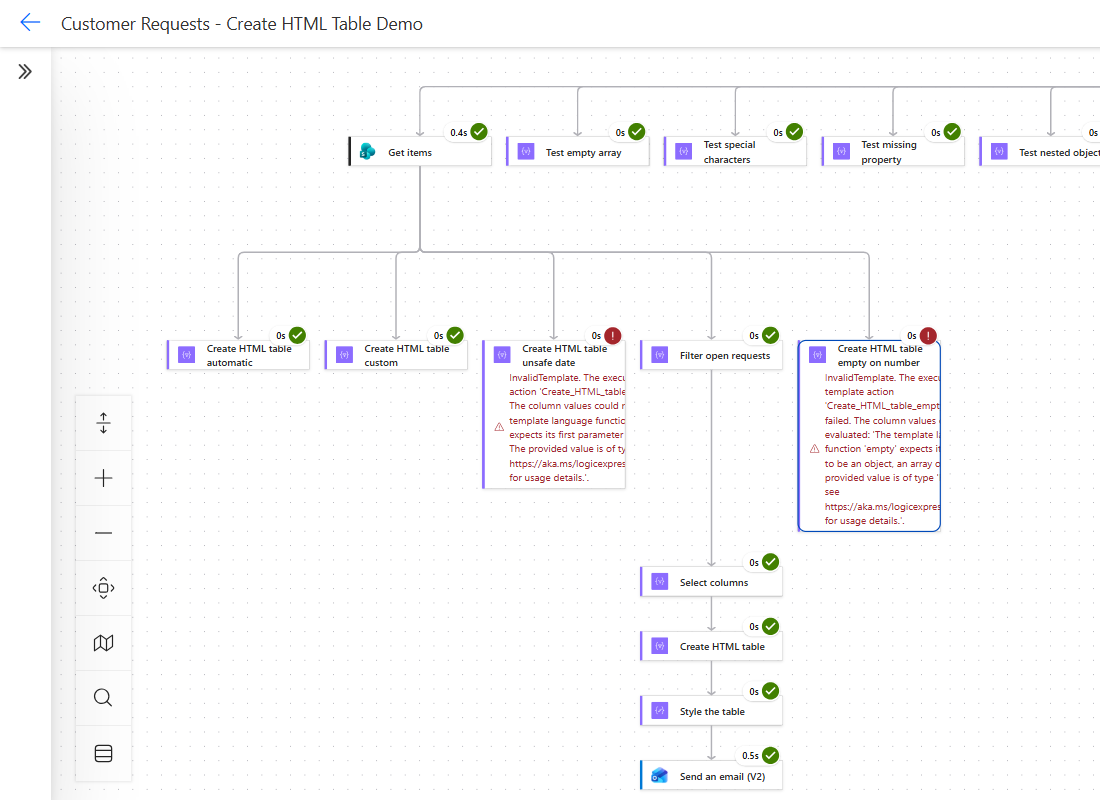
Here’s the whole test flow after one run. The main path runs down the middle, and the side branches are the edge-case tests.
How Do You Create an HTML Table in Power Automate Step by Step?
Follow these steps in the new designer. Each one maps to a card in the run above.
- Go to make.powerautomate.com, select Create, then Instant cloud flow. Pick Manually trigger a flow and select Create.
- Select the plus sign under the trigger, search Get items, and pick the SharePoint action. Choose your Site Address and List Name.
- Add Filter array to drop closed rows (step details below).
- Add Select to choose and rename the columns.
- Add Create HTML table and set From to the Select output.
- Add Compose to style the table, then Send an email (V2).
- Select Save, then Test > Manually > Run flow.
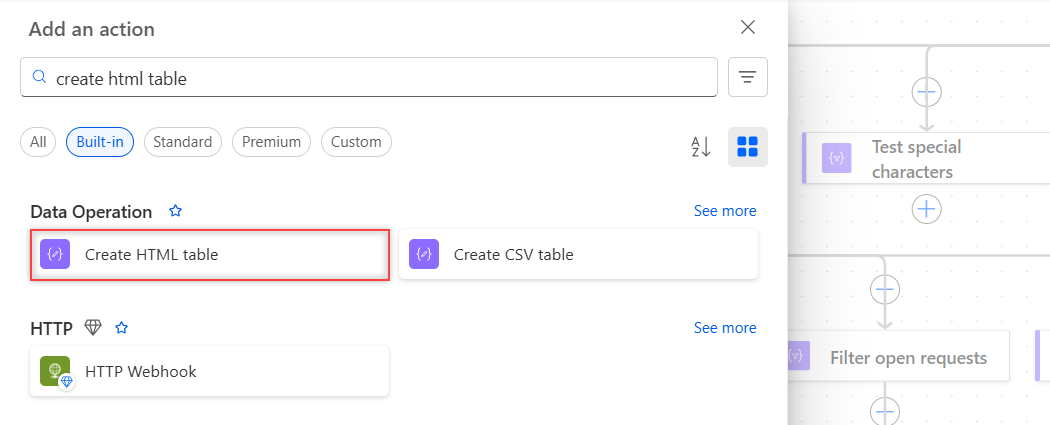
To find the action, type create html table in the Add an action search box. The Built-in filter brings it to the top under Data Operation.
Filtering first keeps the email short. My Filter array used body/value from Get items as From, with this condition in advanced mode:
@not(equals(item()?['Status']?['Value'], 'Closed'))It returned 5 of the 6 rows. The row with a blank status stayed in, because a null value isn’t equal to “Closed”. If you’d rather check for blanks first, my guide to the Power Automate condition if blank shows the safe tests.
Why Does Automatic Columns Give You a Messy Table?
Because it copies every property in the array. When I pointed Create HTML table straight at the SharePoint Get items output with Columns left on Automatic, the table had 29 columns for a list with six real fields.
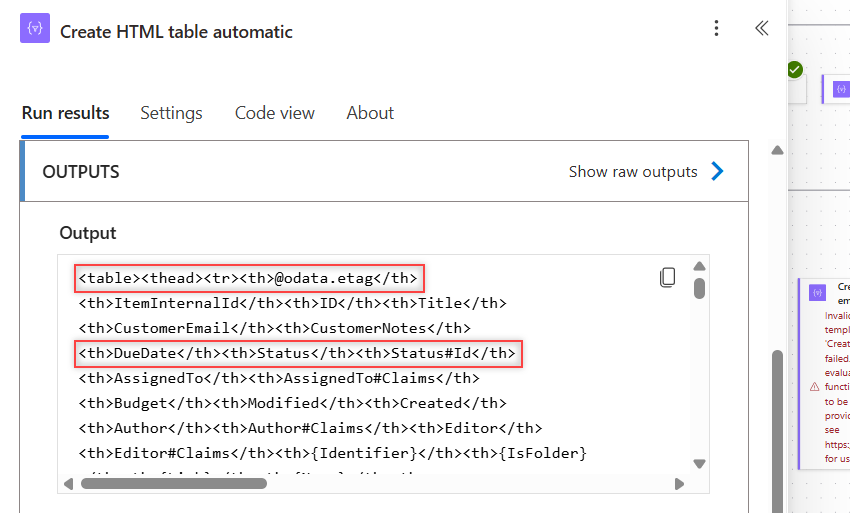
Here’s the full header row from that run, so you can see all 29 columns without zooming into the screenshot:
<table><thead><tr><th>@odata.etag</th>
<th>ItemInternalId</th><th>ID</th>
<th>Title</th><th>CustomerEmail</th>
<th>CustomerNotes</th><th>DueDate</th>
<th>Status</th><th>Status#Id</th>
<th>AssignedTo</th><th>AssignedTo#Claims</th>
<th>Budget</th><th>Modified</th>
<th>Created</th><th>Author</th>
<th>Author#Claims</th><th>Editor</th>
<th>Editor#Claims</th><th>{Identifier}</th>
<th>{IsFolder}</th><th>{Link}</th>
<th>{Name}</th><th>{FilenameWithExtension}</th>
<th>{Path}</th><th>{FullPath}</th>
<th>{ContentType}</th><th>{ContentType}#Id</th>
<th>{HasAttachments}</th><th>{VersionNumber}</th></tr></thead>
And this is the Status cell from the first row, exactly as the action wrote it:
<td>{"@odata.type":"#Microsoft.Azure.Connectors.SharePoint.SPListExpandedReference","Id":0,"Value":"New"}</td>The extra headers were system fields such as @odata.etag, {Identifier}, {Path}, and {VersionNumber}. Worse, the Status cell held raw JSON with an @odata.type and an Id, not the word “New”.
The person column was the same. AssignedTo showed a JSON block with the claims string, email, and picture URL. Nobody wants that in an inbox, so you need Custom columns or a Select action.
How Do You Choose Custom Columns in Create HTML Table?
Open Advanced parameters, turn on Columns, and change it to Custom. You’ll get Header and Value boxes, one pair per column.
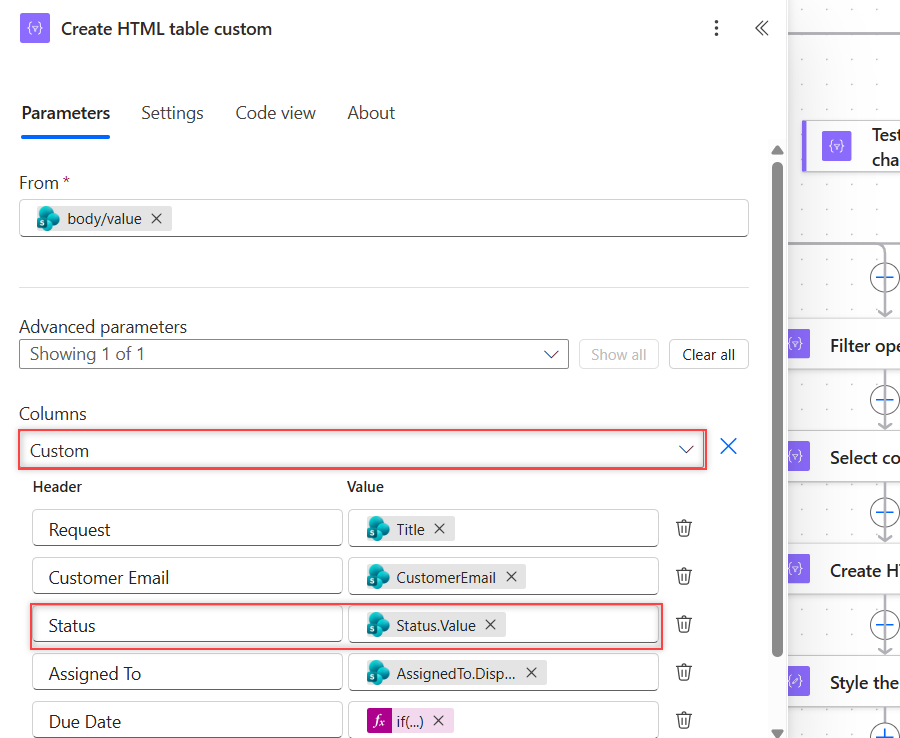
Choice and person columns need their inner property. These are the values I used:
| Header | Value expression |
|---|---|
| Request | item()?['Title'] |
| Status | item()?['Status']?['Value'] |
| Assigned To | item()?['AssignedTo']?['DisplayName'] |
| Due Date | if(empty(item()?['DueDate']), '', formatDateTime(item()?['DueDate'], 'MMM d, yyyy')) |
| Budget | if(equals(item()?['Budget'], null), '', formatNumber(item()?['Budget'], 'C2', 'en-US')) |
That produced six clean columns: “New” instead of JSON, “Oct 15, 2026” instead of 2026-10-15, and “$1,250.00” for the budget. For other date patterns, see my formatDateTime() examples.
If you’d rather paste than click, this is the action’s Code view from my flow. From is the Get items output:
{
  "type": "Table",
  "inputs": {
    "from": "@outputs('Get_items')?['body/value']",
    "format": "HTML",
    "columns": [
      { "header": "Request", "value": "@item()?['Title']" },
      { "header": "Customer Email", "value": "@item()?['CustomerEmail']" },
      { "header": "Status", "value": "@item()?['Status']?['Value']" },
      { "header": "Assigned To", "value": "@item()?['AssignedTo']?['DisplayName']" },
      { "header": "Due Date", "value": "@if(empty(item()?['DueDate']), '', formatDateTime(item()?['DueDate'], 'MMM d, yyyy'))" },
      { "header": "Budget", "value": "@if(equals(item()?['Budget'], null), '', formatNumber(item()?['Budget'], 'C2', 'en-US'))" }
    ]
  }
}
Why Does Create HTML Table Fail on Blank Values?
Usually it’s not the table. It’s an expression inside a column that can’t handle null. Two of my test columns failed the whole action with InvalidTemplate.
A date column without a blank check failed on the rows with no due date:
The template language function 'formatDateTime' expects its first parameter to be of type string. The provided value is of type 'Null'.The surprise was the number column. Wrapping Budget in empty() also failed, even though most guides recommend it:
The template language function 'empty' expects its parameter to be an object, an array or a string. The provided value is of type 'Float'.So use empty() for text and dates, and equals(x, null) for number and currency columns. If a number arrives as text, convert the string to an integer first.
Should You Use Select Before Create HTML Table?
I prefer it. A Select action reshapes each item first, and then Create HTML table runs on Automatic with nothing to configure. The column order in the email follows the order of the Map rows.
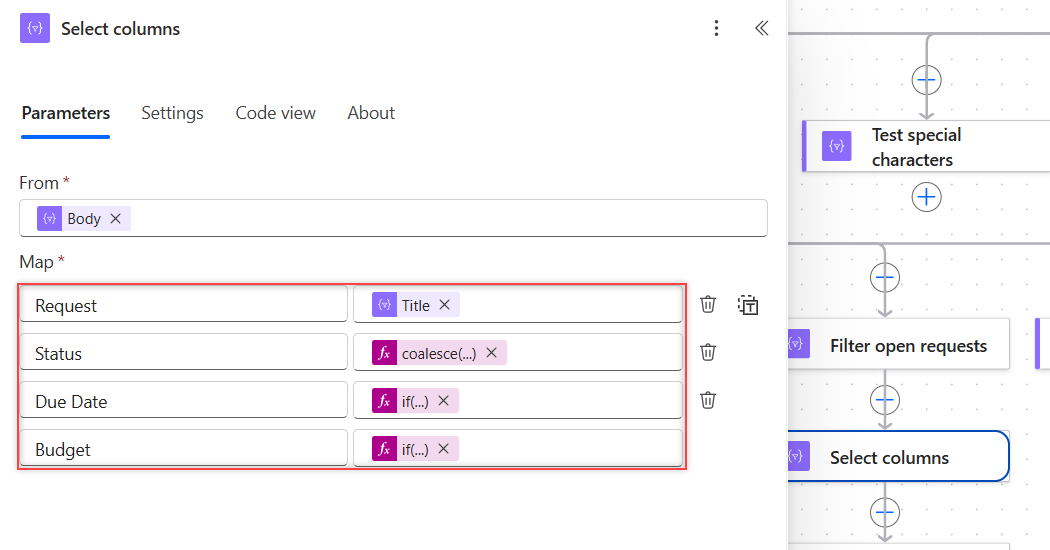
Select also lets you replace blanks with readable text. I used coalesce() for a missing status and a fallback for the date:
coalesce(item()?['Status']?['Value'], 'Not set')
if(empty(item()?['DueDate']), 'No date', formatDateTime(item()?['DueDate'], 'MMM d, yyyy'))
if(equals(item()?['Budget'], null), '-', formatNumber(item()?['Budget'], 'C0', 'en-US'))
Here’s the whole Select action in Code view, with From set to the Filter array output:
{
  "type": "Select",
  "inputs": {
    "from": "@body('Filter_open_requests')",
    "select": {
      "Request": "@item()?['Title']",
      "Status": "@coalesce(item()?['Status']?['Value'], 'Not set')",
      "Due Date": "@if(empty(item()?['DueDate']), 'No date', formatDateTime(item()?['DueDate'], 'MMM d, yyyy'))",
      "Budget": "@if(equals(item()?['Budget'], null), '-', formatNumber(item()?['Budget'], 'C0', 'en-US'))"
    }
  }
}
Then set From in Create HTML table to the Select Output and leave Advanced parameters alone. “Showing 0 of 1” means Columns is still Automatic.
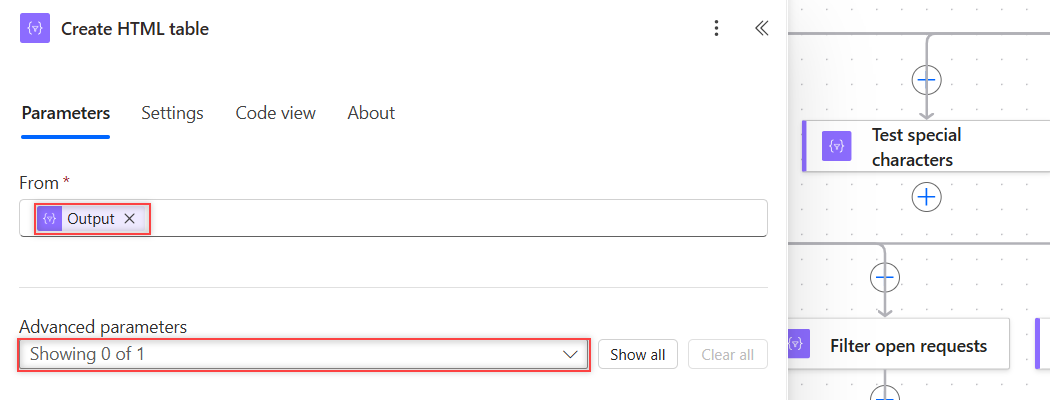
The Output token in From is the same as this expression:
body('Select_columns')My run produced a 4-column table with five rows, “No date” and “Not set” filled in, and budgets like “$1,250”.
This is the exact HTML it returned, with one row per line so it’s easy to read:
<table><thead><tr><th>Request</th><th>Status</th><th>Due Date</th><th>Budget</th></tr></thead><tbody>
<tr><td>Ergonomic chairs - Austin office</td><td>New</td><td>Oct 15, 2026</td><td>$1,250</td></tr>
<tr><td>Laptop refresh - Denver sales team</td><td>In Progress</td><td>No date</td><td>$4,800</td></tr>
<tr><td>Conference room AV upgrade - Seattle</td><td>Not set</td><td>Oct 20, 2026</td><td>-</td></tr>
<tr><td>Standing desks - Chicago office</td><td>New</td><td>No date</td><td>$2,100</td></tr>
<tr><td>Badge printer - Boston lobby</td><td>New</td><td>Oct 21, 2026</td><td>$650</td></tr>
</tbody></table>
How Do You Style an HTML Table in Power Automate?
Add a Compose after Create HTML table and swap the bare tags for styled ones with replace(). I used inline styles on each tag, and Outlook rendered them exactly as written.
replace(replace(replace(body('Create_HTML_table'),
  '<table>', '<table style="border-collapse:collapse;font-family:Segoe UI,Arial,sans-serif;font-size:14px">'),
  '<th>', '<th style="background:#0F6CBD;color:#ffffff;text-align:left;padding:8px 12px;border:1px solid #c8c8c8">'),
  '<td>', '<td style="padding:8px 12px;border:1px solid #c8c8c8">')
This works because the action always writes plain <table>, <th>, and <td> tags with no attributes. The header row sits inside <thead>, so the blue background lands only on the headers.
The same styled HTML works outside email too. You can save it as a .html report with SharePoint Create file in Power Automate.
Tip: Paste the expression in the expression editor (the fx button), not as plain text in the Inputs box.
How Do You Send the HTML Table in an Email?
Add Send an email (V2) from Office 365 Outlook. In Body, type your greeting and insert the Compose Outputs where the table should appear.
This is the Body I used. The @{...} part is the Compose Outputs token written as an expression:
<p>Hi team,</p>
<p>Here are the open customer requests from SharePoint:</p>
@{outputs('Style_the_table')}
<p>Sent by Power Automate</p>
The V2 action treats the body as HTML, so the table renders without extra settings. I also put the row count in the subject:
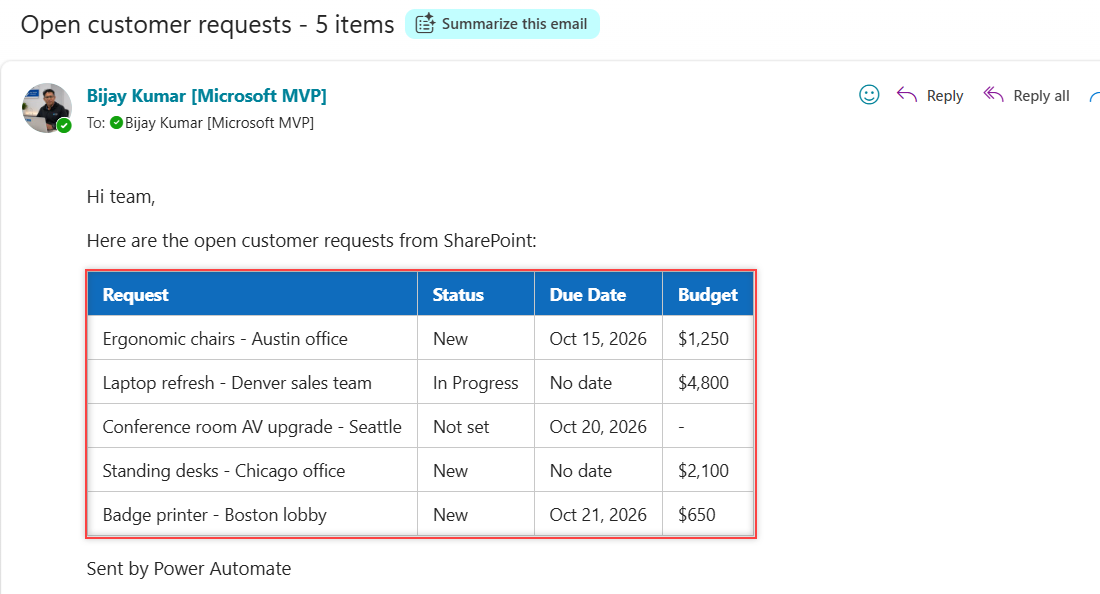
Open customer requests - @{length(body('Select_columns'))} itemsThe email arrived as “Open customer requests – 5 items” with the blue header row and borders shown in the first screenshot. Older email actions have an Is HTML setting, and Microsoft’s docs say to turn it on there.
Want to add a file to the same message? My guide to saving email attachments to SharePoint shows how attachment content behaves in a real run.
What Happened in My Edge-Case Tests?
Each test ran in its own branch after the trigger, so one failure couldn’t hide another. Here are the real outputs:
| Input to From | Result |
|---|---|
Empty array [] | Succeeded: <table><tbody></tbody></table>, no header row |
Smith & Sons <LLC> | Encoded as &, <, > |
<b>Rush</b> order | Tags encoded, so the email shows them as text |
| Items with different properties | Header has all of them (City, State, Zip); missing cells are empty |
| Nested object | Cell shows the JSON text, like {"City":"Seattle","State":"WA"} |
null value | Empty cell |
| Number and boolean | 249.5 and True |
| Array of strings, Automatic | Failed: The property ‘columns’ must be specified unless the ‘from’ property value is an array of objects. |
| Single object, not an array | Failed: The ‘from’ property value … is of type ‘Object’. The value must be of type ‘Array’. |
Two results matter most. An empty array still sends an empty table, so check length(body('Select_columns')) in a Condition before the email. And because HTML is encoded, you can’t put links or bold text inside a cell value.
To stop the flow earlier when nothing qualifies, trigger conditions in Power Automate can skip the run entirely on automated flows.
Create HTML Table Cheat Sheet
Every row below matches a result from my test run.
| Need | What to use |
|---|---|
| Pick and rename columns | Select before the table, or Columns = Custom |
| Choice column text | item()?['Status']?['Value'] |
| Person column name | item()?['AssignedTo']?['DisplayName'] |
| Blank-safe date | if(empty(x), '', formatDateTime(x, 'MMM d, yyyy')) |
| Blank-safe number | if(equals(x, null), '', formatNumber(x, 'C2', 'en-US')) |
| Readable blank | coalesce(x, 'Not set') |
| Styling | replace() on <table>, <th>, <td> |
| Skip empty emails | Condition on length(body('Select')) greater than 0 |
Frequently Asked Questions
How do I create an HTML table in Power Automate?
Add the Create HTML table action from Data Operation and set From to an array of objects, such as the value output of SharePoint Get items. Then insert its output into an email body.
How do I remove unwanted columns from the HTML table?
Set Columns to Custom under Advanced parameters, or add a Select action before the table and map only the fields you want. Automatic columns include every property, including SharePoint system fields.
Why is my HTML table not formatted in the email?
The action outputs bare HTML with no styles. Add inline styles with replace() in a Compose. Microsoft’s data operations guide also notes turning on Is HTML in email actions that have it.
Why does Create HTML table fail with InvalidTemplate?
A column expression got a null value. formatDateTime() fails on null, and empty() fails on numbers, so check numbers with equals(x, null) instead.
Can I add links or bold text inside a table cell?
Not directly. In my test, tags in a value were HTML-encoded, so they showed as plain text. You’d need to replace the encoded text after the table is built.
More Power Automate Tutorials
Once your table emails are working, these are worth a read next:
- Power Automate vs Power BI for reporting
- adding days to a date with addDays()
- setting a variable to today’s date
- formatting dates with ordinal suffixes

Bijay Kumar is a 13-times Microsoft MVP in Business Applications with over 18 years of experience in the IT industry, recognized for his contributions to the Microsoft community. He is the Founder of TSinfo Technologies and shares practical, tested tutorials on Power Apps, Power Automate, Copilot Studio, and Power BI here on Power Platform FAQs. Read more.