
The Power Automate select action turns each item in an array into a new shape. Map Request to item()?['Title'] and City to item()?['City'], and you get an array of clean objects with only those two fields.
In this tutorial, we’ll rename and drop fields, switch Map to text mode for a plain list, add calculated values, number rows, and fix the null error that breaks Select. I tested everything in October 2026.
What Does the Select Action Do?
Select is a Data Operation action. Microsoft Learn says you use it to change the shape of objects in an array: add, remove, or rename fields. It can’t change the number of items.
That last part is important. Six items in always means six items out. To drop items, use Filter array in Power Automate first, then Select.
Select runs once over the whole array, so it’s simpler than looping with Apply to each and appending to a variable.
How Do You Use Select in Key-Value Mode?
My demo flow has an array variable Requests with six records (Title, Customer, City, Status). To build one, see how to initialize an array variable with values.
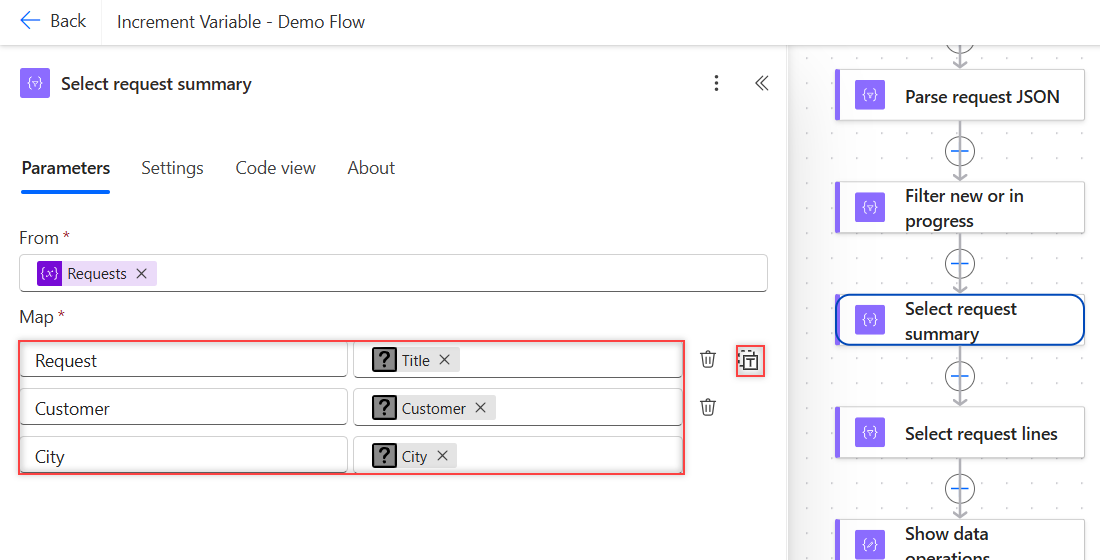
- Select the plus sign > Add an action, search for select, and pick Select under Data Operation.
- In From, choose the array.
- In the first Map row, type the new field name on the left, such as Request.
- On the right, select fx and enter
item()?['Title']. - Add rows for Customer and City the same way, then save and test.
Here’s the action in Code view:
"Select_request_summary": {
  "type": "Select",
  "inputs": {
    "from": "@variables('Requests')",
    "select": {
      "Request": "@item()?['Title']",
      "Customer": "@item()?['Customer']",
      "City": "@item()?['City']"
    }
  }
}
The output had six objects with exactly those three fields. Status was gone, and Title was now Request:
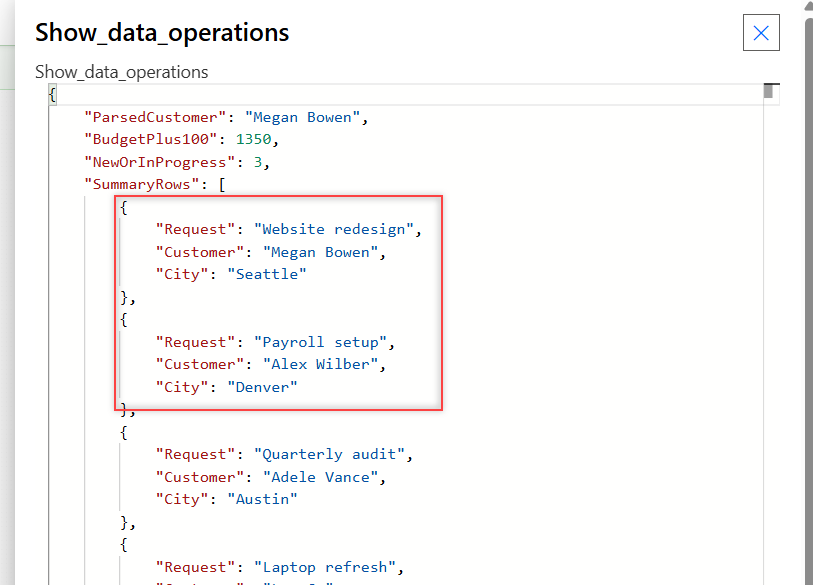
[
  { "Request": "Website redesign", "Customer": "Megan Bowen", "City": "Seattle" },
  { "Request": "Payroll setup", "Customer": "Alex Wilber", "City": "Denver" },
  { "Request": "Quarterly audit", "Customer": "Adele Vance", "City": "Austin" },
  ...
]
Field names can contain spaces. Due Date and Customer Email both worked as keys, which is handy for an HTML table in Power Automate.
How Do You Get a Plain List with Text Mode?
Next to Map, select the small Switch Map to text mode icon. Now Map takes one value, and Select returns an array of plain values instead of objects.
I entered this expression in my Select request lines action:
concat(item()?['Title'], ' (', item()?['City'], ')')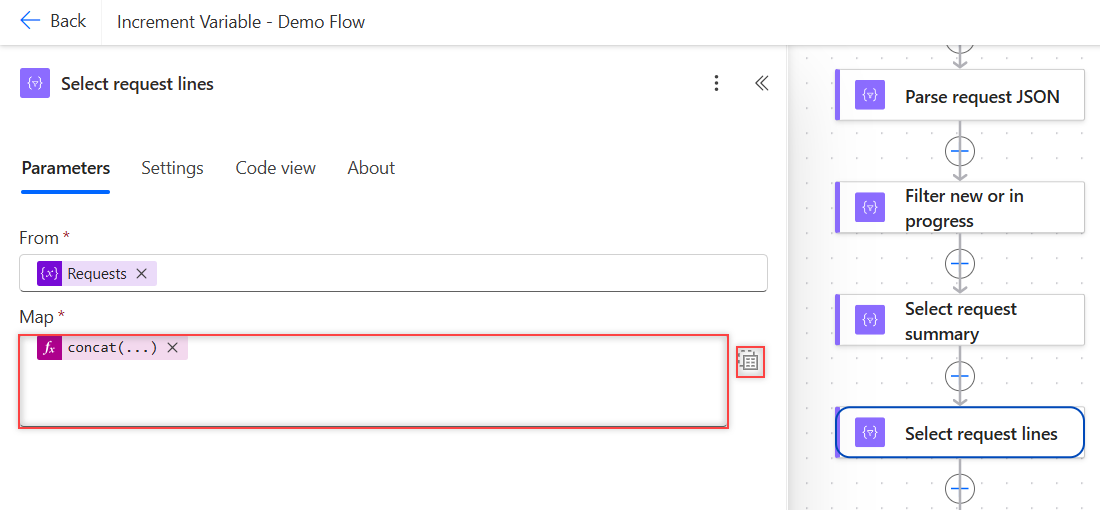
It returned six strings:
[
  "Website redesign (Seattle)",
  "Payroll setup (Denver)",
  "Quarterly audit (Austin)",
  "Laptop refresh (Chicago)",
  "Training plan (Boston)",
  "VPN access (Phoenix)"
]
Text mode is the way to get one column as a list, like all titles or all emails. With item()?['Title'] alone, I got the six titles as a simple array.
How Do You Turn the Select Output into One Line of Text?
Pass a text-mode Select to join():
join(body('Select_titles'), '; ')That returned all six titles on one line, separated by semicolons. It’s the easiest way to list names in an email body. For building text in a loop instead, see how to append to a string variable.
Can You Use Select on an Array of Strings?
Yes. Use item() with no property name. Mapping City to item() on split('Seattle,Denver,Austin', ',') returned three objects:
[ { "City": "Seattle" }, { "City": "Denver" }, { "City": "Austin" } ]This is how you turn a plain list into rows for a table. For the split part, see creating an array from a string.
How Do You Number Rows with Select?
Select has no index, but you can loop over positions instead of items. Set From to range(0, length(outputs('Rows'))) and, in text mode, use:
concat(add(item(), 1), '. ', outputs('Rows')[item()]?['Title'])Here item() is 0, 1, 2 and so on, so it returned 1. Ergonomic chairs – Austin office, then 2, 3, and so on. It’s a no-loop alternative to a counter you increment by 1.
Why Does Select Fail with formatNumber or Other Functions?
A null value in one item fails the whole Select. I mapped Budget to formatNumber(item()?['Budget'], 'C0', 'en-US'), and one row had no budget:
The template language function 'formatNumber' expects its first parameter to be an integer or a decimal number. The provided value is of type 'Null'.Check for null first. This version worked and returned $1,250, $4,800, No budget, and $320:
if(equals(item()?['Budget'], null), 'No budget', formatNumber(item()?['Budget'], 'C0', 'en-US'))A missing property on its own doesn’t fail. Mapping item()?['Priority'], a field none of the items had, returned six objects with Priority as null.
Like Filter array, From must be an array. An object returned this error:
The 'from' property value in the 'select' action inputs is of type 'Object'. The value must be an array.What Happened in My Tests?
| Select setup | Result |
|---|---|
| Key-value: Request, Customer, City | 6 objects, 3 fields each |
| Text mode: item()?[‘Title’] | 6 strings |
| Text mode: concat(Title, City) | 6 strings like Payroll setup (Denver) |
| Keys with spaces | Worked |
| From an array of strings | Objects with City |
| From an empty array | [] |
| formatNumber() on a null Budget | Whole Select failed |
| if(equals(x, null), …) | $1,250 … No budget |
| Missing property with ? | null, no error |
| From an object | BadRequest |
Select Action: Cheat Sheet
| Goal | How |
|---|---|
| Rename a field | Key = new name, value = item()?['Old'] |
| Drop fields | Leave them out of Map |
| Add a calculated field | Value = any expression |
| One column as a list | Text mode + item()?['Field'] |
| One line of text | Text mode, then join(body('Select'), ', ') |
| Number rows | From range(0, length(x)) |
| Null-safe formatting | if(equals(x, null), 'n/a', ...) |
| Fewer items | Filter array first |
For more Power Automate patterns, the Power Automate tutorials hub lists every post in order.
Frequently Asked Questions
What does the Select action do in Power Automate?
It creates a new array by mapping each item to a new shape. You can rename, add, or drop fields, but the number of items stays the same.
How do I switch Select to text mode?
Select the Switch Map to text mode icon next to Map. Map then takes a single value, and the output is an array of plain values instead of objects.
Can Select filter items?
No. The data operations article on Microsoft Learn says Select can’t change the number of objects. Use Filter array before Select.
Why does my Select action fail?
Usually an expression in Map got a null value, such as formatNumber() on an empty number field. Check for null with if() or use coalesce().
How do I get just one column from an array?
Use Select in text mode with item()?[‘ColumnName’] in Map. You get a simple list, which join() can turn into one line of text.
More Power Automate Tutorials
These posts pair well with Select:
- counting items in an array
- using the Set variable action
- checking for blank values
- formatting dates with formatDateTime()

Bijay Kumar is a 13-times Microsoft MVP in Business Applications with over 18 years of experience in the IT industry, recognized for his contributions to the Microsoft community. He is the Founder of TSinfo Technologies and shares practical, tested tutorials on Power Apps, Power Automate, Copilot Studio, and Power BI here on Power Platform FAQs. Read more.