
To create array from string values in Power Automate, use split() with the text and the character between items. split('Seattle,Denver,Austin', ',') returns ["Seattle","Denver","Austin"], an array you can loop over, filter, or count.
In this tutorial, we’ll turn messy comma text, multi-line notes, semicolon lists, JSON text, and number lists into clean arrays. I ran every expression in a real flow in October 2026, including the ones that failed.
What Does Creating an Array from a String Mean?
A string is one piece of text, like Seattle, Denver, Austin. An array is a list of separate items, like ["Seattle", "Denver", "Austin"]. Power Automate actions such as Apply to each, Filter array, and Select only work on arrays.
Text like this usually comes from a Microsoft Forms answer, a SharePoint multiple lines of text column, an email body, or a CSV line. You split it once, then every other action can treat each value on its own.
If you need other ways to build a list from scratch, such as Compose or createArray(), see my guide on how to create an array in Power Automate.
How Do You Build the Demo Flow Step by Step?
Follow along in your own environment. You only need a free Power Automate account, no connectors. Not sure which tool fits your task? Here’s how Power Apps vs Power Automate compare.
- Go to make.powerautomate.com, select Create, then Instant cloud flow.
- Name it Create Array from String – Demo Flow, pick Manually trigger a flow, and select Create.
- Under the trigger, select the plus sign > Add an action, search for initialize variable, and pick Initialize variable.
- Set Name to CityText, Type to String, and Value to the text below.
Seattle, Denver, , Austin, Seattle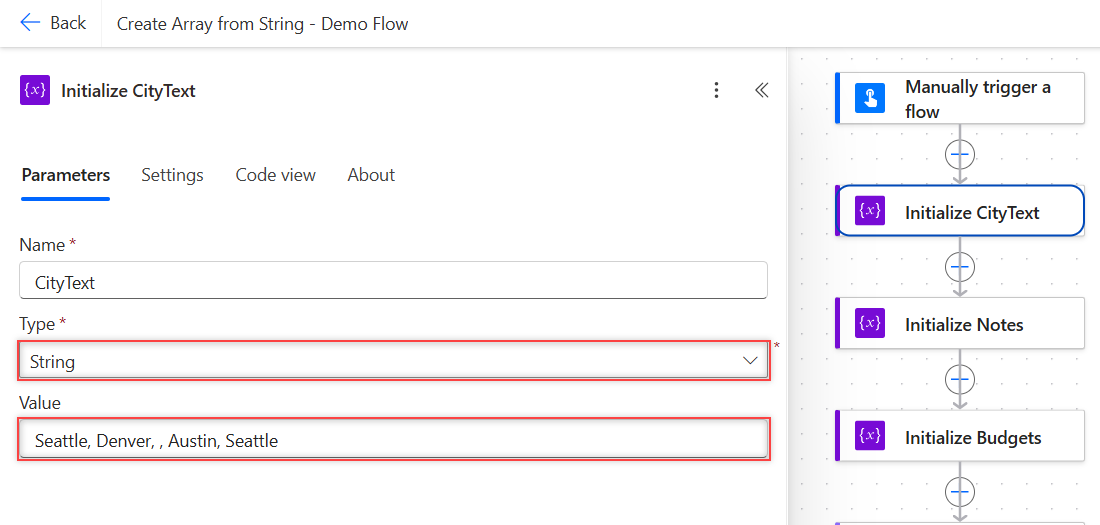
The value is messy on purpose. It has a space after each comma, an empty entry, and Seattle twice. Real form answers look like this, so the demo shows every cleanup step.
Two more Initialize variable actions hold the other samples. Notes (String) has Seattle, Denver, and Austin on three lines. Budgets (String) is 1200, 850, 2300 in USD.
Method 1: How Do You Split a Comma-Separated String into an Array?
Add a Compose action and name it Split text. Click in Inputs, select the fx icon, paste this expression, and select Add:
split(variables('CityText'), ',')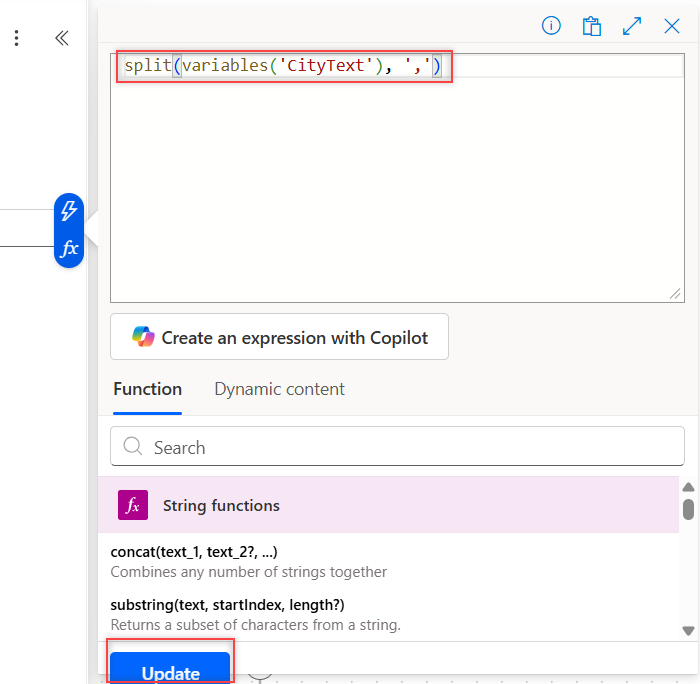
Don’t type an @ sign in the expression editor. The designer adds it for you when it saves the action, and an extra one breaks the expression.
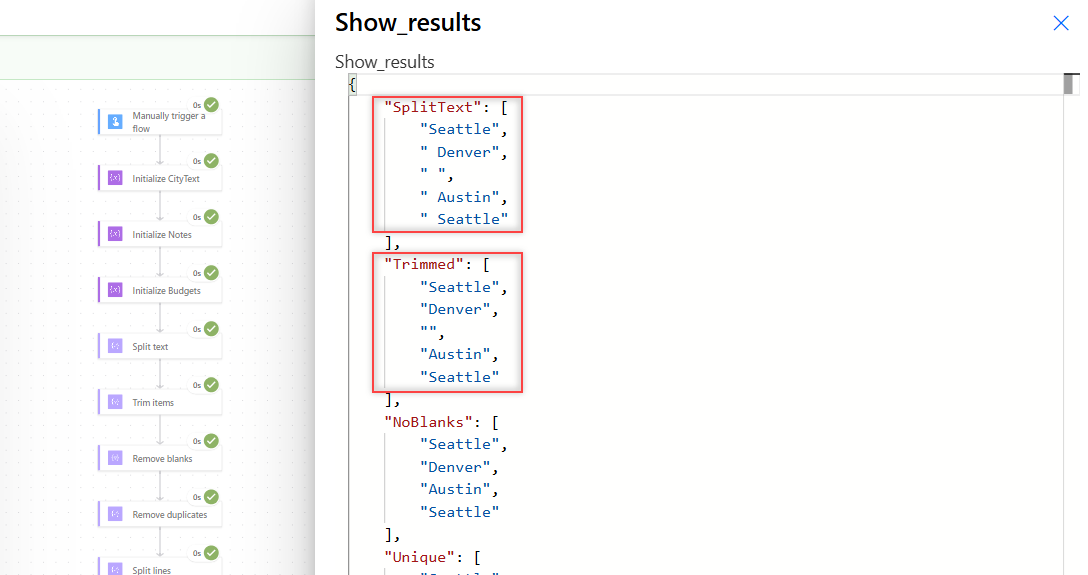
The output had five items: ["Seattle", " Denver", " ", " Austin", " Seattle"]. Look at the spaces. In my test, item 1 had a length of 7, not 6, because of the leading space.
The run view’s table hides those spaces, so always check Show raw outputs. If every item has exactly one space after the comma, split(variables('CityText'), ', ') fixes it in one step.
Method 2: How Do You Remove Extra Spaces from Each Item?
Use a Select action with trim(item()). It works even when some items have two spaces and others have none, which a two-character delimiter can’t handle.
- Under Split text, add a Select action and name it Trim items.
- In From, pick Outputs of Split text.
- Next to Map, select the small Switch Map to text mode icon.
- Click in Map, select fx, and enter
trim(item()).
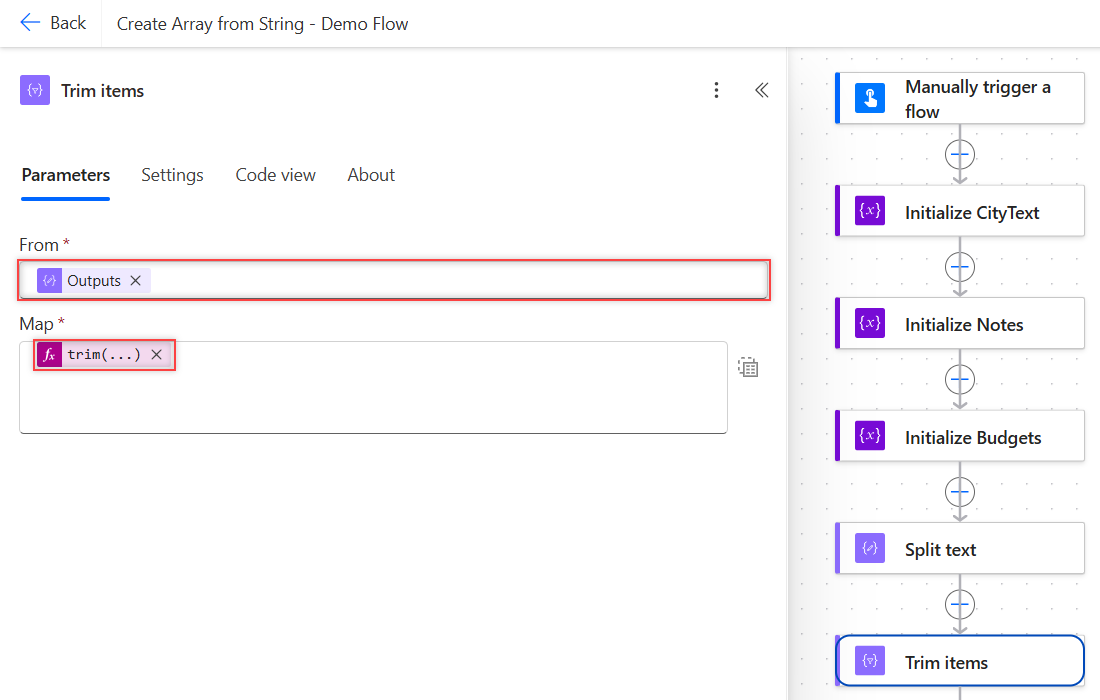
Text mode matters. In key-value mode, Select builds objects. In text mode, it returns plain values. Here’s the action in Code view:
"Trim_items": {
  "type": "Select",
  "inputs": {
    "from": "@outputs('Split_text')",
    "select": "@trim(item())"
  },
  "runAfter": {
    "Split_text": ["Succeeded"]
  }
}
The result was ["Seattle", "Denver", "", "Austin", "Seattle"]. The spaces are gone, but the blank entry is still there as an empty string.
Method 3: How Do You Remove Blank Items After Split?
Add a Filter array action named Remove blanks. Set From to the Select output, select Edit in advanced mode, and enter this condition:
@not(empty(item()))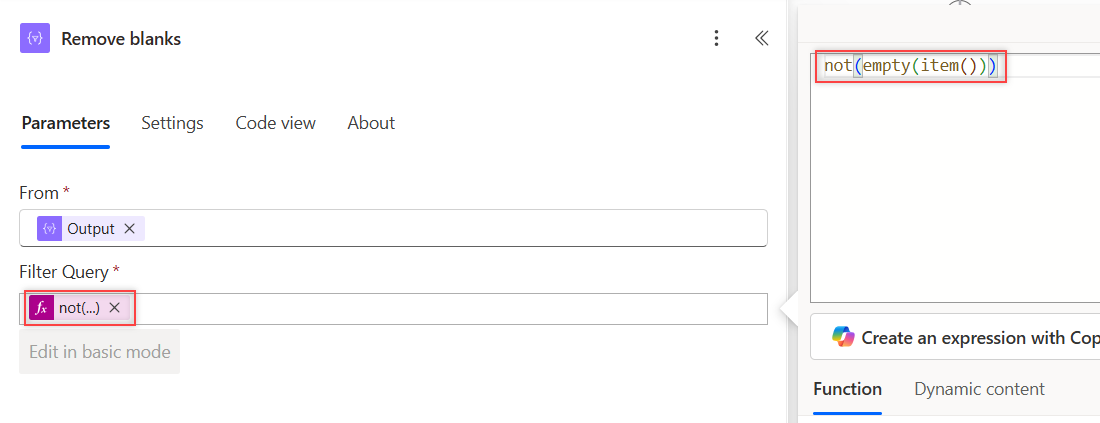
It returned ["Seattle", "Denver", "Austin", "Seattle"]. If you skip the trim step, use not(empty(trim(item()))) instead. My test on 'Seattle,,Denver, ,Austin' dropped both the empty and the space-only items.
"Remove_blanks": {
  "type": "Query",
  "inputs": {
    "from": "@body('Trim_items')",
    "where": "@not(empty(item()))"
  },
  "runAfter": {
    "Trim_items": ["Succeeded"]
  }
}
Blank items also break conditions later. My post on the Power Automate condition if blank shows which checks catch them.
How Do You Remove Duplicates from the Split Array?
Pass the same array to union() twice. It returns each value once. I added a Compose named Remove duplicates with this expression:
union(body('Remove_blanks'), body('Remove_blanks'))The output was ["Seattle", "Denver", "Austin"], with the first-seen order kept.
Here’s the full result of the demo flow’s last Compose, Show results:
{
  "SplitText": ["Seattle", " Denver", " ", " Austin", " Seattle"],
  "Trimmed": ["Seattle", "Denver", "", "Austin", "Seattle"],
  "NoBlanks": ["Seattle", "Denver", "Austin", "Seattle"],
  "Unique": ["Seattle", "Denver", "Austin"],
  "Lines": ["Seattle", "Denver", "Austin"],
  "BudgetTotal": 4350
}
Method 4: How Do You Split a Multi-Line String by Line Break?
Split on a line feed character. Power Automate expressions have no \n escape, so build the character with decodeUriComponent('%0A'):
split(variables('Notes'), decodeUriComponent('%0A'))My Split lines action returned ["Seattle", "Denver", "Austin"] from the three-line Notes variable. This is the method for SharePoint multiple lines of text columns and email bodies.
Here’s the trap I tested. split(variables('Notes'), '\n') returned one item, not three. Inside an expression, '\n' is two plain characters, a backslash and an n. length('\n') returned 2.
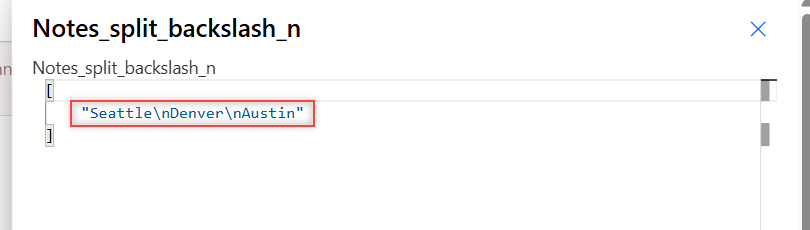
Text from Windows apps and some emails ends lines with a carriage return plus a line feed. Split on the line feed only, and every item keeps a hidden carriage return. My first item had a length of 8 instead of 7.
Remove the carriage returns first, then split:
split(replace(variables('Notes'), decodeUriComponent('%0D'), ''), decodeUriComponent('%0A'))That version returned three clean items. It also works on text with plain line feeds, so I use it by default. If your lines come from an Outlook email, my guide to saving email attachments to SharePoint shows the email trigger.
Method 5: How Do You Split on Semicolons or Several Delimiters?
split() takes any delimiter, not just a comma. SharePoint and Outlook often join email addresses with semicolons:
split('megan.bowen@example.com;alex.wilber@example.com', ';')That returned two addresses. A pipe '|' and a whole word like ' and ' worked the same way. One space, ' ', splits a sentence into words.
For text with mixed delimiters, replace each one with a comma first, then split once:
split(replace(replace('Red;Green|Blue', ';', ','), '|', ','), ',')It returned ["Red", "Green", "Blue"]. Keep in mind that the delimiter is case-sensitive. split('RedXGreenxBlue', 'x') split only on the lowercase x.
Method 6: How Do You Split a String into Characters or Fixed-Size Chunks?
Use chunk(). Microsoft Learn describes it as splitting a string or array into chunks of equal length. With a length of 1, you get single characters:
chunk('Austin', 1)That returned ["A", "u", "s", "t", "i", "n"]. With 3, chunk('ABCDEFGH', 3) returned ["ABC", "DEF", "GH"]. The last chunk is just shorter, with no error.
This helps with fixed-width codes, like splitting a product code into its parts or a long ID into groups.
Method 7: How Do You Convert a JSON String to an Array?
If the text is already a JSON array, such as an HTTP response or a Power Apps parameter, use json():
json('["Seattle","Denver","Austin"]')It returned a real array. JSON with single quotes, like ['Seattle','Denver'], also worked in my test. For records with fields, my guide to creating an array of objects covers json() with Parse JSON.
Plain words without quotes fail. When I wrapped Seattle,Denver in brackets and passed it to json(), the action failed:
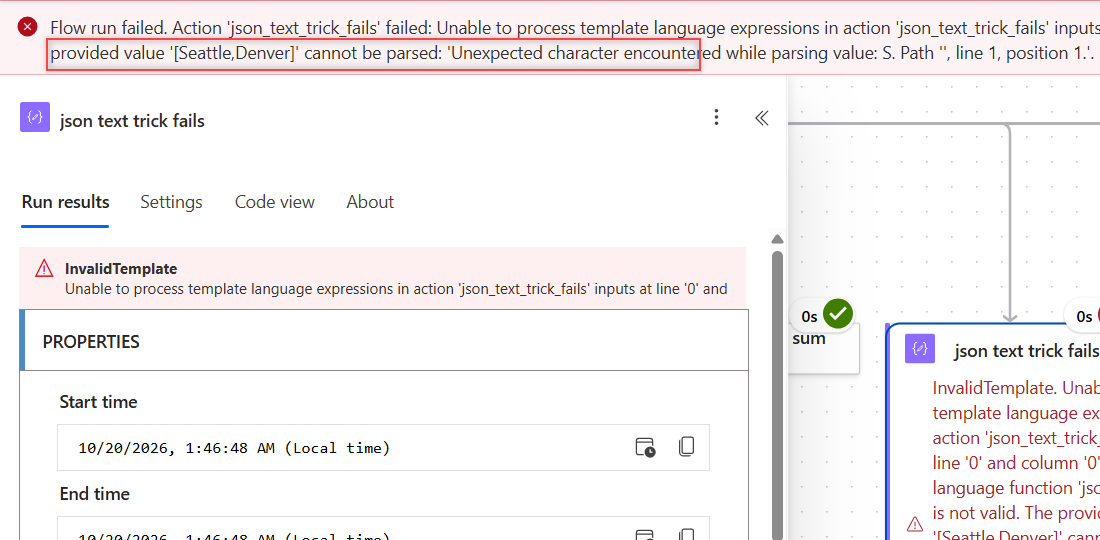
The template language function 'json' parameter is not valid. The provided value '[Seattle,Denver]' cannot be parsed: 'Unexpected character encountered while parsing value: S. Path '', line 1, position 1.'Use split() for plain word lists. Save json() for text that’s valid JSON.
Method 8: How Do You Turn a List of Numbers into a Number Array?
split() always returns text items, even for 1200, 850, 2300. For a number list, wrap the text in brackets and parse it with json(). That’s valid JSON, so the items come back as numbers:
json(concat('[', variables('Budgets'), ']'))My Budget numbers action returned [1200, 850, 2300] without quotes. I added the three items in the Show results action and got 4350, so they really are numbers.
If the list could hold text by mistake, use a Select in text mode instead, with int(trim(item())) as the Map. It returned the same three numbers. My post on how to convert a string to an integer explains int() errors.
How Do You Use the Array After You Split the String?
You can save the result in an array variable. I set an Initialize variable action’s Type to Array and its Value to split('Seattle,Denver,Austin', ','). It worked, and length() returned 3.
For more ways to fill that variable, see how to initialize an array variable with values. To run actions once per item, loop over it with Apply to each on an array variable.
These functions read the split array directly. Each one ran on split('Seattle,Denver,Austin', ','):
| Need | Expression | Result |
|---|---|---|
| Count items | length(...) | 3 |
| First item | first(...) | Seattle |
| Last item | last(...) | Austin |
| Item by position | split(...)[1] | Denver |
| First two items | take(..., 2) | Seattle, Denver |
| Skip the first item | skip(..., 1) | Denver, Austin |
| Sort A to Z | sort(...) | Austin, Denver, Seattle |
| Check for a value | contains(..., 'Denver') | true |
| Back to text | join(..., ' | ') | Seattle | Denver | Austin |
A joined list also reads well in an email. For a full layout, build an HTML table in Power Automate from the array.
Why Does split() Fail or Return the Wrong Array?
Empty text doesn’t give an empty array. split('', ',') returned [""], one blank item, so length() says 1 and a loop runs once. Guard it like this:
if(empty(variables('CityText')), json('[]'), split(variables('CityText'), ','))With empty text, that returned []. A null value is worse. When the text was null, the action failed with this message:
The template language function 'split' expects its first parameter to be of type string. The provided value is of type 'Null'.Wrap the value in coalesce(value, '') to turn null into empty text, then use the guard above. A missing form answer or an empty SharePoint column is the usual cause. To skip those runs entirely, add trigger conditions in Power Automate.
A position past the end also fails. Asking for item 5 of a two-item array returned:
The template language expression 'split('Seattle,Denver', ',')[5]' cannot be evaluated because array index '5' is outside bounds (0, 1) of array.Use ?[5] instead of [5] to get null rather than an error. And note that array('Seattle,Denver') and createArray('Seattle,Denver') don’t split anything. Both returned one item.
What Happened in My Tests?
I ran 55 actions in parallel after one manual trigger. These are the results that matter most:
| Expression | Result |
|---|---|
split('Seattle, Denver, Austin', ',') | 3 items, leading spaces kept |
split('Seattle, Denver, Austin', ', ') | 3 clean items |
split('Power Automate', ' ') | [“Power”, “”, “Automate”] |
split('Seattle', ',') | [“Seattle”] |
split('', ',') | [“”] |
split(null, ',') | Failed: type ‘Null’ |
split(',Red,Green', ',') | [“”, “Red”, “Green”] |
split(text, decodeUriComponent('%0A')) | 3 lines |
split(text, '\n') | 1 item, nothing split |
chunk('ABCDEFGH', 3) | [“ABC”, “DEF”, “GH”] |
json(concat('[', '1200, 850, 2300', ']')) | [1200, 850, 2300] as numbers |
json(concat('[', 'Seattle,Denver', ']')) | Failed: cannot be parsed |
union(x, x) on Seattle, Denver, Seattle | [“Seattle”, “Denver”] |
Create Array from String: Cheat Sheet
| Text looks like | Use |
|---|---|
a,b,c | split(text, ',') |
a, b, c (uneven spaces) | split, then Select trim(item()) |
| Blank entries | Filter array not(empty(item())) |
| Duplicates | union(arr, arr) |
| One value per line | split(replace(text, decodeUriComponent('%0D'), ''), decodeUriComponent('%0A')) |
a;b|c | replace() each delimiter, then split once |
| Fixed-width code | chunk(text, size) |
["a","b"] | json(text) |
1, 2, 3 as numbers | json(concat('[', text, ']')) |
| Text may be empty or null | if(empty(coalesce(text, '')), json('[]'), split(text, ',')) |
For more Power Automate patterns, the Power Automate tutorials hub lists every post in order.
Frequently Asked Questions
How do I convert a string to an array in Power Automate?
Use split() with the text and the delimiter, such as split(variables(‘CityText’), ‘,’). It returns an array of text items that works with Apply to each, Filter array, and Select.
How do I split a string by new line in Power Automate?
Use decodeUriComponent(‘%0A’) as the delimiter. Remove carriage returns first with replace(text, decodeUriComponent(‘%0D’), ”). A ‘\n’ delimiter doesn’t work, because it’s a backslash and an n.
Why does split() return an item with an empty string?
The text was empty, started or ended with the delimiter, or had two delimiters in a row. Remove the blanks with a Filter array action using not(empty(item())).
How do I split a string into single characters in Power Automate?
Use chunk(text, 1). For example, chunk(‘Austin’, 1) returns six one-letter items. A larger number returns groups of that size.
What does split() return in Power Automate?
An array of substrings, as described in the split() function reference on Microsoft Learn. If the delimiter isn’t found, you get an array with the whole text as one item.
More Power Automate Tutorials
Want to keep going? Here are a few posts I’d read next:
- formatting dates with formatDateTime()
- adding days to a date with addDays()
- creating a file in SharePoint
- setting a variable to today’s date

Bijay Kumar is a 13-times Microsoft MVP in Business Applications with over 18 years of experience in the IT industry, recognized for his contributions to the Microsoft community. He is the Founder of TSinfo Technologies and shares practical, tested tutorials on Power Apps, Power Automate, Copilot Studio, and Power BI here on Power Platform FAQs. Read more.