
If you’ve already picked your AI model in Copilot Studio — great. Now there’s a follow-up question that catches a lot of people off guard: how much is this actually costing me?
Token usage, Copilot Credits, billing meters — these terms get thrown around a lot, and it’s easy to ignore them until you suddenly get a notification that your environment has hit its usage limit or you’ve blown past your monthly capacity. I’ve seen it happen more times than I’d like.
In this tutorial, I’ll walk you through how Copilot Studio measures and tracks usage, where to monitor it, what the different billing rates mean, and how to keep costs under control before they spiral. I’ll also cover the specific behavior of reasoning models like GPT-5 Reasoning, which have a different billing structure that trips people up.
Let’s get into it.
First, Let’s Clear Up the Terminology
When people say “token usage” in Copilot Studio, they’re really talking about Copilot Credits — that’s the unit Microsoft uses to measure consumption. The underlying AI models do process tokens internally (the words and word-fragments the model reads and generates), but from a billing and monitoring perspective, Copilot Studio wraps everything into Copilot Credits.
Think of Copilot Credits like a prepaid data plan. You buy a pack, you spend credits based on how your agents run, and when you run out, things stop working — unless you’ve set up a pay-as-you-go fallback.
When you purchase a Copilot Studio license, your organization gets a pool of Copilot Credits. This pool is shared across your entire tenant, so every environment draws from the same bucket by default (unless you specifically allocate capacity to individual environments, which I’ll cover later).
What Consumes Microsoft Copilot Credits?
This is where a lot of people are surprised. It’s not just the AI responses that consume credits — it’s also actions, flows, and tools that your agent invokes along the way.
Here’s the breakdown of what gets billed and how much:
| Agent Feature | Copilot Credits Used |
|---|---|
| Classic answer (static response) | 1 credit |
| Generative answer (AI-generated response) | 2 credits |
| Agent action (trigger, reasoning, topic transition) | 5 credits |
| Tenant graph grounding | 10 credits |
| Agent flow actions (per 100 actions) | 13 credits |
| Text & generative AI tools – Basic (per 10 responses) | 1 credit |
| Text & generative AI tools – Standard (per 10 responses) | 15 credits |
| Text & generative AI tools – Premium (per 10 responses) | 100 credits |
| Content processing tools (per page) | 8 credits |
A single conversation turn can hit multiple of these. For example, if a user asks a question and the agent:
- Performs a generative answer → 2 credits
- Does tenant graph grounding to search your SharePoint content → 10 credits
- Total for that single response: 12 Copilot Credits
And that’s for a straightforward Q&A. The more complex and action-heavy your agent is, the more credits each session burns through.
The Reasoning Model Billing: A Special Case
If you’ve chosen one of the reasoning models — like GPT-5 Reasoning or Claude Opus 4.1 — the billing works differently from standard models. You need to understand this before you deploy a reasoning model in any agent that gets regular use.
Reasoning models are billed on two meters at the same time:
- The feature rate — the standard rate for whatever the agent is doing (generative answer, agent action, etc.)
- Text and generative AI tools (premium) — an additional 100 Copilot Credits per 10 responses, specifically to cover the extra compute that deep reasoning requires
So the total cost formula for a reasoning model operation looks like this:
Total cost = Feature rate + Premium AI tools rate (100 credits per 10 responses)
Let me make that concrete with an example:
Say your agent uses a reasoning model to generate a response to a complex policy question. That’s one generative answer (2 credits) plus the premium reasoning cost (100 credits per 10 responses, so 10 credits per single response). One interaction = 12 credits minimum, just for the answer — before any actions or graph grounding.
That doesn’t mean you shouldn’t use reasoning models. But it does mean you should be careful about which agents get them. Don’t put a reasoning model on an agent that handles 5,000 interactions a day unless you’ve done the math and you’re comfortable with the consumption.
Where to Monitor Copilot Credit Consumption
Now that you understand what drives consumption, here’s where to actually check it.
In the Power Platform Admin Center
This is the main place to monitor your organization’s overall Copilot Credit usage. Here’s how to get there:
- Go to admin.powerplatform.microsoft.com
- Sign in with your admin account
- In the left navigation, go to Billing → Licenses or Analytics → Copilot Studio
- Look for the Copilot Credit consumption report
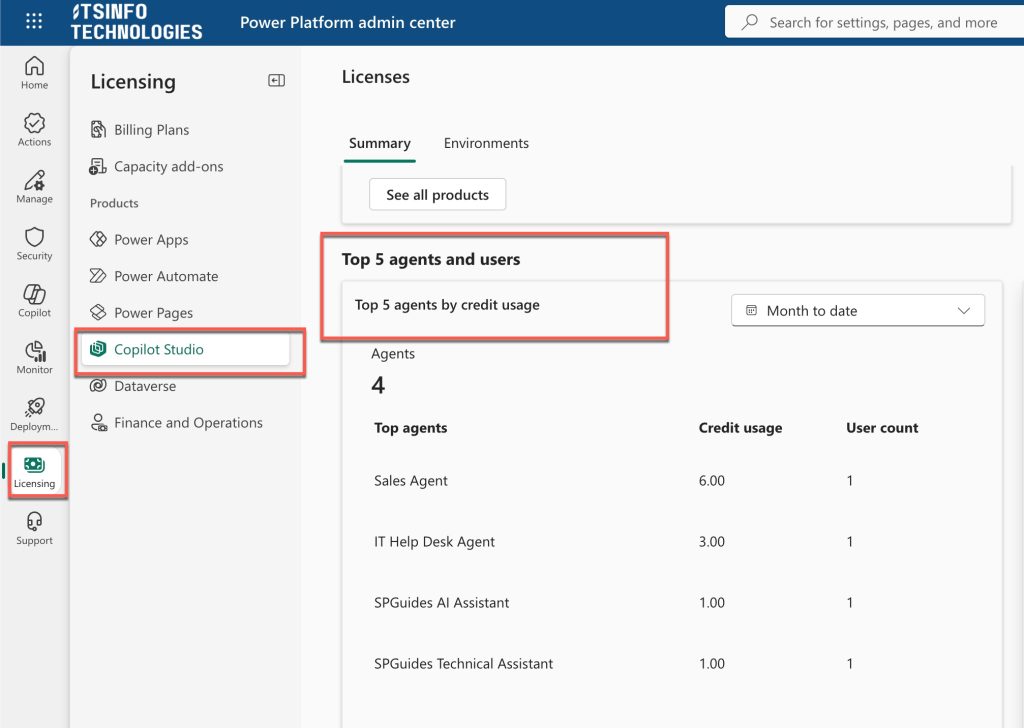
This report shows you:
- How many Copilot Credits your tenant has consumed
- Which environments are using the most
- Whether you’re approaching or have exceeded your capacity limits
If you’ve allocated credits to specific environments, you’ll see per-environment breakdowns. If you haven’t allocated credits to environments, all consumption rolls up to tenant-level and environments share from the common pool.
In Copilot Studio Analytics
Within Copilot Studio itself, each agent has an Analytics section that gives you engagement and session-level data. To access it:
- Open your agent in Copilot Studio
- Click the Analytics tab in the left navigation
- Review the Summary, Engagement, and Billing tabs
The Billing tab is particularly useful. It shows you session counts, message volume, and can help you estimate your ongoing credit consumption for that specific agent. It’s not a real-time credit counter, but it gives you enough data to spot trends and flag agents that are consuming more than expected.
Using the Copilot Studio Usage Estimator
Before you deploy an agent, it’s worth using Microsoft’s Copilot Studio agent usage estimator to forecast your credit consumption. You can find this tool through the Microsoft Copilot Studio licensing documentation.
You plug in:
- Agent type (generative, classic, or mixed)
- Estimated daily/monthly traffic
- Orchestration mode
- Knowledge sources (graph grounded or not)
- Whether it uses tools or flows
The estimator then gives you a projected Copilot Credit usage figure, which you can use to check whether your current capacity covers it. This is especially valuable before launching a new agent in production.
Understanding Quotas vs. Credits in Copilot
These are two different things, and it’s worth being clear on the difference.
Copilot Credits are about how much capacity you’ve purchased. Run out of credits, and your agents stop working until you top up.
Quotas are about how fast your agents can process requests — measured in requests per minute (RPM) or requests per hour (RPH). These exist to protect the platform from traffic spikes.
Here’s what the quotas look like depending on your capacity:
| Prepaid Message Packs | Quota |
|---|---|
| 1–10 packs | 50 RPM / 1,000 RPH |
| 11–50 packs | 80 RPM / 1,600 RPH |
| 51–150 packs | 100 RPM / 2,000 RPH |
| Pay-as-you-go | 100 RPM / 2,000 RPH |
| Microsoft 365 Copilot users | 100 RPM / 2,000 RPH |
If your agent hits the RPM quota, users will see a failure message when they try to send a message. This is separate from running out of credits — it’s a throttle, not a shutdown. Once traffic drops back within the limit, the agent works again automatically.
So if you’re building an agent that you expect to handle high-traffic periods (like a lunch-hour HR helpdesk spike), make sure your capacity tier supports the throughput you need.
What Happens When You Hit Your Limit?
This is the part no one wants to learn the hard way.
When your tenant reaches 125% of its prepaid Copilot Credit capacity, enforcement kicks in. Here’s what that means in practice:
- Custom agents are disabled — but not mid-conversation. Any active conversation finishes, then no new conversations are accepted.
- Users see an error message like: “This agent is currently unavailable. It has reached its usage limit.”
- Your admin gets an email notification, and a banner appears in the Power Platform admin center.
To recover, your admin can do one of three things:
- Reallocate unused capacity from another environment
- Purchase additional Copilot Credits
- Set up a pay-as-you-go meter for overage handling
The pay-as-you-go option is worth considering for unpredictable workloads. Instead of your agent going dark when credits run out, consumption continues and gets billed on a usage basis. It costs more per credit, but it keeps your agent running.
How to Allocate Credits to Specific Environments
By default, all your environments share from the tenant-level credit pool. This works fine when you have one or two agents, but when you have multiple environments — development, testing, production — it creates a risk: a poorly optimized test agent could eat through credits and impact production.
To prevent that, you can allocate a specific credit budget to individual environments.
Here’s how:
- Go to Power Platform Admin Center
- Navigate to Resources → Capacity
- Select the environment you want to allocate capacity to
- Set a Copilot Credit allocation for that environment
Once an environment has its own allocation, it only consumes from that pool. If it runs out, it can draw from the tenant pool — but if you want strict isolation, you can configure it so that tenant-level fallback doesn’t apply.
In the example from Microsoft’s documentation: if you allocate 10,000 credits to Environment A, that environment runs independently until it burns through those 10,000. Only then does it start drawing from the shared tenant pool.
Practical Tips to Keep Usage in Check
Here are the habits I’d recommend building if you’re running multiple agents or managing an environment for a team:
1. Use classic answers where you don’t need AI
Classic answers (manually authored responses) cost just 1 credit vs. 2 credits for generative answers. For highly predictable questions with fixed answers — think FAQs, standard procedures — stick to classic topics. Save generative AI for the queries that actually need it.
2. Be selective with graph grounding
Tenant graph grounding costs 10 credits per response on top of everything else. It’s powerful, but it adds up fast. Use it only in agents that genuinely need to search across your organization’s data, not as a default “just in case” setting.
3. Don’t deploy reasoning models for high-volume, simple tasks
GPT-5 Reasoning or Claude Opus 4.1 for a Q&A bot that handles 10,000 questions a month is going to burn through a disproportionate amount of credits. Match the model to the task. Simple questions don’t need premium reasoning models.
4. Check the analytics weekly
The Copilot Studio Analytics tab gives you session and message volume trends. Build a habit of looking at it once a week during rollout. Spotting a spike early is much easier than explaining an overage to finance after the fact.
5. Use the estimator before every new agent launch
Run the usage estimator before you publish a new agent to production. It takes five minutes and can save you from an unexpected bill or a hard shutdown.
6. Allocate credits per environment in production setups
If you’re running multiple environments, allocate budgets explicitly. It gives you clear visibility into which environments are spending what, and prevents a dev environment from accidentally draining your production capacity.
A Quick Example to Put It All Together
Let me run through a real scenario to show how the pieces fit.
You’re running a customer support agent on your company website. Here’s its average configuration per session:
- 4 classic answers (for standard return policy questions): 4 × 1 = 4 credits
- 2 generative answers (for troubleshooting): 2 × 2 = 4 credits
- Total per session: 8 credits
- 900 customer interactions per day: 8 × 900 = 7,200 Copilot Credits per day
Over 30 days, that’s roughly 216,000 Copilot Credits for that one agent.
Now, imagine you switch the agent to use a reasoning model for those generative answers. Each generative answer now costs 2 credits (feature rate) + 10 credits (premium reasoning, amortized at 100/10). So those 2 generative answers become 2 × 12 = 24 credits per session instead of 4. Your daily cost goes from 7,200 credits to over 25,000 credits — just by changing the model.
That’s a 3.5× increase in credit consumption for the same workload. Sometimes a reasoning model is worth it. For a customer support FAQ agent? Almost certainly not.
Wrapping Up
Monitoring token (Copilot Credit) usage in Copilot Studio isn’t complicated once you know what to look for and where to look. The key places are:
- Power Platform Admin Center for tenant-wide and per-environment credit consumption
- Copilot Studio Analytics for per-agent session and billing data
- Microsoft’s usage estimator for pre-launch forecasting
The most important habit is to check these regularly and match your model choice to your workload. Use generative AI where it adds value, use classic responses where it doesn’t, and be especially careful with reasoning models in high-volume scenarios.
If you haven’t already, explicitly allocate credits to your environments — it gives you much cleaner visibility into where spending is occurring and protects your production environment from surprises.

Bijay Kumar is a Microsoft MVP in Business Applications with over 18 years of experience in the IT industry and more than 12 years as a Microsoft MVP, recognized for his contributions to the Microsoft community. He is the Founder of TSinfo Technologies and the creator of the popular technology platforms SPGuides.com and EnjoySharePoint.com. Bijay also runs the SPGuides YouTube channel, where he shares practical tutorials on Microsoft 365, SharePoint, Power Platform, and Copilot technologies. Read more.