
If you work with Microsoft 365 data, SharePoint lists, Excel files, Dataverse tables, or business reports, you will eventually compare Power Automate vs Power BI. One tool makes work happen automatically. The other helps people understand what is happening in the business.
The confusion is normal because both are part of Microsoft Power Platform, both connect to many data sources, and both can use AI features. In this guide, you will learn the real difference, when to choose each one, how they work together, and how to explain the decision to a manager, client, or project team.
Power Automate vs Power BI: Quick Answer
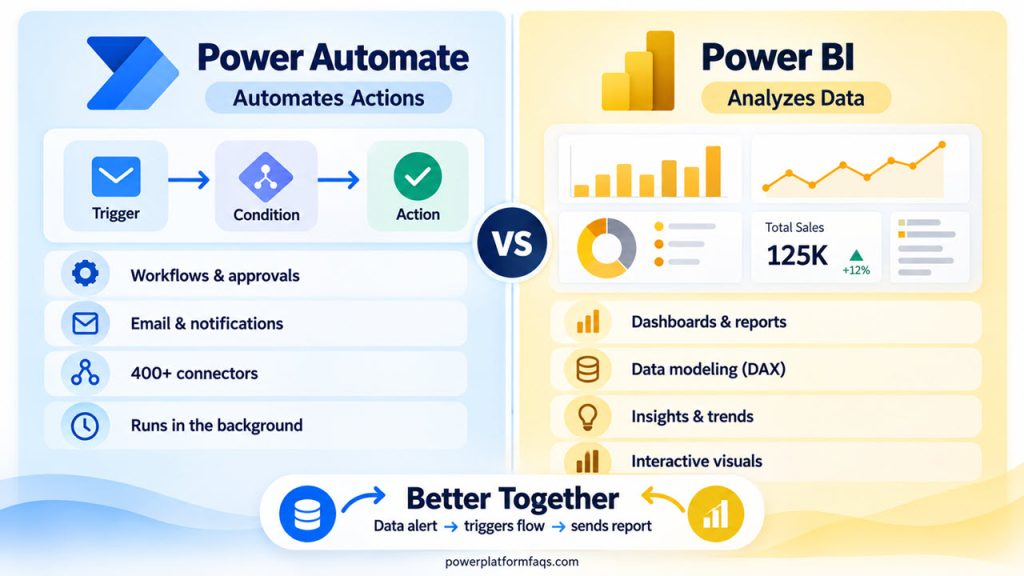
Power Automate automates actions and business processes, while Power BI analyzes and visualizes data so people can make decisions. Use Power Automate when something should run, notify, update, approve, or move data. Use Power BI when you need dashboards, semantic models, reports, KPIs, and interactive analysis.
Think of Power Automate as the engine that performs tasks in the background. Think of Power BI as the dashboard that shows performance, trends, and exceptions. In many real projects, you need both: Power BI identifies the insight, and Power Automate turns that insight into action.
If you are also comparing app building and workflow automation, this Power Apps vs Power Automate comparison is a helpful companion because it explains where user interfaces fit in the Power Platform story.
Key point: Power BI answers, “What is happening and why?” Power Automate answers, “What should happen next?”
What Is Power Automate?
Power Automate is Microsoft’s workflow automation service for creating cloud flows, desktop flows, approvals, notifications, scheduled jobs, and integrations between business systems. A flow starts from a trigger, runs actions, evaluates conditions, and can update records, send messages, create files, or call services.
Power Automate is best when the outcome is an action. Common actions include sending an email, creating a Planner task, refreshing a Power BI semantic model, saving an attachment, writing to Dataverse, or calling an API.
Modern cloud flows are built in the new Power Automate designer. You choose a trigger, add actions, configure parameters, test the flow, and inspect run history when something fails. If you are just starting, the Power Automate tutorials hub is the best next stop after this comparison.
What Is Power BI?
Power BI is Microsoft’s business intelligence platform for connecting to data, modeling it, building interactive reports, and sharing dashboards and insights. It helps users analyze trends, compare performance, monitor KPIs, and make decisions from trusted data.
A typical Power BI solution has data sources, Power Query transformations, a semantic model, measures, visuals, reports, dashboards, and workspace sharing. Microsoft renamed Power BI datasets to semantic models, although some connector actions and older UI labels still use the word dataset.
If your main goal is learning reporting, start with Power Query basics, model relationships, DAX measures, and report design. The Power BI tutorials hub is a useful place to continue with practical report-building topics.
Power Automate vs Power BI Side-by-Side Comparison
Power Automate and Power BI are not competing tools as much as complementary tools. The easiest way to choose is to ask whether your deliverable is an automated process or an analytical experience. The table below compares the tools from a practical builder’s point of view.
| Area | Power Automate | Power BI |
|---|---|---|
| Purpose | Automate actions, approvals, notifications, file handling, and integrations | Analyze data, build semantic models, visualize KPIs, and share insights |
| Primary users | Process owners, citizen developers, admins, makers, operations teams | Analysts, report authors, managers, executives, data consumers |
| Inputs | Triggers, forms, SharePoint items, Dataverse rows, emails, schedules, APIs | Databases, Excel, SharePoint, Dataverse, Fabric, web data, files, semantic models |
| Outputs | Emails, approvals, Teams posts, updated records, files, tasks, refresh jobs | Reports, dashboards, scorecards, paginated reports, visuals, alerts |
| Data sources and connectors | Hundreds of connectors; standard and premium vary by connector | Many data connectors in Power BI Desktop and service; gateway for on-premises sources |
| Licensing | Often included for standard Microsoft 365 connector scenarios; premium connectors and advanced automation can require paid plans | Sharing and collaboration commonly require Power BI Pro, Premium Per User, or Fabric capacity depending on scenario |
| Where it runs | Power Automate cloud service, desktop automation, and connected services | Power BI Desktop, Power BI service, mobile apps, Fabric workspaces |
| AI and Copilot features | Copilot can help describe, create, edit, and understand flows where enabled | Copilot can help create report pages, summarize insights, and assist with analytics where enabled |
| Typical deliverables | Approval flow, scheduled email, data sync, alert workflow, document process | KPI dashboard, sales report, finance model, executive scorecard, paginated statement |
| Learning curve | Easier to start, harder when errors, expressions, concurrency, and licensing appear | Easy to create visuals, harder when modeling, DAX, governance, and performance matter |
Rule of thumb: If the requirement says “send,” “create,” “approve,” “update,” or “notify,” start with Power Automate. If it says “analyze,” “trend,” “visualize,” “compare,” or “report,” start with Power BI.
Key Differences Between Power Automate and Power BI
The biggest differences are purpose, timing, deliverable, and audience. Power Automate reacts to events or schedules and performs work. Power BI prepares data for analysis and helps people explore business performance through visuals, filters, measures, and shared reports.
1. Automation Versus Analysis
Power Automate is process-first: copying files, sending reminders, updating statuses, and routing approvals. Power BI is analysis-first: revealing trends, exceptions, and patterns in business data.
2. Triggers Versus Refreshes
A flow starts when a trigger fires: a new email arrives, a row changes, a button is selected, a schedule occurs, or a Power BI alert is triggered. You can refine some flows with conditions; for example, Power Automate trigger conditions help stop unnecessary runs before actions start.
Power BI usually updates by refreshing a semantic model, using DirectQuery, streaming data, or querying data through a report interaction. Refresh frequency, capacity, gateways, and data source limits matter more in Power BI.
3. Operational Data Versus Analytical Data
Power Automate often handles operational records one event at a time. Power BI summarizes many records through totals, averages, relationships, hierarchies, time intelligence, and drill-down paths.
4. Run History Versus Report History
Power Automate gives you run history. You inspect each run, inputs, outputs, failed actions, retries, and connection issues.
Power BI gives you report usage, refresh history, lineage, performance insights, and model behavior. The troubleshooting mindset is different: one is about flow execution, and the other is about data accuracy and report performance.
5. Makers Versus Analysts
Power Automate makers think in steps: trigger, condition, action, approval, update, notify. Power BI authors think in models: tables, relationships, measures, filters, visuals, and security.
When Should You Use Power Automate?
Use Power Automate when a business process should run consistently without someone manually performing each step. It is especially strong when work crosses systems, such as SharePoint, Outlook, Teams, Dataverse, Excel, Planner, approvals, and Power BI connector actions.
1. Approval and Notification Workflows
Use Power Automate when a request needs a response. Examples include purchase approvals, leave requests, expense approvals, policy acknowledgments, access requests, and document review reminders.
2. Scheduled Digest Emails
When the email includes dates, format them before sending. This Power Automate formatDateTime guide is useful when you want cleaner date values in automated messages.
3. Data Movement and Record Updates
Use Power Automate to create, update, or synchronize records after an event. A new customer in Dataverse can create a folder, notify account owners, and add onboarding tasks.
4. Exception Handling From Reports
Use Power Automate when a KPI crossing a threshold should trigger action. A report can show the exception, but the flow can notify the owner, create a ticket, and track follow-up.
5. Lightweight Integration Without Custom Code
Use Power Automate when you need a practical integration and a connector already exists. For many Microsoft 365 workflows, you can build the process faster than writing custom code.
When Should You Use Power BI?
Use Power BI when people need to explore data, compare performance, monitor KPIs, or share trusted reporting. It is the better choice when the final deliverable is a report, dashboard, semantic model, scorecard, or analytical dataset.
1. Executive and Operational Dashboards
Use Power BI when managers need a live view of sales, service, finance, inventory, or project performance. Reports can include slicers, drill-through pages, tooltips, bookmarks, and role-level security.
2. Self-Service Analysis
Use Power BI when teams ask follow-up questions. Instead of sending static spreadsheets, you can publish a report where users filter by region, product, month, account owner, or status.
3. Data Modeling and Measures
Use Power BI when raw data needs relationships, calculated measures, star schema modeling, or time intelligence. Power Automate can move data, but it is not a modeling tool.
4. Reusable Reporting Layer
Use Power BI semantic models when multiple reports should share the same business definitions. For example, one certified sales model can drive pipeline, forecast, and performance reports.
5. Paginated and Formatted Reports
Use Power BI paginated reports when you need pixel-perfect invoices, statements, or operational reports. Power Automate can distribute them, but Power BI creates the report artifact.
How Power BI and Power Automate Work Together
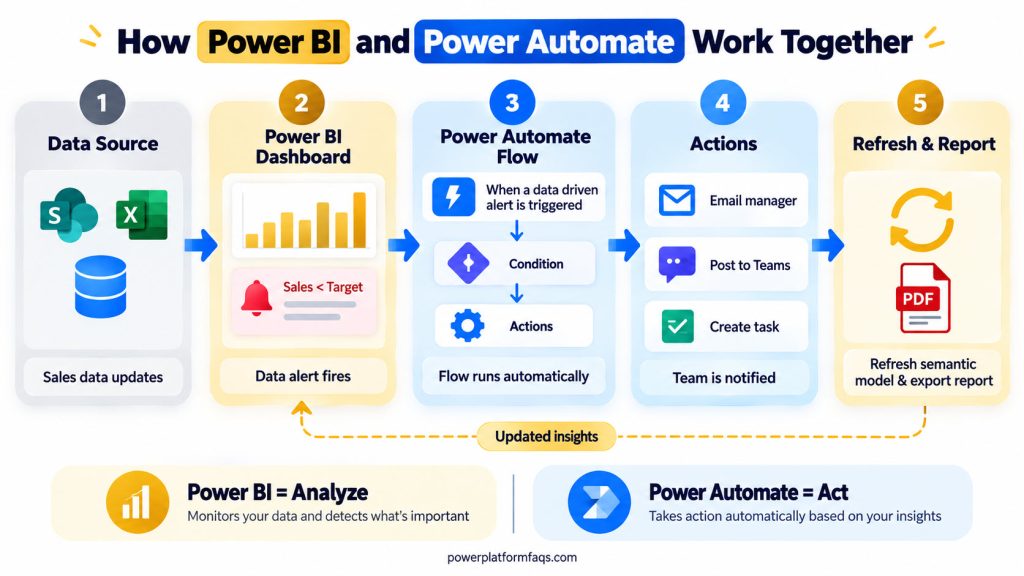
Power BI and Power Automate together are powerful because insight can become action. Power BI detects, displays, or exposes the business context, and Power Automate routes the next step to the right person or system.
1. Power BI Data Alert Starts a Flow
In the Power BI service, users can create data alerts on supported dashboard tiles such as cards, KPIs, and gauges. In Power Automate, the Power BI connector trigger is named When a data driven alert is triggered.
Example: Contoso has a dashboard card for Open High-Risk Deals. When the value rises above 10, a flow sends a Teams message to sales leadership, creates a Planner task, and emails the regional manager.
Heads up: Data alerts are not available for every visual or every Power BI experience. Validate the alert in the Power BI service before designing the flow around it.
2. Power Automate Visual Triggers Flows From a Report
Power BI includes a Power Automate visual that lets report users run a flow from inside a report. The flow can receive selected data from the report context, such as customer, region, product, or invoice ID.
Example: A collections report shows overdue invoices. A user selects three invoices and clicks a Power Automate button. The flow sends reminder emails, creates follow-up tasks, and writes a note back to Dataverse.
3. Flow Refreshes a Semantic Model
The Power BI connector action is still named Refresh a dataset, even though Power BI now commonly uses the term semantic model. Use this action when a process updates source data and you want the report model refreshed afterward.
Example: A nightly flow imports approved sales targets into Dataverse, then calls Refresh a dataset so the next morning’s Power BI report includes the latest targets.
4. Flow Exports a Report and Emails It
The Power BI connector includes Export To File for Power BI Reports and Export To File for Paginated Reports. These actions are useful when a stakeholder needs a PDF, PowerPoint, PNG, Excel, CSV, or other supported export format, depending on report type and capacity requirements.
Example: Every Friday, a flow exports the weekly sales report as a PDF and emails it to store managers. For highly formatted statements, a paginated report may be better than a normal interactive report.
5. Flow Runs a Query and Builds an Email Table
The connector action Run a query against a dataset can execute a query against a Power BI dataset/semantic model and return results. You can then use Power Automate data operations to shape the results and send a clean HTML table email.
Example: A flow runs a query for the top 10 delayed shipments, passes the rows into Create HTML table, and emails the operations team. This pattern is helpful when users need a short exception list, not a full report.
6. Paginated Subscriptions Versus Flows
Power BI paginated report subscriptions are good for scheduled delivery when the report itself is the main artifact. Power Automate is better when the delivery needs extra logic, such as approvals, conditional recipients, SharePoint archiving, Teams notifications, or follow-up tasks.
Use subscriptions for simple report distribution. Use flows when the report is one step inside a broader business process.
Power BI vs Power Automate Licensing and Cost
Licensing depends on the connectors, environments, sharing needs, capacity, and tenant settings, so always check Microsoft’s current pricing before budgeting. As a practical comparison, Power BI licensing centers on report creation, sharing, and capacity; Power Automate licensing centers on flow ownership, connectors, and process execution.
For Power BI, common options include Power BI Free for individual use, Power BI Pro for sharing and collaboration, Power BI Premium Per User for advanced per-user capabilities, and Microsoft Fabric capacity for capacity-based scenarios. Your organization may also have Microsoft 365, Fabric, or enterprise agreements that affect what users can do.
For Power Automate, many Microsoft 365 licenses include rights for standard connector scenarios. Premium connectors, Dataverse-heavy processes, attended or unattended RPA, high-volume automation, and organization-wide processes may require paid options such as Power Automate Premium per user or a Process plan.
Do not choose by license name alone. Map the actual requirement first:
| Requirement | Licensing Question to Ask |
|---|---|
| Share a Power BI report with coworkers | Do creators and viewers need Pro, PPU, or capacity-backed access? |
| Refresh a report after a business process | Does the flow owner have rights to the Power BI workspace and connector? |
| Use SQL, Dataverse, or premium connectors in a flow | Does the flow require Power Automate Premium or another paid entitlement? |
| Export Power BI reports with Power Automate | Does the workspace capacity and report type support the export scenario? |
| Run an organization-wide process | Is a per-user plan enough, or is a Process plan more appropriate? |
Watch out: Licensing changes over time. Treat blog examples as guidance, not as a quote. Confirm current prices, plan names, and tenant entitlements before purchasing.
Myths About Reporting and Automation
These myths cause overbuilt reports, fragile flows, and frustrated users.
1. Power BI Can Replace Every Automated Email
Power BI can reduce many manual emails because users can open a report whenever they need it. But if a process must notify someone, attach a file, create a task, or update a system, Power Automate is still the right tool.
2. Power Automate Is a Reporting Tool
Power Automate can send summaries and HTML tables, but it is not a replacement for a governed reporting layer. If users need slicers, DAX measures, trends, security, and reusable models, build Power BI.
3. Power BI Reports Automatically Fix Process Problems
A report can reveal late approvals, aging tickets, or missed targets. It does not automatically chase the owner or update the record unless you add an automation path.
4. One Tool Is Always Easier
Both tools feel easy at first. Both become serious when you add security, governance, performance, and production support.
Which Tool Should You Learn First?
Choose based on your career goal and the type of business problems you enjoy. If you like process improvement, operations, approvals, and system integration, start with Power Automate. If you like data analysis, dashboards, modeling, and storytelling, start with Power BI.
| Goal | Learn First | Why |
|---|---|---|
| Become a business analyst | Power BI | Reporting, modeling, and KPI analysis are core skills |
| Automate Microsoft 365 work | Power Automate | Quick wins with Outlook, SharePoint, Teams, and approvals |
| Build end-to-end Power Platform solutions | Power Automate, then Power BI | Automation often connects apps, data, and reporting |
| Move toward data analytics | Power BI | DAX, Power Query, and semantic models transfer well |
| Improve operations workflows | Power Automate | Processes, notifications, and exceptions matter most |
| Support managers with metrics and actions | Learn both | Power BI shows the issue; Power Automate routes the response |
A strong beginner path is to build one simple Power BI report, then automate one action from the insight.
Pros and Cons of Each Tool
No tool is perfect. Use these pros and cons to set expectations before you promise a solution.
| Tool | Pros | Cons |
|---|---|---|
| Power Automate | Fast automation, many connectors, approval support, works well with Microsoft 365, useful for alerts and exceptions | Licensing can surprise teams, flows need ownership planning, complex expressions can be hard, run failures require monitoring |
| Power BI | Strong visuals, semantic modeling, interactive analysis, trusted KPI dashboards, strong sharing options, good executive reporting | DAX and modeling take practice, sharing requires licensing, refresh and gateway setup need planning, not designed for process execution |
Pro tip: In real projects, the best solution is often not “Power Automate or Power BI.” It is “Power BI for insight, Power Automate for response.”
Real-World Scenario: Contoso Sales Team
Contoso stores opportunities in Dataverse and targets in Excel. The analyst builds a Power BI semantic model for pipeline, win rate, aging deals, high-risk opportunities, and forecast variance. Then the operations maker adds flows around the report:
- A scheduled flow refreshes source data after the nightly target file is uploaded.
- Another flow calls Refresh a dataset so the Power BI semantic model updates after the import process.
- A Power BI data alert starts a flow when high-risk opportunities exceed the threshold.
- A Power Automate visual lets managers select opportunities in the report and create follow-up tasks.
- A Friday flow exports a PDF summary and emails it to regional leaders.
- A separate flow runs a query against the dataset, creates an HTML table of overdue follow-ups, and emails account owners.
Power BI gives the team one trusted performance view, and Power Automate makes sure exceptions do not sit unnoticed.
Common Mistakes to Avoid
Avoid these mistakes before your solution becomes hard to support.
| # | Mistake | Better Approach |
|---|---|---|
| 1 | Using a flow as a full reporting system | Use Power BI for interactive reports and semantic models |
| 2 | Using Power BI when a record must be updated | Use Power Automate for the update action |
| 3 | Ignoring licenses until deployment | Check connector, workspace, sharing, and capacity requirements early |
| 4 | Building alerts without ownership | Decide who receives alerts and who maintains the flow |
| 5 | Refreshing too often | Match refresh frequency to business need and capacity limits |
| 6 | Sending huge tables by email | Use Power BI reports for exploration and send only exception summaries |
| 7 | Not testing with normal users | Validate permissions, workspaces, connections, and report access |
Cheat Sheet for Choosing the Right Tool
Use this cheat sheet when someone asks, “Should this be Power Automate or Power BI?”
| Requirement | Best Choice | Short Reason |
|---|---|---|
| Send an approval to a manager | Power Automate | It is a workflow action |
| Show sales by region and month | Power BI | It is analytical reporting |
| Email a weekly PDF report | Both | Power BI creates it; Power Automate sends it |
| Refresh a semantic model after import | Power Automate | The flow coordinates the refresh |
| Build an executive KPI dashboard | Power BI | It needs visuals and measures |
| Create a Teams alert when a KPI crosses a threshold | Both | Power BI detects; Power Automate notifies |
| Let users click a report button to create a task | Both | Use the Power Automate visual |
| Replace a manual spreadsheet analysis | Power BI | Modeling and visuals are needed |
| Move files after approval | Power Automate | File handling is an action |
| Let users explore data securely | Power BI | Reports and semantic models are built for this |
Frequently Asked Questions
Is Power Automate the same as Power BI?
No. Power Automate is for workflow automation, while Power BI is for analytics and reporting. They can connect to some of the same data sources, but the deliverables are different: flows perform actions, and reports help people understand data.
Can Power Automate trigger from Power BI?
Yes. The Power BI connector includes the trigger *When a data driven alert is triggered*, and the Power Automate visual can run a flow from a report with selected data. Review the Microsoft Power BI connector reference for current trigger and action names.
Why do Power Automate actions still say dataset?
Microsoft renamed Power BI datasets to semantic models, but some connector actions still use the older word dataset. For example, actions such as *Refresh a dataset* and *Run a query against a dataset* may still appear with those names in Power Automate.
Should I learn Power BI or Power Automate first?
Learn Power BI first if you want a data analyst or reporting path. Learn Power Automate first if you want to improve business processes, automate Microsoft 365 tasks, and connect systems. For Power Platform consulting, learn both.
Can Power BI send automated emails by itself?
Power BI can support subscriptions and alert notifications, especially for report and dashboard scenarios. Use Power Automate when the email needs conditional logic, attachments, approvals, Teams messages, SharePoint storage, or other steps after the report event.
Is Power Automate premium required for Power BI flows?
Not always. The Power BI connector is listed as a standard connector, but your full solution may still require paid Power Automate, Power BI, or Fabric licensing depending on connectors, capacity, sharing, and tenant settings. Always verify your exact scenario.
Can Power Automate refresh a Power BI report?
Power Automate can use the Power BI connector action *Refresh a dataset* to refresh the semantic model behind reports. The report visuals then reflect refreshed model data after the refresh completes, subject to Power BI refresh behavior and permissions.
Is Power BI better than Power Automate for dashboards?
Yes. Power BI is the right tool for dashboards, reports, semantic models, slicers, KPIs, and interactive analytics. Power Automate can send summary tables, but it does not replace Power BI for governed reporting.
Can I use Power Automate inside a Power BI report?
Yes. Add the Power Automate visual to a Power BI report, pass selected report fields into the visual, and build a flow that runs when the user selects the button. This is useful for tasks such as follow-ups, comments, and approvals.
Conclusion
Power Automate vs Power BI is not a battle between two tools. It is a design decision about whether you need action, insight, or both.
Quick recap:
- Use Power Automate for triggers, approvals, notifications, updates, exports, and process automation.
- Use Power BI for semantic models, dashboards, reports, KPIs, and data exploration.
- Use both when an insight should trigger a business response.
- Check licensing carefully because connector, capacity, and sharing requirements can change the cost.
- Remember that Power BI now says semantic model, while some connector actions still say dataset.
If you are planning a solution, start by writing the sentence: “When this data shows this condition, this person needs this action.” The data and condition often belong in Power BI. The action usually belongs in Power Automate.
Got a reporting or automation scenario you are unsure about? Drop it in the comments, and we will help you choose the right Power Platform design.
Related Power Platform Tutorials
- Power Automate Tutorials: From Beginner to Advanced
- Power BI Tutorials for Practical Reporting
- Power Apps Tutorials and Examples
- Power Apps vs Power Automate: Key Differences
- Trigger Conditions in Power Automate
- formatDateTime() in Power Automate

Bijay Kumar is a Microsoft MVP in Business Applications with over 18 years of experience in the IT industry and more than 12 years as a Microsoft MVP, recognized for his contributions to the Microsoft community. He is the Founder of TSinfo Technologies and the creator of the popular technology platforms SPGuides.com and EnjoySharePoint.com. Bijay also runs the SPGuides YouTube channel, where he shares practical tutorials on Microsoft 365, SharePoint, Power Platform, and Copilot technologies. Read more.