
If your flow fires every single time a SharePoint item changes, every time an email lands in your inbox, or every time a Dataverse row is touched, you’re burning through runs, cluttering your run history, and maybe even creating infinite loops. The fix is one of the most underused features in Power Automate: trigger conditions.
In this tutorial, you’ll learn exactly what trigger conditions in Power Automate are, where to find them, how to write them (even if you hate expressions), and how to combine them with AND/OR logic. You’ll also get 25+ copy-paste trigger condition examples for SharePoint, Outlook, Dataverse, and Recurrence flows, plus a troubleshooting checklist for when your trigger condition is not working.
What Are Trigger Conditions in Power Automate?
Trigger conditions in Power Automate are expressions that must evaluate to true before a flow is allowed to run. They sit inside the trigger’s settings and act as a gatekeeper. When the trigger event happens (a new item, a new email, a modified row), Power Automate checks your trigger conditions first. If the result is true, the flow runs. If it’s false, the flow doesn’t start at all.
Think of it like a bouncer at the door. Without trigger conditions, everyone gets into the club, and you have to throw people out once they’re inside (using a Condition action). With trigger conditions, only the right people get in to begin with.
Here’s a simple example. This trigger condition only lets a SharePoint flow run when the Status choice column equals Approved:
@equals(triggerOutputs()?['body/Status/Value'], 'Approved')Key point: When a trigger condition evaluates to
false, the flow run is not created. You won’t see a failed or cancelled run in your run history. For polling triggers, the check shows as Skipped in the trigger history.
Why You Should Use Trigger Conditions in Power Automate
- Fewer flow runs and action executions: Every run consumes Power Platform requests against your license’s daily limits. If a flow only needs to process 5% of items, letting 100% of items trigger a run is wasteful. Trigger conditions stop the run before any actions execute.
- Clean run history: Nothing is worse than scrolling through 500 runs that all ended at a “Condition = false” branch to find the one that actually failed. Trigger conditions keep your run history meaningful.
- Prevent infinite loops: A flow that triggers on When an item is created or modified and then updates that same item will retrigger itself forever. A trigger condition is the cleanest way to break that loop (covered in detail below).
- Better performance and less throttling: Fewer runs mean fewer connector calls, which means you’re less likely to hit SharePoint, Outlook, or Dataverse throttling limits.
- Simpler flow logic: Your flow no longer needs a giant Condition action wrapping everything. The flow body can assume the data is already valid.
Check out formatDateTime() in Power Automate
Trigger Conditions vs. Condition Action vs. Filter Query
| Feature | Where it lives | When it’s evaluated | Creates a run if false? | Best for |
|---|---|---|---|---|
| Trigger condition | Trigger → Settings | Before the flow starts | No | Stopping unwanted runs entirely |
| Condition action | Inside the flow | After the flow starts | Yes | Branching logic (if/else) mid-flow |
| Filter Query / Filter rows (OData) | Trigger or action parameters | At the data source | Depends on trigger | Server-side filtering |
Rule of thumb:
- If the flow should never run for certain records, use a trigger condition.
- If the flow should run but do different things, use a Condition or Switch action.
- If the trigger supports server-side filtering (like Dataverse’s Filter rows), use that first, and add trigger conditions for anything OData can’t express.
Sometimes the check belongs inside the flow rather than on the trigger. For those cases, see my guide to checking for blank values with a Power Automate condition.
How to Add a Trigger Condition in Power Automate (Step by Step)
- Open your flow in Edit mode.
- Click the trigger card (the first step in your flow).
- In the pane that opens, select the Settings tab.
- Scroll down to Trigger conditions.
- Click + Add.
- Paste or type your expression (it must start with
@). - Click Save.
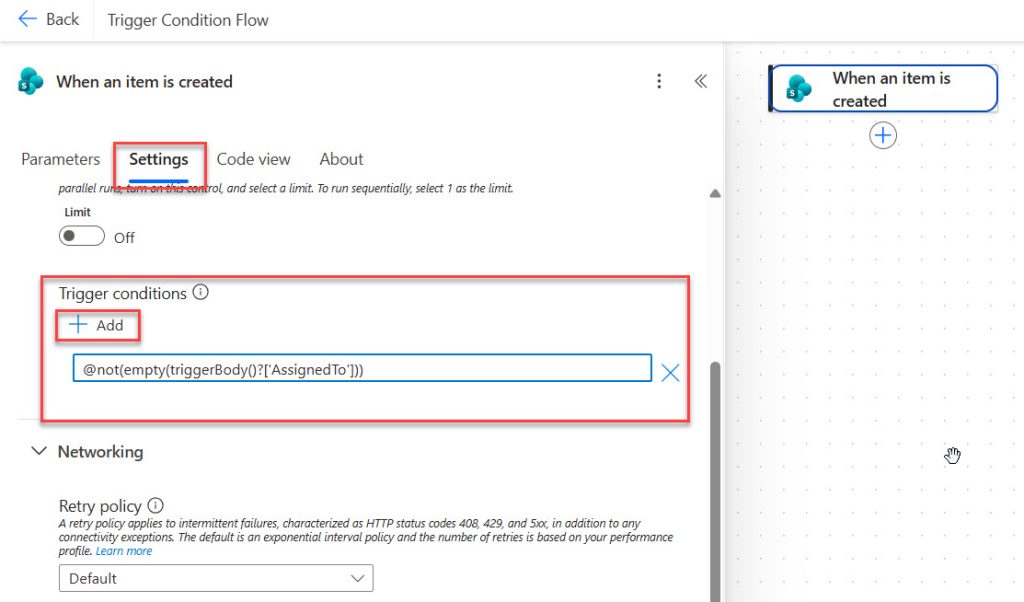
Heads up: The trigger conditions box is a plain text field. It does not have the dynamic content picker or expression editor. That’s why most people write the expression elsewhere first (see the trick below).
Power Automate Trigger Condition Syntax
Every trigger condition follows the same pattern:
@function(triggerOutputs()?['body/FieldName'], 'value')| Part | What it means |
|---|---|
@ | Tells Power Automate this is an expression. Required. |
function | A function that returns true or false, such as equals, not, contains, greater, and, or, empty. |
triggerOutputs() | Returns everything the trigger produced (headers + body). |
?['body/FieldName'] | Safely navigates to a field. The ? returns null instead of erroring if the field doesn’t exist. |
'value' | The comparison value. Strings use single quotes. Numbers and booleans don’t use quotes. |
triggerOutputs() vs. triggerBody()
@equals(triggerOutputs()?['body/Title'], 'Test')
@equals(triggerBody()?['Title'], 'Test')
triggerBody() is simply a shortcut for triggerOutputs()?['body']. Both work. For triggers that split arrays into individual runs (like Outlook’s When a new email arrives (V3)), triggerBody() is usually the cleanest choice.
The most useful functions for trigger conditions
| Function | Returns true when… | Example |
|---|---|---|
equals(a, b) | a equals b | @equals(triggerBody()?['Priority'], 'High') |
not(x) | x is false | @not(equals(triggerBody()?['Status'], 'Closed')) |
and(a, b, …) | all are true | @and(cond1, cond2) |
or(a, b, …) | any is true | @or(cond1, cond2) |
contains(text, search) | text contains search | @contains(triggerBody()?['subject'], 'Invoice') |
startsWith(text, s) | text starts with s | @startsWith(triggerBody()?['Title'], 'PO-') |
endsWith(text, s) | text ends with s | @endsWith(triggerBody()?['from'], '@contoso.com') |
empty(x) | x is null/empty | @empty(triggerBody()?['Comments']) |
greater(a, b) | a > b | @greater(triggerBody()?['Amount'], 1000) |
greaterOrEquals(a, b) | a ≥ b | @greaterOrEquals(triggerBody()?['Qty'], 10) |
less(a, b) | a < b | @less(triggerBody()?['Score'], 50) |
Check out Power Automate addDays() Function
How to Find the Right Field Path (The Secret Trick)
The number one reason a trigger condition doesn’t work is a wrong field path. SharePoint uses internal column names, choice columns have a nested Value property, and person columns have a nested Email property. Don’t guess.
Method 1: Read the trigger’s raw outputs
- Save the flow without any trigger condition.
- Trigger it once (create/modify an item, send a test email, etc.).
- Open the run from Run history.
- Click the trigger card and view its Outputs.
- Find your field in the JSON. The path under
bodyis the path you need.
{
  "body": {
    "ID": 14,
    "Title": "Laptop request",
    "Status": { "Id": 2, "Value": "Approved" },
    "Amount": 1500,
    "IsUrgent": true,
    "Editor": { "Email": "megan@contoso.com", "DisplayName": "Megan Bowen" }
  }
}
From that output, your paths are:
triggerOutputs()?['body/Status/Value']→ “Approved”triggerOutputs()?['body/Amount']→ 1500triggerOutputs()?['body/IsUrgent']→ truetriggerOutputs()?['body/Editor/Email']→ “megan@contoso.com”
Method 2: Build it in a Compose action first (recommended)
- Add a Compose action right after the trigger.
- Use the expression editor (with IntelliSense and dynamic content) to build your condition, for example
equals(triggerOutputs()?['body/Status/Value'], 'Approved'). - Save and run the flow. Confirm the Compose output is
truefor good records andfalsefor others. - Copy the expression, add
@to the front, and paste it into Trigger conditions. - Delete the Compose action.
Pro tip: Selecting a dynamic content field in the expression editor inserts the exact path for you. No guessing required.
Multiple Trigger Conditions: AND vs. OR
AND logic: add multiple rows
When you add more than one trigger condition row, Power Automate treats them as AND. All conditions must be true.
Row 1:
@equals(triggerOutputs()?['body/Status/Value'], 'Approved')Row 2:
@greater(triggerOutputs()?['body/Amount'], 1000)The same thing in a single row:
@and(equals(triggerOutputs()?['body/Status/Value'], 'Approved'), greater(triggerOutputs()?['body/Amount'], 1000))OR logic: use or() in a single row
There’s no “OR” between rows. Combine everything into one expression:
@or(equals(triggerOutputs()?['body/Status/Value'], 'Approved'), equals(triggerOutputs()?['body/Status/Value'], 'Rejected'))Mixing AND + OR
“(Approved OR Rejected) AND Department = Finance”:
@and(or(equals(triggerOutputs()?['body/Status/Value'], 'Approved'), equals(triggerOutputs()?['body/Status/Value'], 'Rejected')), equals(triggerOutputs()?['body/Department/Value'], 'Finance'))Readability tip: Keep the OR group in one row and put each additional AND requirement in its own row.
Checking one field against many values
@contains(createArray('Approved', 'Rejected', 'Cancelled'), triggerOutputs()?['body/Status/Value'])SharePoint Trigger Condition Examples
These work with When an item is created, When an item is created or modified, and When a file is created or modified (properties only). Always use internal column names (check the column URL in List Settings: Field=InternalName).
1. Single line of text equals a value
@equals(triggerOutputs()?['body/Title'], 'Urgent')2. Text column is not empty
@not(empty(triggerOutputs()?['body/Comments']))3. Choice column equals a value
@equals(triggerOutputs()?['body/Status/Value'], 'Approved')4. Choice column is NOT a value
@not(equals(triggerOutputs()?['body/Status/Value'], 'Draft'))5. Multi-select choice column contains a value
@contains(string(triggerOutputs()?['body/Regions']), 'Europe')6. Yes/No column is Yes
@equals(triggerOutputs()?['body/IsUrgent'], true)Don’t put quotes around
true.'true'(a string) is not the same astrue(a boolean).
7. Number column greater than a value
@greater(triggerOutputs()?['body/Amount'], 1000)8. Person column equals a specific user
@equals(toLower(triggerOutputs()?['body/AssignedTo/Email']), 'megan@contoso.com')9. Person column is empty
@empty(triggerOutputs()?['body/AssignedTo'])10. Lookup column equals a value
@equals(triggerOutputs()?['body/Project/Value'], 'Contoso Website')11. Date column is in the future
@greater(triggerOutputs()?['body/DueDate'], utcNow())12. Only run on new items (not modifications)
@equals(triggerOutputs()?['body/Created'], triggerOutputs()?['body/Modified'])On busy lists the timestamps can differ by a second. If you only need new items, use the When an item is created trigger instead.
13. Only run for files in a specific folder
@contains(triggerOutputs()?['body/{Path}'], 'Shared Documents/Invoices/')14. Only run for PDF files
@endsWith(toLower(triggerOutputs()?['body/{FilenameWithExtension}']), '.pdf')15. Ignore folders (files only)
@equals(triggerOutputs()?['body/{IsFolder}'], false)16. Ignore changes made by a service account
@not(equals(toLower(triggerOutputs()?['body/Editor/Email']), 'svc-flow@contoso.com'))Outlook Email Trigger Condition Examples
These work with When a new email arrives (V3) in Office 365 Outlook.
Check the built-in parameters first. From, To, Subject Filter, Importance, Only with Attachments, and Folder already filter emails. Use trigger conditions for anything they can’t do.
17. Subject contains a keyword (case-insensitive)
@contains(toLower(triggerBody()?['subject']), 'invoice')18. Subject contains one of several keywords
@or(contains(toLower(triggerBody()?['subject']), 'invoice'), contains(toLower(triggerBody()?['subject']), 'receipt'))19. Email is from a specific domain
@endsWith(toLower(triggerBody()?['from']), '@contoso.com')20. External senders only
@not(endsWith(toLower(triggerBody()?['from']), '@yourcompany.com'))21. Exclude auto-replies and out-of-office messages
@not(or(startsWith(toLower(triggerBody()?['subject']), 'automatic reply'), startsWith(toLower(triggerBody()?['subject']), 'out of office')))22. Only emails with attachments
@equals(triggerBody()?['hasAttachments'], true)Dataverse Trigger Condition Examples
For When a row is added, modified or deleted, always use Filter rows and Select columns first. They filter on the server. Use trigger conditions for logic OData can’t express.
Use the column’s logical name (for example
statuscodeorcr123_amount), not its display name.
23. Status reason equals a value
@equals(triggerOutputs()?['body/statuscode'], 1)24. Choice (option set) equals a value
@equals(triggerOutputs()?['body/cr123_priority'], 100000002)Choices are stored as integers. Compare against the numeric value, not the label.
25. Ignore updates made by a specific user
@not(equals(triggerOutputs()?['body/_modifiedby_value'], '00000000-0000-0000-0000-000000000000'))Replace the GUID with your application or service user’s systemuserid.
Tip: In Select columns, list only the columns that should trigger the flow (e.g., statuscode,cr123_amount). The flow will ignore updates to other columns.
Recurrence (Scheduled Flow) Trigger Condition Examples
26. Run only on weekdays
dayOfWeek() returns 0 for Sunday through 6 for Saturday:
@and(greater(dayOfWeek(utcNow()), 0), less(dayOfWeek(utcNow()), 6))Time zone warning:
utcNow()is UTC. In the US, late-evening runs may already be “tomorrow” in UTC. Convert first:
@and(greater(dayOfWeek(convertFromUtc(utcNow(), 'Eastern Standard Time')), 0), less(dayOfWeek(convertFromUtc(utcNow(), 'Eastern Standard Time')), 6))27. Run only on the last day of the month
@equals(dayOfMonth(addDays(convertFromUtc(utcNow(), 'Eastern Standard Time'), 1)), 1)Schedule the flow daily. It only runs when tomorrow is the 1st.
28. Run only on the first Monday of the month
@and(equals(dayOfWeek(utcNow()), 1), lessOrEquals(dayOfMonth(utcNow()), 7))How to Prevent Infinite Loops With Trigger Conditions
The problem
Your flow triggers on When an item is created or modified, then uses Update item on the same item. That update counts as a modification, so the flow triggers again, and again, and again.
Solution 1: Ignore edits from the flow’s account (most reliable)
Run the flow’s SharePoint connection under a dedicated service account, then add:
@not(equals(toLower(triggerOutputs()?['body/Editor/Email']), 'svc-flow@contoso.com'))When the flow updates the item, Modified By becomes the service account, so no new run is created. Real user edits still trigger the flow.
Solution 2: Use a “processed” flag column
- Add a Yes/No column called FlowProcessed (default No).
- Add the trigger condition
@equals(triggerOutputs()?['body/FlowProcessed'], false). - Set FlowProcessed = Yes in the same Update item action that writes your changes.
If users need the flow to run again after they edit the item, you’ll have to reset the flag. Solution 1 is usually cleaner.
Solution 3: Only run in a specific state
If your flow moves an item from Submitted to In Review:
@equals(triggerOutputs()?['body/Status/Value'], 'Submitted')Trigger Condition Not Working? Troubleshooting Checklist
| # | Problem | Fix |
|---|---|---|
| 1 | Missing @ | Every trigger condition must start with @. |
| 2 | Wrong field path | Check raw outputs. Use internal (SharePoint) or logical (Dataverse) names. |
| 3 | Choice column missing /Value | Use ['body/Status/Value'], not ['body/Status']. |
| 4 | Smart quotes | Replace curly quotes with straight single quotes '. |
| 5 | Double quotes around strings | Use 'Approved', not "Approved". |
| 6 | Case sensitivity | Wrap text with toLower(). |
| 7 | Boolean in quotes | Use true/false, not 'true'/'false'. |
| 8 | Number in quotes | Use 1000, not '1000'. |
| 9 | Expecting OR between rows | Multiple rows are AND. Use @or(...) in one row. |
| 10 | Unbalanced parentheses | Build the expression in a Compose action first. |
| 11 | Changes not taking effect | Save the flow, then turn it off and on again. |
| 12 | Null values cause errors | Use ? and check with empty(). |
| 13 | Renamed column | A column renamed from “Title1” is still Title1 internally. |
| 14 | Time zone mismatch | Use convertFromUtc(). |
How to see why a trigger didn’t fire: For polling triggers like SharePoint, check the flow’s trigger history. Checks marked Skipped mean the trigger fired but your condition returned false.
Best Practices for Trigger Conditions
- Use built-in trigger filters first. Outlook’s Subject Filter and Dataverse’s Filter rows run closer to the source.
- Always use the safe navigation operator (
?). - Normalize text with
toLower(). - Prototype in Compose before moving the expression to the trigger.
- Keep it readable. Separate rows for AND, one row for OR.
- Document it. Rename the trigger (e.g., “When item modified – Status = Approved only”) and add a note.
- Use a service account to prevent update loops.
- Re-test after schema changes like renaming columns or changing column types.
- Use environment variables for emails, GUIDs, and URLs that differ between Dev, Test, and Prod.
- Don’t over-engineer. Very complex logic may belong in the flow body or a child flow.
Trigger Conditions Cheat Sheet
| Scenario | Trigger condition |
|---|---|
| Text equals | @equals(triggerOutputs()?['body/Title'], 'Value') |
| Text not empty | @not(empty(triggerOutputs()?['body/Title'])) |
| Text contains | @contains(toLower(triggerOutputs()?['body/Title']), 'value') |
| Choice equals | @equals(triggerOutputs()?['body/Status/Value'], 'Approved') |
| Choice in list | @contains(createArray('A','B'), triggerOutputs()?['body/Status/Value']) |
| Yes/No is Yes | @equals(triggerOutputs()?['body/IsActive'], true) |
| Number greater than | @greater(triggerOutputs()?['body/Amount'], 1000) |
| Person email equals | @equals(toLower(triggerOutputs()?['body/Owner/Email']), 'user@contoso.com') |
| Not edited by service account | @not(equals(toLower(triggerOutputs()?['body/Editor/Email']), 'svc@contoso.com')) |
| Files only | @equals(triggerOutputs()?['body/{IsFolder}'], false) |
| PDF files only | @endsWith(toLower(triggerOutputs()?['body/{FilenameWithExtension}']), '.pdf') |
| Email subject contains | @contains(toLower(triggerBody()?['subject']), 'invoice') |
| Email from domain | @endsWith(toLower(triggerBody()?['from']), '@contoso.com') |
| Weekdays only | @and(greater(dayOfWeek(utcNow()), 0), less(dayOfWeek(utcNow()), 6)) |
Frequently Asked Questions
What is a trigger condition in Power Automate?
A trigger condition is an expression in the trigger’s settings that must evaluate to true for the flow to run. If it evaluates to false, no flow run is created.
Where are trigger conditions in Power Automate?
Select the trigger card, open the Settings tab, scroll to Trigger conditions, and click + Add.
Are multiple trigger conditions AND or OR?
Multiple rows are combined with AND. For OR logic, use a single expression with @or(...).
Do trigger conditions save Power Platform requests?
When a trigger condition is false, no run is created, and no actions execute, so you save those requests. Polling triggers still check the data source on their schedule.
Why is my trigger condition not working?
The most common causes are a missing @, a wrong field path, a choice column missing /Value, smart quotes, or case-sensitive comparisons.
Can I use dynamic content in trigger conditions?
Not directly. Build the expression in a Compose action using the expression editor, then copy it into the trigger condition and add @ at the front.
Can I trigger a flow only when a specific SharePoint column changes?
Not with a trigger condition alone, because the trigger output only contains current values. Use the Get changes for an item or a file (properties only) action with a Condition, or store the previous value in a hidden column and compare against it.
Do trigger conditions work with all triggers?
They work with most automated and scheduled triggers, including SharePoint, Outlook, Dataverse, Forms, Teams, OneDrive, and Recurrence. Instant (manual) triggers don’t show the option.
What’s the difference between triggerBody() and triggerOutputs()?
triggerBody() is shorthand for triggerOutputs()?['body']. triggerOutputs() also includes headers. Either works as long as the path is correct.
Conclusion
Trigger conditions in Power Automate are one of the simplest ways to make your flows faster, cheaper, cleaner, and safer. One line of expression can stop thousands of unnecessary runs and break infinite loops.
Quick recap:
- Trigger conditions live in Trigger → Settings → Trigger conditions.
- Every expression must start with
@and return true/false. - Multiple rows = AND. Use
@or()for OR logic. - Find the field path in the raw outputs or build it in a Compose action first.
- Use
toLower(), the?operator, and internal column names to avoid most errors.
Got a tricky trigger condition scenario? Drop it in the comments, and we’ll help you write the expression.
You may also like the following tutorials:

Bijay Kumar is a Microsoft MVP in Business Applications with over 18 years of experience in the IT industry and more than 12 years as a Microsoft MVP, recognized for his contributions to the Microsoft community. He is the Founder of TSinfo Technologies and the creator of the popular technology platforms SPGuides.com and EnjoySharePoint.com. Bijay also runs the SPGuides YouTube channel, where he shares practical tutorials on Microsoft 365, SharePoint, Power Platform, and Copilot technologies. Read more.