
If you’ve opened Copilot Studio recently and noticed a dropdown to select your agent’s AI model, you’re not alone in wondering — which one should I pick? The options have expanded fast. You’ve got GPT-4.1, GPT-5 Chat, GPT-5 Reasoning, Claude Sonnet 4.5, Claude Opus 4.1, and more. It can feel overwhelming when you’re just trying to build a working agent.
In this tutorial, I’ll walk you through everything you need to know about AI model selection in Copilot Studio — what each model does, when to use it, how to switch models, and what your admin needs to set up before you can use the newer ones. I’ll also cover some real practical scenarios so you know exactly which model fits which situation.
Let’s get into it.
Why Does AI Model Choice Even Matter?
Think of the AI model as the brain powering your Copilot agent. When a user asks a question, the model is what decides how to understand that question and frame a response.
Different models are built differently — some are faster, some are more thorough, some are better at following complex instructions, and some are particularly good at reasoning through multi-step problems.
Picking the wrong model won’t break your agent, but it can lead to:
- Slow responses when a lightweight model would do the job just fine
- Shallow or incomplete answers when your use case needs deeper reasoning
- Higher message consumption than you expected
- Inconsistent formatting, even when you’ve given detailed instructions
So yes, model choice genuinely matters, and now that Copilot Studio lets you switch, it’s worth understanding what each option brings to the table.
How to Change the AI Model in Copilot Studio
Before we dive into which model to pick, let me show you how to actually change it. It’s simpler than you’d think.
- Open your agent in Copilot Studio
- Go to the Overview tab of your agent
- In the Model section, you’ll see a dropdown showing your current model
- Click the chevron (the small arrow icon) to expand the model list, you can see all the models in the screenshot below:
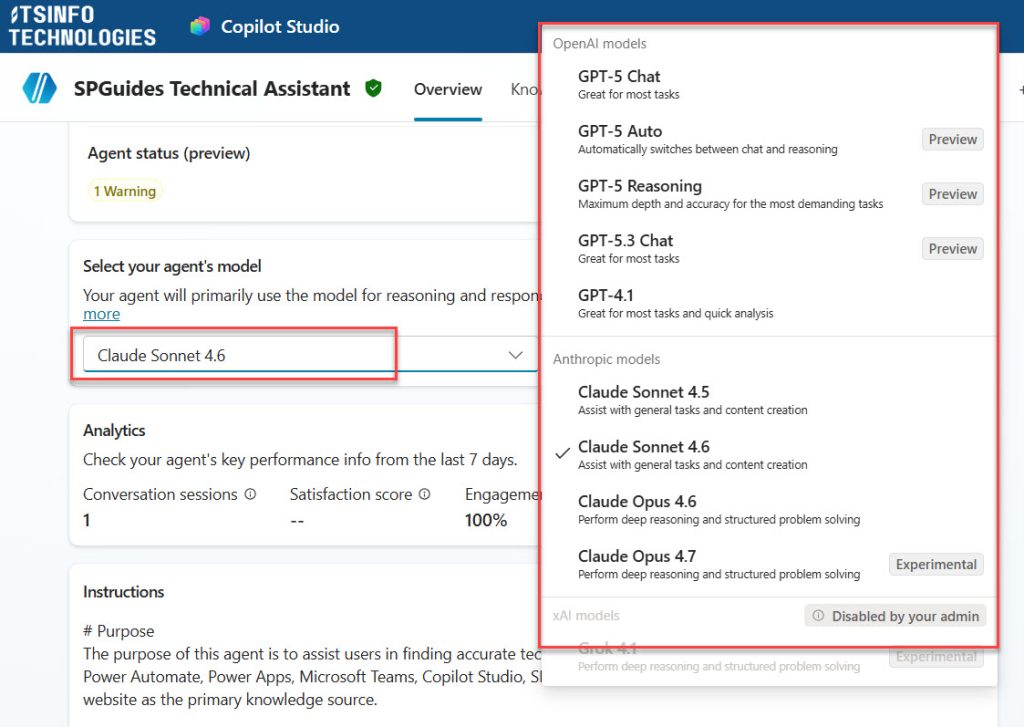
- Select the model you want to use
- A confirmation message will appear, letting you know the model has been updated
That’s it. You can switch models at any time, even after your agent is already built and tested. This makes it easy to experiment — build your agent with the default model, then try swapping to a different one and compare the responses.
One important thing: the model you see in that dropdown depends on what your admin has enabled. If you only see GPT-4.1, it probably means preview and experimental models haven’t been turned on for your environment. More on that in the admin settings section below.
Understanding the Model Tags
When you look at the model list, each model comes with a couple of tags. Understanding these tags saves you from picking a model that’s not ready for what you’re building.
Tag 1: Model Use Category
This tells you what kind of tasks the model is optimized for:
- General — Fast and cost-efficient. Best for everyday chat, FAQs, summarization, translation, and simple question-answer scenarios. If you’re building a basic helpdesk bot or an internal FAQ agent, a General model is your go-to.
- Auto — Handles a mixed bag of tasks intelligently. It routes queries dynamically, so it’s great when you have an agent that might need to handle a mix of simple questions and more complex actions. Think of it like a smart router that adjusts based on what the user is asking.
- Deep — Built for complex, multi-step reasoning. If your agent needs to analyze long documents, work through policy-heavy scenarios, or perform multi-hop reasoning (where the answer depends on combining information from several places), this is your model. It’s slower and costs more, but for the right use case, it’s worth it.
Tag 2: Availability Status
This tells you how production-ready the model is:
- Default — This is the currently recommended model for most agents. Copilot Studio periodically upgrades the default model as better ones become generally available. Right now, GPT-4.1 is the default.
- No tag (GA) — Generally Available. Fully tested, stable, and ready for production use at scale.
- Preview — Works well but isn’t officially recommended for production yet. You can use it in test environments or non-critical scenarios. Performance is generally good, but Microsoft is still gathering feedback.
- Experimental — Early access only. These models are there for you to explore and provide feedback on. Don’t deploy them in production. You might experience slowdowns, timeouts, or variable quality.
- Retired — The model has been replaced but is still available for up to 30 days after retirement. More on this below.
The OpenAI Models Available in Copilot Studio
Here’s a breakdown of the current OpenAI models you’ll find in Copilot Studio:
GPT-4.1 (Default)
This is the default model for all new agents right now. It replaced GPT-4o as the default in late 2025. GPT-4.1 is a text-only model with strong accuracy and reasoning — it’s particularly good at analyzing detailed documents, complex knowledge-base Q&A, and scenarios where precision matters.
Best for: Document analysis agents, policy Q&A, knowledge management bots, and scenarios where you need reliable and consistent responses.
Availability: Generally Available (GA) — safe for production.
GPT-5 Chat (General)
GPT-5 Chat is the conversational upgrade from GPT-4.1. It handles context better across long conversations and produces more natural, human-like dialogue. If your agent needs to maintain context across a multi-turn conversation or feel genuinely conversational, GPT-5 Chat performs noticeably better than GPT-4.1 in that department.
Best for: Employee self-service chatbots, IT/HR helpdesk agents, customer-facing agents where natural conversation flow matters.
Availability: Generally Available — production ready.
GPT-5 Auto (Auto)
This is where it gets interesting. GPT-5 Auto isn’t just a chat model — it’s built to orchestrate multi-step workflows. It can automate actions across multiple systems, not just respond to questions. Think of it as a “digital project manager” that can figure out what needs to happen, in what order, and kick off those steps.
Best for: End-to-end process automation, ticket creation to resolution flows, multi-step task sequences that touch several apps or systems.
Availability: Preview — good for testing and non-critical environments, not recommended for production yet.
GPT-5 Reasoning (Deep)
If you need serious analytical power, this is it. GPT-5 Reasoning is trained specifically for complex reasoning tasks — the kind where the model needs to think carefully through the problem, not just retrieve an answer. It scores high on document understanding and structured problem-solving.
Best for: Compliance auditing, financial analysis, interpreting complex multi-part data, and advanced planning scenarios where you need thorough, carefully thought-out responses.
Availability: Preview — test it, but hold off on deploying it in production.
GPT-5.2 Chat and GPT-5.2 Reasoning (Experimental)
These are the most cutting-edge models in the lineup right now. GPT-5.2 builds on GPT-5 with improved context awareness and reasoning depth. They were made available in late 2025 in early release environments.
Best for: Experimenting with the latest capabilities. Use these if you want to stay ahead of the curve and test what the newest model can do before it hits GA.
Availability: Experimental — strictly for testing. Do not use in production.
The Anthropic (Claude) Models
This is the big news from 2025. Microsoft opened up Copilot Studio to external models from Anthropic, meaning you can now power your agents with Claude models, not just OpenAI ones.
These are “external” models — meaning they’re hosted outside Microsoft’s infrastructure, on Anthropic’s side. Because of that, your admin needs to explicitly enable them, and you need to accept Anthropic’s data handling terms before using them. More on that in a moment.
Claude Sonnet 4.5 (General)
Claude Sonnet 4.5 is Anthropic’s latest coding and agent-focused model. It’s exceptional at tool use, step-by-step reasoning, and handling complex multi-step agent workflows. In practice, when I’ve seen it tested for response formatting tasks — like following specific date format instructions — it consistently does better than GPT-4.1 at following detailed instructions.
Best for: Advanced software development assistance, building multi-step autonomous agents, tasks that require integration with external tools and systems, and scenarios where following complex formatting instructions precisely is important.
Availability: Preview (Frontier Program) — available for early experimentation, not recommended for production.
Claude Opus 4.1 (Deep)
Claude Opus 4.1 is Anthropic’s reasoning powerhouse. It’s designed for intensive analysis and structured problem-solving. If you have a scenario that needs very thorough, methodical reasoning — think compliance auditing, elaborate planning, or synthesizing information from long documents — this is worth testing.
Best for: In-depth data analysis, research summarization, complex reasoning tasks where depth and thoroughness are more important than speed.
Availability: Experimental — use only for exploration and testing.
A Quick Side-by-Side Comparison
Here’s a summary to help you match your use case to the right model:
| Your Use Case | Recommended Model | Why |
|---|---|---|
| Basic FAQ / helpdesk bot | GPT-4.1 | Fast, accurate, stable, production-ready |
| Natural multi-turn conversations | GPT-5 Chat | Better context retention, more conversational |
| Multi-step process automation | GPT-5 Auto | Designed to orchestrate actions across systems |
| Document analysis / compliance | GPT-5 Reasoning or Claude Opus 4.1 | Deep reasoning capability |
| Code generation / tool-heavy agents | Claude Sonnet 4.5 | Excels at tool use and agentic workflows |
| Mixed intents, unpredictable queries | GPT-5 Auto | Routes queries dynamically |
| Testing the latest features | GPT-5.2 Chat / GPT-5.2 Reasoning | Cutting-edge, experimental |
What Your Admin Needs to Enable
This part catches a lot of makers off guard. If you open the model dropdown and only see GPT-4.1, it doesn’t mean other models don’t exist — it means your admin hasn’t turned on the settings for them.
There are three key admin controls:
1. Allow Preview and Experimental Models
Your admin needs to go into the Power Platform admin center and turn on the “Preview and experimental AI models” setting for your environment. Without this, you’ll only see Generally Available models.
To check or change this:
- Go to Power Platform admin center
- Select your environment
- Go to Settings → Features
- Enable Allow Preview & Experimental AI models
2. Move Data Across Regions
Experimental models may not run in the same data center as your environment. For example, if your environment is in Europe but the experimental model is hosted in the US, your data needs to cross regions to use it.
Your admin needs to enable Move data across regions in the Power Platform admin center. If this is off, experimental model features simply won’t work.
3. Enable Anthropic as a Microsoft Subprocessor (for Claude Models)
To use Claude Sonnet 4.5 or Claude Opus 4.1, a Global Administrator needs to go to the Microsoft 365 Admin Center and enable the setting:
“Enable Anthropic as a Microsoft subprocessor subject to the above terms”
If this isn’t enabled, the Anthropic models won’t appear in your dropdown at all — not even as an option. Once it’s enabled, users also need to accept Anthropic’s data handling terms in Copilot Studio before they can start building with Claude.
What Happens When a Model Gets Retired?
Microsoft periodically upgrades the default model. When that happens, the old model gets a “Retired” tag. You can still use a retired model for up to 30 days after the upgrade.
Why would you want to do that? A few real reasons:
- Your agent’s downstream systems expect a specific response format or style, and the new model’s output is structured differently
- You’re in the middle of a product launch or critical event, and stability is more important than getting new features right now
- Your compliance team needs to vet the new model before it processes sensitive data in your environment
To keep using a retired model:
- Go to your agent’s Settings page
- In the Generative AI tab, find the Model section
- Toggle on “Continue using retired models”
This gives you up to 30 days to update and test your agent with the new model before the old one is fully removed. After 30 days, the retired model is gone — so don’t wait too long.
My Practical Recommendation: How to Actually Decide
Honestly, the best approach is to start with GPT-4.1 and test your way to a better model if needed. Here’s how I’d approach it:
Step 1: Build your agent with GPT-4.1 (the default)
It’s stable, production-ready, and handles most scenarios well. Don’t overthink the model before you’ve even built the thing.
Step 2: Test it with real questions
Put in 10–15 realistic prompts that represent what your users will actually ask. Look at the quality, depth, and structure of responses.
Step 3: Identify what’s missing
Is it too shallow? Too slow? Not following your formatting instructions precisely? That tells you what to look for in another model.
Step 4: Test one alternative
If conversations feel robotic or context is getting lost, try GPT-5 Chat. If your agent needs to reason through complex multi-step problems, try GPT-5 Reasoning in a dev environment.
Step 5: Compare side by side
Ask the same question with two different models and compare the responses for depth, structure, tone, and accuracy. Copilot Studio makes this easy since you can switch models and start a new test session instantly.
A Real Example: HR Recruitment Agent
Let me put this in context with a real scenario. Say you’re building an HR recruitment agent that:
- Summarizes candidate resumes
- Suggests interview questions based on job criteria
- Answers employee policy questions
Here’s how the models perform differently for this:
- GPT-4.1 will return structured summaries. It’s reliable but sometimes misses nuanced formatting instructions (like specific date formats).
- GPT-5 Chat generally follows formatting instructions more precisely and provides richer, more contextual responses with natural suggestions.
- Claude Sonnet 4.5 tends to produce more concise responses and is notably better at consistently following detailed response formatting rules.
In testing, Claude Sonnet 4.5 correctly formatted dates using a specific MMM dd, yyyy format when the other models occasionally slipped up. For a scenario where precise formatting matters — like structured candidate reports — that’s a meaningful difference.
Check out How to Monitor Token Usage by AI Model in Copilot Studio
One More Thing: You Can Mix Models in Multi-Agent Systems
If you’re building multi-agent systems in Copilot Studio (where one orchestrator agent calls specialized sub-agents), you don’t have to use the same model for everything. You can give different agents different models based on their role.
For example:
- Your orchestrator agent uses GPT-5 Auto for intelligent routing
- Your document analysis agent uses GPT-5 Reasoning for deep document comprehension
- Your chat-facing agent uses GPT-5 Chat for natural conversation
With the prompt tools in Copilot Studio, you can even mix Anthropic and OpenAI models across different tasks in the same workflow. This is powerful when you have diverse workloads with very different requirements.
Wrapping Up
Choosing the right AI model in Copilot Studio doesn’t have to be complicated. The short version:
- GPT-4.1 is your solid, production-ready default for most agents
- GPT-5 Chat is the upgrade for more natural, conversational experiences
- GPT-5 Auto is what you want for complex automation workflows
- GPT-5 Reasoning / Claude Opus 4.1 are for deep analytical and reasoning tasks
- Claude Sonnet 4.5 shines at agentic workflows, code, and following detailed instructions
Start simple, test with real data, compare responses, and don’t be afraid to switch. The model dropdown is right there on your agent’s Overview tab — use it.
If you’re using experimental or Claude models, loop in your admin early to make sure the environment settings are in place. Nothing is more frustrating than building out an agent only to find out your environment doesn’t have preview models enabled.

Bijay Kumar is a Microsoft MVP in Business Applications with over 18 years of experience in the IT industry and more than 12 years as a Microsoft MVP, recognized for his contributions to the Microsoft community. He is the Founder of TSinfo Technologies and the creator of the popular technology platforms SPGuides.com and EnjoySharePoint.com. Bijay also runs the SPGuides YouTube channel, where he shares practical tutorials on Microsoft 365, SharePoint, Power Platform, and Copilot technologies. Read more.