
I often see this issue in inventory and service desk apps. A user enters a quantity such as 25 into a Text input control, but Power Apps treats that entry as text instead of a real number.
That becomes a problem the moment you need to calculate totals, compare values, or save the result into a SharePoint list or Dataverse number column. The good news is that Power Apps gives us a simple, reliable way to handle it.
In this guide, I will show you how to convert text to numbers in Power Apps, validate the input, and use the result in formulas and data updates.
Why Power Apps Treats Number Input as Text
In a Canvas app, a Text input control always returns its value as text. This happens even when users type only digits.
For example, assume you have a Text input control named txtQuantity. If a user enters 25, this formula returns text:
txtQuantity.Text
You can display that value in a Label without any issue. However, calculations need a numeric value.
For example, this formula may fail or produce an unexpected result:
txtQuantity.Text * 10
Instead, convert the text first:
Value(txtQuantity.Text) * 10
The Value function converts a text string into a number that Power Apps can calculate, compare, and save in a numeric column.
If you are new to Power Apps development, then learn Power Apps development step by step here.
Power Apps Convert Text to Number with Value
The simplest way to Power Apps convert text to number is with the Value function.
Use this formula:
Value(txtQuantity.Text)
If txtQuantity contains 25, Power Apps returns the numeric value 25.
Use Value in a Label Calculation
Let’s say you are building a simple inventory request app. Users enter the requested quantity, and you want to show the estimated cost.
Add these controls to your screen:
- A Text input named
txtQuantity - A Text input named
txtUnitPrice - A Label named
lblTotalCost
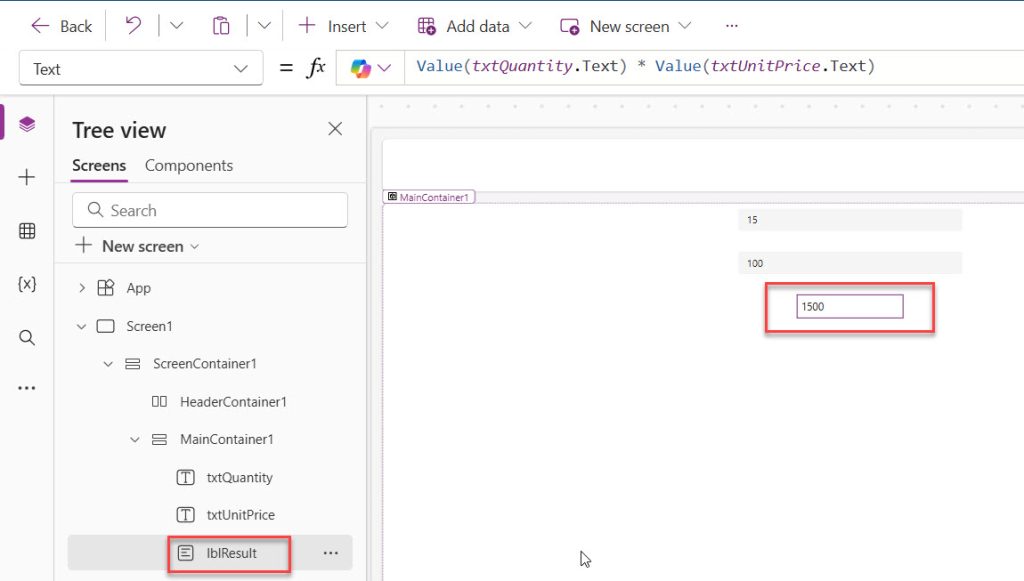
Set the Text property of lblTotalCost to:
Value(txtQuantity.Text) * Value(txtUnitPrice.Text)
If the user enters 15 for quantity and 100 for unit price, the Label shows 1500. You can see the exact output in the screenshot below. I ran this app.
This approach works well for basic calculations. However, I recommend adding validation before you use the value in a real business app.
Pro Tip: In my experience, users rarely enter perfectly clean data. Someone will type a space, a comma, or even
teninto a quantity field. I always validate the input before I run calculations or save records.
Power Apps Convert Text to Number Safely
The Value function works well when the input contains a valid number. But your app should confirm that the user entered a number first.
Use the IsNumeric function for validation.
IsNumeric(txtQuantity.Text)
This returns true when the input is numeric and false when it contains invalid characters.
Validate the Quantity Before Saving
Add a Button named btnSaveRequest. In its OnSelect property, use this formula:
If(
    IsNumeric(txtQuantity.Text),
    Set(
        varQuantity,
        Value(txtQuantity.Text)
    ),
    Notify(
        "Enter a valid quantity.",
        NotificationType.Error
    )
)
This formula does three things:
- Checks whether the user entered a valid number.
- Converts the text to a number with Value.
- Stores the result in a variable named
varQuantity.
A variable stores a value temporarily while the app runs. You can learn more about using Power Apps variables when you need to reuse values across screens or formulas.
The Notify function shows a message at the top of the app screen. It gives users immediate feedback instead of allowing bad data to reach your data source. Here is a detailed guide on using notifications in Power Apps.
Handle Blank Text Input Properly
A blank Text input needs special handling. If you call Value() on blank or invalid text, Power Apps may return an error.
For an optional numeric field, use this pattern:
If(
    IsBlank(Trim(txtDiscount.Text)),
    Blank(),
    Value(Trim(txtDiscount.Text))
)
The Trim function removes extra spaces from the beginning and end of the input. The formula then returns a blank value when the user leaves the field empty.
This pattern helps when you have an optional discount percentage, optional asset value, or optional overtime hours field.
For a required quantity field, use a stricter validation formula:
If(
    IsBlank(Trim(txtQuantity.Text)),
    Notify(
        "Quantity is required.",
        NotificationType.Error
    ),
    If(
        !IsNumeric(txtQuantity.Text),
        Notify(
            "Enter numbers only for quantity.",
            NotificationType.Error
        ),
        Set(
            varQuantity,
            Value(txtQuantity.Text)
        )
    )
)
This formula checks for an empty value first. It then checks whether the value is numeric before storing it.
Power Apps Convert Text to Number in Patch
Most client apps need to save data after converting it. Let’s continue with the inventory request example.
Assume your SharePoint list is named InventoryRequests and includes these columns:
Title— Single line of textRequestedQuantity— NumberUnitPrice— NumberTotalCost— Currency or Number
Add these controls:
txtItemNametxtQuantitytxtUnitPricebtnSubmit
Set the OnSelect property of btnSubmit to this formula:
If(
    IsBlank(Trim(txtItemName.Text)) ||
    IsBlank(Trim(txtQuantity.Text)) ||
    IsBlank(Trim(txtUnitPrice.Text)),
    Notify(
        "Complete all required fields.",
        NotificationType.Error
    ),
    If(
        !IsNumeric(txtQuantity.Text) ||
        !IsNumeric(txtUnitPrice.Text),
        Notify(
            "Quantity and unit price must contain valid numbers.",
            NotificationType.Error
        ),
        Patch(
            InventoryRequests,
            Defaults(InventoryRequests),
            {
                Title: txtItemName.Text,
                RequestedQuantity: Value(txtQuantity.Text),
                UnitPrice: Value(txtUnitPrice.Text),
                TotalCost: Value(txtQuantity.Text) * Value(txtUnitPrice.Text)
            }
        );
        Notify(
            "Inventory request submitted successfully.",
            NotificationType.Success
        )
    )
)
The Patch function creates or updates a record without using a Form control.
In this formula:
InventoryRequestsidentifies the data source.Defaults(InventoryRequests)tells Power Apps to create a new record.Value(txtQuantity.Text)converts the entered quantity into a number.TotalCostcalculates and saves the final numeric result.
This is a clean pattern for lightweight Canvas apps. If you want to understand record creation and updates in more detail, read this guide on the Patch function in Power Apps.
Convert Text to Decimal Numbers
The Value function also handles decimal values.
For example:
Value("12.75")
Power Apps returns the number 12.75.
You can use this for unit prices, weight, hours worked, mileage, and tax percentages.
In a timesheet app, you might calculate the cost of billable hours with:
Value(txtHours.Text) * Value(txtHourlyRate.Text)
If the user enters 7.5 hours and an hourly rate of 850, Power Apps calculates 6375.
Use a Language Tag for Regional Formats
Number formats differ across countries. Some users enter decimals with a period, such as 10.5, while others enter them with a comma, such as 10,5.
You can specify the language format in the Value function:
Value(txtAmount.Text, "en-US")
For a format that uses commas for decimals, use the appropriate language tag for your users:
Value(txtAmount.Text, "de-DE")
I recommend choosing one expected format for a shared business app and making that format clear beside the input field. This reduces support issues when employees work across regions.
Show a Live Numeric Preview
A live preview helps users catch mistakes before they submit the form.
For example, set the Text property of a Label to:
If(
    IsNumeric(txtQuantity.Text),
    "Total items requested: " & Text(Value(txtQuantity.Text)),
    "Enter a valid quantity"
)
This formula checks the input as the user types. When the value is valid, the app converts it and displays a friendly message.
You can also format a calculated amount:
If(
    IsNumeric(txtQuantity.Text) && IsNumeric(txtUnitPrice.Text),
    Text(
        Value(txtQuantity.Text) * Value(txtUnitPrice.Text),
        "[$-en-US]₹#,##0.00"
    ),
    "Enter quantity and unit price"
)
The Text function converts the final number back into formatted text for display. Notice the difference: use Value when you need a number for logic, and use Text when you need formatted output for users.
Store Converted Values in Collections
A collection is an in-memory table that stores temporary app data. Developers often use collections for cart-style apps, offline-style screens, and bulk-entry scenarios.
For example, add an inventory item to a collection with:
If(
    IsNumeric(txtQuantity.Text),
    Collect(
        colRequestItems,
        {
            ItemName: txtItemName.Text,
            Quantity: Value(txtQuantity.Text),
            UnitPrice: Value(txtUnitPrice.Text),
            LineTotal: Value(txtQuantity.Text) * Value(txtUnitPrice.Text)
        }
    ),
    Notify(
        "Enter a valid quantity before adding the item.",
        NotificationType.Error
    )
)
The key detail is that Quantity, UnitPrice, and LineTotal store numeric values from the start. That makes sorting, filtering, and total calculations much easier later.
You can explore more examples of Collect in Power Apps if you are building a multi-item request screen.
Reuse the Conversion Logic
When an app includes many numeric fields, repeated validation formulas can become difficult to maintain. I have seen large Canvas apps with the same IsNumeric and Value logic copied into dozens of buttons.
For repeated logic, create a user-defined function. A user-defined function lets you create a reusable Power Fx formula that your app can call whenever needed. You can learn how to build one in this guide to Power Apps user-defined functions.
You can also define app-wide values and formulas by using named formulas in Power Apps. This approach keeps your app easier to read as it grows.
Things to Keep in Mind
- Validate before conversion: Use IsNumeric before Value when users enter data manually, especially in required fields.
- Trim extra spaces: Wrap input with
Trim()when users may copy and paste numbers from emails or spreadsheets. - Use number columns: Save converted values in Number, Currency, or Decimal columns, not text columns, in SharePoint or Dataverse.
- Respect regional formats: Decide whether your users enter decimal values with periods or commas, then apply a suitable language tag.
- Avoid repeated formulas: Store frequently reused numeric values in variables or reusable formulas instead of writing long expressions everywhere.
- Reset inputs after save: Clear successfully submitted values so users do not accidentally submit the same request twice. You can use the techniques in this guide on resetting variables in Power Apps.
Frequently Asked Questions
How do I convert a Text input to a number in Power Apps?
Use the Value function with the Text input control name. For example, Value(txtQuantity.Text) converts the entered text into a number. Use that result in calculations, variables, collections, or Patch formulas.
Why does Value return an error in Power Apps?
The input likely contains invalid text, is empty, or uses an unexpected decimal format. Check the input with IsNumeric() before calling Value, and use Trim() to remove unnecessary spaces.
Can I use Value with decimal numbers in Power Apps?
Yes. The Value function converts decimal text such as 12.5 into a numeric decimal value. You can also supply a language tag when your users use a different regional number format.
How do I save a text number to a SharePoint Number column?
Convert the Text input before saving it with Patch or a Form. For example, use RequestedQuantity: Value(txtQuantity.Text) inside your Patch record.
Should I use a Text input or Number input in Power Apps?
A Text input gives you more control over styling and validation, but you must convert its value with Value. Choose the control style that fits your app, then always validate user-entered data before saving it.
Can I calculate totals from text fields in Power Apps?
Yes, but convert each value first. For example, use Value(txtQuantity.Text) * Value(txtPrice.Text) to calculate a line total from two Text input controls.
Converting text to numbers in Power Apps becomes simple when you combine Value, IsNumeric, and clear validation messages. Start with a clean input-and-save pattern, then reuse the same approach across your inventory, request, and business apps. I hope you found this article helpful.
You May Also Like
- Build an app from scratch using Power Apps
- Create a Power Apps app from an Excel file
- Use Power Apps components to reuse interface elements
- Create responsive Canvas apps with containers
- Set control values when a Power Apps button is clicked

Bijay Kumar is a Microsoft MVP in Business Applications with over 18 years of experience in the IT industry and more than 12 years as a Microsoft MVP, recognized for his contributions to the Microsoft community. He is the Founder of TSinfo Technologies and the creator of the popular technology platforms SPGuides.com and EnjoySharePoint.com. Bijay also runs the SPGuides YouTube channel, where he shares practical tutorials on Microsoft 365, SharePoint, Power Platform, and Copilot technologies. Read more.