
While working with a client on an employee leave-request solution, I got a very common question: Should we build this in Power Apps or Power Automate?
At first, it sounded like a simple choice. The client needed employees to submit leave requests, managers to approve them, and HR to receive notifications. But the real answer was: they needed both.
I used Power Apps to create the screen where employees could enter and submit their leave details. Then I used Power Automate to send the approval request, update the leave status, and notify the employee about the final decision.
This is the easiest way to understand the difference:
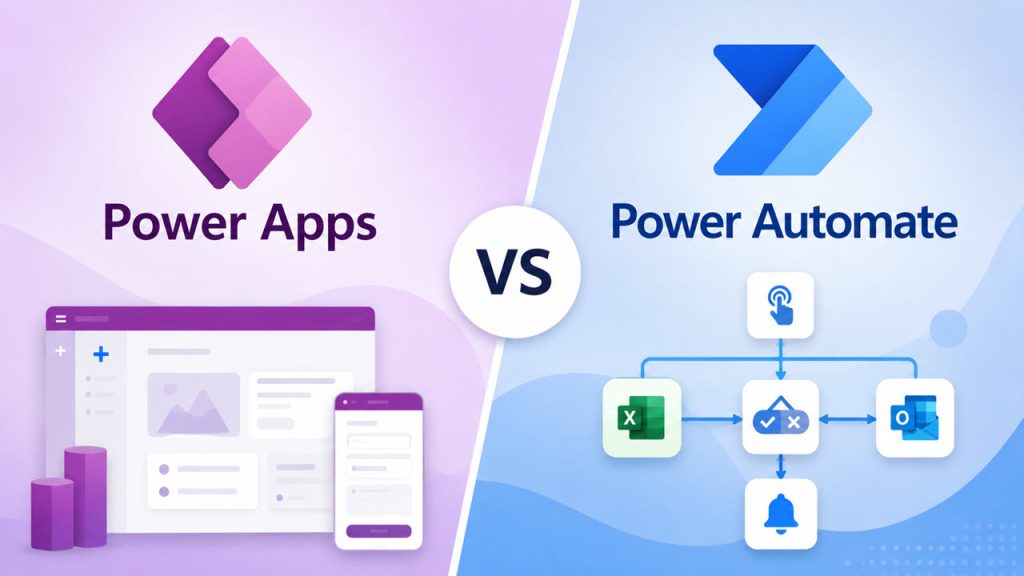
- Power Apps is used to build apps and user interfaces.
- Power Automate is used to automate actions and workflows.
Both are part of Microsoft Power Platform, and they work very well together. Power Apps supports building low-code business apps that connect to data sources such as SharePoint, Microsoft Dataverse, Microsoft 365, SQL Server, and more. Power Automate is designed to create automated workflows between services for tasks such as notifications, data synchronization, approvals, and file handling.
What Is Power Apps?
Power Apps is a low-code platform that I use to build custom business applications without starting from scratch with traditional programming.
For example, instead of asking employees to update a SharePoint list directly, I can create a clean leave-request app. The employee opens the app, selects start and end dates, adds a reason, and clicks Submit.
Power Apps is mainly about the experience the user sees and interacts with.
Microsoft currently supports two main app types in Power Apps:
- Canvas apps give me full control over the screen layout. I can drag controls such as labels, buttons, galleries, forms, dropdowns, and text inputs onto the screen.
- Model-driven apps are based on Microsoft Dataverse data and provide a structured, data-focused business application experience.
For most SharePoint-based beginner projects, I usually start with a canvas app because it is visual, flexible, and easy to customize.
What Is Power Automate?
Power Automate is a low-code workflow automation service. I use it when something needs to happen automatically after a trigger occurs.
For example, when an employee submits a leave request, I can create a flow that:
- Sends an approval request to the employee’s manager.
- Waits for the manager’s response.
- Updates the leave request status in SharePoint.
- Sends an email or Teams notification to the employee.
- Notifies HR after approval.
Power Automate can automate tasks between cloud services and supports scenarios such as notifications, file synchronization, approvals, and collecting or updating data.
A flow normally has three basic parts:
- Trigger: The event that starts the flow, such as “When an item is created.”
- Action: The work the flow performs, such as sending an email or updating a SharePoint item.
- Condition: A decision point, such as checking whether a manager approved or rejected a request.
Power Apps vs. Power Automate
Here is the practical difference between Power Apps and Power Automate.
| Feature | Power Apps | Power Automate |
|---|---|---|
| Main purpose | Build custom business apps | Automate repetitive processes |
| User interface | Yes, users interact with screens and controls | No primary user-facing app screen |
| Best for | Forms, data entry, dashboards, mobile apps | Approvals, notifications, scheduled jobs, data movement |
| Starts with | A user opening and using an app | A trigger, schedule, event, or button |
| Common example | Employee leave request app | Manager approval and email notification |
| Data handling | Reads, displays, creates, and edits data | Moves, updates, processes, and reacts to data |
| Works with | SharePoint, Dataverse, SQL Server, Microsoft 365, and connectors | SharePoint, Outlook, Teams, Excel, Dataverse, and many connectors |
I explain it to beginners this way:
Power Apps is the front door. Power Automate is what happens behind the scenes.
For example, in a help desk solution:
- Power Apps gives employees a form to raise a support ticket.
- Power Automate assigns the ticket, sends a Teams alert to the support team, and emails the requester when the ticket status changes.
When to Use Power Apps
Use Power Apps when people need a simple and controlled way to enter, view, search, or update business data.
I commonly use Power Apps for:
- Leave-request apps
- Employee onboarding apps
- Help desk or IT ticketing apps
- Expense claim apps
- Visitor registration apps
- Asset-management apps
- Inspection and checklist apps
- Project request forms
- Internal directories
Let’s take a simple example. Suppose you have a SharePoint list called IT Support Tickets. Users can technically open the list and add an item, but that experience may not be ideal.
With Power Apps, I can build a better interface where users can:
- Choose a category such as Hardware, Software, or Access Request.
- Select a priority.
- Add a detailed description.
- Attach a screenshot.
- View their previously raised tickets.
- Check whether a ticket is Open, In Progress, or Resolved.
That is where Power Apps is the better choice.
When to Use Power Automate
Use Power Automate when you want a task to run automatically without someone manually performing each step.
I commonly use Power Automate for:
- Sending approval requests
- Sending reminder emails
- Posting Teams messages
- Creating SharePoint items automatically
- Updating item status
- Copying files between locations
- Creating folders when a project starts
- Sending daily or weekly reports
- Processing form responses
- Scheduling recurring tasks
- Integrating data between business systems
For example, imagine that a new employee joins the company. HR adds the employee record to a SharePoint list.
Instead of manually contacting IT, facilities, payroll, and the manager, I can build a Power Automate flow that automatically:
- Creates an IT equipment request.
- Sends a welcome email.
- Creates a Teams notification for the manager.
- Adds a task for the HR team.
- Starts an approval process if required.
No user-facing app is necessary for that background process. Power Automate is enough.
Can Power Apps and Power Automate Work Together?
Yes, and this is where many real-world Power Platform solutions become powerful.
Power Apps can call a Power Automate cloud flow from within an app. This lets the app collect information from a user and then have the flow perform actions better handled in the background.
Microsoft Power Platform connects app building and workflow automation, so Power Apps can handle the user-facing experience while Power Automate manages automated actions behind the scenes.
Here is a simple real-world flow:
Example: Employee Leave Request
Step 1: Create the leave request in Power Apps
The employee enters leave details in a Power Apps form and submits the request.
Step 2: Save the request to SharePoint or Dataverse
Power Apps creates a new record with a status such as Pending Manager Approval.
Step 3: Start Power Automate
The flow starts when the request is created, or Power Apps can directly trigger the flow.
Step 4: Request approval
Power Automate sends an approval card or email to the manager.
Step 5: Update the request
If the manager approves, the flow changes the status to Approved. If the manager rejects it, the status becomes Rejected.
Step 6: Notify the employee
Power Automate sends the final result to the employee through Outlook or Microsoft Teams.
In this example, Power Apps handles the user interaction, while Power Automate handles the workflow.
Power Apps vs. Power Automate: Which One Should You Learn First?
If you are completely new to Power Platform, I recommend learning Power Apps first if your goal is to build forms, internal tools, or business applications.
Start with these basics:
- Create a canvas app.
- Connect it to a SharePoint list.
- Add a gallery to display records.
- Add an edit form to create and update records.
- Learn basic Power Fx formulas such as
Filter,LookUp,Patch,Navigate, andSet.
After that, learn Power Automate by building simple cloud flows:
- Send an email when a SharePoint item is created.
- Send a Teams message when an item is updated.
- Create an approval flow.
- Add conditions for approved and rejected outcomes.
- Update a SharePoint item after an approval response.
If your main goal is reducing manual work, start with Power Automate. For example, if your team spends time sending the same notifications, copying files, or chasing approvals, an automated flow can produce value quickly.
Common Beginner Mistakes
When I work with new Power Platform developers, I often see these mistakes.
Using Power Automate to Build a Form
Power Automate can trigger from Microsoft Forms, SharePoint, or other sources, but it is not designed to create a custom interactive business app. If users need a tailored screen with search, filters, validation, navigation, and editable records, use Power Apps.
Using Power Apps for Every Background Action
A Power Apps button can create or update data directly, but not every process should run inside the app. Power Automate usually handles long-running approvals, scheduled reminders, complex file processing, and multi-step notifications better.
Building Without a Clear Data Source
Before creating either an app or a flow, decide where the data should live. For small departmental solutions, SharePoint lists can work well. For more structured, scalable applications with relationships, security roles, and business data, Dataverse may be the better choice. Power Apps supports connections to both Dataverse and many other cloud and on-premises data sources.
Ignoring Permissions and Ownership
A flow may work perfectly for its creator but fail for everyone else after deployment if you don’t plan connections, permissions, and ownership correctly. I always test the solution with a normal user account before sharing it broadly.
A Simple Decision Rule
Use this decision rule before you start building:
- If a person needs to see, enter, edit, search, or manage data, choose Power Apps.
- If a process needs to run automatically, choose Power Automate.
- If users need an app and a process must continue behind the scenes, use Power Apps and Power Automate together.
Conclusion
Power Apps and Power Automate are not competing tools. They solve different parts of the same business problem.
Power Apps helps me create easy-to-use applications for people. Power Automate helps me remove manual work by automating approvals, notifications, updates, and repetitive tasks. Together, I can build complete business solutions without writing everything in traditional code.
For a beginner project, start by building a simple SharePoint-based request app in Power Apps, then add a Power Automate approval flow. That one exercise will make the difference between these two tools very clear.
You may also like the following tutorials:
- How to Set a Variable to Today’s Date in Power Automate
- Format Dates with Ordinal Suffixes (st, nd, rd, th) in Power Automate

Bijay Kumar is a 13-times Microsoft MVP in Business Applications with over 18 years of experience in the IT industry, recognized for his contributions to the Microsoft community. He is the Founder of TSinfo Technologies and shares practical, tested tutorials on Power Apps, Power Automate, Copilot Studio, and Power BI here on Power Platform FAQs. Read more.