
A few months ago, I was working with a client who wanted a simple daily digest flow. Every morning, the flow had to pull all the items from a SharePoint Online list where the Due Date was today, and then email that list to the project manager.
Sounds simple, right?
But the moment I started building it, I hit the classic Power Automate wall — there is no action called “Get Today’s Date.” You would think something so basic would be a one-click job, but it is not. Instead, you have to use expressions, worry about time zones, and then fight with date formats until SharePoint finally stops throwing errors at you.
So in this tutorial, I will show you exactly how to set a variable to today’s date in Power Automate — using five different methods. I will also cover time zone handling (this is where 90% of flows break), date formatting options, how to use today’s date in SharePoint filter queries, and the common errors you will run into (and how to fix them).
Let’s dive in.
Why You Need Today’s Date in a Variable
Before we jump into the methods, let me quickly explain why you would want to store today’s date in a variable at all.
When I build flows for clients, I use today’s date for things like:
- Filtering SharePoint list items – “Show me everything due today.”
- Stamping records – Writing the current date into a Processed On column.
- Naming files – Creating a file called
Daily-Report-2026-08-25.xlsx. - Comparing dates – Checking if an item is overdue.
- Scheduling logic – Skipping weekends or month-end runs.
- Email subject lines – “Daily Task Summary – 25 Aug 2026”.
You could paste the utcNow() expression everywhere you need it. But if you use it in ten places and then decide you need the date in a different time zone or format, you have to edit ten expressions. Store it once in a variable, and you edit it in exactly one place.
That is the whole point of this tutorial.
Method 1: Initialize Variable + utcNow() Expression (Most Common)
This is the method I use in about 80% of my flows. It is quick, it is clean, and it works everywhere.
The utcNow() function returns the current date and time in Coordinated Universal Time (UTC), as an ISO 8601 string that looks like this:
2026-08-25T14:32:07.1234567ZHere are the steps to set a variable to today’s date.
Step 1: Add the Initialize Variable Action
- Open your flow in the Power Automate designer. Here, I have created an instant cloud flow.
- Click the + (plus) icon to add a new step.
- Search for Variable and select the Initialize variable action.
Important: In Power Automate, the Initialize variable action must sit at the top level of your flow. You cannot place it inside a loop, a condition, a scope, or an “Apply to each.” If you try, you will get a validation error. Initialize it at the top, then use Set variable wherever you need to change it.
Step 2: Configure the Variable
Fill in the three fields:
| Field | Value |
|---|---|
| Name | varTodayDate |
| Type | String |
| Value | (expression – see next step) |
I always prefix my variables with var — it makes them easy to spot in dynamic content later on when the flow has 40 steps.
Step 3: Add the Expression
- Click inside the Value field.
- In the dynamic content panel that opens, switch to the Expression tab (in the new designer, click the fx icon).
- Paste in this expression:
formatDateTime(utcNow(), 'yyyy-MM-dd')Here is a screenshot for your reference:
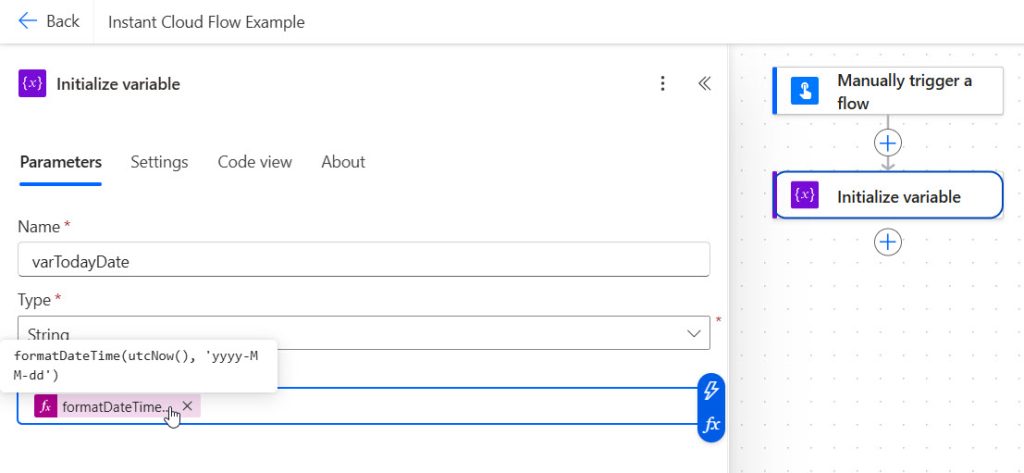
- Click Add / OK.
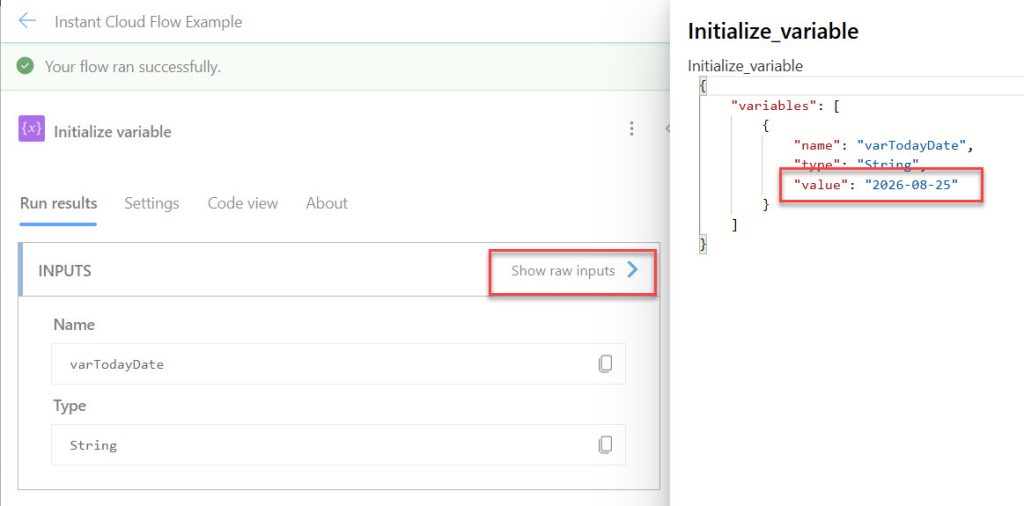
That is it. Your variable varTodayDate now holds today’s date in a clean 2026-08-25 format.
You can see the exact today’s date in the screenshot below:
Why I Wrap It in formatDateTime()
If you just use utcNow() on its own, your variable will contain the full timestamp with fractional seconds:
2026-08-25T14:32:07.1234567ZThat is rarely what you want when you say “today’s date.” Wrapping it in formatDateTime() and passing 'yyyy-MM-dd' strips out the time and gives you just the date part.
Quick Reference of utcNow() Variations
| Expression | Sample Output |
|---|---|
utcNow() | 2026-08-25T14:32:07.1234567Z |
utcNow('yyyy-MM-dd') | 2026-08-25 |
formatDateTime(utcNow(), 'yyyy-MM-dd') | 2026-08-25 |
formatDateTime(utcNow(), 'dd/MM/yyyy') | 25/08/2026 |
formatDateTime(utcNow(), 'MM/dd/yyyy') | 08/25/2026 |
formatDateTime(utcNow(), 'dd-MMM-yyyy') | 25-Aug-2026 |
Yes — utcNow() accepts a format string directly, so utcNow('yyyy-MM-dd') is a valid shortcut. I still prefer formatDateTime() because it reads better and it is consistent with every other date expression I write.
Method 2: Using the “Current time” Action
If you are not comfortable writing expressions yet, Power Automate has a built-in action that does the work for you.
Steps
- Add a new step and search for Date Time.
- Select the Current time action.
- That’s it — this action has no inputs at all.
The action outputs a field called Current time which is, again, the UTC timestamp.
Now add an Initialize variable action below it:
| Field | Value |
|---|---|
| Name | varTodayDate |
| Type | String |
| Value | Select Current time from dynamic content |
If you want just the date portion, wrap it:
formatDateTime(outputs('Current_time'), 'yyyy-MM-dd')When I Use This Method
Honestly? Rarely. It adds an extra action to your flow (which counts toward your API request limits) and does exactly what utcNow() does for free.
But there is one genuinely good reason to use it: consistency across a long-running flow.
If your flow has approvals or delays in it, and it runs for three hours, calling utcNow() at the start and again at the end will give you two different values. Worse — if your flow crosses midnight, the date itself will change. The Current time action captures one snapshot at one moment, and you can reference that same output all the way through the flow.
That said, storing utcNow() in a variable at the top of your flow achieves the exact same thing. So it really comes down to preference.
Method 3: Using the “Convert time zone” Action (Best for Local Dates)
This is the method that saved my client project — and it is the one most people miss.
Here is the problem. Power Automate runs on UTC. Always. If you are in India (UTC+5:30), Australia (UTC+10/+11), or the US West Coast (UTC−7/−8), then utcNow() can easily return yesterday’s or tomorrow’s date from your perspective.
Real example: my client was in Sydney. Their flow ran at 8:00 AM local time. In UTC that was 10:00 PM the previous day. So the “today’s tasks” email was sending yesterday’s tasks. Every single morning.
The fix is the Convert time zone action.
Steps
- Add a new step and search for Convert time zone (it is in the Date Time connector).
- Fill in the fields:
| Field | Value |
|---|---|
| Base time | utcNow() (expression) |
| Source time zone | UTC |
| Destination time zone | Your local time zone (e.g., AUS Eastern Standard Time, India Standard Time, Pacific Standard Time) |
| Format string | Choose from the dropdown, or type a custom one like yyyy-MM-dd |
- Add an Initialize variable action below it.
- Set the Value to the Converted time output from the previous action.
Now varTodayDate holds the correct local date. Problem solved.
Doing It in a Single Expression
If you would rather not add an extra action, you can do the whole thing in one expression using convertTimeZone():
convertTimeZone(utcNow(), 'UTC', 'India Standard Time', 'yyyy-MM-dd')The syntax is:
convertTimeZone(<timestamp>, <sourceTimeZone>, <destinationTimeZone>, <format>)Here are some commonly used time zone IDs (these are Windows time zone IDs, not IANA IDs — this trips people up constantly):
| Region | Time Zone ID |
|---|---|
| India | India Standard Time |
| UK | GMT Standard Time |
| US Eastern | Eastern Standard Time |
| US Central | Central Standard Time |
| US Mountain | Mountain Standard Time |
| US Pacific | Pacific Standard Time |
| Sydney / Melbourne | AUS Eastern Standard Time |
| Singapore | Singapore Standard Time |
| Dubai | Arabian Standard Time |
| Central Europe | W. Europe Standard Time |
| Japan | Tokyo Standard Time |
Tip: Do not use “IST” or “GMT+5:30” — those will fail. And note that “Eastern Standard Time” automatically handles daylight saving; you do not need a separate “Eastern Daylight Time” entry.
An Alternative: addHours()
I have seen people do this:
formatDateTime(addHours(utcNow(), 5.5), 'yyyy-MM-dd')It works… until daylight saving kicks in and your offset is wrong for half the year. Do not do this. Use convertTimeZone(). It handles DST for you.
Method 4: Using a Compose Action Instead of a Variable
Sometimes you do not actually need a variable — you just need the value available to reference later.
In that case, use a Compose action instead.
Steps
- Add a new step and search for Compose (under Data Operation).
- In the Inputs field, add the expression:
formatDateTime(utcNow(), 'yyyy-MM-dd')- Rename the action to something meaningful, like Compose Today Date.
Now you can reference it anywhere downstream using dynamic content, or via this expression:
outputs('Compose_Today_Date')Note that in the expression, spaces in the action name become underscores.
Variable vs. Compose — Which Should You Use?
Here is how I decide:
| Scenario | Use |
|---|---|
| The value never changes during the flow | Compose |
| The value needs to be updated/reassigned | Variable |
| You need it inside an “Apply to each” loop | Compose (safer) |
| You are running loops in parallel | Compose (variables are not thread-safe) |
| You want it visible in dynamic content easily | Variable |
For today’s date specifically, the value never changes — so technically Compose is the better choice. It is also slightly faster because it does not require the Initialize variable action overhead.
However, if you are running “Apply to each” with concurrency turned on and you use Set variable inside it, you will get unpredictable results. Variables are shared across all parallel branches. That is a bug that is incredibly painful to debug, so I mention it every chance I get.
Method 5: Using startOfDay() for a Clean Midnight Timestamp
Sometimes you do not want a formatted string — you want a real datetime value set to midnight today. This is perfect for date comparisons.
The startOfDay() function does exactly this:
startOfDay(utcNow())Output:
2026-08-25T00:00:00.0000000ZWhy This Matters
Say you want to check whether a SharePoint item’s due date is today. If you compare full timestamps, 2026-08-25T09:15:00Z will never equal 2026-08-25T14:32:07Z, even though both are “today.”
By normalizing both sides to the start of the day, the comparison actually works:
equals(startOfDay(item()?['DueDate']), startOfDay(utcNow()))Clean, reliable, and no string parsing.
Related Functions Worth Knowing
| Expression | What It Returns |
|---|---|
startOfDay(utcNow()) | Today at 00:00:00 |
startOfHour(utcNow()) | The current hour at :00:00 |
startOfMonth(utcNow()) | 1st of this month at 00:00:00 |
dayOfWeek(utcNow()) | 0 = Sunday, 6 = Saturday |
dayOfMonth(utcNow()) | 25 |
dayOfYear(utcNow()) | 237 |
ticks(utcNow()) | A very large number (useful for sorting) |
Formatting Today’s Date the Way You Want
This is where I see the most confusion, so let me lay out the format specifiers clearly.
Standard Format Strings
Power Automate supports single-letter standard formats:
| Format | Expression | Output |
|---|---|---|
d | formatDateTime(utcNow(),'d') | 8/25/2026 |
D | formatDateTime(utcNow(),'D') | Tuesday, August 25, 2026 |
t | formatDateTime(utcNow(),'t') | 2:32 PM |
T | formatDateTime(utcNow(),'T') | 2:32:07 PM |
f | formatDateTime(utcNow(),'f') | Tuesday, August 25, 2026 2:32 PM |
g | formatDateTime(utcNow(),'g') | 8/25/2026 2:32 PM |
s | formatDateTime(utcNow(),'s') | 2026-08-25T14:32:07 |
o | formatDateTime(utcNow(),'o') | 2026-08-25T14:32:07.1234567Z |
Custom Format Strings
This is what I use most:
| Specifier | Meaning | Example |
|---|---|---|
yyyy | 4-digit year | 2026 |
yy | 2-digit year | 26 |
MMMM | Full month name | August |
MMM | Short month name | Aug |
MM | 2-digit month | 08 |
M | Month, no padding | 8 |
dddd | Full day name | Tuesday |
ddd | Short day name | Tue |
dd | 2-digit day | 25 |
d | Day, no padding | 25 |
HH | 24-hour clock | 14 |
hh | 12-hour clock | 02 |
mm | Minutes | 32 |
ss | Seconds | 07 |
tt | AM/PM | PM |
Practical Examples
formatDateTime(utcNow(), 'dd MMMM yyyy')
→ 25 August 2026

formatDateTime(utcNow(), 'dddd, dd MMM yyyy')
→ Tuesday, 25 Aug 2026

formatDateTime(utcNow(), 'yyyyMMdd')
→ 20260825

formatDateTime(utcNow(), 'yyyy-MM-dd HH:mm')
→ 2026-08-25 14:32
Getting the Date in a Specific Language
If your client needs the date in a different language, add a locale as the third parameter:
formatDateTime(utcNow(), 'dd MMMM yyyy', 'fr-FR')
→ 25 août 2026

formatDateTime(utcNow(), 'dd MMMM yyyy', 'de-DE')
→ 25 August 2026

formatDateTime(utcNow(), 'D', 'es-ES')
→ martes, 25 de agosto

formatDateTime(utcNow(), 'dd MMMM yyyy', 'ja-JP')
→ 25 8月 2026
The third parameter accepts any standard culture code (en-US, en-GB, fr-FR, de-DE, es-ES, pt-BR, hi-IN, ja-JP, and so on). I used this recently for a client whose flow sent notifications to teams in three different countries — same expression, different locale per branch.
Getting Yesterday, Tomorrow, Start of Month, and End of Month
Once you know how to get today, everything else is just arithmetic. These are the expressions I keep in my snippet file:
| What I Need | Expression |
|---|---|
| Yesterday | formatDateTime(addDays(utcNow(), -1), 'yyyy-MM-dd') |
| Tomorrow | formatDateTime(addDays(utcNow(), 1), 'yyyy-MM-dd') |
| 7 days ago | formatDateTime(addDays(utcNow(), -7), 'yyyy-MM-dd') |
| 30 days from now | formatDateTime(addDays(utcNow(), 30), 'yyyy-MM-dd') |
| First day of this month | formatDateTime(startOfMonth(utcNow()), 'yyyy-MM-dd') |
| Last day of this month | formatDateTime(addDays(addMonths(startOfMonth(utcNow()), 1), -1), 'yyyy-MM-dd') |
| First day of last month | formatDateTime(addMonths(startOfMonth(utcNow()), -1), 'yyyy-MM-dd') |
| Same day next year | formatDateTime(addYears(utcNow(), 1), 'yyyy-MM-dd') |
| Current year only | formatDateTime(utcNow(), 'yyyy') |
There is no endOfMonth() function in Power Automate, which is why the “last day of this month” expression looks a bit clumsy. The logic is simple though: jump to the first of next month, then subtract one day.
Using Today’s Date in a SharePoint Get Items Filter Query
This is what my client actually needed, so let me walk through it.
In the Get items action, expand Advanced options and use the Filter Query field. OData filters need dates in ISO format, so I use the variable I created earlier.
Items due today:
DueDate ge '@{variables('varTodayDate')}T00:00:00Z' and DueDate le '@{variables('varTodayDate')}T23:59:59Z'Items that are overdue:
DueDate lt '@{variables('varTodayDate')}' and Status ne 'Completed'Items created in the last 7 days:
Created ge '@{formatDateTime(addDays(utcNow(), -7), 'yyyy-MM-dd')}'A few things I have learned the hard way here:
- Always use the internal column name, not the display name. A column shown as “Due Date” is usually
DueDateorDue_x0020_Dateinternally. - Wrap date values in single quotes.
- SharePoint stores dates in UTC, so filter with UTC values even if you display local dates to users.
- Set Top Count appropriately, and turn on Pagination in the action settings if you expect more than 100 items.
Using Today’s Date in SharePoint Date Columns
When you write today’s date back into a SharePoint list using Create item or Update item, the column expects a valid ISO 8601 datetime.
For a Date and Time column, this works cleanly:
utcNow()For a Date Only column, I use:
formatDateTime(utcNow(), 'yyyy-MM-dd')If you pass something like 25/08/2026 into a date column, the action will fail. SharePoint is strict about this, and the error message is not particularly helpful about why.
Common Errors and How to Fix Them
“The variable ‘varTodayDate’ is not initialized.” Your Initialize variable action is inside a loop, condition, or scope. Move it to the top level of the flow.
“InvalidTemplate: Unable to process template language expressions.” Almost always a quoting issue. Format strings need single quotes: formatDateTime(utcNow(), 'yyyy-MM-dd'), not double quotes.
The date is one day off. You are running into the UTC problem. Use Method 3 and convertTimeZone().
“The time zone ID was not found.” You used an abbreviation or an IANA ID. Use the Windows time zone ID, for example India Standard Time rather than IST or Asia/Kolkata.
“String was not recognized as a valid DateTime.” You are passing an already-formatted string into a date function. formatDateTime() returns a string, so do not feed its output into addDays(). Do the arithmetic first, then format last.
Wrong values inside a parallel loop. Variables are shared across concurrent branches. Either turn off concurrency in the loop settings or switch to a Compose action.
Best Practices I Follow
- Capture the date once at the top of the flow and reference it everywhere. This keeps long-running flows consistent, especially ones that cross midnight.
- Store the raw UTC value in one variable and format it only at the point of display. Formatting early throws away information you may need later.
- Always convert time zones explicitly. Never assume the server matches the user.
- Use
convertTimeZone(), neveraddHours()for offsets — daylight saving will break the manual approach twice a year. - Name variables clearly:
varTodayUTC,varTodayLocal,varTodayDisplay. Future you will be grateful. - Prefer Compose over Variable for values that never change during the run.
- Test around midnight and around DST changeovers. These are the two moments date logic falls apart.
Frequently Asked Questions
Is there a “today” function in Power Automate?
No. There is no today() function. The closest equivalent is utcNow(), optionally wrapped in formatDateTime() to strip the time.
What is the difference between utcNow() and the Current time action?
Functionally nothing — both return the current UTC timestamp. The action consumes one API call; the expression does not.
How do I get today’s date without the time?
Use formatDateTime(utcNow(), 'yyyy-MM-dd'), or startOfDay(utcNow()) if you need a real datetime set to midnight.
Why does my flow show yesterday’s date?
Because Power Automate runs in UTC. If your local time is ahead of UTC, the UTC date can still be the previous day. Convert the time zone.
Can I use today’s date in a file name?
Yes, and yyyy-MM-dd or yyyyMMdd are the safest formats. Avoid slashes and colons — they are illegal in file names.
Conclusion
Getting today’s date in Power Automate looks like it should take five seconds, and it does — as long as you know which expression to reach for and you respect the time zone problem.
To recap the five methods:
- Initialize variable +
utcNow()— my default for almost every flow. - Current time action — no expressions needed, good for beginners.
- Convert time zone — essential whenever local dates matter.
- Compose action — lighter than a variable for values that never change.
startOfDay()— the cleanest way to handle date comparisons.
For my Sydney client, the fix was Method 3. One convertTimeZone() expression, and the daily digest finally started sending the right tasks. Ninety percent of the date bugs I get called in to fix come down to that same missing conversion.
Pick the method that matches your scenario, set your variable once at the top of the flow, and always convert to the user’s time zone before you display anything. Do that, and your date logic will just work.
You may also like the following tutorials:

Bijay Kumar is a Microsoft MVP in Business Applications with over 18 years of experience in the IT industry and more than 12 years as a Microsoft MVP, recognized for his contributions to the Microsoft community. He is the Founder of TSinfo Technologies and the creator of the popular technology platforms SPGuides.com and EnjoySharePoint.com. Bijay also runs the SPGuides YouTube channel, where he shares practical tutorials on Microsoft 365, SharePoint, Power Platform, and Copilot technologies. Read more.