
If you’ve heard the term “generative AI” thrown around a lot lately and you’re not quite sure what it actually means inside Microsoft Copilot Studio — you’re in the right place.
I’m going to walk you through exactly how generative AI powers Copilot Studio agents, in plain English. No jargon, no fluff, and definitely no assumption that you have a developer background. Whether you’re an HR manager, a business analyst, a team lead, or just someone curious about what this whole AI agent thing is about, this tutorial is written for you.
Let’s go.
What Is Generative AI, Really?
Before we talk about Copilot Studio specifically, let me give you a quick, honest explanation of generative AI — because most articles either oversimplify it or make it sound more mysterious than it is.
Generative AI is a type of artificial intelligence that can create new content — text, answers, summaries — based on what it has learned from massive amounts of data. Think of it like a very well-read colleague who has absorbed thousands of documents, FAQs, manuals, and articles. When you ask them a question, they don’t just look up a saved answer. They actually compose a response on the spot, based on what they know.
That’s the key difference between old-school chatbots and generative AI.
Old-style chatbot: You ask a question. It matches your question to a predefined answer from a list. If your phrasing doesn’t match exactly, it fails.
Generative AI-powered agent: You ask a question. It understands the meaning behind your words and composes a fresh, relevant answer — even if it hasn’t seen that exact question before.
Microsoft Copilot Studio uses generative AI (specifically GPT models from Azure OpenAI — the same technology behind ChatGPT and Bing) to make your agents smarter, more flexible, and much easier to build.
What Is Copilot Studio, and Where Does AI Fit In?
Microsoft Copilot Studio is a low-code platform that lets you build AI agents — basically smart assistants that can answer questions, help users complete tasks, automate workflows, and integrate with your Microsoft 365 environment.
Before generative AI came along, building one of these agents meant manually creating “topics” — conversation flows where you’d define every possible question and every possible answer. It was like writing a giant decision tree. Very tedious. Very limited.
Now, with generative AI baked in, Copilot Studio can:
- Automatically answer questions from your company’s documents and websites — without you writing a single topic manually
- Understand what a user is asking even when they phrase it in unexpected ways
- Pick the right topic, action, or knowledge source based on context — automatically
- Generate natural, conversational responses instead of robotic pre-written ones
This is a genuinely big shift. Let me break down exactly how it works inside the platform.
The Four Pillars of Generative AI in Copilot Studio
There are four main ways generative AI appears in Copilot Studio. Understanding these four things will give you a solid mental model of how it all fits together.
1. Generative Answers
This is the most commonly used generative AI feature, and it’s the one that surprises people most when they first see it in action.
Here’s the idea: instead of manually writing topics for every possible question your users might ask, you connect your agent to a knowledge source — like your company’s SharePoint site, a public website, a PDF document, or a set of files. The agent then uses generative AI to read through that content and compose answers in real time.
Example: Let’s say you’re building an HR bot for your company. You upload your company’s HR policy document (leave policy, expense claims, code of conduct) to the agent as a knowledge source. Now when an employee asks “How many days of sick leave do I get per year?”, the agent reads through that document, finds the relevant section, and generates a clear, conversational answer — without you ever writing that Q&A pair manually.
This is called Generative Answers in Copilot Studio. It’s what makes it possible to build a useful agent in hours, not weeks.
Where it shows up: In the Topics section under System Topics, you’ll find a topic called Conversation Boosting. This is what handles generative answers. It triggers when the agent doesn’t recognize the user’s intent in any manually created topic. At that point, it reaches out to your knowledge sources and generates an answer on the fly.
You can control this completely — you can turn it on or off, decide whether to use only your own data or also allow public AI knowledge, and set how strictly it moderates content.
2. AI General Knowledge
This is a setting that lets your agent answer general questions using the AI’s broader training — even when the question isn’t related to any of your uploaded documents.
Think of it this way: your knowledge sources are like your company’s internal library. AI General Knowledge is about letting the agent also draw on its understanding of the wider world.
Example: A user asks your IT support agent, “What is a VPN?” — you probably haven’t uploaded a document explaining what a VPN is, but the AI already knows. If you have AI General Knowledge enabled, the agent will answer it.
This is useful for internal-facing agents where users might ask both company-specific questions and general questions in the same conversation. Just be mindful — if you’re building an agent that should only answer from your own data (for compliance reasons, for example), you’d want to keep this turned off.
3. Topic Authoring with AI
This one is a time-saver for anyone building agents, including non-developers.
When you want to create a new conversation topic manually — say, a flow where the agent collects information, asks follow-up questions, and then takes an action — you no longer have to build each step node by node. Instead, you just describe what you want in plain English, and Copilot Studio’s AI generates the topic structure for you.
Example: You type: “Ask the user for their name and email address, confirm the details with them, and then say you’ll get back to them within 24 hours.”
Copilot Studio will create a complete topic with message nodes, question nodes, and a confirmation message — all in a few seconds. You can then tweak it, add branching logic, or leave it as is.
This doesn’t mean the AI does everything perfectly every time. You’ll still review and adjust things. But it cuts out the grunt work of building from scratch, especially for people who aren’t familiar with the node-based editor.
4. Generative Orchestration
This is the most advanced of the four, and once you understand it, it completely changes how you think about building agents.
In Classic mode (the older way), an agent would look at what the user says, match it to a trigger phrase, and run the corresponding topic. Simple enough — but limited. If a user’s message matched multiple intents at once, the agent would struggle.
Generative Orchestration (also called Generative mode) flips this. Instead of using keyword matching, the agent uses AI to read the full context of a user’s question and then decide — at runtime — which topic, action, or knowledge source is the best match. It’s not looking for exact phrases. It’s understanding the meaning.
Example: A user messages your HR agent: “I want to apply for leave next week and also check my remaining balance.” In classic mode, this might confuse the agent because it’s two intents in one message. In generative orchestration mode, the AI understands both intents and can handle them intelligently — either by running two separate topics in sequence or by pulling information from both the leave application flow and the balance knowledge source.
To turn this on: go to Settings → Generative AI → switch the mode from Classic to Generative.
How the AI Actually “Reads” Your Documents
One question I get a lot is: “Does the AI memorize my documents?” The answer is: not exactly — and understanding this properly helps you set realistic expectations.
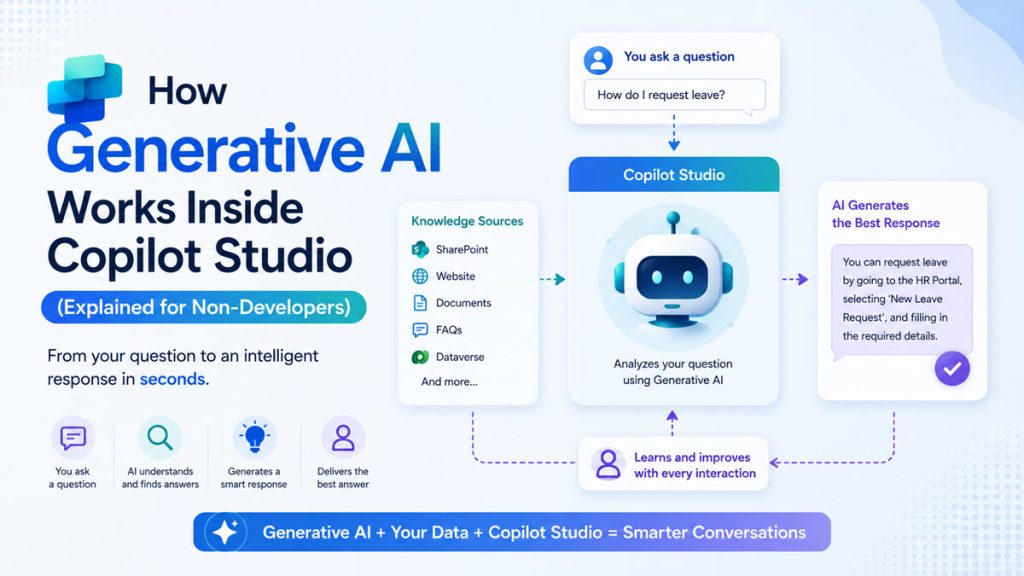
When you add a knowledge source to your agent (such as a SharePoint site or a PDF), Copilot Studio doesn’t permanently store the entire document in the AI’s memory. Instead, it uses a technique called Retrieval Augmented Generation (RAG).
Here’s how RAG works in simple terms:
- A user asks your agent a question
- The agent searches your connected knowledge sources to find the most relevant sections
- Those relevant chunks of content are then passed to the AI model as context
- The AI reads that context and generates a natural language answer based on it
So the AI isn’t “remembering” your document. It’s reading relevant parts of it in real time, every single time a question is asked, and composing an answer based on what it finds.
This is why the quality of your knowledge sources matters a lot. If your document is well-organized, clearly written, and up to date, the agent will give great answers. If the document is full of scanned images, tables that don’t paste well, or outdated information, the agent will struggle.
Practical tip: Use clean, text-based documents. Break information into clear sections with headings. Avoid embedding important information only in images or charts.
Knowledge Sources You Can Connect
One of the things that makes Copilot Studio genuinely useful for businesses is the range of sources you can connect. You’re not limited to uploading PDFs. Here’s what’s supported:
- Public websites — paste a URL and the agent will crawl and index it
- SharePoint sites and documents — perfect for internal knowledge bases
- Uploaded files — Word documents, PDFs, text files
- Dataverse — great if you’re using Dynamics 365 or custom data models
- Custom connectors — for advanced scenarios, pull data from external APIs
You can have multiple knowledge sources active at the same time. The agent will search across all of them and pull the most relevant content to answer each query.
When both your private knowledge sources and AI General Knowledge are enabled, the agent prioritizes your own data first. If it doesn’t find a relevant answer there, it falls back on the AI’s general knowledge. You control this priority.
The Conversation Boosting Topic — What It Is and Why It Matters
Let me spend a moment on this because it confuses a lot of people.
When you look at your Topics list in Copilot Studio and click on System topics, you’ll see one called Conversation Boosting. This is the system topic that handles generative answers.
The trigger condition is: On unknown intent — meaning, whenever the agent receives a message that doesn’t match any manually created topic, this system topic kicks in.
Within this topic, there’s a special node called “Create Generative Answers”. This node is what connects to your knowledge sources and generates the AI response.
Inside the data source configuration of this node, you have two choices:
- Search from connected knowledge sources — this uses your own uploaded content
- Allow AI to use its general knowledge — this opens up the broader AI training
You can choose one or both. If you choose both, the agent searches your knowledge first. This is the right setup for most business scenarios.
Why does this matter? Because it gives you control. You’re not just flipping an AI switch and hoping for the best. You decide exactly what the agent is allowed to draw from.
Setting Up Generative Answers — Step by Step
Let me walk you through how to actually enable and configure generative answers in Copilot Studio, even if you’ve never opened the tool before.
Step 1: Create or open your agent
Go to copilotstudio.microsoft.com and either create a new agent or open an existing one.
Step 2: Add a knowledge source
In the left navigation, click on Knowledge. Then click + Add knowledge and choose your source type — website URL, SharePoint, files, or Dataverse. Follow the prompts to connect it.
Step 3: Enable generative answers mode
Go to Settings → Generative AI. Here you can switch between Classic and Generative mode. For a beginner setup, keeping it on the default settings works fine. For more control, switch to Generative mode.
Step 4: Check your Conversation Boosting topic
In the Topics section, click System and open Conversation Boosting. Make sure it’s turned on. Click the Edit option inside the Create Generative Answers node and confirm your data source settings match what you want.
Step 5: Test it
Click the Test button (usually a chat icon in the top right). Ask a question that should be answered from your knowledge source. See what happens. If the answer isn’t quite right, check if the document has the relevant content in a clear, readable format.
What Makes a Good Generative AI Response vs. a Bad One
Once you’ve set everything up, you’ll notice some answers are great, and some are not so great. Here’s what makes the difference.
Things that lead to good answers:
- Your knowledge source has clear, well-written content that directly addresses common questions
- You’ve connected the right documents — not just anything, but the content that’s actually relevant to what users will ask
- You’ve tested with realistic questions, not just obvious ones
- Topic descriptions are clear and specific (for generative orchestration to work well)
Things that lead to poor answers:
- Documents with scanned text that wasn’t OCR-processed properly
- Outdated content that contradicts itself
- Knowledge sources that are too broad or unrelated to the agent’s purpose
- Over-relying on AI General Knowledge when you actually need your own data to take priority
One thing I always tell clients: garbage in, garbage out. The AI is genuinely good at synthesizing and presenting information — but it can only work with what you give it.
Responsible AI — What Guardrails Does Microsoft Put In?
This is a question that comes up often, especially from compliance teams and management.
Microsoft has built responsible AI principles into Copilot Studio. Here’s what that looks like practically:
- Content moderation: You can set how strictly the AI screens responses. There are options ranging from low to high moderation. High moderation will refuse to generate anything that looks potentially harmful, offensive, or inappropriate — even if the question itself seems innocent.
- Grounding: When using your knowledge sources, the agent is grounded to your content. It won’t make up facts that aren’t in your documents. If it can’t find an answer, it should tell the user it doesn’t know — rather than inventing something.
- Transparency: Microsoft is transparent about the fact that these agents are AI-powered. You can configure your agent to say it’s an AI when asked.
- Data privacy: Your internal documents connected via SharePoint or file upload are not used to train the AI model. They’re used only to answer questions for your users, within your tenant.
That last point matters a lot for organizations concerned about data leakage. Your company’s HR policy isn’t being sent to OpenAI to improve future models. It stays within your Microsoft 365 environment.
Real-World Scenarios Where This Shines
Let me give you some concrete examples of where generative AI in Copilot Studio actually delivers value:
HR Self-Service Agent
Upload your HR policy documents. Let employees ask questions about leave balance, expense processes, holiday schedules, and onboarding steps — all answered automatically from your official documents.
IT Helpdesk Agent
Connect your IT knowledge base articles. Users can troubleshoot common issues like password resets, VPN problems, and software installation — without raising a ticket or waiting for a human.
Customer Support Agent (External)
Connect your product documentation, FAQs, and pricing pages. Customers visiting your website get instant answers without waiting for a support agent.
Procurement & Vendor Queries (Internal)
Connect your vendor contracts, procurement policies, and supplier lists. Employees can ask about approval thresholds, preferred vendors, and ordering processes without emailing the procurement team.
In all of these cases, you haven’t written a single Q&A pair manually. The agent figures out the answers from your connected content, powered by generative AI.
Common Misconceptions I Keep Hearing
Before I wrap up, let me quickly address the things I hear most often that aren’t quite right.
“The AI will give wrong answers and embarrass us.”
This is a valid concern, but it’s manageable. If your knowledge sources are accurate and your content moderation is set properly, the agent is actually quite reliable. Always test before going live, and start with a narrower scope.
“We need a developer to set this up.”
Not anymore. Copilot Studio is genuinely low-code. If you can navigate Microsoft Teams and SharePoint, you can build a basic generative AI agent yourself. You might need a developer for advanced integrations — like custom connectors to external APIs — but for most business use cases, no coding is needed.
“Once we set it up, it runs forever without maintenance.”
Not quite. If your underlying documents change, your agent’s answers will change too — or become outdated if you don’t refresh the knowledge sources. Plan for regular reviews of your connected content.
“The AI is reading everything in real time from the live document.”
Depends on the source type. Some sources are indexed periodically (not always live), so there can be a lag between updating a document and the agent reflecting that update. Check the indexing schedule for your specific source type.
Quick Recap: The Key Things to Remember
- Generative AI in Copilot Studio uses GPT models (Azure OpenAI) to generate natural language answers
- Generative Answers lets your agent answer questions from your own documents and websites — no manual topic authoring needed
- Conversation Boosting is the system topic that controls when and how generative answers are triggered
- Generative Orchestration (Generative mode) makes the agent smarter about choosing which topic or knowledge source to use at runtime
- RAG (Retrieval Augmented Generation) is the technique used — the agent retrieves relevant content from your sources, then generates an answer based on it
- Your data stays in your tenant and isn’t used to train the AI model
- The quality of your knowledge sources directly determines the quality of your agent’s answers
If you’re just getting started, my suggestion is simple: pick one use case (like an HR FAQ bot), upload one clean document as your knowledge source, enable Conversation Boosting, and test it. You’ll understand 80% of how generative AI works in Copilot Studio just from doing that one exercise.
It’s more approachable than it sounds. Give it a go.

Bijay Kumar is a Microsoft MVP in Business Applications with over 18 years of experience in the IT industry and more than 12 years as a Microsoft MVP, recognized for his contributions to the Microsoft community. He is the Founder of TSinfo Technologies and the creator of the popular technology platforms SPGuides.com and EnjoySharePoint.com. Bijay also runs the SPGuides YouTube channel, where he shares practical tutorials on Microsoft 365, SharePoint, Power Platform, and Copilot technologies. Read more.