
While working with Power Apps, you might face an error that says: “this formula uses scope which is not supported for evaluation”.
I recently encountered this error while working with the Switch function in Power Apps.
The complete error comes as: the formula uses scope, which is not presently supported for evaluation. You can see the exact error message in the screenshot below:
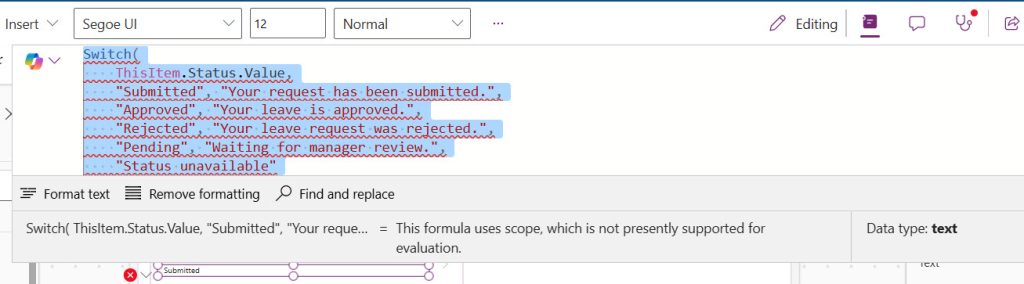
The formula uses scope, which is not presently supported for evaluation
Here’s the formula that triggered this error in my case:
Switch(
    ThisItem.Status.Value,
    "Submitted", "Your request has been submitted.",
    "Approved", "Your leave is approved.",
    "Rejected", "Your leave request was rejected.",
    "Pending", "Waiting for manager review.",
    "Status unavailable"
)
What this formula does, line by line:
ThisItem.Status.Value— reads the current gallery row’s Status column. The.Valuesuffix is needed because SharePoint Choice columns return an object, not a plain string.- Each pair like
"Submitted", "Your request has been submitted."— this is the match → result pair. Power Apps checks if the Status equals “Submitted”, and if so, returns that message. "Status unavailable"at the end with no match before it — this is the default result, returned when none of the matches fit.
This formula is correct and perfectly valid. The problem? I accidentally placed it in the Color property of the text label instead of the Text property. The Color property expects a color value (like RGBA(0,0,0,1) or Color.Red), not a string. That mismatch is what caused the error.
Now, when I write the formula in the Text property of the Text label control, the error does not appear. You can see in the screenshot below:
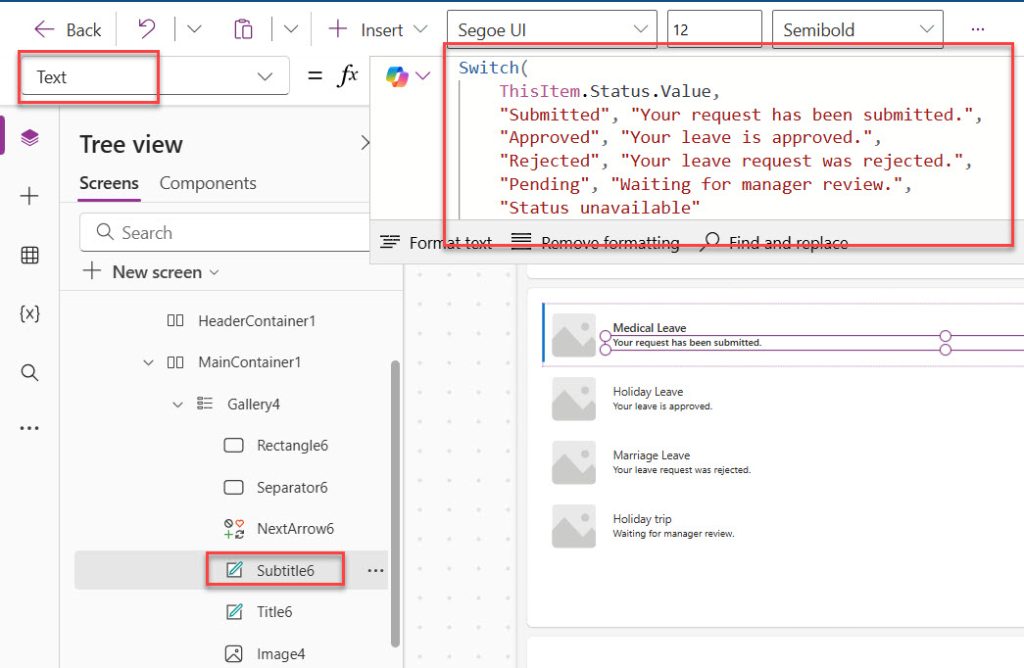
Here:
- The Text property expects text → matches output
- The label was inside a gallery →
ThisItemis valid - No scope violation → no error
Here, if you want Color logic, then you can use a separate formula like below:
For the Color property, use something like:
Switch(
    ThisItem.Status.Value,
    "Submitted", Color.Blue,
    "Approved", Color.Green,
    "Rejected", Color.Red,
    "Pending", Color.Orange,
    Color.Black
)
Now let me help you understand the logic behind this error.
Check out Power Apps Collect Function (With Real Examples)
What Does “Scope” Mean in Power Apps?
In Power Apps, every control and function operates within a context — a set of variables, records, and values it has access to at any given moment. When you’re inside a Gallery, for example, ThisItem refers to the current row being rendered. That row-level context is called scope.
The scope error typically surfaces in two situations:
- Wrong property type: You wrote a formula that returns text but placed it in a property that expects a color, number, or boolean.
- Design-time evaluation limitation: Power Apps’ formula editor tries to preview formula values in real-time. When your formula uses
ThisItem(a gallery row context), the editor can’t know which row’s value to show, so it displays this warning.
The key insight here: this message is sometimes a warning, not a hard error. The app may still run perfectly fine at runtime. But when it causes an actual error — like the wrong property type scenario — you need to fix it.
Read How to Send Emails from Power Apps
Other Scenarios Where This Error (the formula uses scope power apps) Appears
Now, let me explain to you some other scenarios where this error (this formula uses scope which is not supported for evaluation) might appear.
Scenario 1: Using ThisItem outside a Gallery
I wrote this in a label that was not inside a gallery:
ThisItem.Status.Value
And Power Apps complained.
What’s actually happening
ThisItemonly exists when Power Apps is looping through records (like inside a gallery)- Outside a gallery, there is no “current item”
- So Power Apps asks: “Which record are you talking about?”
And since it doesn’t know so it throws an error.
To fix this, you can write like below:
Gallery1.Selected.Status.Value
Why this works (important concept)
ThisItem= “current row being rendered”Gallery1.Selected= “the row the user clicked”
So instead of relying on a contextual record, you explicitly provide one.
When to use which:
| Situation | Use |
|---|---|
| Inside gallery template | ThisItem |
| Outside gallery | Gallery.Selected |
Scenario 2: Using record scope inside App-level formulas
What I tried
Inside App → OnStart:
Set(varStatus, ThisItem.Status.Value)
Why this fails
App-level formulas:
- Run when the app loads
- Are not tied to any UI control
- Have no record context
So again:
“What is ThisItem here?”
There is no answer → ❌ error
Fix
Set(varStatus, Gallery1.Selected.Status.Value)
Even this fix only works if:
- A record is already selected
Otherwise, you may still get blank values.
Better pattern (what I use in real apps)
Instead of relying on UI selection during app start:
Set(varStatus, First(MyDataSource).Status.Value)
This guarantees:
- A valid record
- No dependency on user interaction
Scenario 3: Using ThisItem in unsupported properties
This one is subtle—and honestly, this is where many developers get stuck.
Where it fails
Some properties don’t evaluate in a record-aware way, such as:
- Screen
OnVisible - App-level formulas
- Certain control-level properties (depending on context)
Example
// Screen OnVisible
If(ThisItem.Status.Value = "Approved", ...)
Why this fails
Because:
- Screen is not bound to a record
- It’s not iterating through data
- So
ThisItemhas no meaning
Solution-1: Use selected record
If(Gallery1.Selected.Status.Value = "Approved", ...)
Solution-2: Use variables
Set(varSelectedItem, Gallery1.Selected)
Then:
varSelectedItem.Status.Value
Scenario 4: Choice column confusion (.Value)
This one looks like a scope issue—but it’s actually a data type issue.
What I did
ThisItem.Status.Value
And it failed.
Why this happens
In SharePoint (and similar sources):
- Choice column → returns a record { Value: “Approved” }
- Text column → returns plain text “Approved”
So:
If Status is:
- Choice →
.Valueis required - Text →
.Valuewill break
Fix
If it’s a text column:
ThisItem.Status
Scenario 5: The “Scope Warning” from Multi-Select Choice Columns
There’s another scenario where this error shows up — SharePoint multi-select choice columns. If your SharePoint list has a column that allows multiple selections, Power Apps receives that as a table of records, not a single value. Trying to use ThisItem.Categories directly in a label throws the scope error because Power Apps doesn’t know how to render a table as text.
The fix is to flatten it with Concat:
Concat(ThisItem.Categories, Value, ", ")
This goes through each selected value in the multi-choice column and joins them into a single comma-separated string like "Travel, Presents". Now your Text label can display it without any scope issues.
I hope you now understand how to fix the error “this formula uses scope which is not presently supported for evaluation” in Power Apps. Do let me know in the comments below if this solution works for you.
You may also like the following tutorials:

Bijay Kumar is a Microsoft MVP in Business Applications with over 18 years of experience in the IT industry and more than 12 years as a Microsoft MVP, recognized for his contributions to the Microsoft community. He is the Founder of TSinfo Technologies and the creator of the popular technology platforms SPGuides.com and EnjoySharePoint.com. Bijay also runs the SPGuides YouTube channel, where he shares practical tutorials on Microsoft 365, SharePoint, Power Platform, and Copilot technologies. Read more.