
While working on a Power Apps project for a client, I had to show a message like this in a canvas app:
"The customer said "Deliver it by Friday" and we agreed."At first, it looked simple. But as soon as I added double quotes inside a Power Fx text string, the formula showed an error “Expected operator. We expect an operator like + at this point in the formula.“. This happens because Power Apps already uses double quotes to identify the beginning and end of text strings.
In Power Apps, you can’t just type a double quote inside a text string. Power Apps uses double quotes to mark where a string starts and ends, so the moment you type an extra one in the middle, the formula engine gets confused.
In this tutorial, I’ll show you every method to escape double quotes in Power Apps — from the official Microsoft-recommended approach to smart workarounds using Char(), string interpolation, and even JSON handling.
I’ll keep every example small and beginner-friendly, so you can copy-paste and test them right away.
Let’s dive in!
How Double Quotes Work & Why Double Quotes Break in Power Apps
In Power Fx, I use double quotes to create a text string.
"Welcome to Power Apps"
The first double quote tells Power Apps where the text starts, and the last double quote tells it where the text ends. Microsoft’s current Power Fx syntax uses repeated double quotes to include one literal double-quote character inside text.
For example, this formula is not valid:
"Click the "Save" button"
Power Apps sees the quote before Save as the end of the text string. The engine has no way of knowing that the middle quote is content and not a delimiter. So we need to tell it explicitly — and that’s what escaping means.
Method 1: Use Two Double Quotes
The easiest and most common way to escape double quotes in Power Apps is to type two double quotes together.
"Click the ""Save"" button"
This displays:
Click the "Save" button
Power Apps treats the two double quotes inside the text as one visible double-quote character.
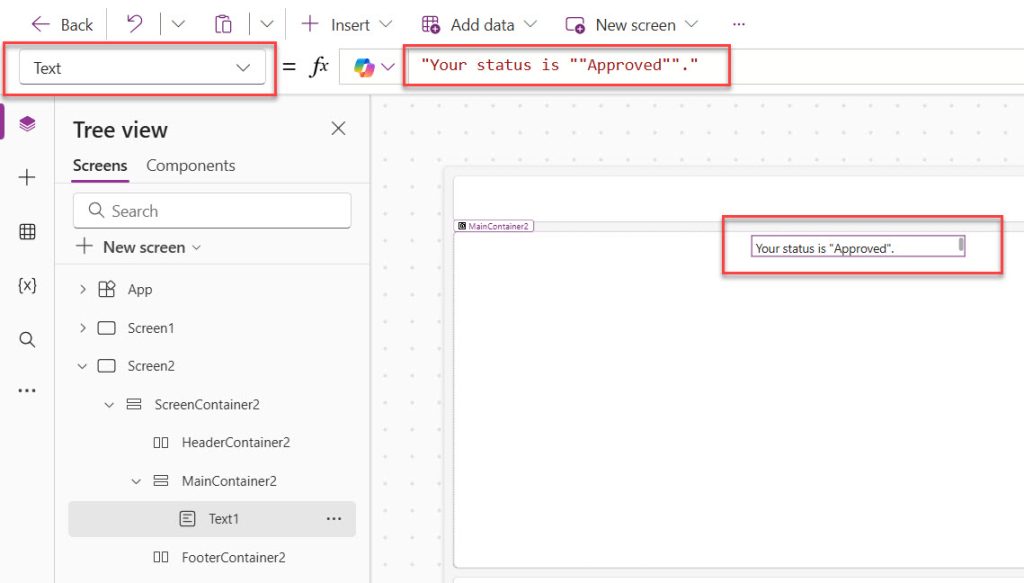
Simple Label Example:
Select a Label control and set its Text property to:
"Your status is ""Approved""."
The label displays:
Your status is "Approved".
You can see the exact output in the screenshot below:
This is the method I use most often because it is short, clear, and easy to maintain.
Or in a variable in Power Apps, you can write like the below:
Set(varMessage, "Error: field ""Title"" is required")Or in a Notify() function, you can write like this:
Notify("Please fill in the ""Customer Name"" field", NotificationType.Warning)Check out Power Apps Distinct Function
Method 2: Using the Char() Function
Sometimes the doubled quotes make a long formula hard to read. In those cases, I use the Char() function with the ASCII code for a double quote, which is 34.
Syntax
Char(34)This returns a single " character.
Example
"The customer said " & Char(34) & "Deliver it by Friday" & Char(34) & " and we agreed."Output:
The customer said "Deliver it by Friday" and we agreed.Here is the exact output, check out the screenshot below:
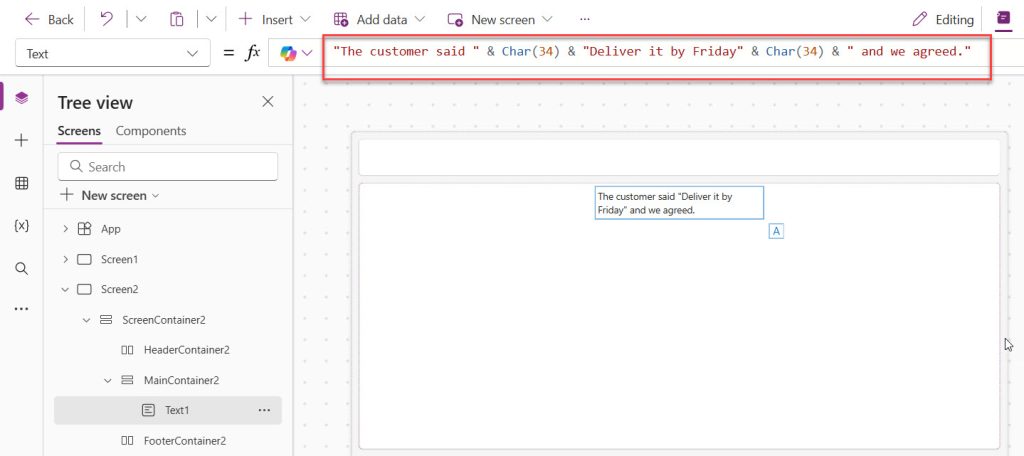
The & operator joins text values together. This method is particularly useful when a formula already contains lots of quoted text and the repeated quotes start becoming difficult to read. Power Fx uses & for text concatenation, while double quotes define text strings.
Make It Cleaner with a Variable
Here’s a trick I use in almost every app. In the OnStart property of the App (or OnVisible of a screen), I create a global variable:
Set(gblQuote, Char(34))Now anywhere in my app, I can write:
"The customer said " & gblQuote & "Deliver it by Friday" & gblQuoteMuch easier to read, and far less prone to typos than counting quote marks.
Another Handy Example:
Here is another handy example:
"Search for " & Char(34) & TextInput1.Text & Char(34) & " in results"If the user types Power Apps, the output is:
Search for "Power Apps" in resultsWhen I Prefer Char(34)
- When building JSON strings manually
- When the text is dynamic (coming from a control or data source)
- When I have many quotes in one formula and doubling them becomes unreadable
- When writing formulas that other developers need to maintain
Read Power Apps Convert Text to Number
Method 3: Using UniChar() for Smart Quotes
Char() works with ASCII codes, but if you need typographic (curly) quotes, use UniChar() which accepts Unicode code points.
| Character | Function | Output |
|---|---|---|
| Straight double quote | UniChar(34) | " |
| Left curly double quote | UniChar(8220) | " |
| Right curly double quote | UniChar(8221) | " |
| Left curly single quote | UniChar(8216) | ' |
| Right curly single quote | UniChar(8217) | ' |
Example:
Here is an example:
"The customer said " & UniChar(8220) & "Deliver it by Friday" & UniChar(8221)Output:
The customer said "Deliver it by Friday"I use this when the app is customer-facing and I want the text to look polished, like it came out of Word.
Check out 10 Power Apps User Defined Functions Examples
Method 4: String Interpolation with $-Strings
String interpolation is a clean option when I need to combine variables and text. In Power Fx, an interpolated string starts with $" and places expressions inside curly braces. This lets you embed formulas directly inside a string using curly braces {}.
The double quote rule is exactly the same — you still double it up.
Example:
You can see an example below:
$"The customer {ThisItem.Name} said ""Deliver by Friday"""If ThisItem.Name is John, the output is:
The customer John said "Deliver by Friday"Here is another example with a variable.
For example:
Set(varEmployeeName, "John")
Then I can use:
$"Employee name: ""{varEmployeeName}"""
This displays:
Employee name: "John"
Notice that I still use two double quotes before and after the variable value. String interpolation makes the formula easier to read because I do not need multiple & operators.
Combine with Char(34)
You can also combine with Char(34), like below:
$"Search: {Char(34)}{TextInput1.Text}{Char(34)}"Output (if input is “Invoice”):
Search: "Invoice"I really like this one — it’s compact and readable.
Important Gotcha with $-Strings
In an interpolated string, curly braces are also special. If you need a literal { or }, you must double them too:
$"JSON looks like {{ ""name"": ""John"" }}"Output:
JSON looks like { "name": "John" }So remember: in $-strings, double the quotes and double the braces.
Check out Add Named Formula in Power Apps
Escape Double Quotes in a JSON String
This is a common real-world scenario. For example, I may need to send JSON to a Power Automate flow, custom connector, or API.
Here is a simple JSON value:
{"Name":"Bijay","Department":"IT"}
To store this JSON as a Power Apps text string, I need to escape every JSON double quote by repeating it:
"{""Name"":""Bijay"",""Department"":""IT""}"
Power Apps interprets this as:
{"Name":"Bijay","Department":"IT"}
JSON with a Variable
If I have a text input called txtEmployeeName, I can write:
"{""Name"":""" & txtEmployeeName.Text & """,""Department"":""IT""}"
If the user enters Alex, the result becomes:
{"Name":"Alex","Department":"IT"}
For larger JSON payloads, manually building strings can become difficult. Where possible, use Power Fx functions such as JSON() to generate JSON from records or collections instead of manually assembling every quote.
The Better Way – Use the JSON() Function
Power Fx has a built-in JSON() function that handles all the escaping for you.
Set(
    varJSON,
    JSON(
        {
            Name: "John Doe",
            City: "Seattle"
        }
    )
)
Output:
{"City":"Seattle","Name":"John Doe"}No manual escaping needed at all. This is my go-to for any JSON work.
JSON() with a Collection
ClearCollect(
    colEmployees,
    {Name: "John", Dept: "IT"},
    {Name: "Sara", Dept: "HR"}
);

Set(varPayload, JSON(colEmployees))
Output:
[{"Dept":"IT","Name":"John"},{"Dept":"HR","Name":"Sara"}]What If the Data Itself Contains a Quote?
Here’s the beautiful part — JSON() escapes it automatically:
Set(varJSON, JSON({Comment: "He said ""Hello"" loudly"}))Output:
{"Comment":"He said \"Hello\" loudly"}Notice JSON() used the backslash escape (\") which is the JSON standard. You don’t have to think about it.
Check out Get Manager Details for the Current User in Power Apps
Escape Quotes Inside Filter and Search Formulas
A common real-world scenario — filtering a SharePoint list where the search term contains a quote.
Example with Search()
Here is an example of escaping quotes inside search formula.
Search(
    'Customer Feedback',
    TextInput1.Text,
    "Title",
    "Comments"
)
This works fine as-is, because TextInput1.Text is already a text value. You do not need to escape user input — Power Fx handles it because the value never becomes part of the formula text.
Key point I always tell my juniors: You only escape quotes in literal strings you type in the formula bar. Values coming from controls, variables, or data sources are already strings and need no escaping.
Example with Filter and a Literal Quote
Here is an example of escaping quotes inside Filter:
Filter(
    'Product List',
    Title = "5"" Screen Protector"
)
Here I’m filtering for a product literally named 5" Screen Protector.
Or using Char(34):
Filter(
    'Product List',
    Title = "5" & Char(34) & " Screen Protector"
)
Handle Quotes in Patch to SharePoint
When patching text that contains quotes to a SharePoint list, the same rules apply.
Example
Here is an example.
Patch(
    'Project Tasks',
    Defaults('Project Tasks'),
    {
        Title: "Review the ""Q4 Budget"" document",
        Status: "Pending"
    }
)
This saves the literal text Review the "Q4 Budget" document to SharePoint.
With Dynamic Values
Here is how you can do while working with dynamic values.
Patch(
    'Project Tasks',
    Defaults('Project Tasks'),
    {
        Title: "Review the " & Char(34) & DropdownDoc.Selected.Value & Char(34) & " document"
    }
)
Clean, readable, and no counting quotes.
Check out Delegation in Power Apps
Escape Quotes in HTML Text Control
The HTML Text control adds another layer, because HTML attributes also use double quotes.
Problem
<div style="color:red">Hello</div>If I put this directly in the HtmlText property, I need to escape all four quotes.
Solution A – Double Them Up
"<div style=""color:red"">Hello</div>"Solution B – Use Single Quotes in HTML
HTML happily accepts single quotes for attributes, so this is my favorite shortcut:
"<div style='color:red'>Hello</div>"No escaping needed at all! I use this in every HTML Text control I build.
Solution C – Use HTML Entity
If you want a double quote to display in the rendered HTML, use the entity:
"<p>He said "Hello"</p>"Rendered output:
He said "Hello"A Full Practical Example
Here is a complete example:
"<div style='font-family:Segoe UI; padding:10px; background:#f3f3f3'>
<b>Note:</b> Please review the "Annual Report" before Friday.
</div>"Clean, readable, zero escaped quotes.
Conclusion
Escaping double quotes in Power Apps looks intimidating the first time you see """" in a formula, but once you understand the rule, it becomes second nature.
Here’s the short version of everything I covered:
- Double the quote (
"") to display one quote — this is the official Power Fx method - Use
Char(34)when formulas get long or dynamic, and store it in a global variable for readability - Use
UniChar(8220)andUniChar(8221)when you want polished curly quotes - In
$-strings, double both quotes and curly braces - Use
JSON()instead of hand-writing JSON — it escapes everything for you - Use single quotes in HTML attributes to avoid escaping entirely
- Never escape values from controls or data sources — only literals you type yourself
- Remember: Power Fx has no backslash escaping
My personal workflow? I add Set(gblQuote, Char(34)) to App → OnStart in every new app I build. It takes five seconds and saves me from squinting at quote marks for the rest of the project.
Give these methods a try in your next app, and you’ll never get stuck on that “Expected operator” error again.
You may also like:

Bijay Kumar is a 13-times Microsoft MVP in Business Applications with over 18 years of experience in the IT industry, recognized for his contributions to the Microsoft community. He is the Founder of TSinfo Technologies and shares practical, tested tutorials on Power Apps, Power Automate, Copilot Studio, and Power BI here on Power Platform FAQs. Read more.