
The OnStart property in Power Apps is useful and runs when an app starts, allowing you to control the app’s behavior and load data efficiently. In this tutorial, I will explain how to use the OnStart property in Power Apps to optimize app performance and enhance the user experience with some useful examples.
OnStart Property in Power Apps
The OnStart property is an event that is triggered when a Power Apps App is launched. It allows code to be executed before the user interacts with the app. This is particularly useful for performing initial setup tasks, such as:
- Loading data from data sources
- Setting default values for variables and controls
- Applying themes or styling
- Checking user permissions or authentication
Using the OnStart property effectively ensures that your app is ready and responsive when users start interacting with it.
The OnStart property belongs to the App object itself (not to a screen or a control). It runs once when your app loads, before any screen becomes visible to the user.
Here’s the simple way to think about it: OnStart is where you put all the setup code that needs to run before users start interacting with your app.
Where to Find the OnStart Property in a Power Apps App
This trips up a lot of people when they first start out.
Here’s how to find it:
- Open your Power Apps app in edit mode
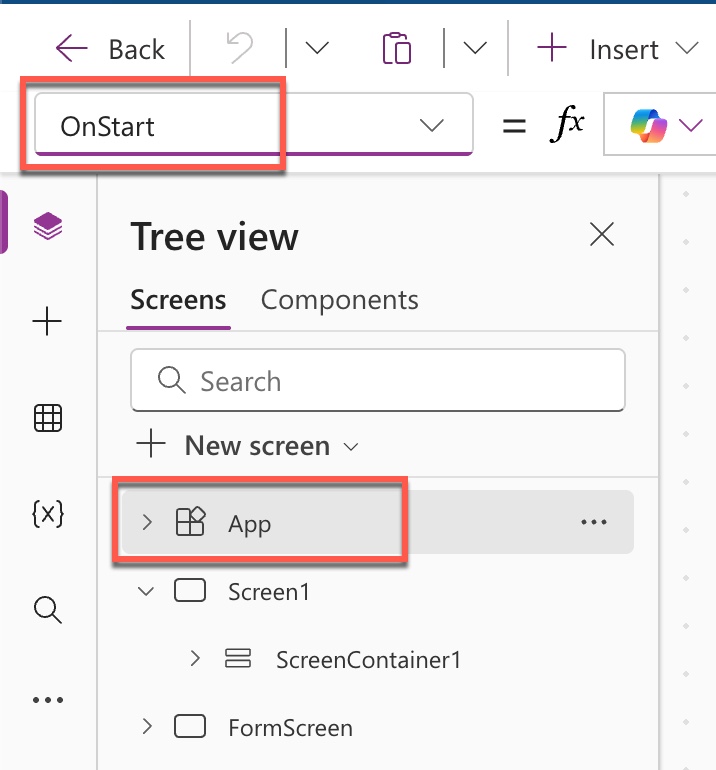
- Click on the App object in the Tree view (left side panel)
- Look for the OnStart property in the dropdown at the top
If you can’t see the Tree view, click on the Tree view icon in the left sidebar. The App object is always at the very top of the tree.
You can also follow the screenshot below:
What Should You Put in Power Apps OnStart?
This is where it gets practical. Here are the most common things you’ll want to include in your OnStart property:
- Setting Global Variables: Global variables are variables that you can use throughout your entire app. OnStart is the perfect place to set them up.
- Creating Collections: If you need to load data from SharePoint, SQL, or any other data source into a collection, OnStart is your friend.
- Loading User Information: Want to know who’s using your app? Load their profile information here.
- Setting Default Values: Any default values or app settings that need to be available from the start should go in OnStart.
- Checking Permissions: If your app has different views for different users, you can check their permissions in OnStart.
Now let’s look at some real examples.
Example 1: Setting Global Variables
Let’s say you want to set some global variables that control the look and feel of your Power Apps app; you can set in the OnStart property like below:
Set(varUserName, User().FullName);
Set(varUserEmail, User().Email);
Set(varAppVersion, "2.1.0");
Set(varThemeColor, ColorValue("#0078D4"))
This code does four things:
- Captures the current user’s full name
- Captures their email address
- Sets an app version number (useful for troubleshooting)
- Sets a theme color that you can use throughout your app
Now you can use varUserName anywhere in your app to display or work with the user’s name.
You can see in the screenshot below:
I have used a Text label to display the global variables created on the OnStart property.
Text property:
"Hello "&varUserName &"! Your Email ID Is: "&varUserEmail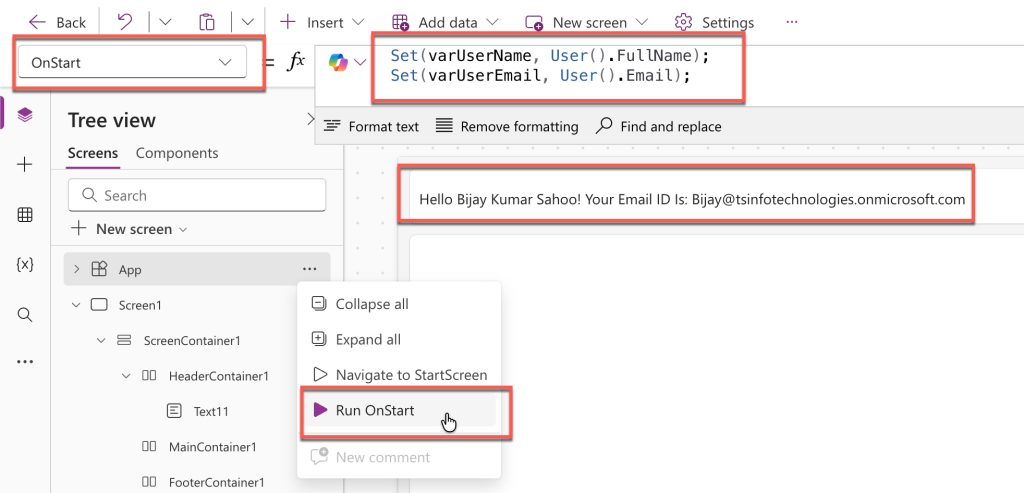
Example 2: Loading Data from SharePoint into Collections
Here’s a super common scenario. You have a SharePoint list with department information, and you want to load it once when the app starts:
ClearCollect(
    colDepartments,
    Departments
);
ClearCollect(
    colCountries,
    Choices(Employees.Country)
)
The first ClearCollect loads all records from your Departments SharePoint list into a collection called colDepartments.
The second one loads all the choice values from the Country column in your Employees list. This is handy for dropdown menus.
Why use collections? Because they load the data into memory once, making your app much faster. Instead of hitting SharePoint every time someone opens a dropdown, the data is already there.
Example 3: Creating a User Profile Variable
Here’s a more advanced example where you check if the current user exists in your Employees SharePoint list:
Set(
    varCurrentUser,
    LookUp(
        Employees,
        Email = User().Email
    )
);

If(
    IsBlank(varCurrentUser),
    Set(varIsAuthorized, false),
    Set(varIsAuthorized, true)
)
This code looks up the current user in your Employees list. If they’re found, it stores their entire record in varCurrentUser. Then it sets a varIsAuthorized variable to true or false.
You can use varIsAuthorized throughout your app to show or hide features based on whether the user is in your Employees list.
Example 4: Loading Multiple Collections with a Loading Screen
When you’re loading a lot of data, you want to show users something so they know the app is working. Here’s how:
Set(varLoading, true);

ClearCollect(colProjects, Projects);
ClearCollect(colClients, Clients);
ClearCollect(colTasks, Tasks);

Set(varLoading, false);

Navigate(HomeScreen, ScreenTransition.Fade)
In this example, we set varLoading to true at the start. You can use this variable to show a loading spinner or screen. After all the data loads, we set it to false and navigate to the home screen.
Example 5: Setting Up Date Variables
If your app works with dates (and most do), set up your date variables in OnStart:
Set(varToday, Today());
Set(varCurrentMonth, Month(Today()));
Set(varCurrentYear, Year(Today()));
Set(varFirstDayOfMonth, DateAdd(Today(), 1-Day(Today()), Days));
Set(varLastDayOfMonth, DateAdd(varFirstDayOfMonth, 1, Months) -1)
Now you have variables for today’s date, the current month and year, and the first and last days of the current month. Super useful for filtering data by date ranges.
Check out How to Calculate the Difference Between Two Dates in Power Apps
Important Things to Know About OnStart Property
OnStart Runs Only Once
When a user opens your app, OnStart runs completely before anything else happens. It won’t run again unless the user closes and reopens the app.
If you need something to run every time a user navigates to a screen, use that screen’s OnVisible property instead.
OnStart Can Slow Down Your App
Here’s something important: everything in OnStart must finish before your app becomes visible. If you’re loading five SharePoint lists with thousands of records each, your users will be staring at a blank screen for a while.
Keep your OnStart lean. Only load what you absolutely need at startup.
You Can’t Use OnStart in Canvas Components
If you’re building reusable components, OnStart isn’t available. You’ll need to use other properties like OnVisible or pass data through custom properties.
Testing Your OnStart Code
When you’re editing your OnStart property, you need to reload the app to test changes.
The easiest way is to click the three dots (…) next to the App object and select “Run OnStart”. This runs your OnStart code without having to close and reopen the app.
You can also use the preview mode (press F5 or click the play button), but you’ll need to close and reopen preview each time you make changes.
Read Power Apps Multiple IF Statements
Best Practices for Using OnStart
After working with Power Apps for years, here are my recommendations:
1. Keep it simple and fast
Only load essential data. If something can wait until a user navigates to a specific screen, let it wait.
2. Use a loading screen
Set a variable at the start of OnStart and use it to show a friendly loading message. Users are more patient when they know something is happening.
3. Handle errors gracefully
Wrap your data loading in IfError() functions so your app doesn’t crash if a data source is unavailable.
4. Comment your code
OnStart can get messy fast. Use // comments to explain what each section does.
5. Navigate to a home screen at the end
Always end your OnStart with a Navigate() function to send users to your home screen.
Common Mistakes to Avoid
Don’t load huge datasets
If you’re loading 10,000 records into a collection, you’re doing it wrong. Use delegation or load data on-demand instead.
Don’t forget about mobile users
OnStart runs on whatever network connection your user has. If they’re on a slow mobile connection, be kind.
Don’t use OnStart for screen-specific logic
If something only matters on one screen, put it in that screen’s OnVisible property instead.
Wrapping Up
The OnStart property is very powerful in Power Apps. It sets up your entire app environment, loads critical data, and prepares everything for your users.
Use it wisely, keep it fast, and your users will have a smooth experience every time they open your app.
I hope you now understand how to use the OnStart property in Power Apps.
Got questions? Drop them in the comments below. I will try to answer.
You may also like the following tutorials:
- Power Apps Modern Date Picker with Time
- Set Dropdown Value On Button Click in Power Apps (With SharePoint Examples)
- Power Apps Notify Function

Bijay Kumar is a Microsoft MVP in Business Applications with over 18 years of experience in the IT industry and more than 12 years as a Microsoft MVP, recognized for his contributions to the Microsoft community. He is the Founder of TSinfo Technologies and the creator of the popular technology platforms SPGuides.com and EnjoySharePoint.com. Bijay also runs the SPGuides YouTube channel, where he shares practical tutorials on Microsoft 365, SharePoint, Power Platform, and Copilot technologies. Read more.