
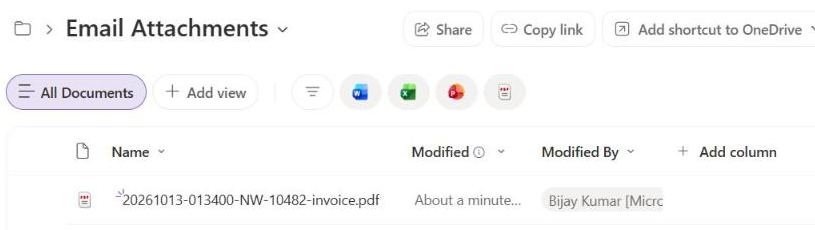
To make Power Automate save email attachment to SharePoint, use the Outlook trigger When a new email arrives (V3) with Include Attachments set to Yes. Then add SharePoint Create file inside an Apply to each loop, and map the attachment name and content.
I built this exact flow, sent it a real vendor invoice with a logo in the body, and checked the library. It saved the PDF and skipped the logo. Two test results didn’t match what most tutorials say, so I’ll show you those too.
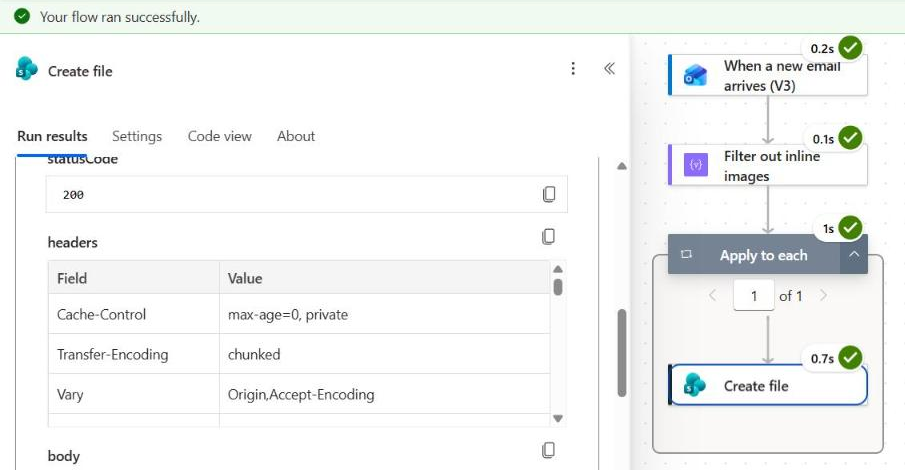
What Does the Flow Look Like?
The finished flow has just three steps. Here’s what each one does in my build:
| Step | Action | What it does |
|---|---|---|
| 1 | When a new email arrives (V3) | Watches the Inbox for emails with “Vendor Invoice” in the subject that have attachments |
| 2 | Filter array | Removes inline images, such as logos pasted into the email body |
| 3 | Apply to each + Create file | Saves every remaining attachment to a SharePoint document library |
I used a demo site with a folder named Email Attachments in the default Documents library. If you’re new to cloud flows, my Power Automate tutorials hub covers triggers, actions, and dynamic content first.
How Do You Set Up the Outlook Trigger?
Create an automated cloud flow and pick the Office 365 Outlook trigger When a new email arrives (V3). Then open Advanced parameters and set these values:
- Folder: Inbox, or the folder your Outlook rule moves these emails into.
- Include Attachments: Yes. Without it, the trigger doesn’t return the file content.
- Only with Attachments: Yes, so emails without files never start a run.
- Subject Filter: a word or phrase from the subject. I used
Vendor Invoice.
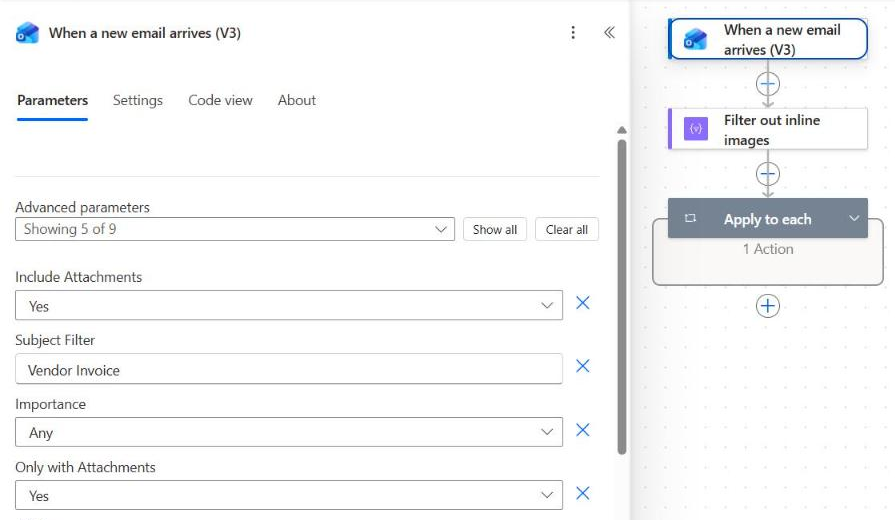
The subject filter matches text anywhere in the subject line. My test email was titled “Vendor Invoice NW-10482 – Northwind Supply”, and the trigger fired within a few seconds.
For rules the basic filters can’t handle, like two senders or a subject that must start with a word, use Power Automate trigger conditions in the trigger settings.
How Do You Skip Inline Images and Signature Logos?
Add a Filter array action after the trigger. Set From to the Attachments dynamic content, then build the condition isInline is equal to false.
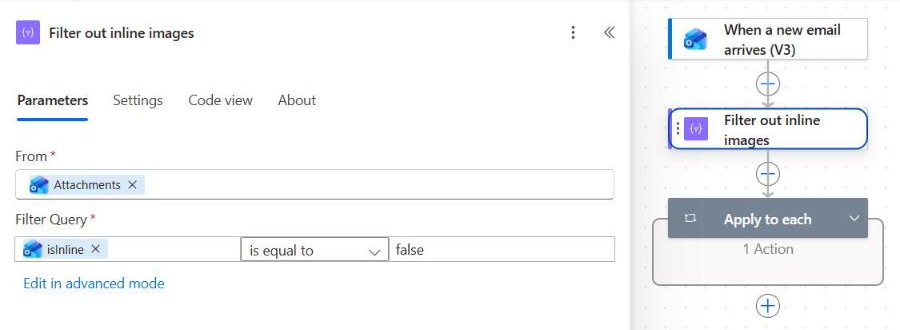
If you switch to advanced mode, the same filter looks like this:
@equals(item()?['isInline'], false)This matters more than you’d think. My test email had a small Northwind logo pasted in the body. The trigger returned it as attachment 0 with isInline = true, next to the PDF with isInline = false.
| Attachment | contentType | size | isInline | Kept by the filter? |
|---|---|---|---|---|
| northwind-logo.png | image/png | 2,869 | true | No |
| NW-10482-invoice.pdf | application/pdf | 72,381 | false | Yes |
Without this step, every signature logo and social icon ends up in your library as image001.png. The filter works the same way as the blank checks in my guide on the Power Automate condition if blank.
Want only PDFs? Combine two checks in advanced mode:
@and(equals(item()?['isInline'], false), endsWith(toLower(item()?['name']), '.pdf'))How Do You Save Each Attachment With Create File?
Add an Apply to each loop and select the Body output of Filter array as its input. Inside the loop, add SharePoint Create file and fill in four fields:
- Site Address: pick your SharePoint site.
- Folder Path: browse to the library folder, such as
/Shared Documents/Email Attachments. - File Name: the attachment
name, with a date prefix (explained below). - File Content: the attachment
contentBytes.
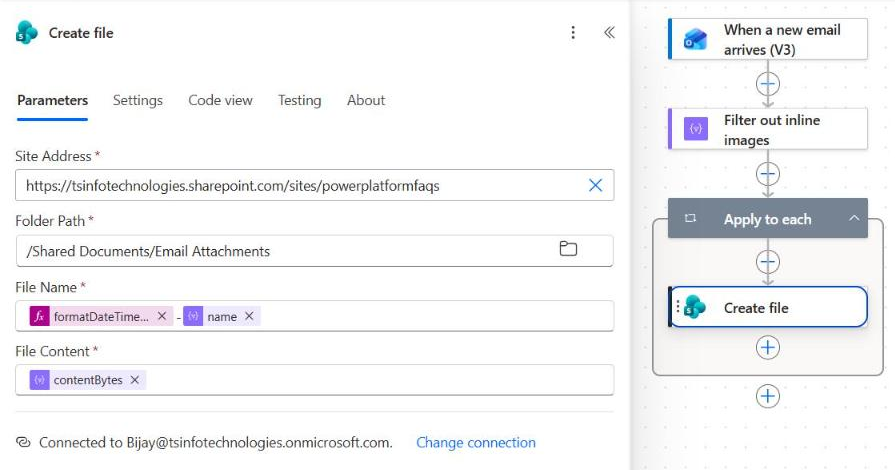
Here are the two values from my flow. The loop is named Apply_to_each, so update the name if you rename yours:
concat(formatDateTime(triggerOutputs()?['body/receivedDateTime'], 'yyyyMMdd-HHmmss'), '-', items('Apply_to_each')?['name'])items('Apply_to_each')?['contentBytes']You don’t need base64ToBinary() around the content. My saved PDF was 72,157 bytes, the exact size of the original file, and it opened fine in SharePoint.
What Happens When the File Name Already Exists?
Create file overwrote it. I ran a separate test flow that saved duplicate-name-test.txt twice with different text. Both actions succeeded, the file held the second text, and its version changed to 2.0.
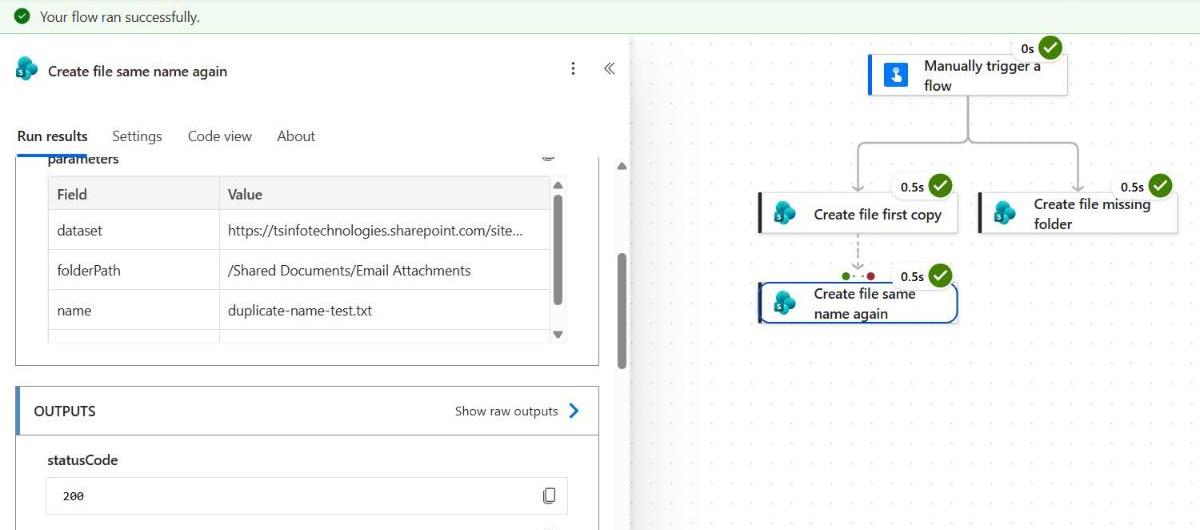
That’s risky with vendor emails, because every invoice can arrive as invoice.pdf. The old file stays in version history, but users only see the latest one. A unique prefix stops that.
I used the received time in the name. Keep in mind that receivedDateTime is in UTC, so my evening email got a 01:34 timestamp. To use Eastern time, convert it first:
convertFromUtc(triggerOutputs()?['body/receivedDateTime'], 'Eastern Standard Time', 'yyyyMMdd-HHmmss')More format codes are in my Power Automate formatDateTime guide. If two files can arrive in the same second, use guid() as the prefix instead.
Does the SharePoint Folder Need to Exist First?
No, only the library does. In my test, Create file saved to /Shared Documents/Email Attachments/2026-10-13, a folder that didn’t exist, and SharePoint created it. Microsoft’s connector notes say the path must start with an existing library.
That makes a folder per day simple. Put this expression in Folder Path:
concat('/Shared Documents/Email Attachments/', formatDateTime(triggerOutputs()?['body/receivedDateTime'], 'yyyy-MM-dd'))Avoid sender names or subjects in folder paths unless you clean them first. Characters such as : * ? " < > | aren’t allowed in SharePoint names. For date-only logic, you can also set a variable to today’s date once and reuse it.
Can You Save Attachments From a Shared Mailbox?
Yes. Use the trigger When a new email arrives in a shared mailbox (V2) and enter the shared address, such as ap@contoso.com. The connection account needs full access to that mailbox.
Microsoft notes that new mailbox permissions can take about two hours to replicate. If the trigger never fires right after you get access, wait before you rebuild anything.
For busy mailboxes, Microsoft suggests setting Include Attachments to No and adding Get Attachment (V2) inside the loop. It downloads one attachment at a time by message ID and attachment ID, which avoids trigger timeouts.
Why Are Attachments Not Saving to SharePoint?
Open the failed or empty run and check each step from the top. These are the causes I’d check first:
| Symptom | Likely cause and fix |
|---|---|
| Flow never starts | Wrong folder or subject filter. Check which folder your Outlook rule moves the email into. |
| Run succeeds but no file | Include Attachments is No, or every attachment was inline. Check the Filter array output. |
| Logos saved as image001.png | No inline filter. Add Filter array with isInline equal to false. |
| Older file replaced | Same file name. Add a timestamp or guid() prefix. |
| Flow runs twice, first run empty | Defender Dynamic Delivery. Add a condition that the attachments length is greater than 0. |
| Attached email (.msg) missing | The connector doesn’t support item attachments. Microsoft’s workaround is a Graph call through HTTP with Microsoft Entra ID. |
For the Dynamic Delivery case, this check returns true only when the run actually has files. The same type rules apply as when you convert a string to an integer, so compare numbers, not text:
greater(length(triggerOutputs()?['body/attachments']), 0)Microsoft also warns that digitally signed emails can return incorrect attachment content. Test signed messages separately before you trust the flow with them.
Create file has a few more surprises, such as invalid characters and the %25 problem. I tested 13 cases in my guide to SharePoint Create file in Power Automate.
Save Email Attachments to SharePoint Cheat Sheet
Every value below comes from the flow I built and ran for this post.
| Need | Setting or expression |
|---|---|
| Trigger | When a new email arrives (V3) |
| Return file content | Include Attachments = Yes |
| Skip emails without files | Only with Attachments = Yes |
| Skip inline images | @equals(item()?['isInline'], false) |
| File name | items('Apply_to_each')?['name'] |
| File content | items('Apply_to_each')?['contentBytes'] |
| Avoid overwrites | concat(guid(), '-', items('Apply_to_each')?['name']) |
| Folder per day | concat('/Shared Documents/Email Attachments/', formatDateTime(utcNow(), 'yyyy-MM-dd')) |
Frequently Asked Questions
How do I save email attachments to SharePoint with Power Automate?
Use When a new email arrives (V3) with Include Attachments set to Yes. Then loop through the attachments and add SharePoint Create file with the attachment name and contentBytes.
Why does my flow save signature images to SharePoint?
Outlook returns images pasted in the email body as attachments. Add a Filter array before the loop that keeps only items where isInline equals false.
Does SharePoint Create file overwrite an existing file?
Yes. In my test, saving the same file name twice succeeded both times and created version 2.0. Add a timestamp or guid() prefix to keep every file.
Do I need base64ToBinary() for the attachment content?
No. Passing contentBytes straight into File Content produced a PDF with the exact original size, and it opened normally in SharePoint.
Why does the Outlook trigger run twice with no attachments?
Defender Dynamic Delivery can fire the trigger first with an empty attachments array. Microsoft’s Office 365 Outlook connector reference suggests checking the array length first.
More Power Automate Tutorials
Once your files land in SharePoint, these are the next posts I’d read:
- adding days to a date with addDays()
- formatting dates with ordinal suffixes
- Power Apps vs Power Automate: when to use each
- Power Automate vs Power BI explained

Bijay Kumar is a 13-times Microsoft MVP in Business Applications with over 18 years of experience in the IT industry, recognized for his contributions to the Microsoft community. He is the Founder of TSinfo Technologies and shares practical, tested tutorials on Power Apps, Power Automate, Copilot Studio, and Power BI here on Power Platform FAQs. Read more.