
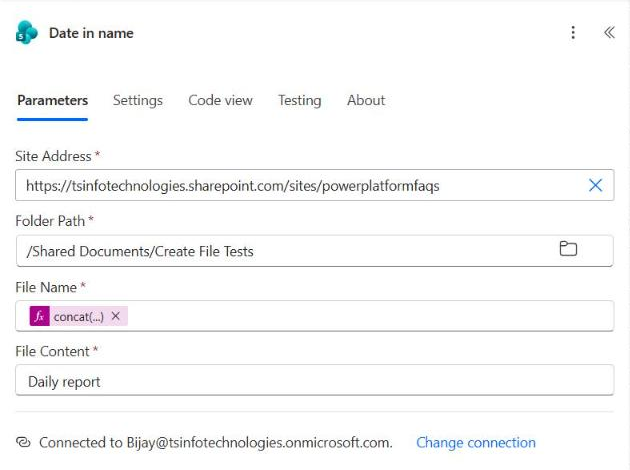
SharePoint Create file in Power Automate is the action that uploads a file to a document library. It needs four values: Site Address, Folder Path, File Name, and File Content, for example concat('daily-report-', formatDateTime(utcNow(), 'yyyy-MM-dd'), '.txt') as the name.
That part is easy. What the action does with duplicates, odd characters, and missing folders isn’t documented well, so I built a test flow with 13 Create file checks and one metadata update, ran it, and opened every file in SharePoint.

How Do You Use the SharePoint Create File Action?
Add the action from the SharePoint connector and fill in its four required fields. Here’s what each one expects in the new designer:
- Site Address: pick your site from the list, such as
https://contoso.sharepoint.com/sites/finance. - Folder Path: browse to a library or folder. It must start with an existing library, like
/Shared Documents/Reports. - File Name: type a name with its extension, or build one with an expression.
- File Content: plain text, binary output from another action, or decoded base64.
The most common real use is saving files that arrive by email. I walk through that full build in my guide on how to save email attachments to SharePoint with Power Automate.
What Happened in My 13 Create File Tests?
Every action ran in parallel after a manual trigger, so one failure couldn’t hide the others. Then I checked the real file names, sizes, and contents in the library.
| Test | Input | Result in SharePoint |
|---|---|---|
| Plain text content | Hello from Power Automate | Saved as written, 25 bytes |
| Base64 decoded | base64ToBinary('SGVsbG8gZnJvbSBiYXNlNjQ=') | File reads “Hello from base64” |
| Base64 not decoded | SGVsbG8gZnJvbSBiYXNlNjQ= | File holds the base64 text itself |
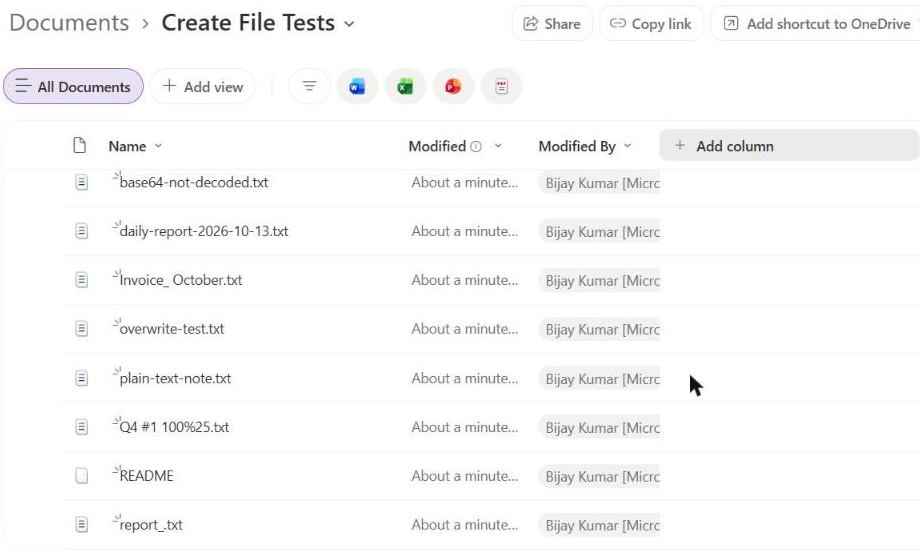
| Date in the name | daily-report- + formatDateTime(utcNow(), 'yyyy-MM-dd') | daily-report-2026-10-13.txt |
| GUID in the name | concat(guid(), '-invoice.txt') | Unique name, no conflict |
| Colon in the name | Invoice: October.txt | Saved as Invoice_ October.txt |
| Question mark in the name | report?.txt | Saved as report_.txt |
| Hash and percent | Q4 #1 100%.txt | Saved as Q4 #1 100%25.txt |
| No extension | README | Saved, but with no file type |
| Missing nested folders | /Create File Tests/2026/October | Both folders created |
| Library doesn’t exist | /No Such Library | Failed: BadRequest, Root folder is not found |
| Same name, first save | overwrite-test.txt | Created, version 1.0 |
| Same name, second save | overwrite-test.txt | Overwritten, version 2.0 |
Three of those results surprised me: the silent overwrite, the swapped characters, and the %25. The sections below explain each one and how to handle it. If you’re new to actions and expressions, start with my Power Automate tutorials hub.
Does Create File Overwrite an Existing File?
Yes. When I saved overwrite-test.txt twice, both actions succeeded. The file held the second text, and its version changed to 2.0. There’s no error and no warning in the run.
The older content stays in version history, but most users never look there. If two people email invoice.pdf on the same day, the second file replaces the first one.
The fix is a unique name. A timestamp keeps names readable, and the formatDateTime() function gives you the exact format:
concat(formatDateTime(utcNow(), 'yyyyMMdd-HHmmss'), '-', 'invoice.pdf')If several files can arrive in the same second, use guid() instead. It’s ugly, but it can’t collide:
concat(guid(), '-invoice.pdf')What Happens to Invalid Characters in the File Name?
SharePoint doesn’t reject them. In my run, Invoice: October.txt became Invoice_ October.txt and report?.txt became report_.txt. The colon and question mark were replaced with underscores.
That sounds helpful, but it breaks later steps. If another action looks for report?.txt, it won’t find report_.txt. So clean the name yourself before Create file, and you’ll know the exact result.
Microsoft lists these characters as not allowed in SharePoint and OneDrive names: " * : < > ? / \ |. Leading and trailing spaces aren’t allowed either. Here’s a replace() chain for the common ones in subject lines:
replace(replace(replace(trim(triggerOutputs()?['body/subject']), ':', '-'), '?', ''), '/', '-')Before you clean a value, make sure it isn’t blank. My guide on the Power Automate condition if blank shows a safe check.
Why Does a Percent Sign Turn Into %25?
Because the name was URL-encoded once and never decoded. I sent Q4 #1 100%.txt, and the library shows Q4 #1 100%25.txt. The # stayed as typed.
Users will see that odd name in SharePoint, and links built from the original name won’t match. The simple fix is to replace the percent sign with a word before saving:
replace('Q4 #1 100%.txt', '%', ' percent')Do You Need to Create the Folder First?
No, only the library has to exist. My path /Shared Documents/Create File Tests/2026/October pointed at two folders that weren’t there, and Create file built both of them.
That makes date-based folders a one-step job. This expression creates a folder for each year and month:
concat('/Shared Documents/Reports/', formatDateTime(utcNow(), 'yyyy'), '/', formatDateTime(utcNow(), 'MMMM'))A wrong library is different. The path /No Such Library failed with BadRequest and the message “Root folder is not found.” Pick the library from the folder browser to avoid typos. To reuse the date in several steps, set a variable to today’s date first.
What Should Go in the File Content Field?
Whatever bytes you want in the file. Plain text works as is: I typed Hello from Power Automate and got a 25-byte text file with exactly that line.
Base64 is where people get stuck. If you paste a base64 string, SharePoint saves the string itself, not the decoded file. My base64-not-decoded.txt contained the raw 24 characters.
Wrap it in base64ToBinary() to save the real content:
base64ToBinary('SGVsbG8gZnJvbSBiYXNlNjQ=')You don’t need that for Outlook attachments, though. The contentBytes value from the Outlook trigger produced a byte-perfect PDF in my email test.
How Do You Set Columns After Create File?
Create file only uploads the file. To fill library columns, add Update file properties right after it and set Id to the ItemId output of Create file:
outputs('Create_file')?['body/ItemId']In my test, this set the Title column to “Note created by Power Automate”. Notice that it also bumped the file to version 2.0, because SharePoint counts a metadata change as a new version.
Don’t use the Id output for this field. That value is an encoded file path, not the list item number Update file properties expects.
You can also stop a flow before it runs if the incoming data doesn’t qualify, using Power Automate trigger conditions.
SharePoint Create File Cheat Sheet
Every row below matches a result from my test run.
| Need | What to use |
|---|---|
| Avoid silent overwrites | concat(guid(), '-', 'file.pdf') |
| Readable unique name | concat(formatDateTime(utcNow(), 'yyyyMMdd-HHmmss'), '-', 'file.pdf') |
| Folder per month | Put the year and month in Folder Path; missing folders are created |
| Decode base64 text | base64ToBinary(x) |
| Remove invalid characters | replace() for : ? / \ * " < > | |
| Avoid %25 in names | replace(x, '%', ' percent') |
| Set library columns | Update file properties with Id = ItemId |
Frequently Asked Questions
Does SharePoint Create file overwrite existing files in Power Automate?
Yes. Saving the same name twice succeeded in my test and created version 2.0 with the new content. Add a timestamp or guid() to the name to keep both files.
Does Create file create missing folders?
Yes, as long as the library exists. My path with two missing subfolders created both. Microsoft’s SharePoint connector reference says the path must start with an existing library.
What characters can’t be used in a SharePoint file name?
Microsoft lists ” * : < > ? / \ | as invalid, plus leading and trailing spaces. See the OneDrive and SharePoint restrictions for reserved names like CON and .lock.
Why is my file content saved as base64 text?
You passed a base64 string straight into File Content. Wrap it in base64ToBinary() so SharePoint saves the decoded bytes.
How do I update columns on a file created by Power Automate?
Add Update file properties after Create file and use the ItemId output as the Id. The Id output is a file path, not the item number.
More Power Automate Tutorials
Once your files are landing where they should, these are worth a look next:
- adding days to a date with addDays()
- converting a string to an integer
- Power Apps vs Power Automate: when to use each
- formatting dates with ordinal suffixes

Bijay Kumar is a 13-times Microsoft MVP in Business Applications with over 18 years of experience in the IT industry, recognized for his contributions to the Microsoft community. He is the Founder of TSinfo Technologies and shares practical, tested tutorials on Power Apps, Power Automate, Copilot Studio, and Power BI here on Power Platform FAQs. Read more.