
To increment variable by 1 in Power Automate, add the Increment variable action, pick your Integer variable in Name, and type 1 in Value. Each time the action runs, the variable goes up by one, so 0 becomes 1, then 2.
In this tutorial, we’ll build a real loop counter, number rows, count matching items, and stop a Do until loop. I tested 15 counter cases in October 2026, including the three that Power Automate rejected.
What Does the Increment Variable Action Do?
A variable is a named value your flow can change while it runs. Increment variable adds a number to a variable you already created with Initialize variable. It’s the built-in way to build a counter.
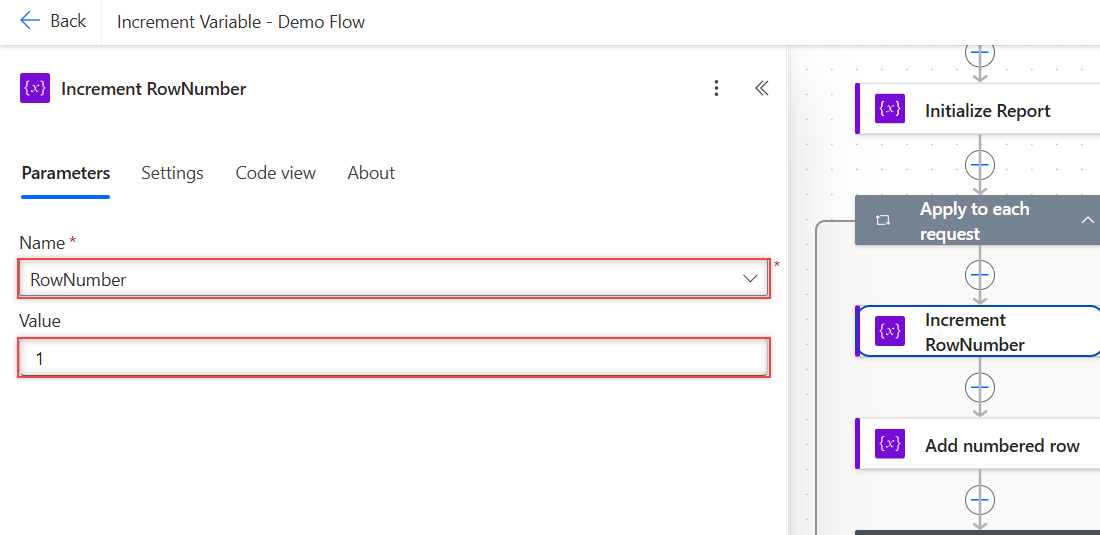
It has two fields. Name is required and lists your variables. Value is optional, and Microsoft Learn says the default is one. My test confirmed it: a blank Value took 0 to 1.
It only works with Integer (whole number) and Float (decimal) variables. Strings, arrays and Booleans aren’t allowed. You’ll see the exact error in a later section. To collect a list of values instead of a count, create an array in Power Automate.
How Do You Build a Counter Flow Step by Step?
You need a Power Automate account and nothing else. The demo uses six sample customer requests in an array variable, so no connector or list is required. If you’re new to flows, here’s how Power Apps vs Power Automate compare.
- Go to make.powerautomate.com, select Create, then Instant cloud flow. Name it Increment Variable – Demo Flow, pick Manually trigger a flow, and select Create.
- Add an Initialize variable action named Initialize Requests. Set Type to Array and paste the six request records (Title, Customer, City, Status).
- Add another Initialize variable. Set Name to RowNumber, Type to Integer, and Value to
0. - Add two more the same way: CompletedCount (Integer, 0) and Report (Array,
[]).
Keep every Initialize variable at the top level of the flow. Microsoft Learn says you can’t declare variables inside scopes, conditions, or loops. To fill an array variable at the start, see how to initialize an array variable with values.
Now add the loop. Select the plus sign, choose Add an action, search for apply to each, and pick Apply to each. In its input, choose the Requests variable.
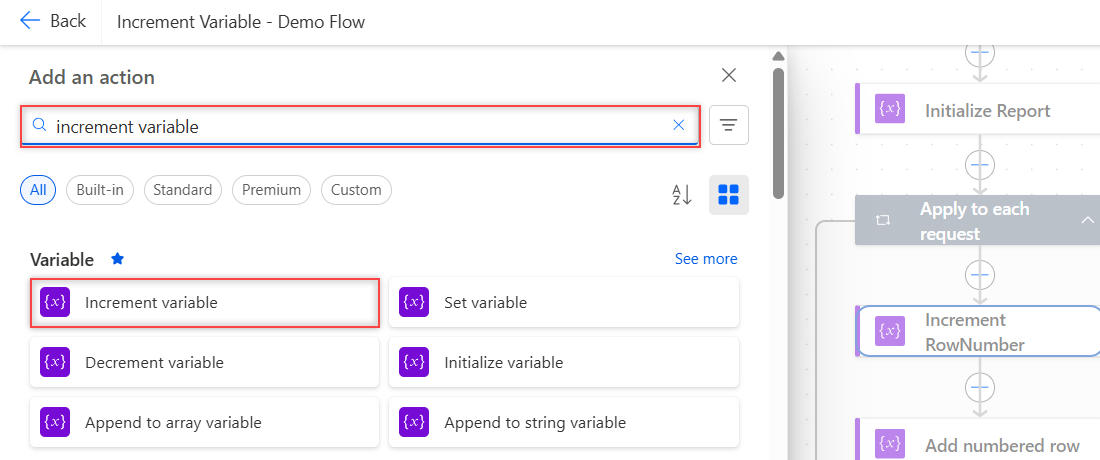
Inside the loop, select the plus sign, then Add an action. Type increment variable in the search box and pick Increment variable under Variable:
Rename the action Increment RowNumber with the three dots menu. Choose RowNumber in Name and type 1 in Value:
Select Save, then Test > Manually > Run flow. In the Code view tab, the action looks like this:
"Increment_RowNumber": {
  "type": "IncrementVariable",
  "inputs": {
    "name": "RowNumber",
    "value": 1
  },
  "runAfter": {}
}
How Do You Number Rows Inside Apply to Each?
Increment first, then use the variable. Under Increment RowNumber, I added an Append to array variable action for Report with this expression:
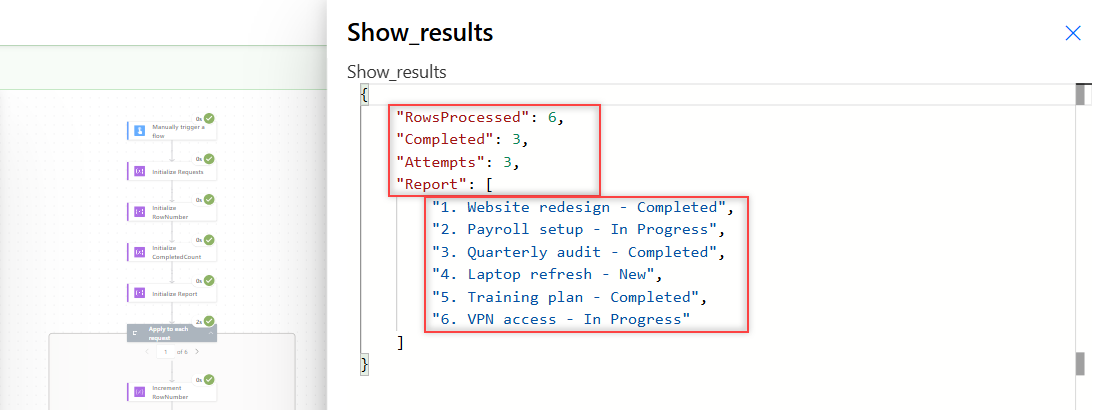
concat(variables('RowNumber'), '. ', item()?['Title'], ' - ', item()?['Status'])Because the increment runs before the append, the first row gets 1, not 0. The run produced six numbered lines, one for each request:
{
  "RowsProcessed": 6,
  "Completed": 3,
  "Attempts": 3,
  "Report": [
    "1. Website redesign - Completed",
    "2. Payroll setup - In Progress",
    "3. Quarterly audit - Completed",
    "4. Laptop refresh - New",
    "5. Training plan - Completed",
    "6. VPN access - In Progress"
  ]
}
The order matters. When you need an index starting at 0, put Increment variable after the action that reads it. For more loop patterns, see my guide to Apply to each on an array variable.
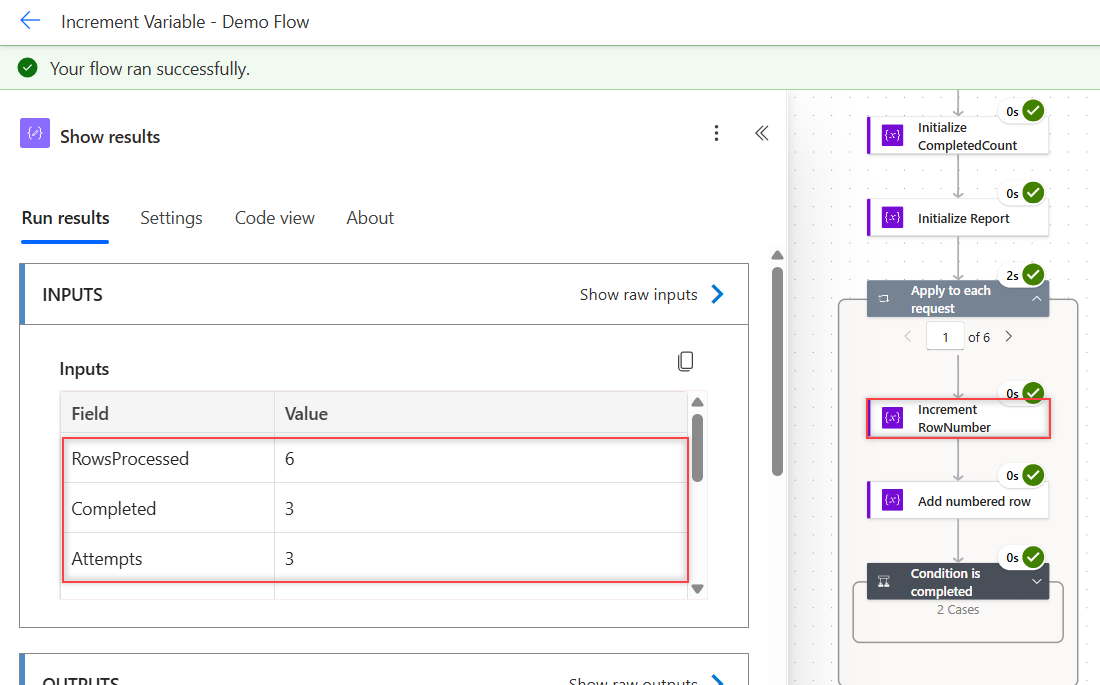
One thing surprised me in the run history. Increment variable shows its Name and Value inputs, but the Outputs section says No outputs:
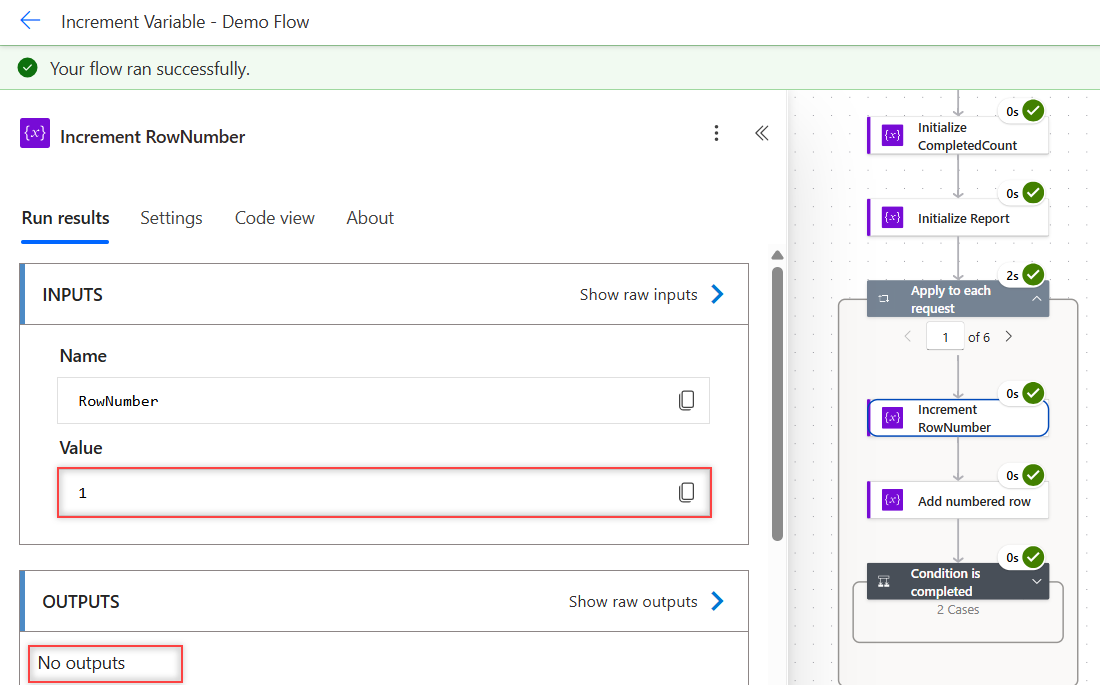
So you can’t pick the new count from the action itself. Read it with variables('RowNumber') in any later action, or pick RowNumber from the dynamic content list.
How Do You Count Only the Items That Match a Condition?
Put Increment variable inside the True branch of a Condition. I added a Condition named Condition is completed inside the loop with this test:
- Left side: the expression
item()?['Status'] - Operator: is equal to
- Right side: Completed
In the True branch, an Increment variable action adds 1 to CompletedCount. The False branch stays empty.
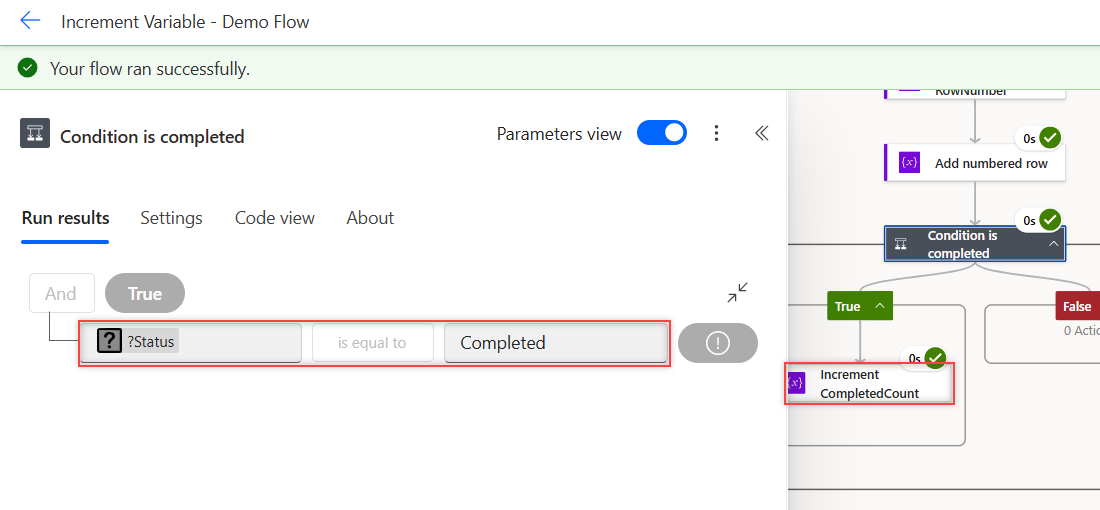
Three of the six requests had Status Completed, and the counter ended at 3. Blank values can trip a condition like this. My post on the Power Automate condition if blank shows which checks catch them.
How Do You Use a Counter in a Do Until Loop?
Initialize an Integer named Attempt at 0, then add a Do until loop. Inside it, add Increment variable for Attempt with Value 1. In the loop’s condition, use advanced mode:
@greaterOrEquals(variables('Attempt'), 3)The loop checks the condition after each pass. My run stopped with Attempt at 3, after three passes. This is the usual pattern for retrying a step a fixed number of times.
Do until also has a Count limit (I used 60) and a Timeout. Keep them, so a condition that never turns true can’t loop for hours.
Can You Increment by Another Number, a Negative, or a Decimal?
Yes to the first two, and yes to decimals only with a Float variable. I ran each case on its own branch:
| Start | Action and Value | Result |
|---|---|---|
| Integer 10 | Increment, Value 5 | 15 |
| Integer 10 | Increment, Value -1 | 9 |
| Integer 10 | Decrement, Value blank | 9 |
| Integer 10 | Decrement, Value 3 | 7 |
| Integer 0 | Increment, Value length(createArray('a','b','c')) | 3 |
| Integer 1 | Increment, Value int('4') | 5 |
| Float 1.5 | Increment, Value 0.25 | 1.75 |
| Integer, no start value | Increment, Value 1 | 1 |
| Integer 1 | Increment, Value 0.5 | Failed |
Decrement variable works the same way but subtracts. A negative Value in Increment variable does the same job. An Integer with no start value was treated as 0, but set one anyway so the flow is easy to read.
Adding 0.5 to an Integer failed at run time with a BadRequest error:
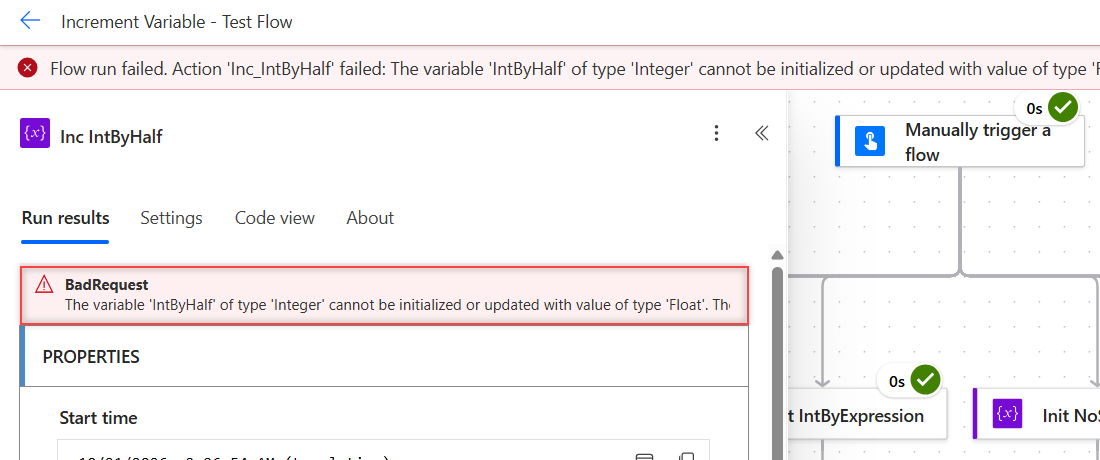
The variable 'IntByHalf' of type 'Integer' cannot be initialized or updated with value of type 'Float'. The variable 'IntByHalf' only supports values of type 'Integer'.If you need decimals, such as a running total in USD, initialize the variable as Float. A Float started at 0 and incremented by 1 also worked fine. If the amounts arrive as one line of text, first create an array from the string.
Is Increment Variable Safe in a Parallel Apply to Each Loop?
The final count is safe. I turned on concurrency at 50 in a loop over range(1, 200), and the counter ended at exactly 200. Microsoft Learn says the same: increment and decrement are the exceptions.
Reading the counter inside a parallel loop isn’t safe. With concurrency at 10, each pass incremented the counter and then appended its current value to a log. The log came back with repeats:
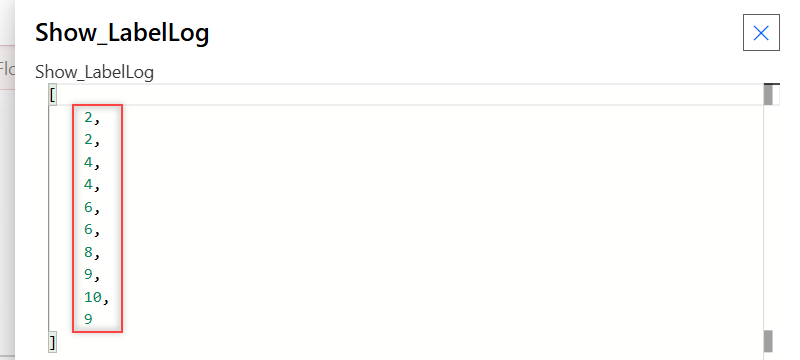
The values were 2, 2, 4, 4, 6, 6, 8, 9, 10, 9. Two passes often read the counter after both had added 1.
If each row needs a unique number, keep the loop sequential. Concurrency is under the loop’s Settings tab, and it’s off by default.
Why Not Use Set Variable with add()?
Because Power Automate blocks it. A Set variable action whose value refers to the same variable, like add(variables('Running'), 1), was refused when I saved the flow:
The inputs of workflow run action 'Set_Running' of type 'SetVariable' are not valid. Self reference is not supported when updating the value of variable 'Running'.Increment variable avoids that problem. If you really need Set variable, put add(variables('Running'), 1) in a Compose first, then set the variable to the Compose output. For a plain number, add(5, 1) in a Compose returns 6.
Set variable is still the right tool for other values. My post on how to set a variable to today’s date shows it with dates.
What Errors Does Increment Variable Give?
Two mistakes are caught when you save, before the flow ever runs. The first is using a String variable:
The inputs of workflow run action 'Inc_S' of type 'IncrementVariable' are not valid. The specified variable 'S' of type 'String' is not supported. The supported variable types are 'Integer, Float'.Change the variable’s Type to Integer, or convert the text first. My guide on how to convert a string to an integer covers int() and its errors.
The second is typing a number as text in Value, such as a quoted '1' in code view:
The inputs of workflow run action 'Inc_IntByTextOne' of type 'IncrementVariable' are not valid. The provided value of '1' of type 'String' must be either null, a number, or a valid template language expression.Type a plain number, or use an expression like int('4'), which worked. The third error, a decimal on an Integer variable, only shows up at run time, as you saw above.
What Happened in My Tests?
I ran these cases in parallel branches after one manual trigger, plus two save-time checks:
| Test | Result |
|---|---|
| Value left blank, start 0 | 1 |
| Value 1, start 0 | 1 |
| Apply to each over 10 items, sequential | 10 |
| Apply to each over 200 items, concurrency 50 | 200 |
| Read inside loop, concurrency 10 | Repeats: 2, 2, 4, 4… |
Do until Attempt >= 3 | 3 |
| Decrement, Value blank, start 10 | 9 |
| Float 1.5 + 0.25 | 1.75 |
| Integer + 0.5 | Run failed: BadRequest |
| String variable | Save refused |
Value as text '1' | Save refused |
| Set variable with self reference | Save refused |
Increment Variable: Cheat Sheet
| Goal | How |
|---|---|
| Add 1 | Increment variable, Value 1 (or blank) |
| Subtract 1 | Decrement variable, or Increment with -1 |
| Add any amount | Increment variable, Value = number or expression |
| Add decimals | Initialize as Float, not Integer |
| Number rows from 1 | Increment, then use variables('Name') |
| Count matches | Increment inside the Condition’s True branch |
| Stop after N tries | Do until greaterOrEquals(variables('Name'), N) |
| Unique number per row | Keep Apply to each sequential |
| Read the new value | variables('Name') in a later action |
For more Power Automate patterns, the Power Automate tutorials hub lists every post in order.
Frequently Asked Questions
How do I increment a variable by 1 in Power Automate?
Initialize an Integer variable, add the Increment variable action, choose the variable in Name, and enter 1 in Value. Leaving Value blank also adds 1.
What is the default value of Increment variable?
One. The variables article on Microsoft Learn lists Value as optional with a default of one, and a blank Value took my counter from 0 to 1.
How do I decrement a variable in Power Automate?
Use the Decrement variable action with the amount to subtract, or use Increment variable with a negative Value such as -1. Both took my counter from 10 to 9.
Why can’t I increment a string variable in Power Automate?
Increment variable only supports Integer and Float variables. Power Automate refuses to save a flow that increments a String variable, so change the variable type or convert the text with int().
Does Increment variable work in a parallel Apply to each loop?
The final count is correct: 200 items at concurrency 50 gave 200. But values read inside the loop can repeat, so keep the loop sequential when each item needs its own number.
More Power Automate Tutorials
If you’re building more flows, these are good next reads:
- formatting dates with formatDateTime()
- adding days to a date with addDays()
- creating a file in SharePoint
- building an HTML table from an array

Bijay Kumar is a 13-times Microsoft MVP in Business Applications with over 18 years of experience in the IT industry, recognized for his contributions to the Microsoft community. He is the Founder of TSinfo Technologies and shares practical, tested tutorials on Power Apps, Power Automate, Copilot Studio, and Power BI here on Power Platform FAQs. Read more.