
The fastest way to create an array in Power Automate is the createArray() expression: createArray('Pending', 'Approved', 'Rejected') returns ["Pending","Approved","Rejected"]. For a list you’ll change later, use an Initialize variable action with Type set to Array.
In this tutorial, we’ll build all seven methods in one real flow: a variable, Compose, createArray(), split(), json(), Append to array variable, and Select. I also ran 23 edge-case tests, so you’ll see which ones quietly add spaces, blank items, or errors.
What Is an Array in Power Automate?
An array is an ordered list of values inside square brackets, like ["Red", "Green", "Blue"]. Each value has a position called an index, and the first index is 0.
Items can be text, numbers, true/false values, or whole objects. An object is a set of named fields in curly braces, such as {"Name": "Megan Bowen", "City": "Seattle"}.
Most connector outputs are already arrays. SharePoint Get items returns one, and so do email attachments. You create your own when you need a fixed list, a list built from text, or a list you fill in a loop.
If flows are new to you, start with my Power Automate tutorials hub. It explains triggers, actions, and expressions in order.
How Do You Set Up the Demo Flow?
Every method below lives in one instant flow, so you can follow along click for click. Here’s how to start it.
- Go to make.powerautomate.com and sign in with your work account.
- Select Create in the left menu, then Instant cloud flow.
- Name it Create Array – Demo Flow, pick Manually trigger a flow, and select Create.
- Select the plus sign under the trigger to add each action from the methods below.
- When you’re done, select Save, then Test > Manually > Run flow.
- Open the run and select any action to see its inputs and outputs.
To type an expression, click inside a field, select the fx button that appears on its right, paste the expression, and select Add or Update. Don’t type it as plain text, or Power Automate stores it as a string.
Method 1: How Do You Create an Array Variable?
Add Initialize variable (search “variable” in the add-action pane). Enter a Name, set Type to Array, and type the values in Value as JSON.
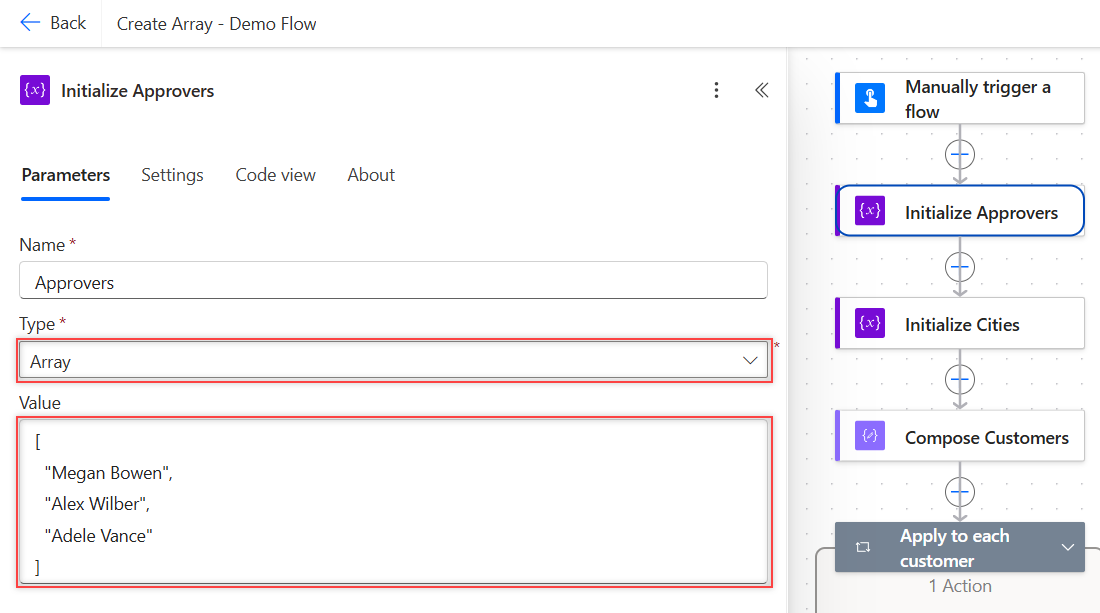
Text values need double quotes, and commas go between items. This is the action’s Code view from my flow:
{
  "type": "InitializeVariable",
  "inputs": {
    "variables": [
      {
        "name": "Approvers",
        "type": "array",
        "value": ["Megan Bowen", "Alex Wilber", "Adele Vance"]
      }
    ]
  }
}
A later Compose with length(variables('Approvers')) returned 3. Use a variable when the list must change during the run, because only variables accept Append to array variable.
Variables have rules you’ll hit elsewhere too. My guide on how to set a variable to today’s date covers where Initialize variable is allowed.
Method 2: How Do You Create an Array with Compose?
Add a Compose action and type a JSON array straight into Inputs. Power Automate keeps it as a real array, not text, so later actions can loop over it.
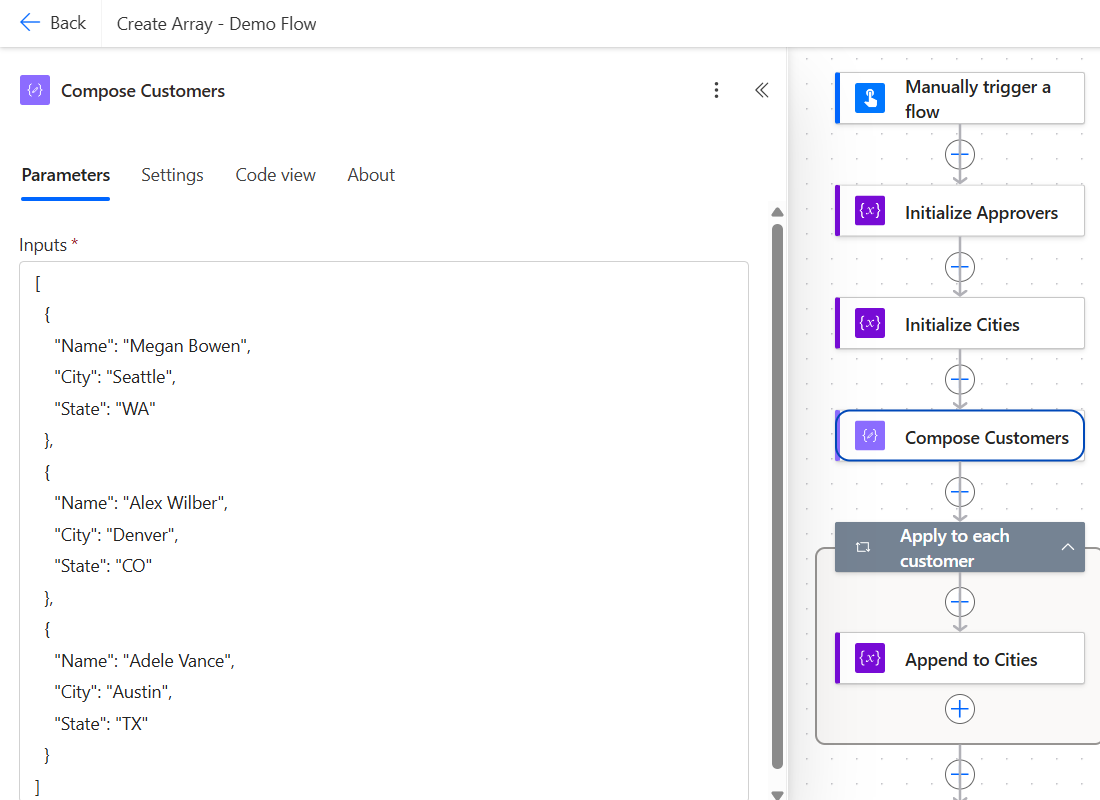
Here’s the exact Inputs value I used. Each object has Name, City, and State fields:
[
  { "Name": "Megan Bowen", "City": "Seattle", "State": "WA" },
  { "Name": "Alex Wilber", "City": "Denver", "State": "CO" },
  { "Name": "Adele Vance", "City": "Austin", "State": "TX" }
]
In the run, the output showed three rows with Seattle, Denver, and Austin. A plain list works the same way: ["Red", "Green", "Blue"] in Compose returned a three-item array.
Compose is my pick for fixed lookup data because it can’t be changed by accident. An array of objects like this is also exactly what you need to create an HTML table for an email.
Method 3: How Do You Use the createArray() Function?
createArray() builds an array from the values you pass it, separated by commas. Put it in any field with the fx button, such as a Compose Inputs box.
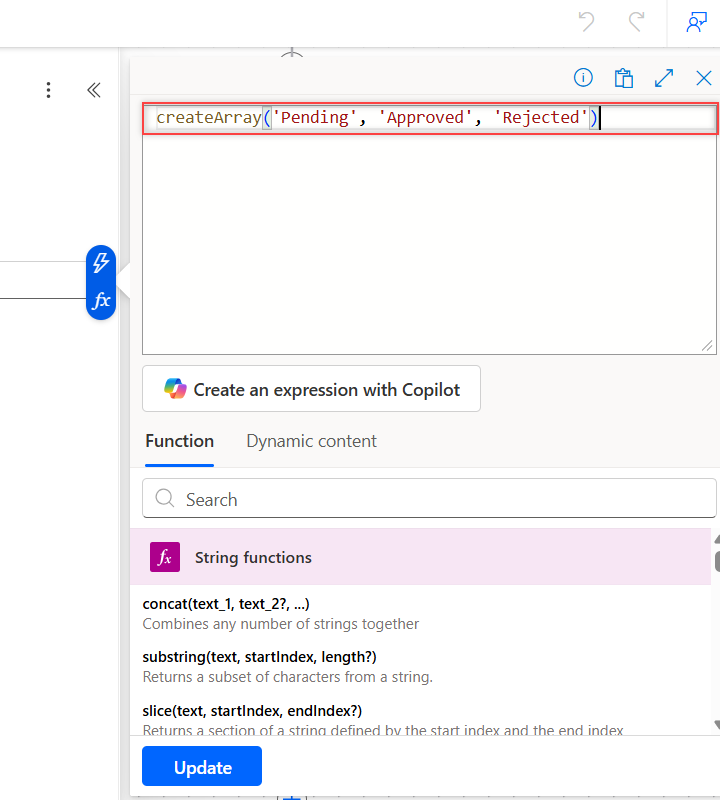
createArray('Pending', 'Approved', 'Rejected')It returned ["Pending","Approved","Rejected"]. Numbers work without quotes: createArray(10, 20, 30) gave [10,20,30].
Two results surprised me. Microsoft’s reference says it needs at least two items of one type, yet createArray('Red') returned ["Red"] and createArray(1, 'two', true) returned [1,"two",true] without an error.
I wouldn’t rely on that, since documented behavior can be enforced later. For one value, array('Red') is the documented way, and it also returned ["Red"].
What does fail is calling it with nothing inside. createArray() stopped the action with this error:
InvalidTemplate. The template language function 'createArray' expects a comma separated list of parameters. The function was invoked with no parameters.Method 4: How Do You Turn a Comma-Separated String into an Array?
Use split() with the text and the delimiter. This is the method you’ll use most with form answers, email subjects, and CSV-style fields.
split('Seattle, Denver, Austin', ', ')That returned ["Seattle","Denver","Austin"]. Notice the delimiter is a comma plus a space. When I split 'Red, Green, Blue' on a comma only, the raw output was ["Red"," Green"," Blue"].
Those leading spaces are easy to miss, because the run’s table view doesn’t show them. Open Show raw outputs to see them, and they’ll break any later equals() check.
Two more cases matter. split('Red,Green,', ',') returned three items with an empty one at the end, and split('', ',') returned [""], an array with one blank item, not an empty array.
To drop blanks, add a Filter array action. Set From to the split expression and use this condition in advanced mode:
@not(empty(item()))On split('Red,,Green,', ',') it returned just ["Red","Green"]. If the pieces are numbers, convert each string to an integer before you compare or add them.
Method 5: How Do You Convert a JSON String to an Array?
When an array arrives as text, for example from an HTTP response or a text column, wrap it in json():
json('["Red","Green","Blue"]')That returned a real three-item array. The text has to be valid JSON, though, which means double quotes around every text value.
![Power Automate run with a failed json action showing InvalidTemplate for the text [Red, Green]](https://powerplatformfaqs.com/wp-content/uploads/2026/10/power-automate-json-function-invalid-array-error.png)
Here’s the full error from that card, so you can match it against your own run:
InvalidTemplate. Unable to process template language expressions in action 'json_invalid' inputs at line '0' and column '0': 'The template language function 'json' parameter is not valid. The provided value '[Red, Green]' cannot be parsed: 'Unexpected character encountered while parsing value: R. Path '', line 1, position 1.'If you can’t control the format, split() is safer than json() for simple lists.
Method 6: How Do You Add Items to an Array in a Loop?
Start with an empty array variable, then fill it inside Apply to each. This is how you collect values that meet a condition while you loop.
- Add Initialize variable: Name Cities, Type Array, Value
[]. - Add Apply to each and set Select an output from previous steps to the Compose Customers Outputs.
- Inside the loop, add Append to array variable. Pick Cities as Name and the City field as Value.
- After the loop, add a Compose with
variables('Cities')to see the result.
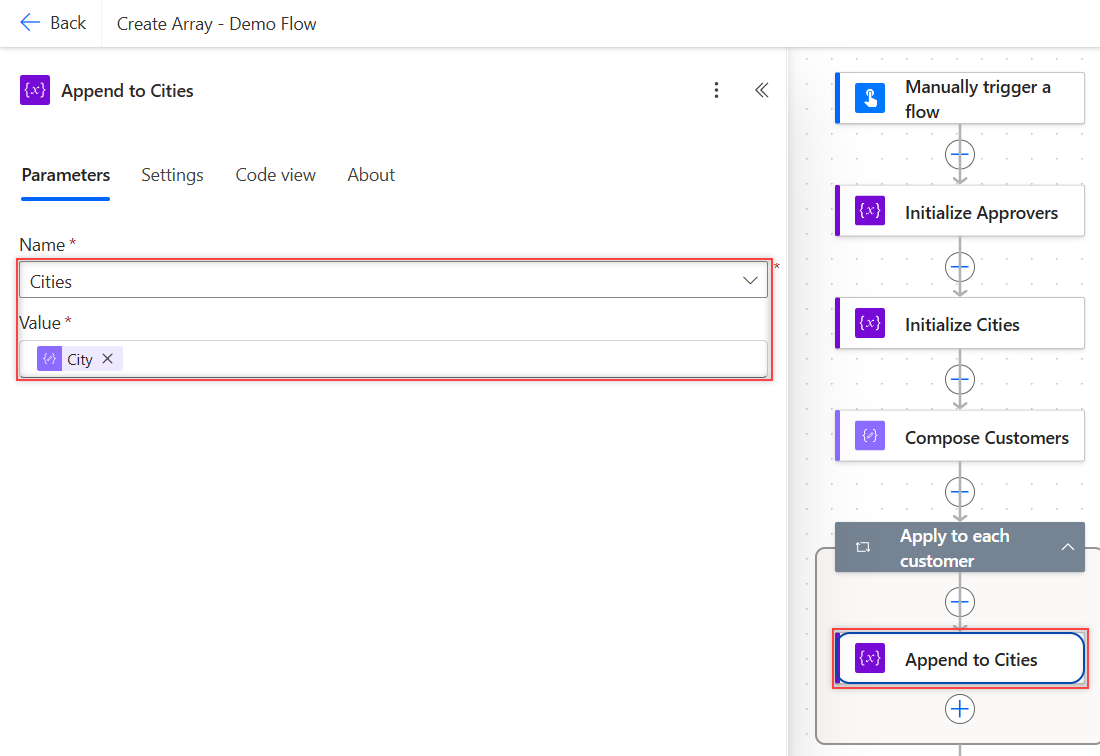
This is the loop in Code view. The items() function reads the current customer:
{
  "type": "Foreach",
  "foreach": "@outputs('Compose_Customers')",
  "actions": {
    "Append_to_Cities": {
      "type": "AppendToArrayVariable",
      "inputs": {
        "name": "Cities",
        "value": "@items('Apply_to_each_customer')?['City']"
      }
    }
  }
}
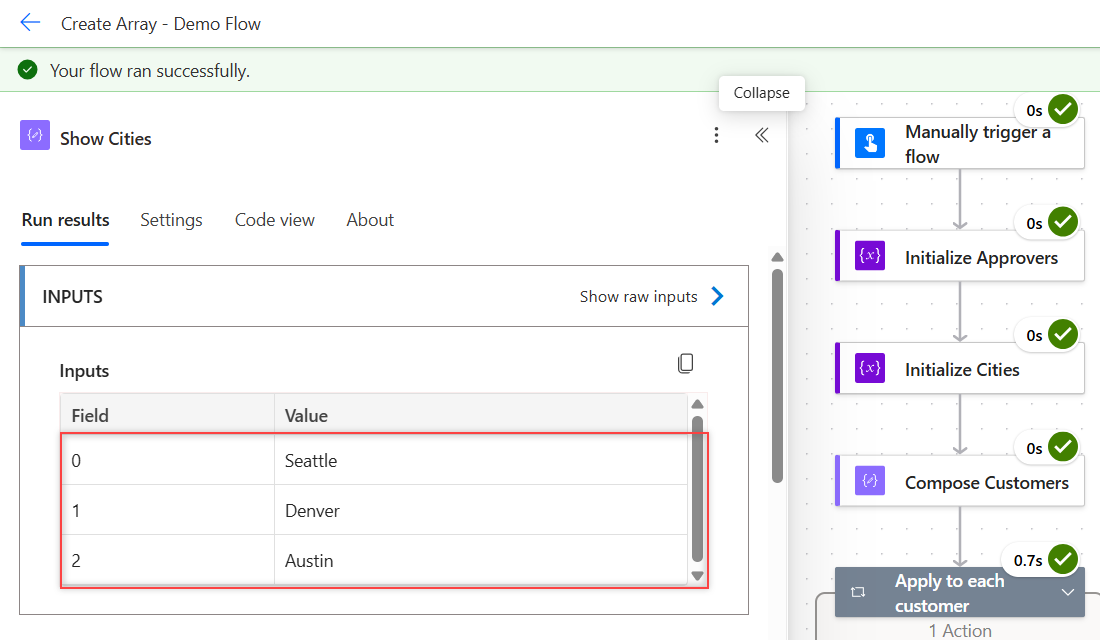
The run returned ["Seattle","Denver","Austin"] in the order of the source array, as the first screenshot shows. In my test flow, appending toUpper(item()) gave ["SEATTLE","DENVER","AUSTIN"].
Keep the loop sequential if order matters. Turning on concurrency in the loop’s Settings runs iterations in parallel. The same pattern collects file names when you save email attachments to SharePoint.
Method 7: How Do You Build an Array from Another Array with Select?
Select creates a new array from an existing one in a single step, with no loop. Set From to the source array and put one value in Map.
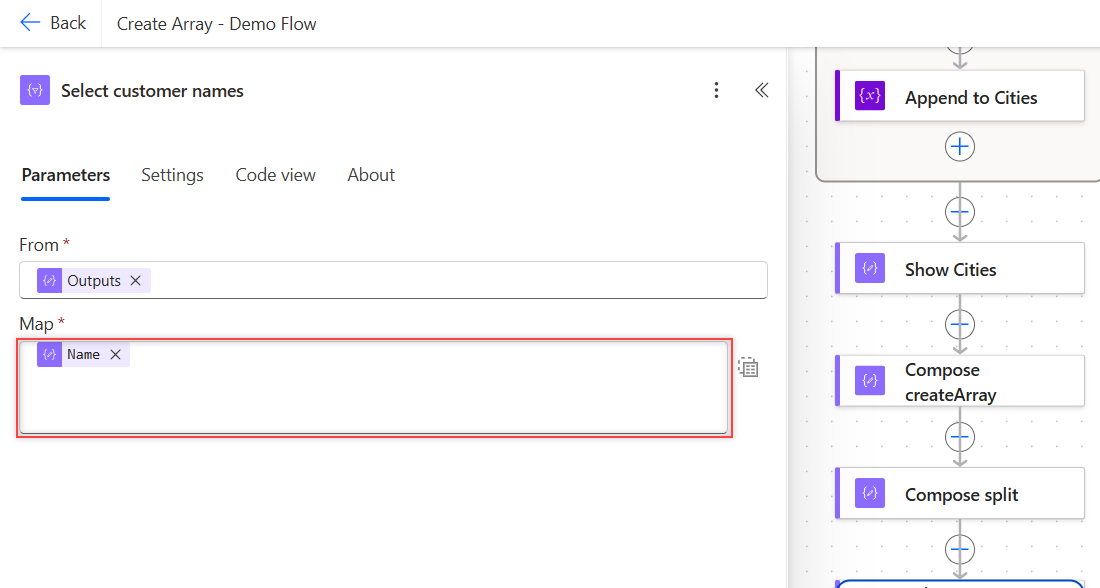
With a single value in Map, the switch next to it puts Select in text mode. Here’s the Code view:
{
  "type": "Select",
  "inputs": {
    "from": "@outputs('Compose_Customers')",
    "select": "@item()?['Name']"
  }
}
It returned ["Megan Bowen","Alex Wilber","Adele Vance"]. With key-value rows in Map instead, such as Customer and State, I got three objects with just those two fields.
Select is faster than Apply to each with Append, because it doesn’t run one action per item. Use the loop only when you need a condition or another action per item.
How Do You Create an Empty Array in Power Automate?
Type [] in an Initialize variable Value or a Compose Inputs box. In an expression, use json('[]'). Both returned [] in my run.
Don’t use createArray() for this, since it fails with no parameters. And remember that split('', ',') gives one blank item, not an empty array.
To check whether an array has items, use empty() or length() in a Condition. My post on the Power Automate condition if blank shows which checks fail on null values.
What Other Functions Create or Combine Arrays?
range(start, count) makes a list of whole numbers. range(1, 5) returned [1,2,3,4,5], and range(1, 0) returned an empty array. Microsoft caps count at 100,000.
A range is handy as the input of Apply to each when you need a counter. For example, loop over range(0, 7) and use addDays() with the current item to step through a week.
union() joins arrays and removes duplicates. union(createArray('Red', 'Green'), createArray('Green', 'Blue')) returned ["Red","Green","Blue"].
It also dedupes a single list. Passing createArray('Red', 'Red', 'Green') with json('[]') returned ["Red","Green"].
To go the other way, join(createArray('Red', 'Green', 'Blue'), ', ') returned the text “Red, Green, Blue”. That’s useful for one CSV line in a file made with SharePoint Create file.
What Happened in My Tests?
Each test ran in its own parallel branch after the trigger, so one failure couldn’t hide another. These are the raw outputs:
| Expression or action | Result |
|---|---|
createArray('Red', 'Green', 'Blue') | ["Red","Green","Blue"] |
createArray(1, 'two', true) | [1,"two",true] (no error) |
createArray('Red') | ["Red"] (no error) |
createArray() | Failed: InvalidTemplate, no parameters |
array('Red') | ["Red"] |
split('Red, Green, Blue', ',') | ["Red"," Green"," Blue"] |
split('Red,Green,', ',') | ["Red","Green",""] |
split('', ',') | [""] |
json('[]') | [] |
json('[Red, Green]') | Failed: parameter is not valid |
range(1, 0) | [] |
createArray('Red', 'Green', 'Blue')[1] | “Green” (index starts at 0) |
contains(createArray('Red', 'Green'), 'red') | false (case-sensitive) |
Array variable with Value Red, Green | Failed: BadRequest, value of type String |
The last row is a common mistake. Typing values without brackets and quotes makes the Value a string, and Initialize variable stopped with:
The variable 'BadArray' of type 'Array' cannot be initialized or updated with value of type 'String'. The variable 'BadArray' only supports values of types 'Array'.For automated flows, trigger conditions in Power Automate can stop a run before any of these actions start when the input is empty.
Create an Array in Power Automate: Cheat Sheet
Every row below matches a result from my two test flows.
| Need | What to use |
|---|---|
| List you’ll change during the run | Initialize variable, Type = Array |
| Fixed list or lookup data | Compose with a JSON array |
| Quick list in an expression | createArray('a', 'b', 'c') |
| List from comma-separated text | split(text, ', ') + Filter array for blanks |
| List stored as JSON text | json(text) |
| Fill a list in a loop | Append to array variable inside Apply to each |
| One field from every item | Select with one value in Map |
| Empty array | [] or json('[]') |
| Numbers 1 to N | range(1, N) |
| Combine and dedupe | union(a, b) |
Frequently Asked Questions
How do I create an array in Power Automate?
Use Initialize variable with Type set to Array, a Compose with a JSON array like [“a”,”b”], or the createArray() expression. Use a variable if you’ll add items later with Append to array variable.
How do I create an empty array in Power Automate?
Type [] in the Value of an array variable or in a Compose, or use json(‘[]’) in an expression. Don’t use createArray() with no values, because it fails with InvalidTemplate.
How do I convert a comma-separated string to an array?
Use split(text, ‘, ‘). Include the space in the delimiter if your text has one, or every item after the first starts with a space. Filter array with not(empty(item())) removes blank items.
What is the difference between createArray() and array()?
array() takes one value and returns a one-item array. createArray() takes a comma-separated list of values. Microsoft’s expression functions reference documents both.
How do I add an item to an existing array?
Use Append to array variable on an array variable, usually inside Apply to each. For a Compose array, build a new one with union() or Select, because Compose outputs can’t be changed.
More Power Automate Tutorials
Once your arrays are working, these guides are worth a read next:
- formatting dates with formatDateTime()
- adding ordinal suffixes to dates
- Power Apps vs Power Automate
- Power Automate vs Power BI

Bijay Kumar is a 13-times Microsoft MVP in Business Applications with over 18 years of experience in the IT industry, recognized for his contributions to the Microsoft community. He is the Founder of TSinfo Technologies and shares practical, tested tutorials on Power Apps, Power Automate, Copilot Studio, and Power BI here on Power Platform FAQs. Read more.