
The Power Automate do until loop repeats its actions until a condition you set turns true. Put an Increment variable inside it, set the loop to stop when greaterOrEquals(variables('Page'), 4), and it runs four times and moves on.
In this tutorial, we’ll build a Do until loop step by step, stop it with a counter or a true/false flag, and set its Count and Timeout limits. I ran every case in a real flow in October 2026.
What Is a Do Until Loop in Power Automate?
Do until is a Control action. It runs the actions inside it, then checks its condition. If the condition is false, it runs them again. If it’s true, the flow continues with the next step.
That makes it different from Apply to each, which runs once per item in an array you give it.
Do until has no array; it keeps going until something changes. For array loops, see my guide to Apply to each on an array variable.
Typical uses are reading pages of results until there are no more, retrying a call until it works, or waiting until a record gets approved.
How Do You Build a Do Until Loop Step by Step?
You only need a Power Automate account. This demo needs no connector. New to flows? Here’s how Power Apps vs Power Automate compare.
- Go to make.powerautomate.com, select Create > Instant cloud flow, pick Manually trigger a flow, and select Create.
- Add an Initialize variable action: Name Page, Type Integer, Value
0. - Add another one: Name Done, Type Boolean, Value
false. - Select the plus sign > Add an action, search for do until, and pick Do until under Control.
Inside the loop, add Increment variable for Page with Value 1. My guide on how to increment a variable by 1 covers that action in detail.
Under it, still inside the loop, add Set variable for Done. In Value, select the fx icon and enter this expression:
greaterOrEquals(variables('Page'), 4)How Do You Set the Loop Until Condition?
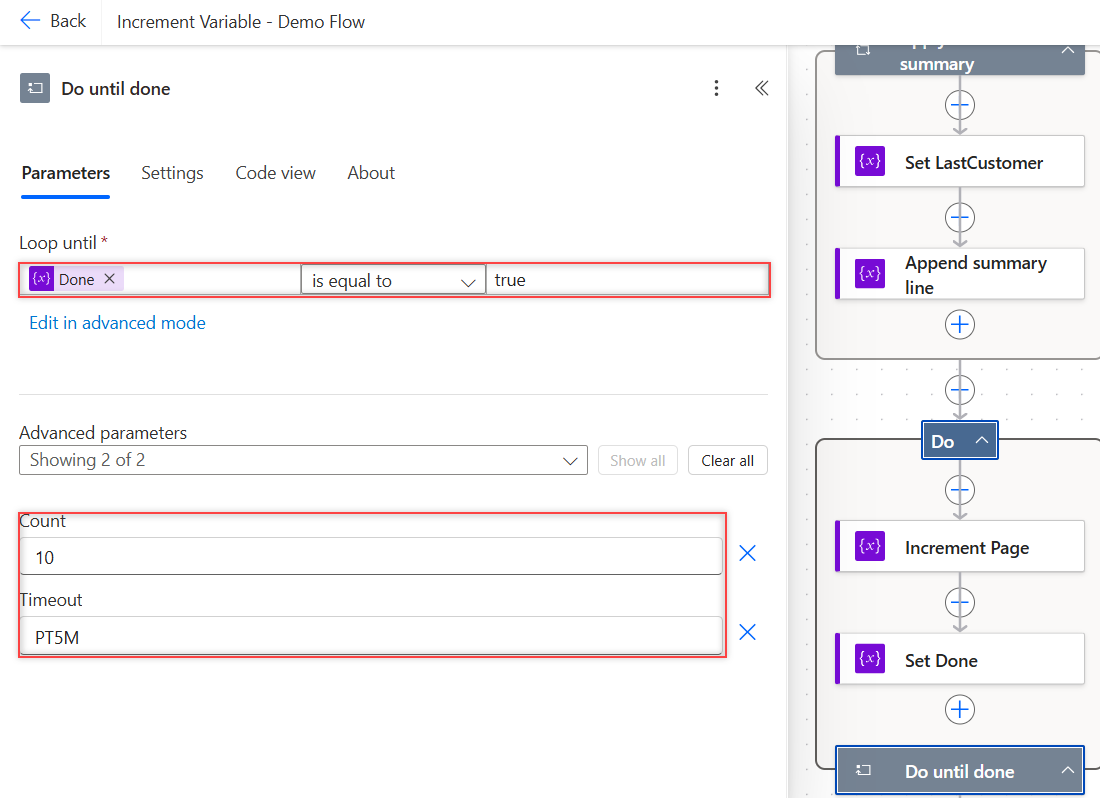
Select the Do until card. In Loop until, pick the Done variable on the left, choose is equal to, and type true on the right. Under Advanced parameters, I set Count to 10 and Timeout to PT5M:
You can also skip the flag and test the counter directly. Select Edit in advanced mode and enter an expression like this one:
@greaterOrEquals(variables('Page'), 4)The flag version stopped at 4, and a counter version with >= 3 stopped at 3. The flag is handy when several actions decide whether to stop. Here’s the whole loop in Code view:
"Do_until_done": {
  "type": "Until",
  "expression": "@equals(variables('Done'), true)",
  "limit": {
    "count": 10,
    "timeout": "PT5M"
  },
  "actions": {
    "Increment_Page": {
      "type": "IncrementVariable",
      "inputs": { "name": "Page", "value": 1 }
    },
    "Set_Done": {
      "type": "SetVariable",
      "inputs": {
        "name": "Done",
        "value": "@greaterOrEquals(variables('Page'), 4)"
      },
      "runAfter": { "Increment_Page": ["Succeeded"] }
    }
  }
}
Conditions compare exact values. If yours checks for empty text or a missing value, my post on the Power Automate condition if blank shows the safe checks.
What Does the Run History Show?
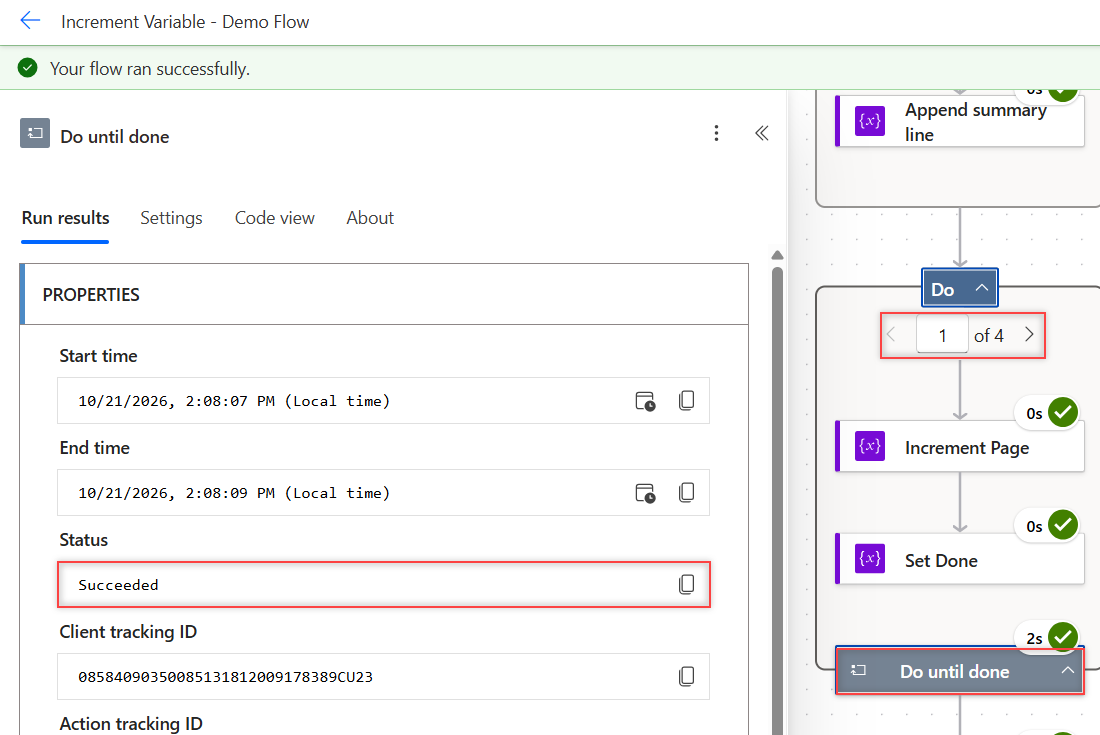
In the run view, the loop gets a pager like 1 of 4. Use the arrows to step through each iteration and see what every action did in that pass, as in the first screenshot.
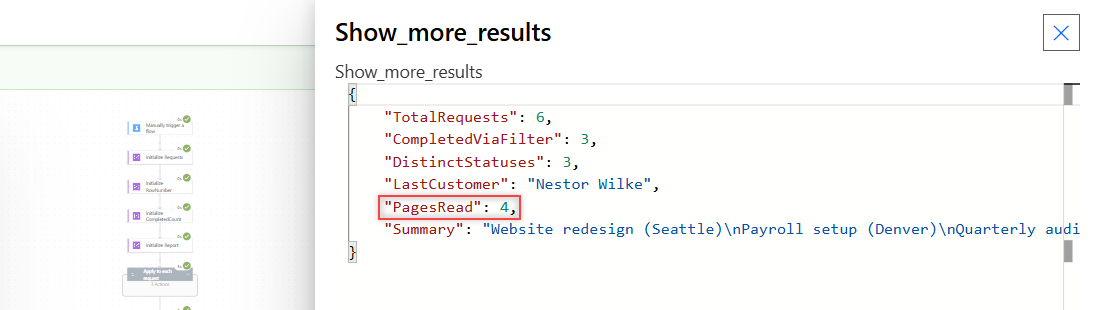
My final Compose read the Page variable after the loop. It returned 4:
Microsoft Learn notes that the details for each iteration only appear after the whole loop finishes. While it’s still running, the loop just shows Running.
Does Do Until Run at Least Once?
Yes. Do until checks its condition after the actions run, not before. I started a counter at 10 with the condition greaterOrEquals(variables('DUOnce'), 3), which was already true.
The loop still ran one time, and the counter ended at 11. If you need to skip the loop entirely when the condition is already met, wrap it in a Condition action.
The start value comes from Initialize variable, the same action I use to initialize an array variable with values.
What Are the Do Until Count and Timeout Limits?
Every Do until loop has two safety limits. Count is the most passes it can make. Power Automate’s limits page lists a default of 60 and a maximum of 5,000.
Timeout is the longest the whole loop can run, written in ISO 8601 format. The default is PT1H, one hour. PT5M is five minutes, and PT30S is 30 seconds.
| Setting | Default | Example | Means |
|---|---|---|---|
| Count | 60 | 10 | Stop after 10 passes |
| Timeout | PT1H | PT5M | Stop after 5 minutes |
| Timeout | PT1H | P1D | Stop after 1 day |
I tested a timeout of PT10S with a 4-second Delay in each pass. The loop ran 3 passes in 15 seconds. The pass that crossed 10 seconds wasn’t cut off; the next one just didn’t start.
What Happens When the Loop Hits Its Limit?
By default, nothing dramatic. I set Count to 5 and a condition that could never be true. The loop ran five times, stopped, and was marked Succeeded, so the next action ran as if all went well.
That can hide a real problem. Microsoft Learn shows a fix: add "operationOptions": "FailWhenLimitsReached" to the loop in Code view. With Count 3, my loop then ended like this:
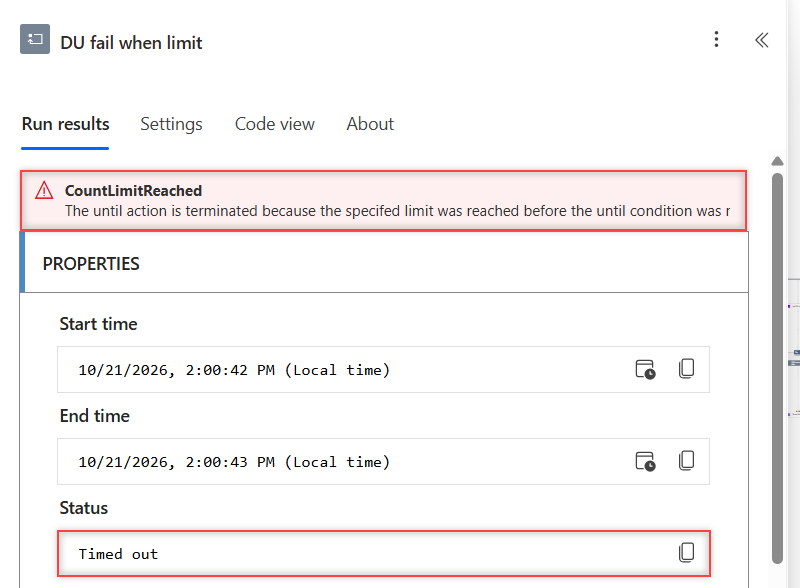
The until action is terminated because the specifed limit was reached before the until condition was met. Specified timeout: '01:00:00'. Specified count limit: '3'. Elapsed time: '00:00:01.0363322'. Number of actual iterations: '3'.The status was Timed out, not Failed. My next action, set to run after Succeeded or Failed, was skipped. Select has timed out too in its Run after settings.
To stop a flow from even starting when the data isn’t ready, use trigger conditions in Power Automate instead of a long loop.
What If an Action Inside the Loop Fails?
The loop keeps going. In one test, an action failed on the second pass. The loop ran a third pass, met its condition, and was marked Succeeded, because the last pass worked.
Microsoft Learn describes the same rule: the loop fails only if an action fails in the last iteration. If an early failure should stop everything, add a Condition after the risky action and set your flag there.
My failing action was int('x'), a text-to-number conversion. My guide on how to convert a string to an integer shows how to avoid that error.
What Happened in My Tests?
| Test | Result |
|---|---|
| Flag loop, stop when Page >= 4 | Page = 4, Succeeded |
| Condition already true at start | Ran once, 10 became 11 |
| Count 5, condition never true | 5 passes, Succeeded |
| Count 3 + FailWhenLimitsReached | Timed out, CountLimitReached |
| Timeout PT10S, 4-second Delay | 3 passes in 15 seconds |
| Action failed in pass 2 of 3 | Loop Succeeded |
Do Until: Cheat Sheet
| Goal | How |
|---|---|
| Repeat N times | Counter + greaterOrEquals(variables('Count'), N) |
| Stop from several places | Boolean flag + Loop until Flag is equal to true |
| Cap the passes | Advanced parameters > Count (default 60, max 5,000) |
| Cap the time | Advanced parameters > Timeout, such as PT5M |
| Fail when the cap is hit | "operationOptions": "FailWhenLimitsReached" |
| Run after a capped loop | Run after: is successful, has failed, has timed out |
| Skip when already done | Wrap the loop in a Condition |
For more Power Automate patterns, the Power Automate tutorials hub lists every post in order.
Frequently Asked Questions
How does Do until work in Power Automate?
It runs the actions inside it, then checks the Loop until condition. If the condition is false it repeats; if it’s true the flow moves on. It also stops at its Count or Timeout limit.
Does a Do until loop run at least once?
Yes. The condition is checked after each pass. My counter started at 10 with a condition that was already true, and the loop still ran once.
What is the default limit of Do until in Power Automate?
Count defaults to 60 passes, with a maximum of 5,000. Timeout defaults to PT1H, which is one hour.
Why did my Do until loop stop before the condition was true?
It hit its Count or Timeout limit. By default the loop still shows Succeeded, so raise the limit or add FailWhenLimitsReached to see it as Timed out.
What is the difference between Do until and Apply to each?
Apply to each runs once per item in an array. Do until has no array and repeats until a condition is true, as the loops article on Microsoft Learn explains.
More Power Automate Tutorials
Here are a few more posts that pair well with loops:
- creating an array in Power Automate
- formatting dates with formatDateTime()
- adding days to a date with addDays()
- building an HTML table from an array

Bijay Kumar is a 13-times Microsoft MVP in Business Applications with over 18 years of experience in the IT industry, recognized for his contributions to the Microsoft community. He is the Founder of TSinfo Technologies and shares practical, tested tutorials on Power Apps, Power Automate, Copilot Studio, and Power BI here on Power Platform FAQs. Read more.