
A facilities manager wants a list of every overdue request, without opening SharePoint. For a Power Automate filter date less than today, we’ll put one OData query on the Get items action.
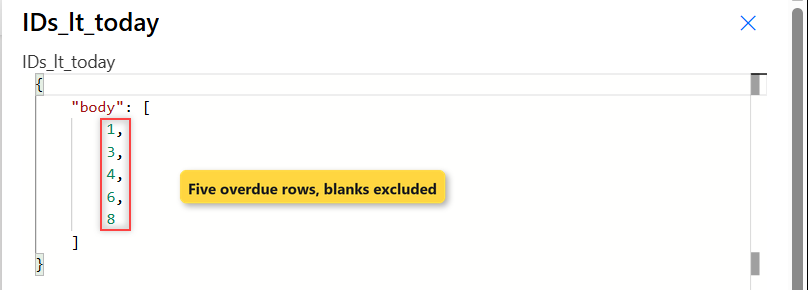
In this tutorial, we’ll build the Power Automate filter date less than today query step by step, then test every wrong version so you can skip them. Here’s what we’re building:
Before You Start
You need a license that includes the SharePoint connector and a list you can read. We’re using Customer Requests, which has a date-only column named DueDate. I ran this on November 9, 2026:
| ID | Title | DueDate |
|---|---|---|
| 1 | Ergonomic chairs – Austin office | 10/15/2026 |
| 2 | Laptop refresh – Denver sales team | blank |
| 3 | Conference room AV upgrade – Seattle | 10/20/2026 |
| 4 | Printer toner – NYC front desk | 10/09/2026 |
| 5 | Standing desks – Chicago office | blank |
| 6 | Badge printer – Boston lobby | 10/21/2026 |
| 7 | Copier lease renewal – Dallas office | 11/09/2026 (today) |
| 8 | Network switch swap – Atlanta office | 11/08/2026 (yesterday) |
| 9 | Desk phones – Phoenix call center | 11/10/2026 (tomorrow) |
| 10 | Safety signage – Miami warehouse | 11/16/2026 |
Rows 1, 3, 4, 6, and 8 are overdue. Row 7 is due today, so it must not appear. For the wider query syntax, see our Get items filter query guide.
Step 1: Create the Flow and Store Today’s Date
We’ll keep today’s date in one place, in Eastern time.
- Go to Create and choose Instant cloud flow.
- Name it, pick Manually trigger a flow, and select Create.
- Add a Compose action and rename it Today Eastern.
- Click Inputs, type /, choose Insert expression, paste the code, and select Add.
convertFromUtc(utcNow(),'Eastern Standard Time','yyyy-MM-dd')Checkpoint: After a test run, this Compose action shows a date like 2026-11-09 and no time. Prefer a variable? Here’s how to set a variable to today’s date.
Step 2: Add the Filter Query to Get Items
- Add the SharePoint Get items action.
- Choose your Site Address and List Name.
- Open Advanced parameters and show Filter Query.
- Type the query below, inserting the Today Eastern output between the single quotes.
DueDate lt '@{outputs('Today_Eastern')}'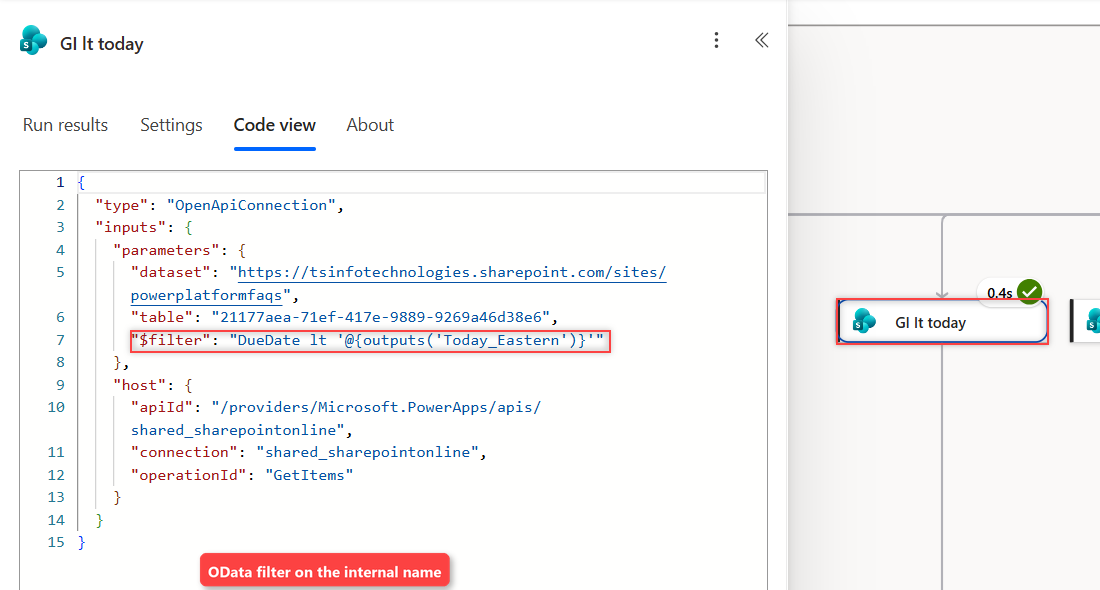
lt means less than. The column has to be the internal name, and the date needs its single quotes. In the designer, you’ll see the Compose output as a token.
Checkpoint: Your Filter Query box shows DueDate lt ', the token, and a closing '.
Step 3: Exclude Closed Requests
Overdue usually means overdue and still open. Add a second condition with and:
DueDate lt '@{outputs('Today_Eastern')}' and Status ne 'Closed'That dropped row 4, the closed toner request, and returned rows 1, 3, 6, and 8.
Checkpoint: One fewer row comes back. Note that row 3 has no status, and it stayed in. To work through the returned rows, you can loop with Apply to each.
Step 4: Sort the Oldest or Newest First
Open Order By in the same advanced parameters and enter DueDate desc. My result came back as rows 8, 6, 3, 1, and 4, most recent first.
Checkpoint: Row 8 from November 8 is now on top.
Test the Flow
Select Test, then Manually, then Run flow. Open the Get items action in the run history and read value. Here’s every variation I ran on the same list:
| Filter Query | Rows returned |
|---|---|
DueDate lt 'today' | 1, 3, 4, 6, 8 |
DueDate le 'today' | 1, 3, 4, 6, 8 (row 7 is missing) |
DueDate lt 'tomorrow' | 1, 3, 4, 6, 7, 8 |
DueDate lt '@{utcNow()}' | 1, 3, 4, 6, 7, 8 |
DueDate lt '11/09/2026' | 1, 3, 4, 6, 8 |
DueDate lt 'today' or DueDate eq null | 1, 2, 3, 4, 5, 6, 8 |
DueDate lt 'today minus 7 days' | 1, 3, 4, 6 |
Here, “today” means the Today Eastern value. The two surprises are worth remembering. le didn’t include the row due today, and a full timestamp did.
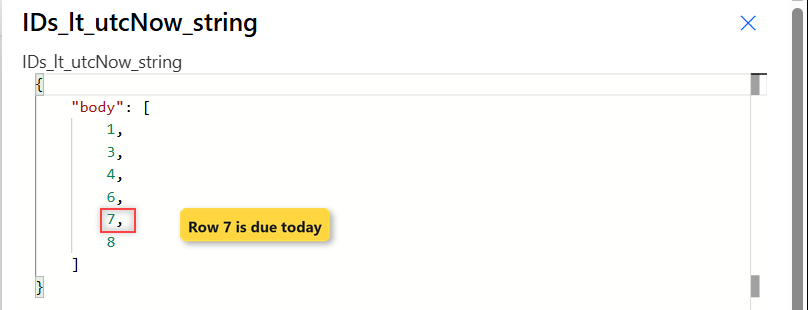
Blank rows never appear in a less-than filter. If you want them, add the or DueDate eq null shown above, or read how to check if a date field is empty.
Same Result With a Filter Array
If the rows are already in your flow, use Filter array. Pick advanced mode and paste this:
@if(empty(item()?['DueDate']),false,less(formatDateTime(item()?['DueDate'],'yyyy-MM-dd'),outputs('Today_Eastern')))It returned the same five rows. This approach reads every row first, so I keep it for small lists. See how Filter array works for details.
Troubleshooting
Each of these failed in a real run:
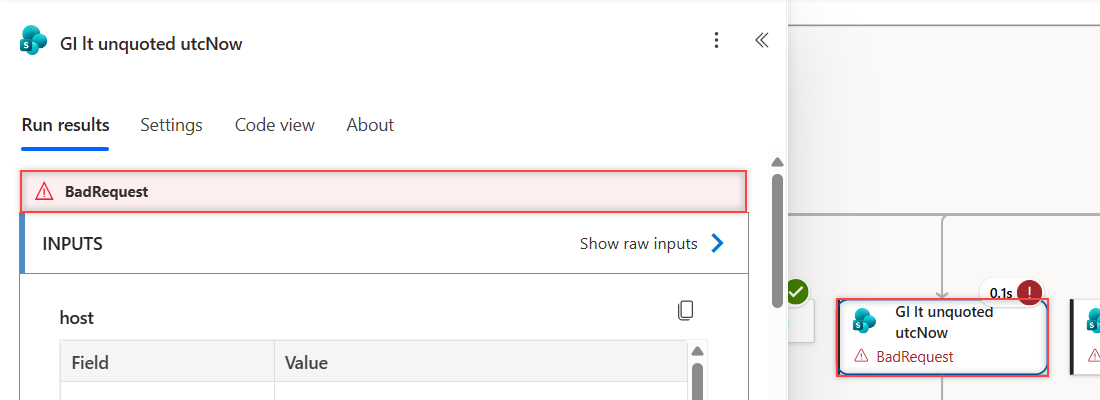
- Missing quotes.
DueDate lt @{utcNow()}returned BadRequest with “Creating query failed.” Add single quotes. - Function typed as text.
DueDate lt utcNow()returned “The query is not valid.” Use an expression token. - Display name.
Due Date lt ...failed as well. Use the internal column name. - Filter array with no guard.
less(item()?['DueDate'], ...)failed on blank rows.
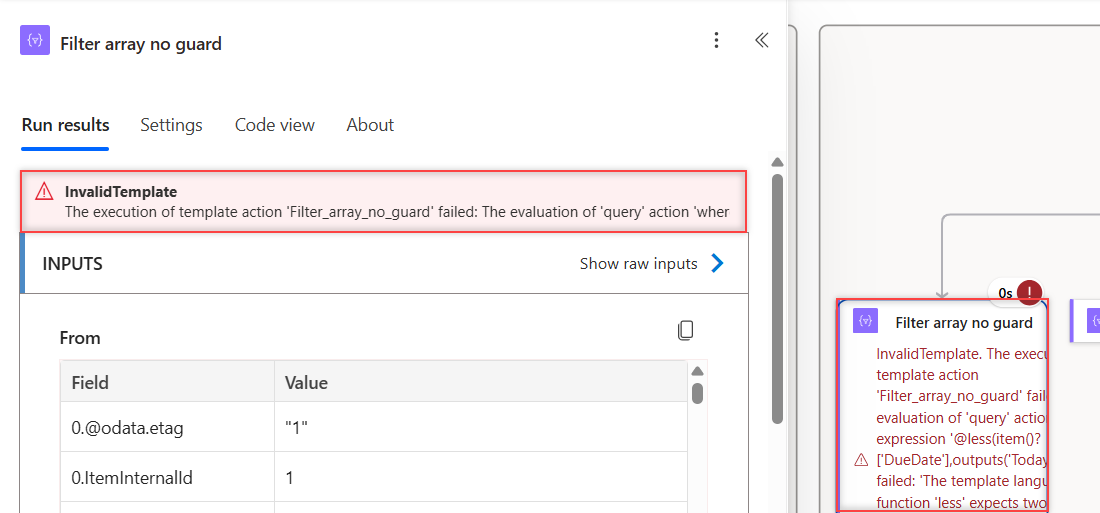
Note: A Filter Query runs on SharePoint, while Filter array runs inside your flow. Fix errors in the matching place.
Where to Take It Next
You could work out how late each item is with a date difference in days. Or you could target a single day using an is-today check.
Frequently Asked Questions
How do I filter SharePoint dates less than today in Power Automate?
Use DueDate lt 'yyyy-MM-dd' in the Get items Filter Query, with today’s date from a formatted expression.
Why does le not include today’s items?
In my date-only column test, le with today’s date left out the row due today. Use lt with tomorrow’s date instead.
Does a date filter return blank rows?
No. Add or DueDate eq null when you want them. The SharePoint connector reference lists the filter option.
Should I use Filter Query or Filter array?
Use Filter Query for lists, since SharePoint returns fewer rows. Use Filter array for data already in your flow.
Why do I get Creating query failed?
It’s usually missing single quotes around a date or a column display name that contains a space.
More Power Automate Tutorials
We often add one of these right after an overdue query:
- turning results into an HTML table
- getting yesterday’s date
- formatting a date
- counting the items in an array

Bijay Kumar is a 13-times Microsoft MVP in Business Applications with over 18 years of experience in the IT industry, recognized for his contributions to the Microsoft community. He is the Founder of TSinfo Technologies and shares practical, tested tutorials on Power Apps, Power Automate, Copilot Studio, and Power BI here on Power Platform FAQs. Read more.