
If you need a Power Automate date difference in days, subtract the two ticks() values and divide by 864000000000. That returns a real number, like 9, and it doesn’t break when both dates fall on the same day.
Most people reach for dateDifference() first. It works, but it returns text like 9.00:00:00, and the popular split trick throws an error for any gap under one day.
In this tutorial, I’ll show you three ways to get a Power Automate date difference in days. Every result below comes from one real flow I ran on November 9, 2026.
The Sample List We’ll Use
My SharePoint list is called Customer Requests. It has a date-only DueDate column, and two rows are blank on purpose because blank dates are what usually break these flows.
| ID | Title | DueDate |
|---|---|---|
| 1 | Ergonomic chairs – Austin office | 10/15/2026 |
| 2 | Laptop refresh – Denver sales team | blank |
| 3 | Conference room AV upgrade – Seattle | 10/20/2026 |
| 4 | Printer toner – NYC front desk | 10/09/2026 |
| 5 | Standing desks – Chicago office | blank |
| 6 | Badge printer – Boston lobby | 10/21/2026 |
| 7 | Copier lease renewal – Dallas office | 11/09/2026 (today) |
| 8 | Network switch swap – Atlanta office | 11/08/2026 (yesterday) |
| 9 | Desk phones – Phoenix call center | 11/10/2026 (tomorrow) |
| 10 | Safety signage – Miami warehouse | 11/16/2026 |
The flow starts with Manually trigger a flow, then a Get items action on this list. If you’re new to that action, here’s how to write a Get items filter query.
To add any expression below, insert a Compose action, click Inputs, type /, choose Insert expression, paste it, and select Add.
Method 1: Subtract Ticks and Divide (Recommended)
Use this one whenever you need a number you can compare or do math on. A tick is 100 nanoseconds, so one day is 864000000000 ticks. Here’s the expression:
div(sub(ticks('2026-11-10'),ticks('2026-11-01')),864000000000)That returned 9 in my run. With the same two dates reversed, it returned -9, so the sign tells you which date came first.
How does this work? ticks() turns each date into one large whole number. sub() finds the gap, and div() converts that gap into days.
Because div() on two integers drops the remainder, partial days disappear. A 12-hour gap returned 0, and a gap across a leap day, February 28 to March 1, 2028, correctly returned 2.
Important: If your dates include times, 23 hours counts as 0 days. Wrap both sides in startOfDay() to count calendar days. My run returned 9 for 11:00 PM on November 1 and 1:00 AM on November 10.
div(sub(ticks(startOfDay('2026-11-10T01:00:00Z')),ticks(startOfDay('2026-11-01T23:00:00Z'))),864000000000)Need hours instead? Divide by 36000000000. My test from 8:00 AM on November 1 to 8:30 PM on November 10 returned 228. Pair it with addDays() when you need to move a date.
Method 2: Use dateDifference() and Split the Result
Use this when you want the readable timespan, or when you only compare dates at least a day apart. Here’s the basic call:
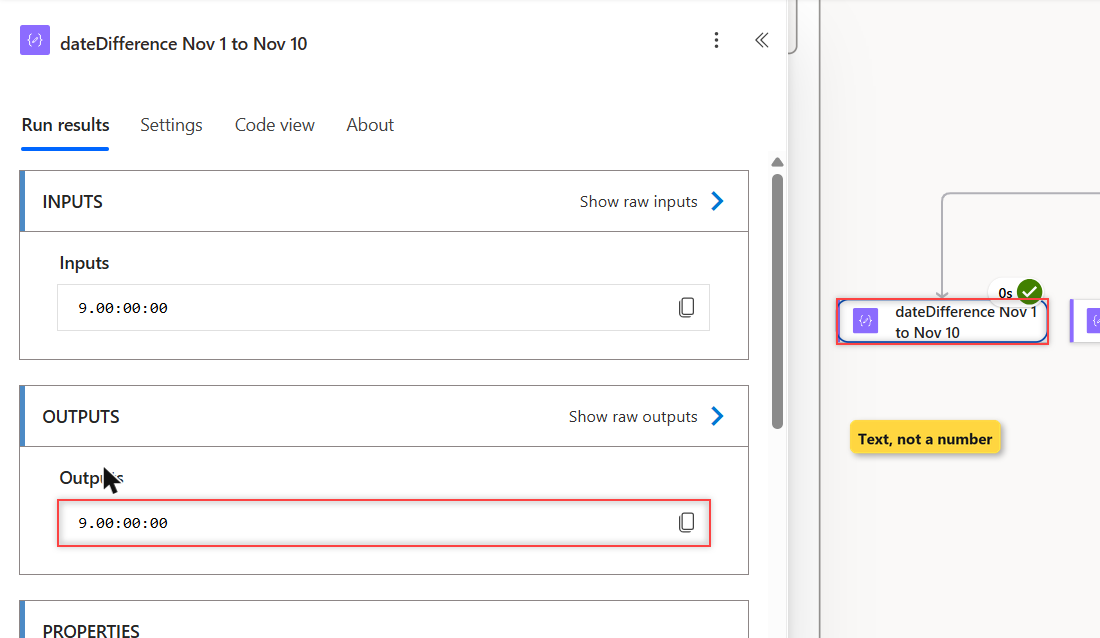
dateDifference('2026-11-01','2026-11-10')It returned the text 9.00:00:00, in the pattern days.hours:minutes:seconds. To pull out the days, split on the dot:
int(split(dateDifference('2026-11-01','2026-11-10'),'.')[0])That returned 9.
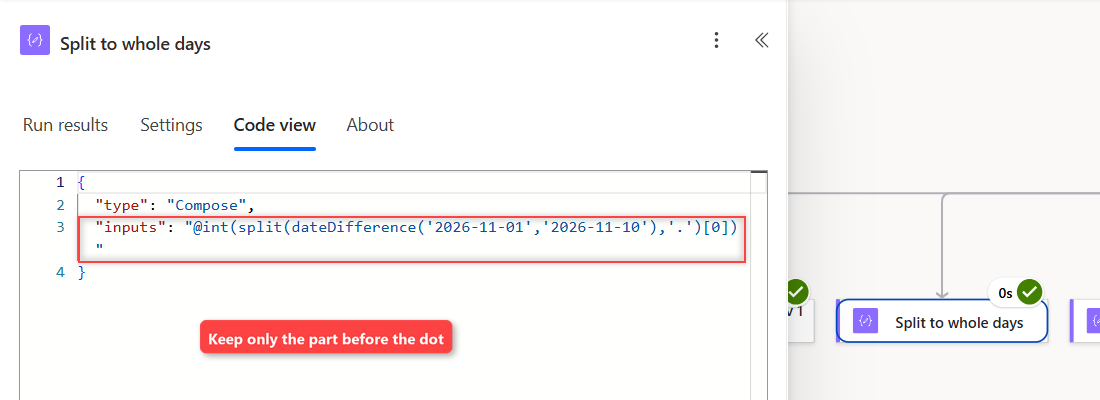
How does this work? split() cuts 9.00:00:00 at the dot, which gives 9 and 00:00:00. Then [0] takes the first piece and int() makes it a number, the same way you’d convert a string to an integer.
So here’s the catch: the same two dates, one day apart or less, have no dot in the result. Same-day input returned 00:00:00, and a 12-hour gap returned 12:00:00. Both made int() fail.
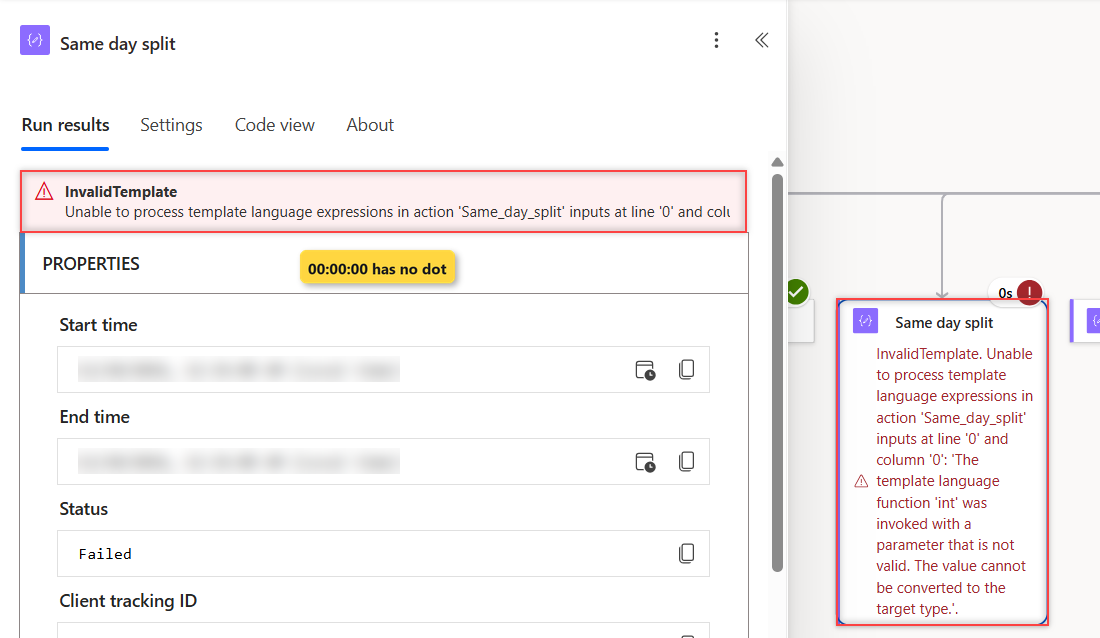
The template language function 'int' was invoked with a parameter that is not valid. The value cannot be converted to the target type.Method 3: Calculate Days Left for Every List Item
Same list, now with a day count for each row. Add a Select action, set From to the Get items value, and map a DaysLeft column with this expression:
if(empty(item()?['DueDate']),null,div(sub(ticks(item()?['DueDate']),ticks(outputs('Today_Eastern'))),864000000000))Today_Eastern is a Compose action that holds today’s date in Eastern time:
convertFromUtc(utcNow(),'Eastern Standard Time','yyyy-MM-dd')Row 1 returned -25, row 7 returned 0, row 9 returned 1, and row 10 returned 7. Both blank rows returned null instead of failing.
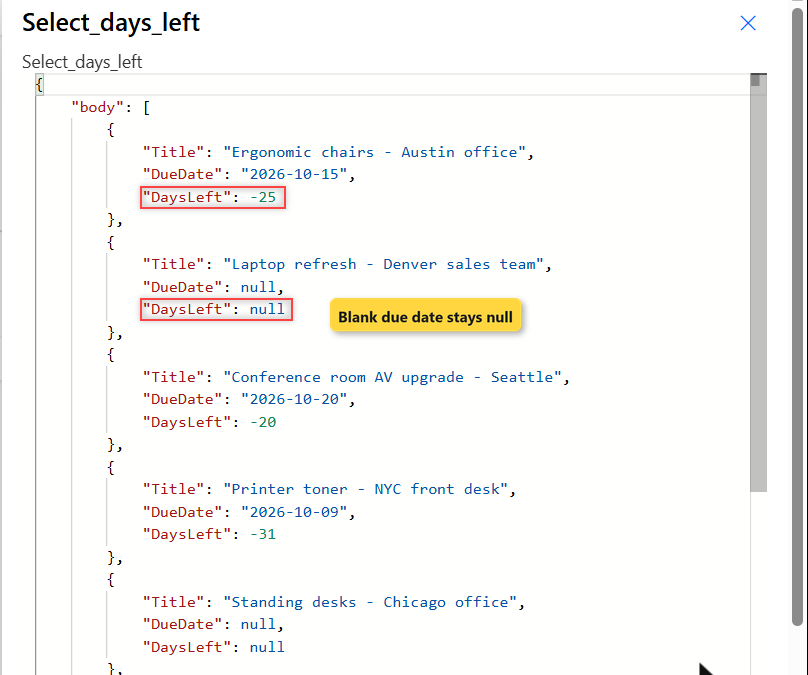
How does this work? if(empty(...)) checks the date first, so ticks() never sees a blank. Without that guard, ticks(null) fails. You can read more about reshaping rows with the Select action.
How Do You Count Only Weekdays?
Power Automate has no built-in business-day function, so build a list of day offsets and remove the weekends. Add a Filter array action, and put this in From:
range(0,10)In advanced mode, use this condition. It adds each offset to the start date, and dayOfWeek() returns 0 for Sunday and 6 for Saturday:
@and(not(equals(dayOfWeek(addDays('2026-11-01',item())),0)),not(equals(dayOfWeek(addDays('2026-11-01',item())),6)))Then count what’s left with length(body('Filter_weekdays')). For the 10 days starting Sunday, November 1, my run returned 7. Company holidays still need their own list.
More on the first action here: how the Filter array action works.
Which Method Should You Use?
| Situation | Use | My tested result |
|---|---|---|
| Whole days, any gap | Ticks | 9, and 0 for the same day |
| Calendar days with times | Ticks + startOfDay() | 9 |
| Readable timespan | dateDifference() | 9.12:30:00 |
| Whole days, gap always over a day | Split | 9 |
| Every row in a list | Select + ticks | -25, null, 0, 1, 7 |
| Weekdays only | range() + Filter array | 7 |
I’d pick ticks by default. You’ll write it once, and it won’t surprise you on the day two dates finally match.
Things to Keep in Mind
- Blank dates fail.
dateDifference(null, ...)reports a Null type error, and an empty string reports that the value must match ISO 8601. Check withempty()first. - US format worked in my test.
dateDifference('11/01/2026','11/10/2026')returned 9.00:00:00, but I still store and compare yyyy-MM-dd. - utcNow() is UTC. Convert it first when your reader’s “today” matters, as shown when you set a variable to today’s date.
- Negative is normal. A date in the past returns a negative count, so test with less-than conditions.
Before you subtract two dates, make sure neither one is blank, because an empty column makes the ticks() math fail. I walk through the empty() check, a safe format expression and a Get items filter in how to check if a date field is empty in Power Automate.
Many day-difference flows compare against yesterday rather than today. My Power Automate get yesterday date tutorial shows the addDays(utcNow(), -1) pattern, midnight yesterday, and why the result shifts in the evening without a time zone conversion.
Frequently Asked Questions
How do I get the number of days between two dates in Power Automate?
Use div(sub(ticks(end),ticks(start)),864000000000). It returns a whole number and works for same-day dates too.
Why does dateDifference return 9.00:00:00?
It returns a timespan as text in the pattern days.hours:minutes:seconds. Microsoft documents this in the expression functions reference.
Why does split on dateDifference fail?
A gap under one day has no dot, such as 12:00:00, so int() gets text it can’t convert.
Can Power Automate return a negative date difference?
Yes. If the start date is later than the end date, both methods return a negative value, such as -9.
Does ticks work with a blank SharePoint date?
No. ticks(null) fails, so wrap it in if(empty(date), null, ...).
More Power Automate Tutorials
Date math usually sits next to a condition or a loop. Here’s what I’d open next:
- checking for blank values in a condition
- formatting dates with formatDateTime()
- stopping a flow early with trigger conditions
- repeating steps with Do until

Bijay Kumar is a 13-times Microsoft MVP in Business Applications with over 18 years of experience in the IT industry, recognized for his contributions to the Microsoft community. He is the Founder of TSinfo Technologies and shares practical, tested tutorials on Power Apps, Power Automate, Copilot Studio, and Power BI here on Power Platform FAQs. Read more.