
If you’ve been building Power Apps for a while, you’ve probably run into that annoying yellow warning triangle sitting next to your formula. Or maybe your app looked great during testing, but started showing missing records once real data was loaded. Nine times out of ten, delegation is the reason.
In this guide, I’m going to break down delegation in Power Apps — what it is, why it matters, how to spot delegation issues, how to fix them, and how to design your apps so you never run into nasty surprises in production.
Let’s get into it.
What Is Delegation in Power Apps?
Here’s the simplest way I can explain delegation:
Imagine you’re at a restaurant. You (the Power App) need to find a specific dish on the menu. You have two options:
- Ask the chef (the data source) to look it up for you — the chef searches the entire kitchen and brings back exactly what you need. That’s delegation.
- Grab every single item in the kitchen, bring it all to your table, and then search through it yourself. That’s non-delegation — and it’s a mess.
In technical terms, delegation is when Power Apps pushes the filtering, sorting, or searching operation to your data source (SharePoint, Dataverse, SQL Server) rather than pulling all the data to the app and processing it locally.
When a query is delegated, the data source does the heavy lifting. It runs the query server-side and only sends back the records your app actually needs.
When a query is non-delegable, Power Apps pulls only the first 500 records from your data source (you can increase this to 2,000) and applies the formula to those records locally. If your list has 10,000 rows and you’re only working with the first 500, users will never see the other 9,500 — and your app will silently show incomplete results.
That’s why ignoring delegation warnings is genuinely dangerous. Users won’t get an error message. The app will just quietly show wrong or incomplete data.
Check out Get User Details in Power Apps
Why the 500/2,000 Record Limit Exists in Power Apps
By default, Power Apps limits non-delegable queries to 500 records. You can bump this up to 2,000 in the app settings, but that’s still the ceiling for non-delegable operations.
The reason? Performance. If Power Apps pulled every record from your data source every single time a user typed something in a search box, the app would grind to a halt — especially on mobile.
So Microsoft made a trade-off: for non-delegable queries, it caps the data at 500 (or 2,000) rows. For delegable queries, there’s no such cap — the data source handles pagination, and Power Apps retrieves records in batches as needed.
Here’s the key point: the 500/2,000 limit only applies to non-delegable operations. If your query is fully delegated, your app can work with millions of records without issue.
How to Spot Power Apps Delegation Warnings
Power Apps makes it pretty easy to find delegation problems. Here’s what to look for:
- Yellow warning triangle — appears next to a formula or control when delegation isn’t possible
- Blue wavy underline under part of your formula — this marks the specific function or expression that can’t be delegated
- Delegation warning popup — hover over the yellow triangle and you’ll see a message like: “The Filter part of this formula may not work correctly on large data sets”
These warnings are your friends. They’re telling you: “Hey, this formula is going to work fine in testing with 50 rows, but it might silently break when you have 5,000 rows.”
Make a habit of treating every delegation warning as a potential bug, not just a suggestion.
Which Data Sources Support Delegation?
Not all data sources support delegation. Here are the main ones that do:
- Microsoft Dataverse — best delegation support, covers the widest range of functions and operators
- SharePoint Online — decent delegation support, but with some gaps (especially around complex column types)
- SQL Server — strong delegation support, similar to Dataverse
- Salesforce — also supports delegation
Data sources that don’t participate in delegation include:
- Excel workbooks (imported as static data)
- Collections (local in-memory tables)
- Context variables and global variables
If you’re working with a collection, don’t worry about delegation at all — collections are fully in-memory, so Power Apps can process them however it wants with no record limits.
Check out Power Apps OnStart Property
Delegable vs. Non-Delegable Functions
This is the core of delegation. Not every Power Apps function can be sent to a data source for processing. Here’s a breakdown:
Functions That Support Delegation (with compatible data sources)
- Filter — the most commonly used delegable function
- Search — partially delegable in some sources (not SharePoint!)
- LookUp — delegable for simple conditions
- Sort and SortByColumns — delegable for simple single-column sorts
- First — delegable
- Sum, Average, Min, Max — delegable in Dataverse and SQL Server
Operators That Support Delegation
Within Filter and LookUp, these work with delegation:
- Comparison:
=,<>,>,<,>=,<= - Logical:
And(&&),Or(||),Not(!) StartsWith,EndsWithIsBlankIn(for base table columns only)TrimEnds
Functions That Do NOT Support Delegation
These are the ones that will trigger delegation warnings:
- Search (on SharePoint)
- CountRows, Count (on most data sources)
- FirstN, LastN, Last
- GroupBy, Ungroup
- Collect, ClearCollect
- Concat
- Choices
- String functions: Lower, Upper, Left, Mid, Len, Right
- Type casting: Text(), Value()
- If inside filter expressions
- Math operations like
*,/,Mod
Check out Power Apps Navigate Function
Power Apps Delegation in Action: Real Examples
Nothing clicks faster than seeing delegation work (and fail) on actual formulas. So let me walk you through several realistic scenarios you’d encounter when building apps against a SharePoint list. I’ll show you what works, what doesn’t, and exactly what to do instead.
For all these examples, let’s say we have a SharePoint list called Projects with these columns:
- Title — Single line of text
- Status — Choice column (values: Active, On Hold, Completed)
- Category — Choice column (values: Marketing, Finance, IT, HR)
- Budget — Number
- DueDate — Date and Time
- AssignedTo — Person or Group
- IsArchived — Yes/No (Boolean)
Example 1: Simple Equality Filter ✅ Delegable
This is the most common scenario. You want to show only active projects in a Power Apps gallery.
Filter(Projects, Status.Value = "Active")
This is fully delegable. SharePoint handles the query on its end and only sends back matching records. Even if your list has 50,000 rows, this works perfectly — no yellow triangle, no missing data.
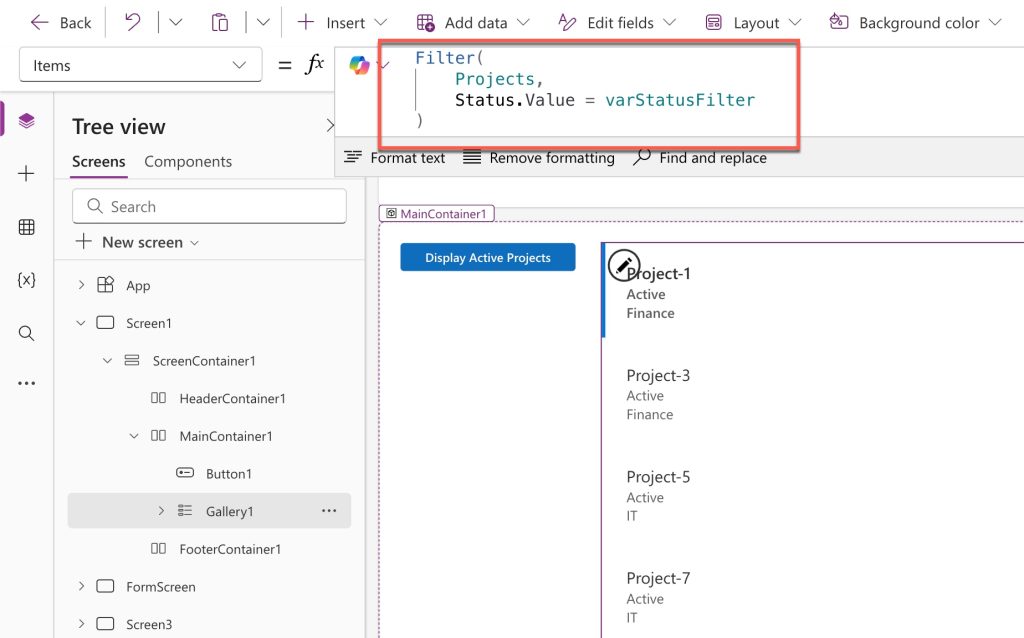
If you want to display the results on a button click, then you can add a Power Apps modern button control and write the following formula:
Button OnSelect property:
Set(varStatusFilter, "Active")Gallery Items property:
Filter(
    Projects,
    Status.Value = varStatusFilter
)
You can see it displays the result without any delegation warning. Check the screenshot below:
Example 2: Filtering with a Search Box ❌ Not Delegable — Then Fixed ✅
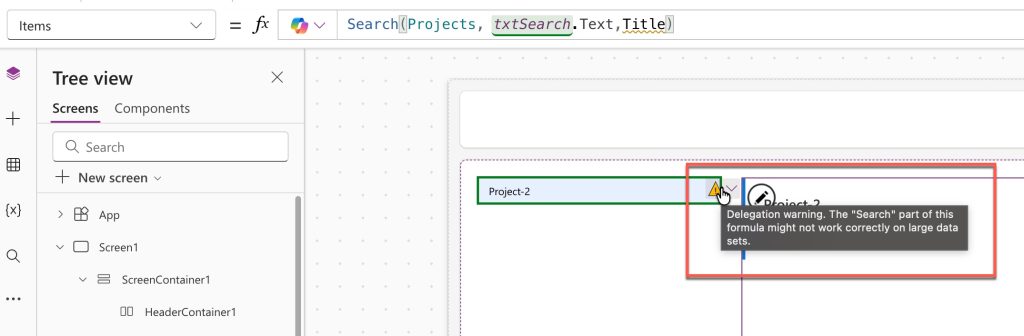
This is probably the most common mistake I see. You add a text input called txtSearch and then write the following formula in the Items property of the Gallery control:
Search(Projects, txtSearch.Text, "Title")
On SharePoint, Search() is not delegable. You’ll get a delegation warning, and results will only come from the first 500 (or 2,000) rows of your list. Anyone searching for a project that lives further down the list simply won’t find it.
It will give the message like: delegation warning. the search part of this formula might not work correctly on large data sets
You can see the exact message in the screenshot below:
The fix: use StartsWith() instead.
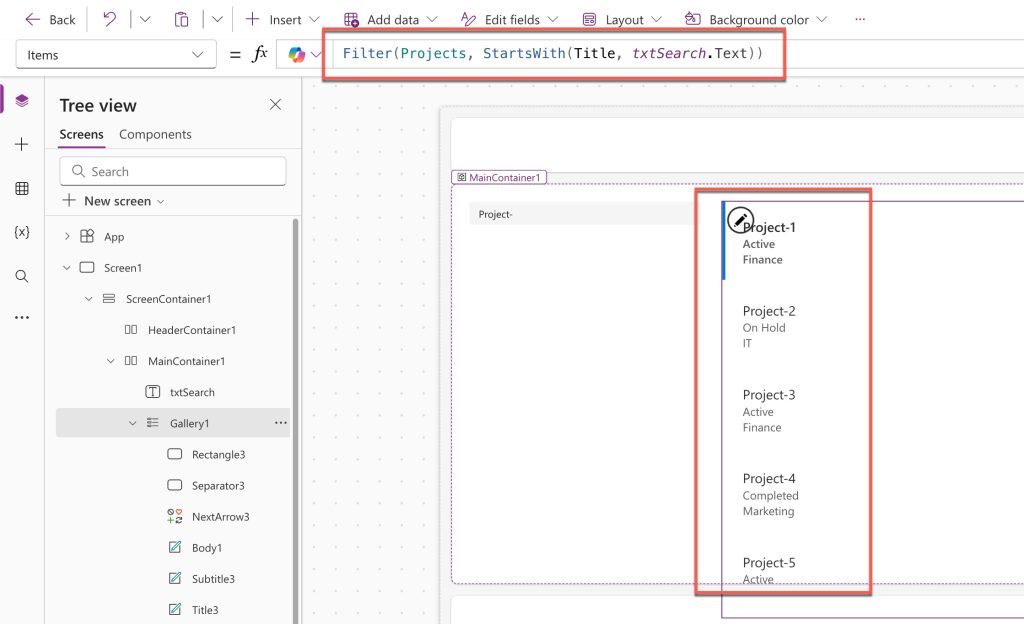
Filter(Projects, StartsWith(Title, txtSearch.Text))
StartsWith() is delegable on SharePoint text columns. Yes, it only matches results where the title begins with your search term rather than containing it anywhere — but the results come from your entire dataset, not just the first batch.
You can see in the screenshot below that it displays the output and the delegation warning.
Want a “contains” search across the full list? The cleanest way is to build a Power Automate flow that accepts a search string and queries the SharePoint list server-side, then returns the matching results to your app. It’s a bit more effort, but it works reliably at any scale.
Example 3: Using Lower() to Fix Case Sensitivity ❌ Non-Delegable
Let’s say users sometimes enter “active” in lowercase, and you want your filter to catch that regardless of casing.
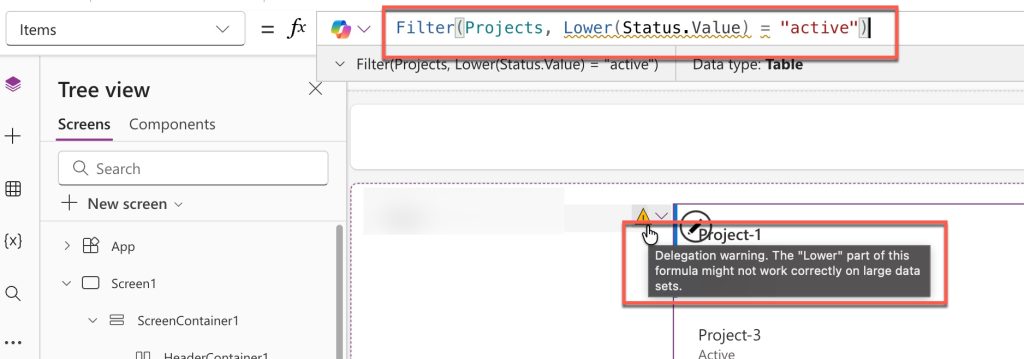
Filter(Projects, Lower(Status.Value) = "active")
This breaks delegation immediately. Lower() is a string manipulation function — SharePoint has no idea how to process it server-side. Power Apps pulls the first 500 rows locally and runs Lower() there. Any records beyond row 500 are invisible to this formula.
I wrote the exact formula, and you can see the exact delegation warning in the screenshot below:
The fix: normalize your data at entry time. When users submit the form, always save the value in consistent casing using a dropdown or combo box instead of a free-text field. If Status is a dropdown with fixed values like “Active”, “On Hold”, “Completed” — you never need Lower() in the first place.
Example 4: Filtering on a Choice Column ✅ Delegable (with the right syntax)
Choice columns need a small extra step. This won’t work the way you’d expect:
Filter(Projects, Category = "Marketing") // ❌ Incorrect
You need to add .Value to access the text value of the Choice column:
Filter(Projects, Category.Value = "Marketing") // ✅ Delegable
That .Value is easy to forget, and when you leave it out, you either get no results or a delegation warning depending on the Power Apps version. Always add it when filtering on a Choice column.
Example 5: Multiple Conditions with And ✅ Delegable
You want to show only active projects in the IT category. Both conditions are simple equality checks, so this is fully delegable:
Filter(Projects, Status.Value= "Active" && Category.Value = "IT")
Both Status and Category.Value use the = operator, and && (And) is a delegable logical operator. SharePoint processes the whole thing server-side.
Important rule to remember: if even one part of your Filter expression is non-delegable, the entire expression becomes non-delegable. There’s no partial delegation. So keep all conditions in your Filter formula delegable.
Example 6: Filtering by Date Range ✅ Delegable
You want to show projects due in the next 30 days:
Filter(Projects, DueDate >= Today() && DueDate <= DateAdd(Today(), 30, Days))
Date comparisons using >, <, >=, <= are fully delegable on SharePoint Date and Time columns. Today() and DateAdd() are resolved locally first and passed as static values to SharePoint — which is perfectly fine for delegation.
Example 7: The Boolean / Yes-No Trap ❌ Tricky
Filtering on a Yes/No column seems straightforward:
Filter(Projects, IsArchived = false) // ⚠️ Works alone, but causes issues in combinations
On its own, this may work without a warning. But the moment you combine a Boolean filter with any other condition using &&, you’re likely to hit delegation issues:
Filter(Projects, IsArchived = false && Status = "Active") // ❌ Often non-delegable
The fix: replace your Yes/No column in SharePoint with a Single Line of Text column. Store “Yes” or “No” as a text string. Now you can delegate it freely in any combination:
Filter(Projects, IsArchived = "No" && Status = "Active") // ✅ Delegable
On your form, use a Toggle control with this in the DataCard Update property:
If(ToggleName.Value, "Yes", "No")
This keeps the user experience exactly the same — the toggle looks and behaves normally — but your data is stored in a way that fully supports delegation.
Example 8: Filtering on a Person Column ❌ Avoid This
Say you want to show only projects assigned to the current user:
Filter(Projects, AssignedTo.Email = User().Email)
Person/Group columns in SharePoint are a complex type. Delegation support is unreliable, and writing data back to them from Power Apps can also cause headaches.
The fix: create a separate Single Line of Text column called AssignedEmail. When saving the form, populate it with User().Email. Now your filter becomes:
Filter(Projects, AssignedEmail = User().Email) // ✅ Fully delegable
Same result. Zero delegation headaches.
Example 9: Filtering on the ID Column ⚠️ Partial Delegation
The SharePoint ID column only delegates for the = operator. Range comparisons don’t delegate:
Filter(Projects, ID = 42)        // ✅ Delegable
Filter(Projects, ID > 1000)      // ❌ NOT delegable in SharePoint
Filter(Projects, ID <> 5)        // ❌ NOT delegable
If you need range filtering — for example, loading records in batches by ID — create a separate Number column called IDFilter and populate it with the same value as the SharePoint ID when a record is created. Since it’s a plain Number column, all comparison operators work with full delegation:
Filter(Projects, IDFilter > 1000) // ✅ Fully delegable
Example 10: IsBlank vs. Blank() — A Small Trick That Matters
You’d think filtering for blank values would look like this:
Filter(Projects, IsBlank(Status)) // ❌ NOT delegable
But IsBlank() is not delegable in SharePoint. The fix is surprisingly simple — swap it for Blank() as a comparison value:
Filter(Projects, Status = Blank()) // ✅ Delegable
Identical result. Fully delegable. This one catches a lot of people off guard.
Example 11: Or Conditions with Dropdown Filter ✅ Delegable
You have a dropdown called ddStatus that lets the user pick “All”, “Active”, or “On Hold”. You want the gallery to show everything when “All” is selected, or filter by the chosen status otherwise.
Filter(
    Projects,
    ddStatus.Selected.Value = "All" || Status = ddStatus.Selected.Value
)
Both conditions use = and || (Or), which are delegable. This pattern works perfectly for dropdown-driven filters on SharePoint text columns.
Putting It All Together: A Real Gallery Filter
Here’s a realistic gallery filter formula that combines a search box, a status dropdown, and a date filter — all in a delegation-friendly way:
Filter(
    Projects,
    StartsWith(Title, txtSearch.Text) &&
    (ddStatus.Selected.Value = "All" || Status = ddStatus.Selected.Value) &&
    DueDate >= dtpStartDate.SelectedDate &&
    DueDate <= dtpEndDate.SelectedDate
)
Every single condition here is delegable on SharePoint. StartsWith covers the search. = and || cover the dropdown. >= and <= cover the date range. No warnings, no missing records, no surprises in production.
The ID Column Quirk in SharePoint
One thing that trips people up: SharePoint’s ID column.
The ID column only supports the = operator for delegation. You cannot use <, >, <=, >=, or <> with the ID column in a delegable way.
Filter(Projects, ID = 5) // ✅ Delegable
Filter(Projects, ID > 100) // ❌ NOT delegable in SharePoint
If you need range filtering based on ID, create a separate Number column in your SharePoint list, populate it with the same values using a flow, and filter on that column instead.
Check out Power Apps Notify Function
Collections and Delegation in Power Apps
Collections are fully in-memory tables. Since they don’t live on a server, there’s no need to delegate — Power Apps processes them locally with no row limits.
But here’s where people get confused: loading data into a collection still respects the delegation limit.
When you write:
ClearCollect(colProjects, Projects)
Power Apps only pulls the first 500 records (or up to 2,000 if you’ve increased the limit) from your SharePoint list into the collection. Your collection doesn’t magically contain all records — only the first batch.
Once the data is in the collection, you can run any formula on it without delegation concerns. But the size of the collection is capped by whatever limit was in place when you loaded it.
How to Increase the Data Row Limit in Power Apps
If your scenario involves a data source with up to 2,000 rows and you’re using non-delegable functions, you can increase the limit:
- Open your app in Power Apps Studio
- Click Settings (gear icon or File menu)
- Go to General
- Find Data row limit and increase it to 2,000
This is not a permanent fix for large datasets. It just extends the boundary. If your list grows beyond 2,000 rows, you’ll be back to incomplete results.
A useful trick during development: set the data row limit to 1. If a delegable query stops returning data when this limit is set to 1, it means the query isn’t actually delegated — galleries are the exception here, as their pagination still works for fully delegated queries.
Working Around Delegation: The Double Collection Trick
If you’re stuck with SharePoint and need to load more than 2,000 rows into a collection, here’s a technique that can get you up to 4,000 rows by loading data in two batches:
Concurrent(
    ClearCollect(colChunk1, Sort(Projects, ID, Ascending)),
    ClearCollect(colChunk2, Sort(Projects, ID, Descending))
);
ClearCollect(
    colProjects,
    colChunk1,
    Filter(colChunk2, Not(ID in colChunk1.ID))
);
Clear(colChunk1);
Clear(colChunk2);
What’s happening here:
- The first chunk loads the first 2,000 rows sorted in ascending order
- The second chunk loads the last 2,000 rows sorted in descending order
- You merge both chunks and remove duplicates based on ID
- The temporary collections are cleaned up
This only works when your filtered list has fewer than or equal to 4,000 items. For truly large datasets beyond this, you need to move to Dataverse or SQL Server.
Check out Power Apps Switch Function
The ForAll + Filter Loop Technique
Another way to beat the collection limit is the ForAll + Filter approach. This works when you want to load records matching multiple known values:
Clear(colProjects);
ForAll(
    ["Active", "In Review", "On Hold"],
    Collect(
        colProjects,
        Filter(Projects, Status = Value)
    )
);
Each iteration of the loop can return up to 2,000 records. So if you have 3 status values and each has up to 2,000 records, you can bring in up to 6,000 records total.
The limitation: each value in your loop needs to fetch fewer than 2,000 records, and you need to know the filter values in advance.
Check out The formula uses scope which is not presently supported for evaluation in Power Apps
SharePoint Delegation Quick Reference
Here’s a handy reference for working with SharePoint lists:
Delegable column types:
- Single line of text
- Number
- Date and Time
- Yes/No (Boolean)
- Choice (with
.Value)
Non-delegable or limited column types:
- Multi-line text
- Calculated columns
- Multi-value choice columns
- Multi-value lookup columns
- Person/Group columns (complex comparisons)
Key rules:
- Use
=for most comparisons — it’s universally delegable StartsWithworks for text delegation;Searchdoes not- Avoid wrapping column values in
Text(),Value(), orLower()inside filters - Always index columns you filter on when your list exceeds 5,000 items
Column Indexing for Lists Over 5,000 Items
If your SharePoint list has more than 5,000 items, you’ll hit a new problem — the SharePoint list view threshold. Even with fully delegable queries, Power Apps won’t evaluate items past row 5,000 unless the columns you’re filtering on are indexed.
Here’s how to add an index:
- Open your SharePoint list
- Go to List Settings → Indexed columns
- Click Create an indexed column
- Select the column you’re filtering on in Power Apps
- Save
You can have up to 20 indexed columns per list. Index every column you use in a Filter or LookUp — especially Status, Category, Date, and any lookup columns.
Dataverse vs. SharePoint: Which Is Better for Delegation?
If you have a choice, Dataverse is significantly better for delegation than SharePoint. Here’s a quick comparison:
| Feature | SharePoint | Dataverse |
|---|---|---|
| Default row limit (non-delegable) | 500 (max 2,000) | 500 (max 2,000) |
| Filter delegation | Partial | Full |
| Search delegation | ❌ No | ✅ Yes |
| Calculated column filtering | ❌ No | ✅ Yes |
| Complex joins | Limited | Full (up to 20 entities) |
| CountRows | ❌ Non-delegable | ✅ Delegable |
| Sum / Average / Min / Max | Limited | ✅ Delegable |
When your app needs to search, aggregate, or filter on complex column types at scale, Dataverse is the right choice. SharePoint is great for small to medium lists (under 5,000 rows) with simple filtering needs.
Best Practices to Avoid Delegation Problems
After building dozens of Power Apps connected to SharePoint and Dataverse, here’s what I always keep in mind:
- Design your data structure first. Before you build the app, think about what columns you’ll need to filter on. Use simple column types (single-line text, number, date) wherever possible.
- Never ignore delegation warnings. That yellow triangle is a real problem waiting to happen. Fix it before go-live.
- Test with real data. Always test your app with a dataset that’s at least as large as production will be. Better yet, test with more.
- Use Dataverse for anything complex. If you’re doing lots of filtering, searching, or aggregation, SharePoint will fight you. Dataverse won’t.
- Index your SharePoint columns. If the list is over 5,000 rows, index every column you filter on.
- Don’t rely on collections for large datasets. Collections are great for small reference data, not for a 10,000-row dataset.
- Use Power Automate for non-delegable searches. If you need a full “contains” search across a large dataset, let a flow handle it and return results to Power Apps.
- Avoid type conversion inside filters. Functions like
Text(),Value(),Lower(), andUpper()will immediately break delegation. - Keep entity property on the left side of comparisons. In Dataverse especially, write
ColumnName = ValuenotValue = ColumnNameto ensure delegation works correctly.
Common Mistakes I See All the Time
1. Using Search() on SharePointSearch() on SharePoint is not delegable. Switch to StartsWith() or use a Power Automate flow for full-text search.
2. Filtering on calculated columns
Calculated columns in SharePoint don’t support delegation. Create a regular column and populate it via a flow if you need to filter on a calculated value.
3. Using Or with non-delegable functions
As soon as any part of a Filter expression is non-delegable, the whole expression becomes non-delegable. If you can’t avoid a non-delegable condition, consider splitting it across multiple queries or using a flow.
4. Assuming collections bypass delegation
Loading a collection still pulls data through the row limit. The collection itself has no limit once data is in it, but the data loading step is capped.
5. Using ID column range comparisons in SharePointFilter(List, ID > 100) looks totally reasonable but is non-delegable in SharePoint. Use a shadow Number column instead.
Wrapping Up
Delegation isn’t the most glamorous part of Power Apps, but it’s one of the most important things to understand if you want to build apps that actually work reliably in production.
The golden rule: make your data source do the work. Use delegable functions, pick the right column types, index your SharePoint columns, and pay attention to those yellow warning triangles. If you build delegation-aware apps from the start, you’ll save yourself a lot of headaches when real users start loading real data.
And if you’re hitting the ceiling with SharePoint, it might be time to look at Dataverse. It’s not as scary as it sounds, and the delegation support alone makes it worth it for anything at scale.
Do let me know in the comments below if you still have any questions related to the delegation warning in Power Apps.
You may also like the following tutorials:

Bijay Kumar is a Microsoft MVP in Business Applications with over 18 years of experience in the IT industry and more than 12 years as a Microsoft MVP, recognized for his contributions to the Microsoft community. He is the Founder of TSinfo Technologies and the creator of the popular technology platforms SPGuides.com and EnjoySharePoint.com. Bijay also runs the SPGuides YouTube channel, where he shares practical tutorials on Microsoft 365, SharePoint, Power Platform, and Copilot technologies. Read more.