
If I had to pick the single expression I use most often in Power Automate, it would be formatDateTime(). Whether I’m building an approval flow for a SharePoint Online document library, sending a daily digest email, naming a file with today’s date, or writing a due date back into a SharePoint list column, this one function does the heavy lifting.
Here’s the problem it solves. Power Automate — and SharePoint Online behind it — stores dates and times in a machine-friendly format called ISO 8601 UTC, which looks like this:
2026-09-12T14:35:22.0000000ZThat’s perfect for computers, but if I dropped that into an email to a business user, I’d get a support ticket within five minutes. What people actually want to see is September 6, 2026 or 06/09/2026 or 2:35 PM. formatDateTime() is the bridge between those two worlds.
In this tutorial, I’ll walk you through exactly what formatDateTime() is in Power Automate, its full syntax (including the locale parameter that many people don’t know exists), every format specifier you’ll realistically need, and a dozen practical scenarios I’ve built in real production flows. I’ll also cover the time zone trap that catches almost every beginner, the errors you’ll inevitably hit, and how I debug them.
Let’s get into it.
What Is formatDateTime() in Power Automate?
formatDateTime() is a workflow definition language expression built into Power Automate. Its job is simple: take a date/time value and return it as a string formatted exactly the way you want.
Three things I want beginners to internalize right away:
- It always returns a string, never a date. Once you run a value through
formatDateTime(), it’s text. You can’t do date math on it directly anymore (you’d need to convert it back withaddDays(),ticks(), etc.). - It never changes the time zone. This is the number one misconception.
formatDateTime()only re-labels the same instant in time. If you feed it a UTC timestamp, you get a UTC timestamp back, just prettier. Converting time zones is a different function’s job — I’ll cover that below. - It’s an expression, not an action. You type it into the expression editor (the little fx tab) inside a dynamic content field, or inside a Compose action.
Where formatDateTime() Fits in a Flow
You’ll typically use it in these places:
- Inside a Compose action to see the result while testing
- Inside an email body or subject line
- In a SharePoint – Update item / Create item action, when writing to a Single line of text column
- In a filename for Create file in OneDrive or SharePoint
- Inside a Filter Query on Get items (with care — more on that later)
- Inside a Condition to compare dates as strings
formatDateTime() Syntax Explained
The official signature is:
formatDateTime(<timestamp>, <format>?, <locale>?)Let me break down each parameter.
Parameter 1: timestamp (required)
A string containing the date/time you want to format. It must be in a format the engine can parse — ISO 8601 is the safest and most reliable.
Valid examples:
'2026-09-12T14:35:22Z''2026-09-12'utcNow()triggerOutputs()?['body/Created']items('Apply_to_each')?['DueDate']
Parameter 2: format (optional)
A format string that tells the function how to render the output. If you leave this out, you get the default round-trip format:
formatDateTime(utcNow())
→ 2026-09-12T14:35:22.0000000Z
The format string uses .NET date and time format strings. There are two kinds: standard (single-character shortcuts) and custom (patterns you build yourself like dd-MM-yyyy).
Parameter 3: locale (optional)
This is the parameter most tutorials skip. It accepts a culture code such as 'en-US', 'en-GB', 'de-DE', 'fr-FR', 'ja-JP', or 'hi-IN'. It controls how month names, day names, AM/PM designators, and standard format shortcuts are rendered.
formatDateTime(utcNow(), 'D', 'en-US')
→ Sunday, September 12, 2026

formatDateTime(utcNow(), 'D', 'fr-FR')
→ dimanche 12 septembre 2026

formatDateTime(utcNow(), 'D', 'de-DE')
→ Sonntag, 12. September 2026
If you omit the locale, the flow uses the invariant culture (en-US) by default — not your browser language, not your tenant language. I’ve seen teams assume otherwise and get confused when 'd' returns 9/12/2026 instead of 12/09/2026. Always pass the locale explicitly if regional output matters.
Standard Format Specifiers (The Single-Letter Shortcuts)
These are single characters that map to a predefined pattern. Assume the input is 2026-09-12T14:35:22Z and locale en-US.
| Specifier | Name | Example Output |
|---|---|---|
d | Short date | 9/12/2026 |
D | Long date | Sunday, September 12, 2026 |
f | Full date, short time | Sunday, September 12, 2026 2:35 PM |
F | Full date, long time | Sunday, September 12, 2026 2:35:22 PM |
g | General, short time | 9/12/2026 2:35 PM |
G | General, long time | 9/12/2026 2:35:22 PM |
m or M | Month/day | September 12 |
o or O | Round-trip (ISO 8601) | 2026-09-12T14:35:22.0000000Z |
r or R | RFC1123 | Sun, 12 Sep 2026 14:35:22 GMT |
s | Sortable | 2026-09-12T14:35:22 |
t | Short time | 2:35 PM |
T | Long time | 2:35:22 PM |
u | Universal sortable | 2026-09-12 14:35:22Z |
y or Y | Year/month | September 2026 |
⚠️ The Single-Character Trap
If you want a custom format that happens to be one character long — like just the day number 6 — writing formatDateTime(utcNow(), 'd') will give you 9/6/2026, because d is treated as the standard short-date specifier.
The fix is to prefix it with a percent sign:
formatDateTime(utcNow(), '%d')   → 6
formatDateTime(utcNow(), '%M')   → 9
formatDateTime(utcNow(), '%h')   → 2
This trips up almost everyone the first time. Remember: % forces single-character custom interpretation.
Check out Power Automate addDays() Function
Custom Format Specifiers (Build Your Own Pattern)
This is where you’ll spend 90% of your time. Same input: 2026-09-06T14:35:22Z.
Year
| Pattern | Output |
|---|---|
yy | 26 |
yyyy | 2026 |
Month
| Pattern | Output |
|---|---|
%M | 9 |
MM | 09 |
MMM | Sep |
MMMM | September |
Day
| Pattern | Output |
|---|---|
%d | 6 |
dd | 06 |
ddd | Sun |
dddd | Sunday |
Hour
| Pattern | Output |
|---|---|
%h | 2 (12-hour) |
hh | 02 (12-hour) |
%H | 14 (24-hour) |
HH | 14 (24-hour) |
Minute, Second, Fraction
| Pattern | Output |
|---|---|
mm | 35 |
ss | 22 |
fff | 000 (milliseconds) |
AM/PM and Time Zone
| Pattern | Output |
|---|---|
tt | PM |
%t | P |
zzz | +00:00 |
K | Z or offset |
🔑 Case Sensitivity Matters
This is critical and causes real bugs:
MM= month.mm= minutes.HH= 24-hour clock.hh= 12-hour clock.dd= day.DDis invalid.
I once inherited a flow where every SharePoint due-date email said “35” for the month. The culprit was dd-mm-yyyy instead of dd-MM-yyyy. One lowercase letter, one very confused finance team.
Read How to Set a Variable to Today’s Date in Power Automate
Escaping Literal Text in a Format String
Sometimes you need literal letters inside the pattern. Escape them with a backslash:
formatDateTime(utcNow(), 'yyyy-MM-dd \'a\\t\' HH:mm')Honestly, in Power Automate I find it cleaner to just use concat() instead of fighting with escapes:
concat(
  formatDateTime(utcNow(), 'MMMM dd, yyyy'),
  ' at ',
  formatDateTime(utcNow(), 'h:mm tt')
)
→ September 06, 2026 at 2:35 PM
Cleaner, easier to read six months later, and no escape-character headaches.
Method 1: Formatting the Current Date and Time
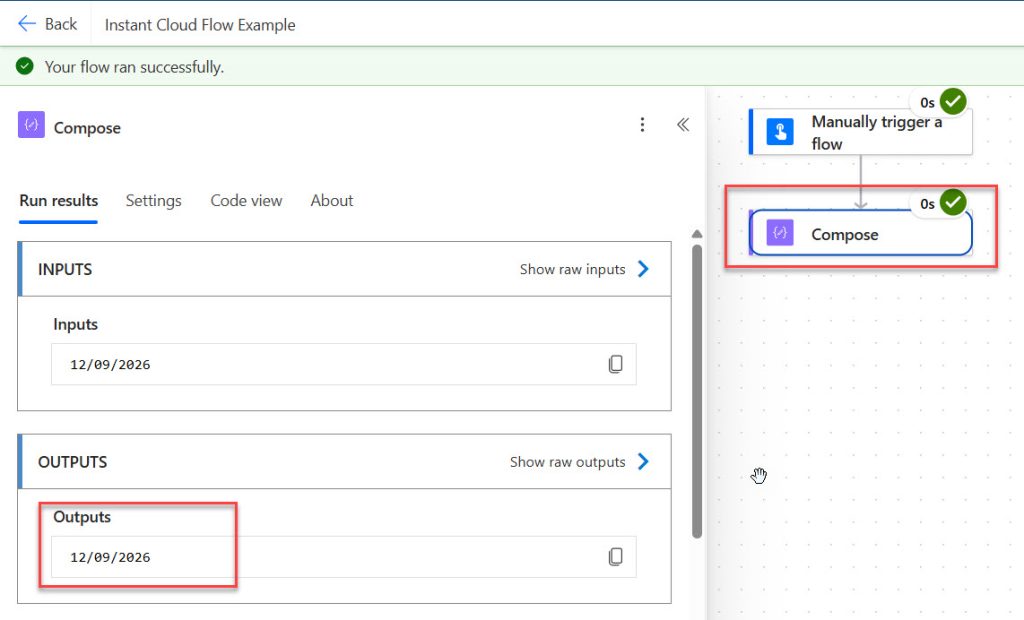
The simplest scenario. I add a Compose action and use:
formatDateTime(utcNow(), 'dd/MM/yyyy')
→ 12/09/2026
Here is the exact output in the screenshot below:
utcNow() returns the current moment in UTC. You can also pass a format directly to utcNow() itself:
utcNow('dd/MM/yyyy')Both work. I prefer formatDateTime() because it’s consistent — the same wrapper works for any date, not just “now.”
Method 2: Formatting a SharePoint Online Date Column
This is the bread-and-butter scenario for SharePoint developers.
Say I have a SharePoint list called Project Tasks with a Date and Time column named DueDate. In my flow I use Get items, then inside the Apply to each loop:
formatDateTime(items('Apply_to_each')?['DueDate'], 'dddd, MMMM d, yyyy')
→ Friday, October 2, 2026
Or using the dynamic content picker, the safer approach is to click into the expression box, type formatDateTime(, then switch to the Dynamic content tab and click DueDate, then close the bracket with , 'dd-MMM-yyyy').
Handling Empty Date Columns
Here’s the thing: SharePoint date columns are frequently blank. If you pass null into formatDateTime(), the flow fails hard with a template language error.
My standard defensive pattern:
if(
  empty(items('Apply_to_each')?['DueDate']),
  'No due date set',
  formatDateTime(items('Apply_to_each')?['DueDate'], 'dd-MMM-yyyy')
)
I put this in every production flow that touches an optional date column. It has saved me countless 3 a.m. failure notifications.
Date-Only Columns vs. Date and Time Columns
If your SharePoint column is set to Date Only, SharePoint still returns a full timestamp with 00:00:00Z. Formatting it as dd-MM-yyyy works perfectly. But be careful with time zone conversion here — converting a midnight UTC value to a negative-offset time zone (like US Eastern) will roll it back to the previous day. For Date Only columns, do not convert the time zone. Just format it as-is.
Check out Format Dates with Ordinal Suffixes (st, nd, rd, th) in Power Automate
Formatting dates for an email report? My guide on how to create an HTML table in Power Automate shows a blank-safe date column.
Method 3: The Time Zone Problem (And How I Fix It)
This deserves its own section because it’s the #1 source of “my flow shows the wrong date” tickets.
formatDateTime() does not convert time zones. If SharePoint gives you 2026-09-06T23:30:00Z and you’re in India (UTC+5:30), the real local time is 2026-09-07 05:00 AM — a different day entirely. But formatDateTime() will happily print 06-09-2026.
The correct function is convertTimeZone():
convertTimeZone(<timestamp>, <sourceTimeZone>, <destinationTimeZone>, <format>?)Example:
convertTimeZone(
  triggerOutputs()?['body/Created'],
  'UTC',
  'India Standard Time',
  'dd-MM-yyyy hh:mm tt'
)
→ 07-09-2026 05:00 AM
Notice it accepts the same format string as the fourth parameter — so you often don’t need formatDateTime() at all.
There’s also convertFromUtc(), a shorthand when the source is always UTC:
convertFromUtc(utcNow(), 'Pacific Standard Time', 'dddd, MMMM d, yyyy h:mm tt')
→ Sunday, September 6, 2026 7:35 AM
Common Windows Time Zone IDs
These must be Windows time zone IDs, not IANA names. Asia/Kolkata will fail; India Standard Time works.
| Region | ID |
|---|---|
| UK | GMT Standard Time |
| Central Europe | W. Europe Standard Time |
| India | India Standard Time |
| US Eastern | Eastern Standard Time |
| US Central | Central Standard Time |
| US Pacific | Pacific Standard Time |
| Australia (Sydney) | AUS Eastern Standard Time |
| Singapore | Singapore Standard Time |
| Gulf/UAE | Arabian Standard Time |
My rule of thumb: convert the time zone first, then format. Never format first and then try to convert — the string is no longer a valid timestamp for reliable conversion.
Method 4: Date Math + Formatting Combined
formatDateTime() pairs beautifully with the add* family of functions.
Yesterday’s date:
formatDateTime(addDays(utcNow(), -1), 'yyyy-MM-dd')Seven days from now:
formatDateTime(addDays(utcNow(), 7), 'dddd, MMMM d')Three hours from now:
formatDateTime(addHours(utcNow(), 3), 'HH:mm')First day of the current month:
formatDateTime(startOfMonth(utcNow()), 'dd-MM-yyyy')Last day of the current month:
formatDateTime(addDays(startOfMonth(addToTime(utcNow(), 1, 'Month')), -1), 'dd-MM-yyyy')Start of today (midnight):
formatDateTime(startOfDay(utcNow()), 'yyyy-MM-ddTHH:mm:ssZ')I use that last one constantly when building Filter Queries against SharePoint.
Method 5: Using formatDateTime() in a SharePoint Filter Query (OData)
When I use Get items with a Filter Query, SharePoint expects an ISO 8601 datetime, not a pretty format. This is where I use formatDateTime() to produce machine-readable output rather than human-readable output.
To get all items due today:
DueDate ge datetime'@{formatDateTime(startOfDay(utcNow()),'yyyy-MM-ddTHH:mm:ssZ')}' and DueDate lt datetime'@{formatDateTime(addDays(startOfDay(utcNow()),1),'yyyy-MM-ddTHH:mm:ssZ')}'To get items created in the last 30 days:
Created ge datetime'@{formatDateTime(addDays(utcNow(),-30),'yyyy-MM-ddTHH:mm:ssZ')}'Key point: in Filter Queries, always use yyyy-MM-ddTHH:mm:ssZ. Any friendlier format will throw a malformed-query error.
Method 6: Building Dynamic File and Folder Names
A very practical use. When archiving files to SharePoint or OneDrive:
concat('Sales-Report-', formatDateTime(utcNow(), 'yyyy-MM-dd'), '.xlsx')
→ Sales-Report-2026-09-06.xlsx
For a folder path organized by year and month:
concat('/Archive/', formatDateTime(utcNow(), 'yyyy'), '/', formatDateTime(utcNow(), 'MM-MMMM'), '/')
→ /Archive/2026/09-September/
Never use / or : in filenames. That means dd/MM/yyyy and HH:mm:ss are off-limits for file naming. I always use yyyy-MM-dd_HH-mm-ss for timestamped files — it’s filesystem-safe and sorts chronologically in any folder view.
Method 7: Writing Formatted Dates Back to SharePoint
Two very different situations here, and mixing them up causes failures.
Writing to a Single line of text column: Use formatDateTime() freely. The column accepts any string.
formatDateTime(utcNow(), 'dd MMMM yyyy')Writing to an actual Date and Time column: Do not send a pretty format. SharePoint needs ISO 8601:
formatDateTime(addDays(utcNow(), 14), 'yyyy-MM-ddTHH:mm:ssZ')If you push 06/09/2026 into a real date column, you’ll either get a conversion error or, worse, a silently misinterpreted date (US vs. UK day/month ambiguity). I’ve debugged that one more than once.
Method 8: Grouping, Comparing, and Sorting by Date
Because formatDateTime() returns a string, comparisons are alphabetical, not chronological.
'01-12-2026' sorts before '02-01-2026' as text, even though December comes after January.
The fix is simple: when comparing or sorting, always format as yyyy-MM-dd. In that pattern, alphabetical order is chronological order.
formatDateTime(utcNow(), 'yyyy-MM-dd')To check whether two dates fall on the same day:
equals(
  formatDateTime(item()?['StartDate'], 'yyyy-MM-dd'),
  formatDateTime(utcNow(), 'yyyy-MM-dd')
)
This is a clean way to compare dates while ignoring the time component entirely.
Method 9: Localized Output for Multi-Region Flows
If your organization spans multiple regions, the locale parameter earns its keep:
formatDateTime(utcNow(), 'dddd, dd MMMM yyyy', 'en-GB')
→ Sunday, 06 September 2026

formatDateTime(utcNow(), 'dddd, dd MMMM yyyy', 'es-ES')
→ domingo, 06 septiembre 2026

formatDateTime(utcNow(), 'dddd, dd MMMM yyyy', 'ja-JP')
→ 日曜日, 06 9月 2026
I’ve built flows that read a “Preferred Language” column from a SharePoint list and pass it dynamically as the third parameter. One expression, correctly localized emails for the whole company.
Common formatDateTime() Errors and How to Fix Them
“expects its first parameter to be a string”
Cause: You passed a null, a number, or an object. Fix: Wrap in a null check with if(empty(...)), or use string() to coerce it.
“The string was not recognized as a valid DateTime”
Cause: Your input isn’t a parseable date — often an Excel serial number, a blank string, or a format like 06.09.2026. Fix: For Excel serial dates, convert first: addDays('1899-12-30', int(<serialNumber>), 'yyyy-MM-dd').
“Input string was not in a correct format”
Cause: An invalid format specifier — often DD instead of dd, or YYYY instead of yyyy. Fix: Check your case. Uppercase Y and D are not valid custom specifiers.
The date is off by one day
Cause: Time zone. Almost always time zone. Fix: Use convertTimeZone() before formatting — and remember that Date Only columns should generally not be converted.
Month shows a strange two-digit number
Cause: You used mm (minutes) where you meant MM (month). Fix: Capitalize it.
Many of these errors start with an empty date column. Before you format anything, check whether the date field is blank so the flow never passes null to formatDateTime().
For a real use of these format strings, see how I add a date prefix when I save email attachments to SharePoint with Power Automate.
Date stamps are also the easiest way to stop overwrites when you use the SharePoint Create file action in Power Automate.
My Most-Used Power Automate Date Expressions
Here are my most used expressions in Power Automate.
Today (ISO)             formatDateTime(utcNow(), 'yyyy-MM-dd')
Today (friendly)        formatDateTime(utcNow(), 'dddd, MMMM d, yyyy')
UK format               formatDateTime(utcNow(), 'dd/MM/yyyy')
US format               formatDateTime(utcNow(), 'MM/dd/yyyy')
Time only (12h)         formatDateTime(utcNow(), 'h:mm tt')
Time only (24h)         formatDateTime(utcNow(), 'HH:mm')
Filename-safe stamp     formatDateTime(utcNow(), 'yyyy-MM-dd_HH-mm-ss')
Month name              formatDateTime(utcNow(), 'MMMM')
Day name                formatDateTime(utcNow(), 'dddd')
Year only               formatDateTime(utcNow(), 'yyyy')
Local time (India)      convertFromUtc(utcNow(), 'India Standard Time', 'dd-MM-yyyy hh:mm tt')
Yesterday               formatDateTime(addDays(utcNow(), -1), 'yyyy-MM-dd')
Start of month          formatDateTime(startOfMonth(utcNow()), 'yyyy-MM-dd')
Safe SharePoint date    if(empty(<col>), 'N/A', formatDateTime(<col>, 'dd-MMM-yyyy'))
Conclusion
formatDateTime() in Power Automate looks like a small utility function, but in my experience it’s one of the load-bearing pillars of professional Power Automate development. Get it right and your flows produce clean, readable, correctly localized dates that business users trust. Get it wrong and you end up with off-by-one-day due dates, failed flows on empty columns, and emails that say “35” where the month should be.
The three ideas worth carrying away:
formatDateTime()formats, it does not convert time zones. UseconvertTimeZone()orconvertFromUtc()for that, and always do it before formatting.- The output is always a string. Use
yyyy-MM-ddwhenever you need to sort, compare, or filter, because that pattern sorts correctly as text. - Case matters —
MMis month,mmis minutes — and null values will break your flow unless you guard against them.
My advice for getting comfortable: build a throwaway flow with a manual trigger and ten Compose actions. Drop a different format string into each one, run it, and study the outputs side by side. Fifteen minutes of that will teach you more than any amount of reading, and you’ll walk away with a personal cheat sheet you actually understand.

Bijay Kumar is a 13-times Microsoft MVP in Business Applications with over 18 years of experience in the IT industry, recognized for his contributions to the Microsoft community. He is the Founder of TSinfo Technologies and shares practical, tested tutorials on Power Apps, Power Automate, Copilot Studio, and Power BI here on Power Platform FAQs. Read more.