
To Power Automate create array of objects data, type a JSON array into a Compose action: [{"Name": "Megan Bowen", "City": "Seattle"}, {"Name": "Alex Wilber", "City": "Denver"}]. Each pair of curly braces is one object, and the square brackets make the list.
In this tutorial, we’ll build six ways to create one, from Compose and json() to Select and Append to array variable. Then we’ll read, filter, sort, and edit the objects. Every output below comes from one real test flow with 24 actions.
What Is an Array of Objects in Power Automate?
An object is a record with named fields, written in curly braces: {"Name": "Megan Bowen", "Orders": 12}. Each field is a key (the name) and a value. An array of objects is a list of those records.
It’s the shape most connectors return. SharePoint Get items, Excel List rows, and Dataverse List rows all give you an array of objects, one per row.
You build your own when you need lookup data, a cleaned-up copy of connector output, or a list of results to send on. If you’re new to flows, my Power Automate tutorials hub covers the basics first.
How Do You Set Up the Test Flow?
Everything here runs in one instant flow. Here’s how to start it, even if it’s your first flow.
- Go to make.powerautomate.com, select Create, then Instant cloud flow.
- Name it, pick Manually trigger a flow, and select Create.
- Select the plus sign under the trigger, search Compose, and add it. Rename it Compose Customers with the three dots menu > Rename.
- Add the other actions from the sections below the same way.
- Select Save, then Test > Manually > Run flow. Open the run and select any action to see its output.
For expressions, click inside a field and select the fx button on its right. Paste the expression and select Add. Typing it as plain text stores it as a string instead.
Method 1: How Do You Create an Array of Objects with Compose?
Paste a JSON array into the Compose Inputs box. Power Automate keeps it as a real array, so later actions can loop over it and read each field.
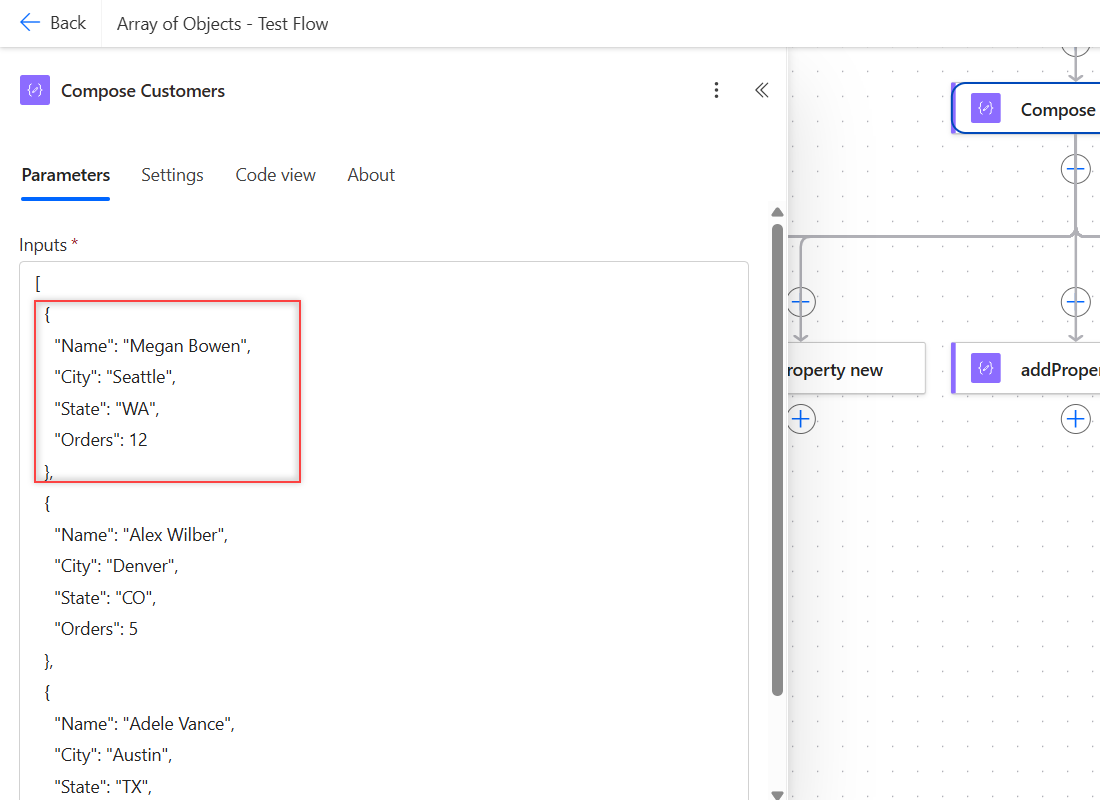
[
  { "Name": "Megan Bowen", "City": "Seattle", "State": "WA", "Orders": 12 },
  { "Name": "Alex Wilber", "City": "Denver", "State": "CO", "Orders": 5 },
  { "Name": "Adele Vance", "City": "Austin", "State": "TX", "Orders": 8 }
]
Use double quotes around every key and text value. Numbers like 12 don’t need quotes, and they stay numbers, so you can compare them later.
The run showed three rows with all four fields. I use this sample array for every test below.
Method 2: How Do You Use createArray() with json() Objects?
In an expression, createArray() builds the list and json() turns each text into an object. This is handy when one field comes from dynamic content.
createArray(
  json('{"Name":"Megan Bowen","City":"Seattle"}'),
  json('{"Name":"Alex Wilber","City":"Denver"}')
)
It returned an array of two objects with Name and City. Inside an expression, the whole JSON text sits in single quotes, and the keys keep their double quotes.
For a value that changes, like a due date, build the object with addProperty() instead of gluing text together. A date from addDays() drops straight in.
Method 3: How Do You Convert JSON Text into an Array of Objects?
If the array arrives as text, from an HTTP response, a text column, or a file, wrap it in json():
json('[{"Name":"Megan Bowen","Orders":12},{"Name":"Alex Wilber","Orders":5}]')That returned two objects, and Orders stayed a number. Without json() it’s still text. length() on a one-object string returned 24, the character count, not 1.
One surprise: json() also accepted single quotes, [{'Name':'Megan Bowen'}], and returned an object. That isn’t valid JSON, so don’t build on it; other systems will reject it.
Email attachments are a real-world example: the Outlook trigger hands you an array of objects with Name and ContentBytes. My guide to saving email attachments to SharePoint loops over exactly that.
Method 4: How Do You Build an Array of Objects with Select?
Select creates a new array of objects from an existing array in one step. Set From to the source, then add one Map row per field: a key on the left, a value on the right.
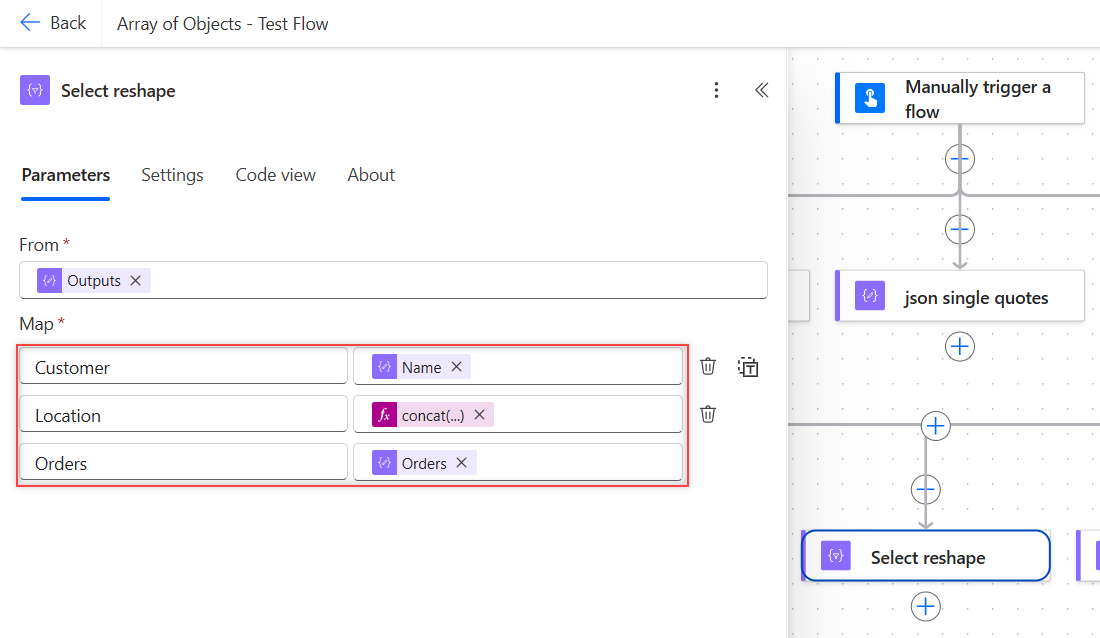
This is the Select from my flow in Code view. Location joins two fields with concat():
{
  "type": "Select",
  "inputs": {
    "from": "@outputs('Compose_Customers')",
    "select": {
      "Customer": "@item()?['Name']",
      "Location": "@concat(item()?['City'], ', ', item()?['State'])",
      "Orders": "@item()?['Orders']"
    }
  }
}
It returned three objects like {"Customer": "Megan Bowen", "Location": "Seattle, WA", "Orders": 12}. Only the mapped fields come through, which is how you drop fields you don’t need.
This is the step I use before I create an HTML table, because the keys become the column headers.
Method 5: How Do You Add Objects to an Array Variable in a Loop?
Use this when each object depends on a condition or another action inside the loop. You need an array variable, an Apply to each, and Append to array variable.
- Add Initialize variable: Name Orders, Type Array, Value
[]. - Add Apply to each and pick the Compose Customers Outputs.
- Inside it, add Append to array variable, choose Orders, and type a JSON object in Value with dynamic content or expressions for the values.
- After the loop, add a Compose with
variables('Orders').
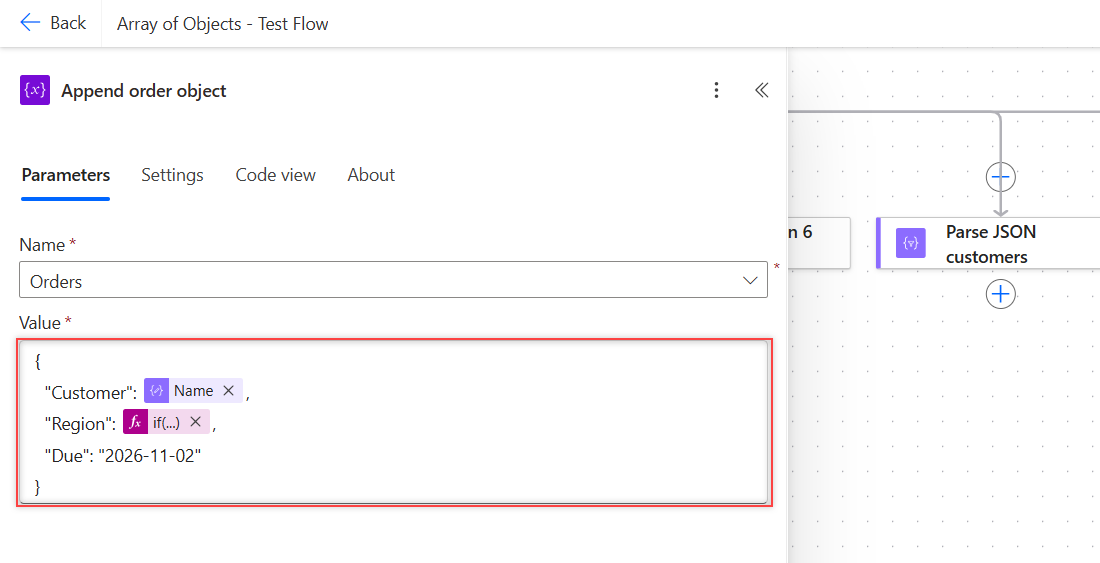
Here’s the action in Code view. Region uses if() to set West for Washington and Central for everything else:
{
  "type": "AppendToArrayVariable",
  "inputs": {
    "name": "Orders",
    "value": {
      "Customer": "@items('Apply_to_each_customer')?['Name']",
      "Region": "@if(equals(items('Apply_to_each_customer')?['State'], 'WA'), 'West', 'Central')",
      "Due": "2026-11-02"
    }
  }
}
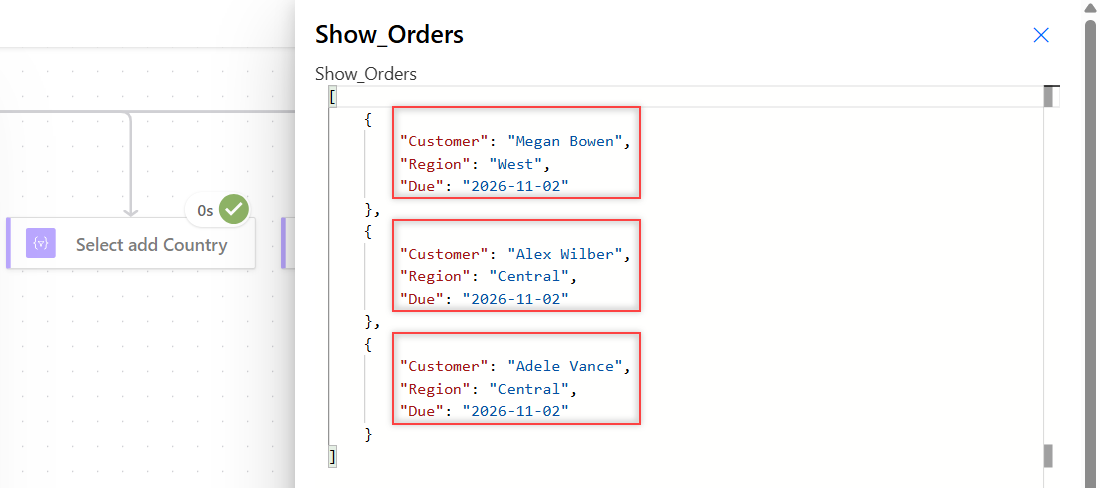
The run returned three objects: Megan Bowen West, Alex Wilber Central, and Adele Vance Central, each with Due 2026-11-02. To store a real date, use formatDateTime() for the Due value.
Variables must be initialized at the top level of the flow, not inside a loop. My post on how to set a variable to today’s date shows that rule in practice.
Method 6: How Do You Add a Field to Every Object?
Put Select in text mode and use addProperty() on the current item. Text mode is the switch next to Map; it lets you enter one expression instead of key-value rows.
addProperty(item(), 'Country', 'USA')All three customers came back with their four fields plus "Country": "USA". That’s quicker than retyping every key in Map when you only want to add one.
How Do You Read a Value from an Array of Objects?
Pick the object by position, then the field by name. Indexes start at 0, and the ? makes the read safe when a field is missing.
| Expression | Result in my run |
|---|---|
first(outputs('Compose_Customers'))?['Name'] | Megan Bowen |
outputs('Compose_Customers')[1]?['City'] | Denver |
length(outputs('Compose_Customers')) | 3 |
outputs('Compose_Customers')[0]?['Email'] | Empty (null), action succeeded |
outputs('Compose_Customers')[0]['Email'] | Failed |
The last row failed with a clear message that lists the fields that do exist:
The template language expression 'outputs('Compose_Customers')[0]['Email']' cannot be evaluated because property 'Email' doesn't exist, available properties are 'Name, City, State, Orders'.So always use ?['Field'] for optional fields. Then check the null with a condition if blank before you use it.
How Do You Filter and Sort an Array of Objects?
Add Filter array, set From to the array, and switch to advanced mode for this condition:
@greater(item()?['Orders'], 6)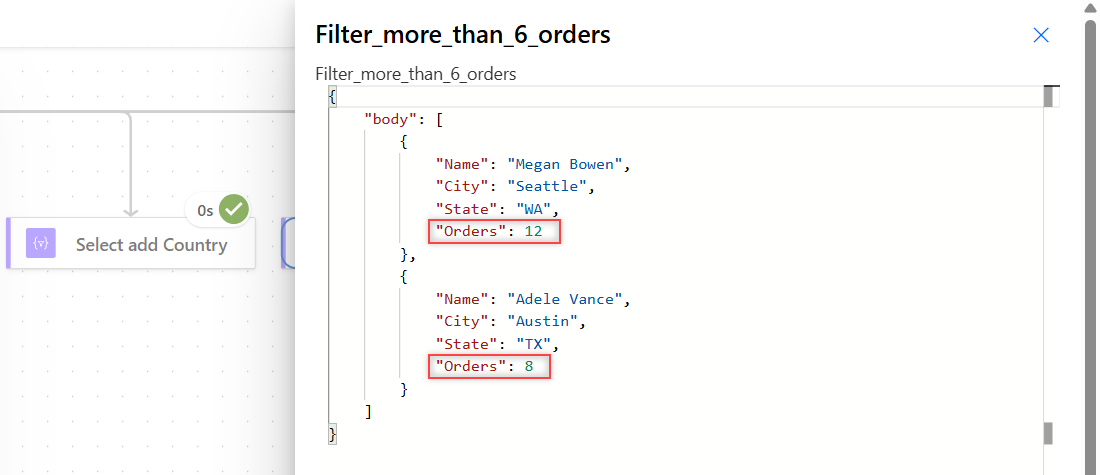
It kept Megan Bowen (12) and Adele Vance (8). If the number is stored as text, convert the string to an integer first, or the comparison runs as text.
To sort, sort() takes the array and the key name. sort(outputs('Compose_Customers'), 'Orders') returned Alex (5), Adele (8), then Megan (12).
There’s no descending option, so wrap it in reverse(). reverse(sort(outputs('Compose_Customers'), 'Name')) returned Megan, Alex, then Adele.
How Do You Change Fields in an Object?
Three functions edit an object and return a new copy. I ran each on the first customer:
| Expression | Result |
|---|---|
addProperty(obj, 'Country', 'USA') | Adds Country |
addProperty(obj, 'City', 'Bellevue') | Failed: City already exists |
setProperty(obj, 'City', 'Bellevue') | City changed to Bellevue |
removeProperty(obj, 'State') | State removed |
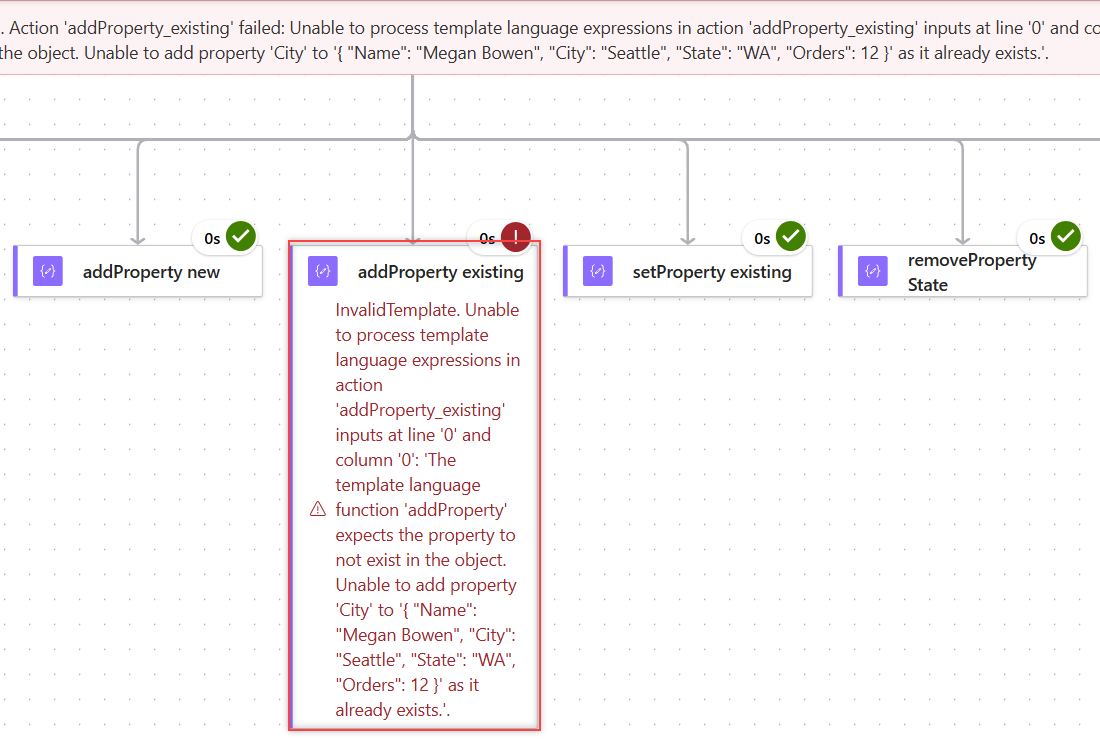
Here’s the full error, so you can match it in your own run history:
The template language function 'addProperty' expects the property to not exist in the object. Unable to add property 'City' to '{ "Name": "Megan Bowen", "City": "Seattle", "State": "WA", "Orders": 12 }' as it already exists.Use setProperty() when you’re not sure. One detail I noticed: it moved City to the end of the object. Field order doesn’t matter in JSON, but it changes the column order if you build a table from it.
How Do You Get Dynamic Content for Each Field?
Add Parse JSON after the action that makes your array. Its schema tells the designer which fields exist, so Name, City, and the others show up as dynamic content tokens.
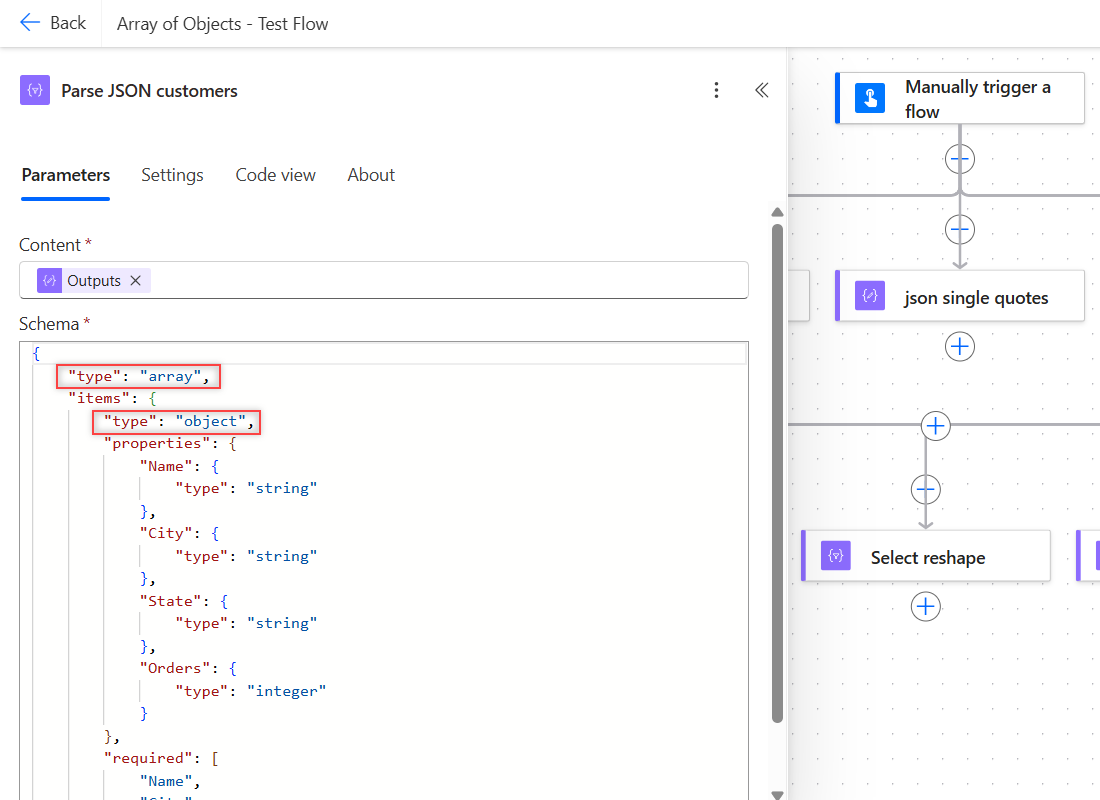
This is the schema I used. Select Use sample payload to generate schema and paste one run output to create it for you:
{
  "type": "array",
  "items": {
    "type": "object",
    "properties": {
      "Name": { "type": "string" },
      "City": { "type": "string" },
      "State": { "type": "string" },
      "Orders": { "type": "integer" }
    },
    "required": ["Name", "City"]
  }
}
The action succeeded on the three customers. Keep required short: if a listed field is missing from any object, Parse JSON fails the run.
Can You Combine or Compare Arrays of Objects?
Yes. union() joins arrays and removes duplicate objects. Two copies of {"Id": 1} plus one {"Id": 2} returned just [{"Id":1},{"Id":2}].
contains() compares whole objects. Passing an object with Adele Vance’s four exact field values returned true. Any difference in a value, and it won’t match.
For automated flows, trigger conditions in Power Automate can skip runs where the incoming array is empty.
What Happened in My Tests?
All 24 actions ran in parallel branches, so one failure didn’t hide another. Here’s the summary:
| Test | Result |
|---|---|
| Compose JSON array | 3 objects, Orders kept as numbers |
createArray() + json() | 2 objects |
json() on array text | 2 objects |
json() with single quotes | Succeeded (not valid JSON, avoid) |
length() of JSON text | 24 characters, not 1 item |
| Select with Map rows | 3 reshaped objects |
Select text mode + addProperty() | 3 objects with Country added |
| Append object in a loop | 3 objects with Region from if() |
Missing field with ? | Null, succeeded |
Missing field without ? | Failed |
addProperty() on existing field | Failed |
union() with duplicate objects | Duplicate removed |
| Parse JSON with array schema | Succeeded |
Once your array is ready, you can save it as a JSON file with SharePoint Create file.
Array of Objects Cheat Sheet
| Need | What to use |
|---|---|
| Fixed list of records | Compose with a JSON array |
| Objects from text | json(text) |
| New shape from another array | Select with Map rows |
| Objects built in a loop | Append to array variable with an object Value |
| Add a field to every object | Select text mode + addProperty(item(), 'Key', value) |
| Safe field read | item()?['Field'] |
| Keep matching objects | Filter array |
| Sort by a field | sort(array, 'Field'), add reverse() for descending |
| Change a field | setProperty(obj, 'Field', value) |
| Fields as dynamic content | Parse JSON with an array schema |
Frequently Asked Questions
How do I create an array of objects in Power Automate?
Type a JSON array such as [{“Name”: “Megan Bowen”}, {“Name”: “Alex Wilber”}] into a Compose action. To build it from another array, use Select; to build it in a loop, use Append to array variable.
How do I add an object to an array variable?
Use Append to array variable and type a JSON object in Value, with dynamic content for the values. The variable must be initialized as Type Array at the top level of the flow.
How do I get a value from an array of objects?
Use first(array)?[‘Field’] or array[0]?[‘Field’]. Indexes start at 0, and the question mark returns null instead of failing when the field doesn’t exist.
How do I add a property to every object in an array?
Use Select in text mode with addProperty(item(), ‘Key’, value). Use setProperty() instead if the field might already exist, because addProperty() fails on existing fields.
How do I sort an array of objects by a field?
Use sort(array, ‘Field’), and wrap it in reverse() for descending order. Microsoft’s expression functions reference lists sort() and the property functions.
More Power Automate Tutorials
When your arrays of objects are working, these are good next reads:
- Collect() for tables of records in Power Apps
- removing duplicates with Distinct() in Power Apps
- Power Apps vs Power Automate
- Power Automate vs Power BI

Bijay Kumar is a 13-times Microsoft MVP in Business Applications with over 18 years of experience in the IT industry, recognized for his contributions to the Microsoft community. He is the Founder of TSinfo Technologies and shares practical, tested tutorials on Power Apps, Power Automate, Copilot Studio, and Power BI here on Power Platform FAQs. Read more.