
To initialize an array variable with values in Power Automate, add the Initialize variable action, set Type to Array, and type a JSON list in Value, such as ["Seattle", "Denver", "Austin"]. The brackets and the double quotes are what make it an array.
In this tutorial, we’ll build a real demo flow step by step. You’ll fill it with text, numbers, objects, and expressions, start an empty one and append to it, and fix the “value of type ‘String'” error. All results are from my October 2026 runs.
What Does Initialize Variable Do for an Array?
A variable is a named box that holds a value for the whole run. An array variable holds an ordered list in square brackets. Each item has an index, and the first index is 0.
Initialize variable creates that box and gives it a starting value. Later actions read it with variables('Cities'), add to it with Append to array variable, or replace it with Set variable.
Pick a variable when the list changes during the run. If it never changes, a Compose action is lighter. New to flows? The Power Automate tutorials hub covers triggers, actions, and expressions in order.
How Do You Initialize an Array Variable Step by Step?
We’ll build a small instant flow you can run on demand. These are the exact clicks I used.
- Go to make.powerautomate.com and sign in with your work account.
- Select Create > Instant cloud flow, name it Initialize Array Variable – Demo Flow, pick Manually trigger a flow, and select Create.
- Under the trigger, select the plus sign > Add an action, search for variable, and pick Initialize variable.
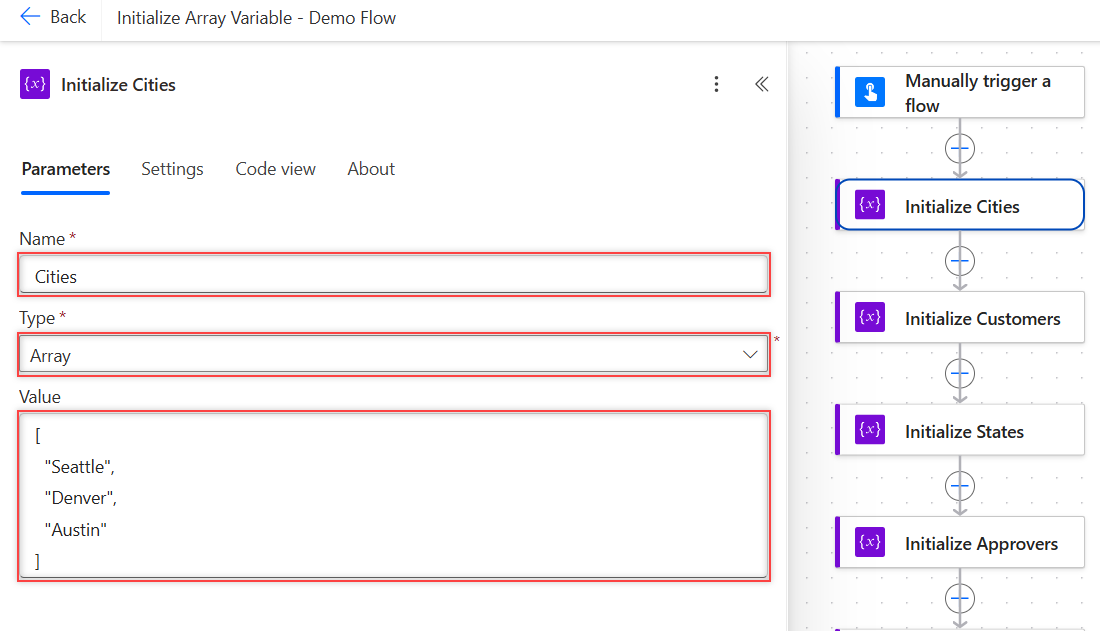
- In the panel on the left, type Cities in Name.
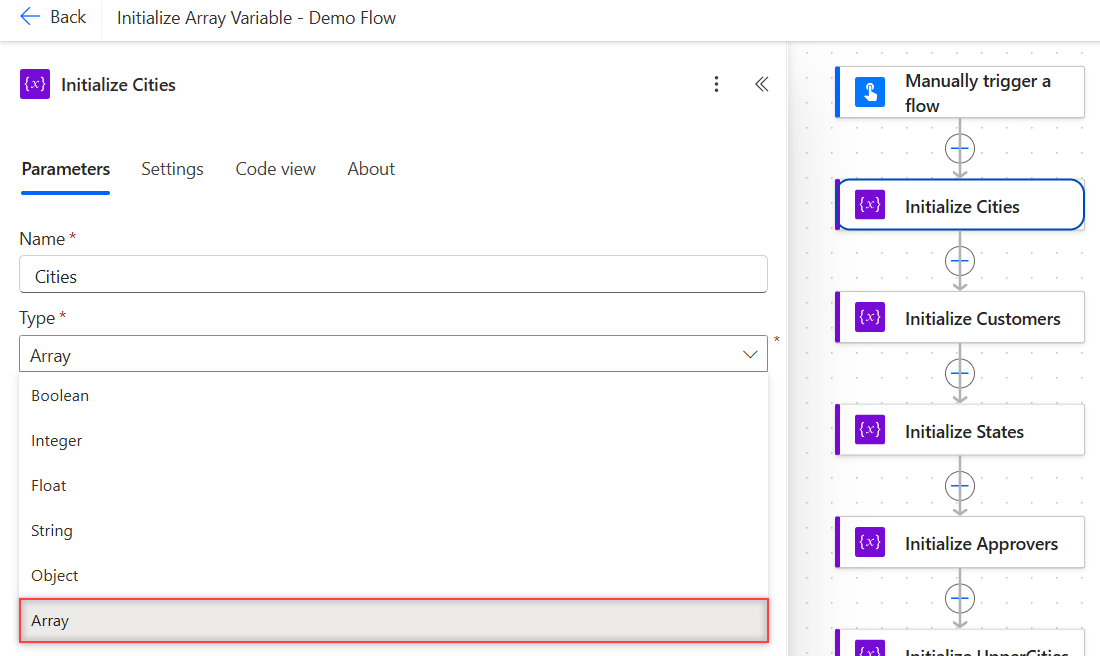
- Open the Type list and pick Array.
Now type the list into Value. Use square brackets around the list, double quotes around each text item, and commas between items:
[
  "Seattle",
  "Denver",
  "Austin"
]
Select Save, then Test > Manually > Run flow. In Code view, the action looks like this:
{
  "type": "InitializeVariable",
  "inputs": {
    "variables": [
      {
        "name": "Cities",
        "type": "array",
        "value": ["Seattle", "Denver", "Austin"]
      }
    ]
  }
}
Want other ways to build lists, like Compose or createArray()? My guide on how to create an array in Power Automate compares seven of them.
What Values Can You Type in the Value Box?
Anything that is valid JSON and starts with [ works. I tested these, and every one initialized without an error:
| Value typed | What you get |
|---|---|
["Seattle", "Denver", "Austin"] | Three text items, length() = 3 |
[85, 92, 78] | Three numbers, max() = 92 |
[[1, 2], [3, 4]] | Nested arrays, [1][0] = 3 |
[] | Empty array, empty() = true |
| Value left blank | Empty array, length() = 0 |
Watch the quotes on numbers. ["85", "92", "78"] is a list of text, not numbers. contains(variables('TextScores'), 85) returned false, and max() failed with this:
The template language function 'max' expects all of its parameters to be either integer or decimal numbers. Found invalid parameter types: 'String'.If your numbers arrive as text from a form or a file, convert each one first. My post on how to convert a string to an integer covers int() and its traps.
Text matching is also case-sensitive. contains(variables('Cities'), 'denver') returned false because the item is “Denver”.
How Do You Initialize an Array Variable with Objects?
An object is a set of named fields in curly braces. Put several objects in the brackets to store records, like customers with a name, a city, and a budget in USD:
[
  { "Name": "Megan Bowen", "City": "Seattle", "Budget": 1200 },
  { "Name": "Alex Wilber", "City": "Denver", "Budget": 850 },
  { "Name": "Adele Vance", "City": "Austin", "Budget": 2300 }
]
Read one field with an index and a property name. In my run, variables('Customers')[1]?['Name'] returned “Alex Wilber” and variables('Customers')[1]?['City'] returned “Denver”.
The ? makes a missing field return null instead of failing. For filtering, mapping, and Parse JSON on lists like this, see my guide to creating an array of objects.
How Do You Fill an Array Variable from an Expression?
Value also takes an expression, so the list can come from text, a range, or another action. Click in Value, select the fx button, paste the expression, and select Add.
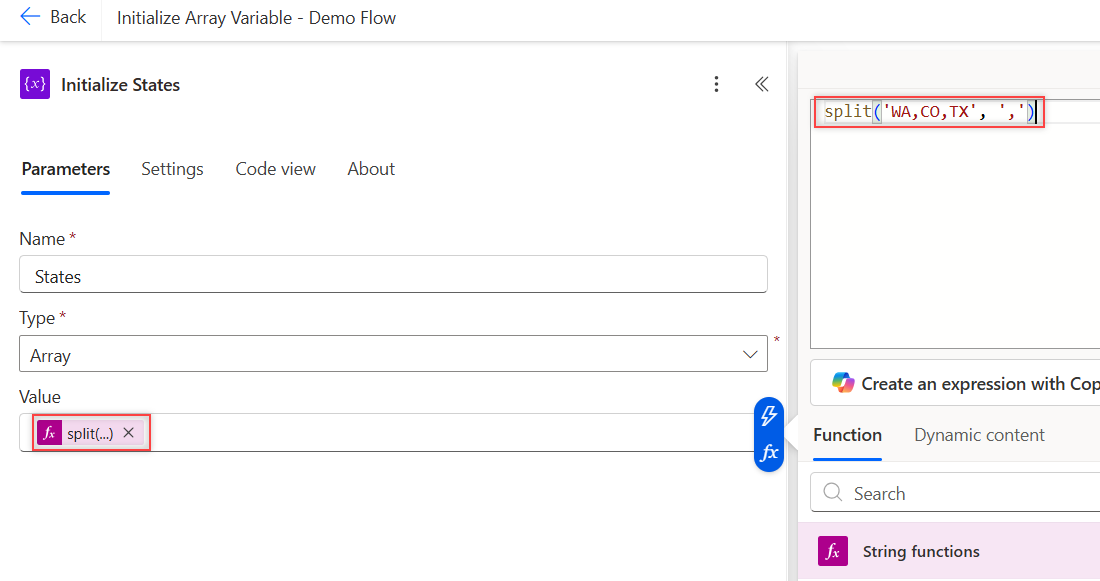
In my demo, split('WA,CO,TX', ',') gave the States variable ["WA","CO","TX"]. These expressions also initialized a valid array in my test flow:
| Expression in Value | Starting array |
|---|---|
createArray('Red', 'Green', 'Blue') | ["Red","Green","Blue"] |
split('Seattle,Denver,Austin', ',') | Three city names |
json('["Red","Green"]') | JSON text turned into an array |
range(1, 5) | [1,2,3,4,5] |
outputs('Compose_Source') | The Compose list ["Chicago","Boston"] |
A connector output works the same way. For example, body('Get_items')?['value'] starts the variable with every SharePoint row, which you can then turn into an HTML table for an email.
Can You Put Expressions Inside the JSON List?
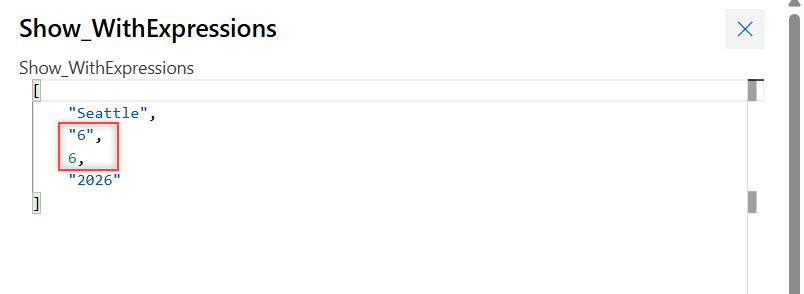
Yes, and the syntax decides the data type. I used this Value, typed directly in Code view:
[
  "Seattle",
  "@{length('Denver')}",
  "@length('Denver')",
  "@utcNow('yyyy')"
]
The run returned the list below. @{...} produced text, while a bare @ expression kept the real type, so the second and third items differ.
[
  "Seattle",
  "6",
  6,
  "2026"
]
That matters for math. Use the bare form when items must stay numbers, or wrap the text with int() later.
How Do You Start Empty and Append Values?
Initialize the variable with [], then add items inside a loop. That’s the usual pattern when the values come from rows, emails, or files.
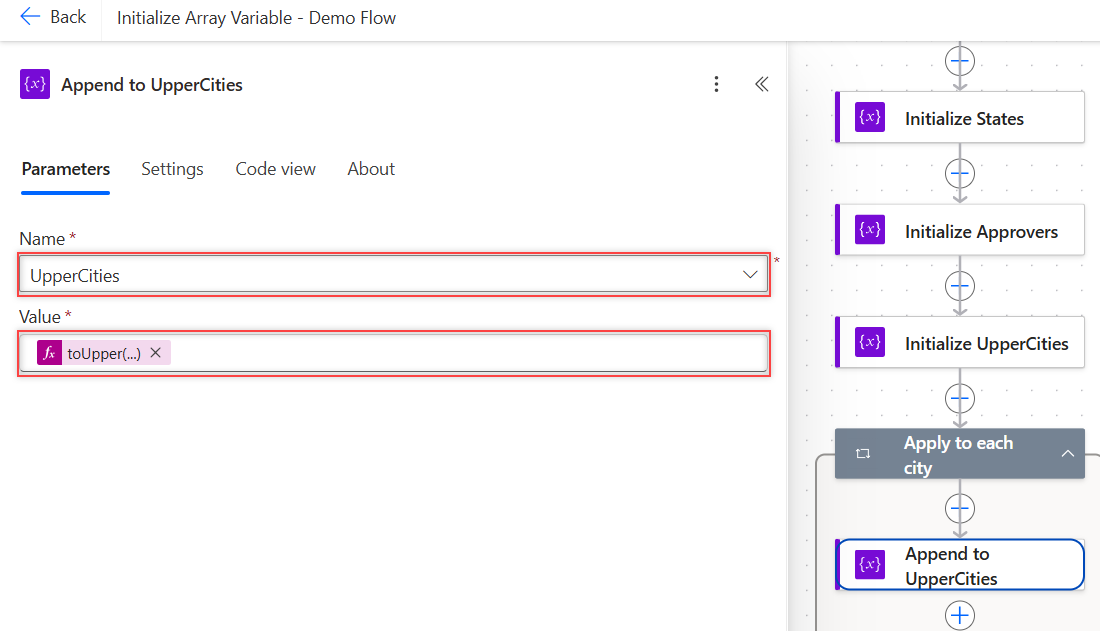
- Add an Initialize variable action named UpperCities, Type Array, Value
[]. - Add Apply to each and set its input to
variables('Cities'). - Inside the loop, add Append to array variable. Pick UpperCities in Name.
- In Value, select fx and enter
toUpper(item()).
If you need the items in the same order as the source, open the loop’s Settings, turn on Concurrency control, and set Degree of parallelism to 1.
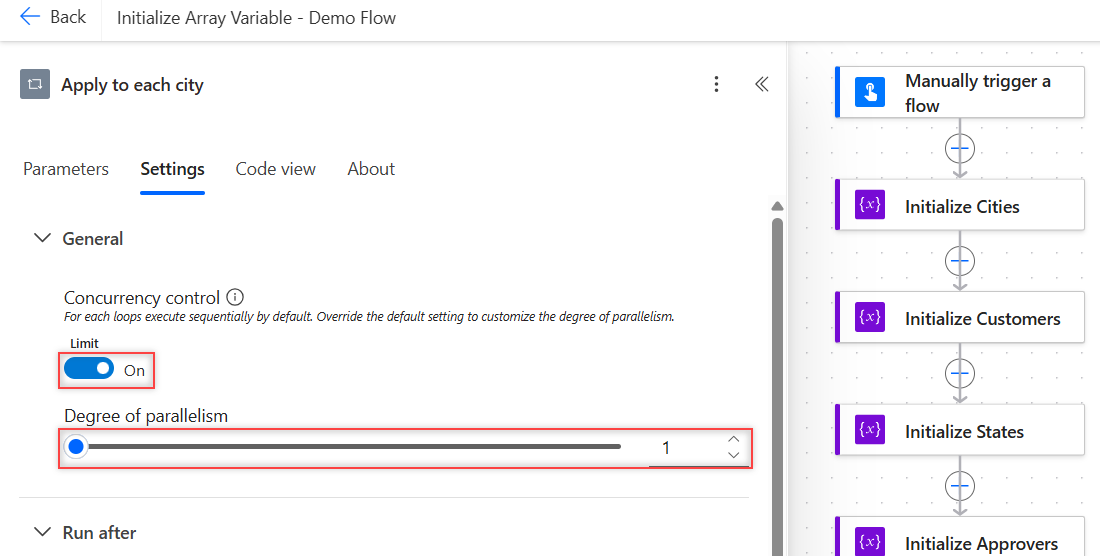
I appended the numbers 1 to 10 in two loops. With concurrency at 20, the array came back as [3,5,8,6,1,9,7,2,10,4]. With concurrency at 1, it came back as 1 through 10 in order.
To check whether the list is still empty after the loop, use empty(variables('UpperCities')). My guide to the Power Automate condition if blank shows the full Condition setup.
What Did the Demo Flow Return?
My demo flow has five Initialize variable actions, the loop, and a Compose named Show results with these inputs:
{
  "UpperCities": "@variables('UpperCities')",
  "SecondCustomer": "@variables('Customers')[1]?['Name']",
  "States": "@variables('States')",
  "ApproverCount": "@variables('ApproverCount')"
}
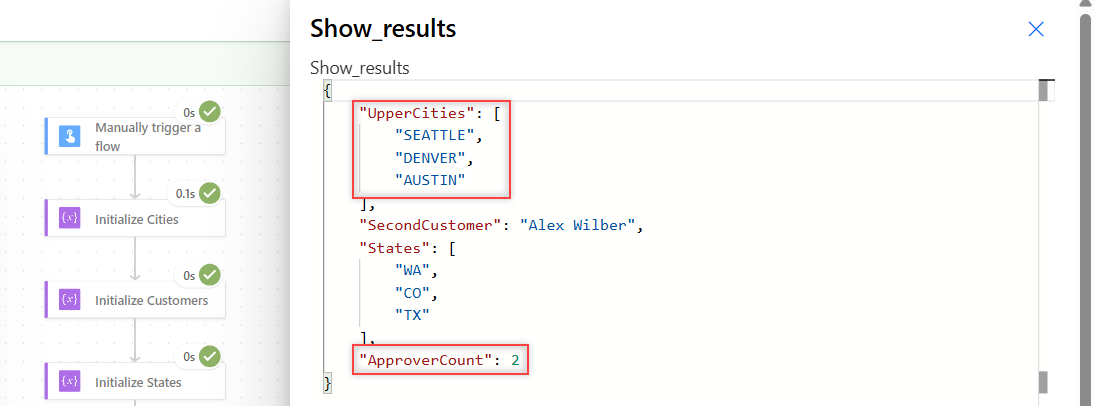
The run succeeded in about 2 seconds. The Run results panel lists each array item on its own row:
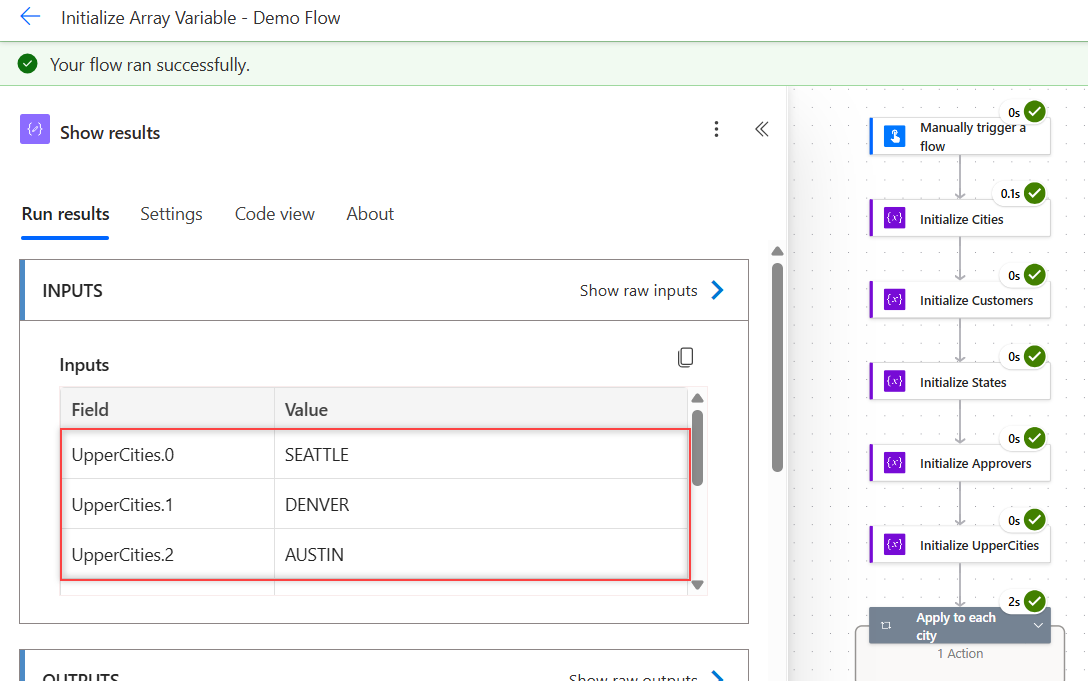
Show raw outputs returned this JSON, which matches the featured screenshot at the top:
{
  "UpperCities": ["SEATTLE", "DENVER", "AUSTIN"],
  "SecondCustomer": "Alex Wilber",
  "States": ["WA", "CO", "TX"],
  "ApproverCount": 2
}
Why Does It Fail with “Value of Type ‘String'”?
Initialize variable checks that the value really is an array. If it isn’t, the action stops with BadRequest. Here’s the run panel from my test:
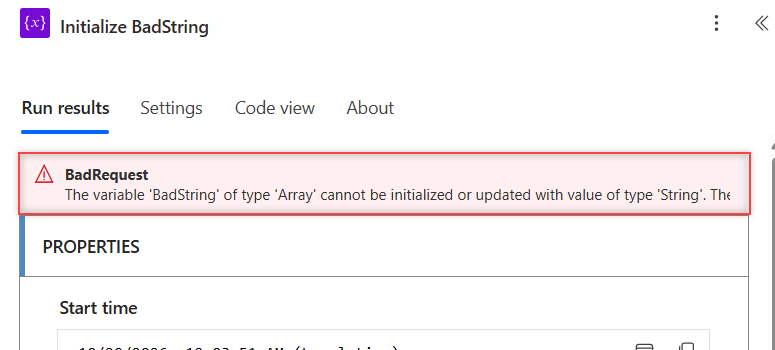
The variable 'BadString' of type 'Array' cannot be initialized or updated with value of type 'String'. The variable 'BadString' only supports values of types 'Array'.Three values caused it in my tests:
Red, Greenwithout brackets and quotes is plain text, so the type is String.{"Name": "Megan Bowen"}is one object, so the error says type ‘Object’.join(createArray('Red', 'Green'), ',')returns text, so it’s String again.
The fix is to wrap the items in brackets with quoted text, or use an expression that returns an array, such as split(). Set variable checks the type too, and setting the array to “Done” failed the same way.
Where Can You Put the Initialize Variable Action?
Only at the top level of the flow, never inside a loop, a condition, or a scope. When I imported a flow with Initialize variable inside a Scope, Power Automate refused the import:
The variable action 'Initialize_InScope' of type 'InitializeVariable' cannot be nested in an action of type 'Scope'.So initialize every variable near the top, right after the trigger. Inside loops and conditions, change it with Append to array variable or Set variable. My post on how to set a variable to today’s date shows Set variable step by step.
Set variable replaces the whole list. Setting Statuses from ["New"] to ["New", "In Progress", "Done"] worked fine in my run.
Can One Action Initialize Several Variables?
The flow definition allows more than one variable in the same action. My Initialize Approvers action held an Approvers array and an ApproverCount integer, and the run returned both.
But the new designer showed only the first variable, in both Parameters and Code view. ApproverCount was invisible, even though it existed. I’d keep one Initialize variable action per variable to avoid that surprise.
If you only need to start a flow for certain inputs, trigger conditions in Power Automate stop it before any variable is created.
What Happened in My Tests?
My test flow ran 48 actions in parallel branches after one manual trigger, so one failure couldn’t hide another. These are the results:
| Test | Result |
|---|---|
Value ["Seattle","Denver","Austin"] | Initialized, [1] = “Denver” |
variables('Cities')[5] | Failed: index 5 is outside bounds (0, 2) |
variables('Cities')?[5] | null, no error |
Value ["85","92","78"] + max() | Failed: invalid parameter types ‘String’ |
Value [] or blank or null | Empty array [] |
Value "@{length('Denver')}" item | Text “6” |
Value "@length('Denver')" item | Number 6 |
Value Red, Green | Failed: BadRequest, type ‘String’ |
Value {"Name":"Megan Bowen"} | Failed: BadRequest, type ‘Object’ |
| Append in loop, concurrency 20 | Items out of order |
| Append in loop, concurrency 1 | Items in order |
| Initialize variable inside a Scope | Import refused |
Initialize Array Variable: Cheat Sheet
Every row below matches a result from my two test flows.
| Need | Value to use |
|---|---|
| List of text | ["Seattle", "Denver"] |
| List of numbers | [85, 92, 78] (no quotes) |
| List of records | [{"Name": "Megan Bowen", "City": "Seattle"}] |
| Empty list to fill later | [] |
| List from comma-separated text | fx split(text, ',') |
| List from another action | fx outputs('Compose') or body('Get_items')?['value'] |
| Numbers 1 to N | fx range(1, N) |
| Add one item later | Append to array variable |
| Replace the whole list | Set variable with an array value |
| Keep appended order | Apply to each, degree of parallelism 1 |
Frequently Asked Questions
How do I initialize an array variable with values in Power Automate?
Add Initialize variable, set Type to Array, and type a JSON list in Value, like [“Seattle”, “Denver”]. Text items need double quotes, numbers don’t, and the whole list needs square brackets.
How do I initialize an empty array variable?
Type [] in Value. In my tests, leaving Value blank or using null also produced an empty array, but [] makes the starting value obvious to anyone reading the flow.
Why do I get “cannot be initialized or updated with value of type ‘String'”?
The Value isn’t an array. It’s usually text typed without brackets and quotes, or an expression like join() that returns text. Wrap the items in [ ] or use split() to make a real array.
Can I initialize a variable inside Apply to each or a Condition?
No. Variables can only be declared at the top level of the flow, not in loops, conditions, or scopes, as Microsoft’s guide to creating variables explains. Initialize at the top and change it with Set variable inside.
How do I add items to an array variable after initializing it?
Use Append to array variable, usually inside Apply to each. It adds one item to the end each time. If order matters, set the loop’s degree of parallelism to 1.
More Power Automate Tutorials
Ready for the next step? Try one of these:
- formatting dates with formatDateTime()
- adding days to a date with addDays()
- saving email attachments to SharePoint
- Power Apps vs Power Automate

Bijay Kumar is a 13-times Microsoft MVP in Business Applications with over 18 years of experience in the IT industry, recognized for his contributions to the Microsoft community. He is the Founder of TSinfo Technologies and shares practical, tested tutorials on Power Apps, Power Automate, Copilot Studio, and Power BI here on Power Platform FAQs. Read more.