
The Power Automate set variable action replaces a variable’s current value with a new one. Pick the variable in Name, put the new value in Value, and every later step that reads variables('Name') gets the new value.
In this tutorial, we’ll set String, Integer, Boolean, Array, and Object variables, use Set variable in a loop, and fix the errors it throws. I tested every case in a real flow in October 2026.
What Does the Set Variable Action Do?
A variable is a named value your flow can change while it runs. You create it once with Initialize variable. After that, Set variable overwrites it with whatever you put in Value.
Both fields are required. Microsoft Learn says the new value and the variable must have the same data type, and that Set variable has no default value. My tests showed what happens when they don’t match.
For numbers, there’s a shortcut. Instead of setting a counter to itself plus 1, use the action that increments a variable by 1. It’s simpler and safe in loops.
How Do You Use Set Variable Step by Step?
You need a Power Automate account and nothing else. The demo loops over six customer requests stored in an array variable. To build that array, see how to initialize an array variable with values.
- Go to make.powerautomate.com, select Create > Instant cloud flow, pick Manually trigger a flow, and select Create.
- Add Initialize variable actions for Requests (Array, the six records) and LastCustomer (String, empty).
- Add Apply to each and choose the Requests variable as its input.
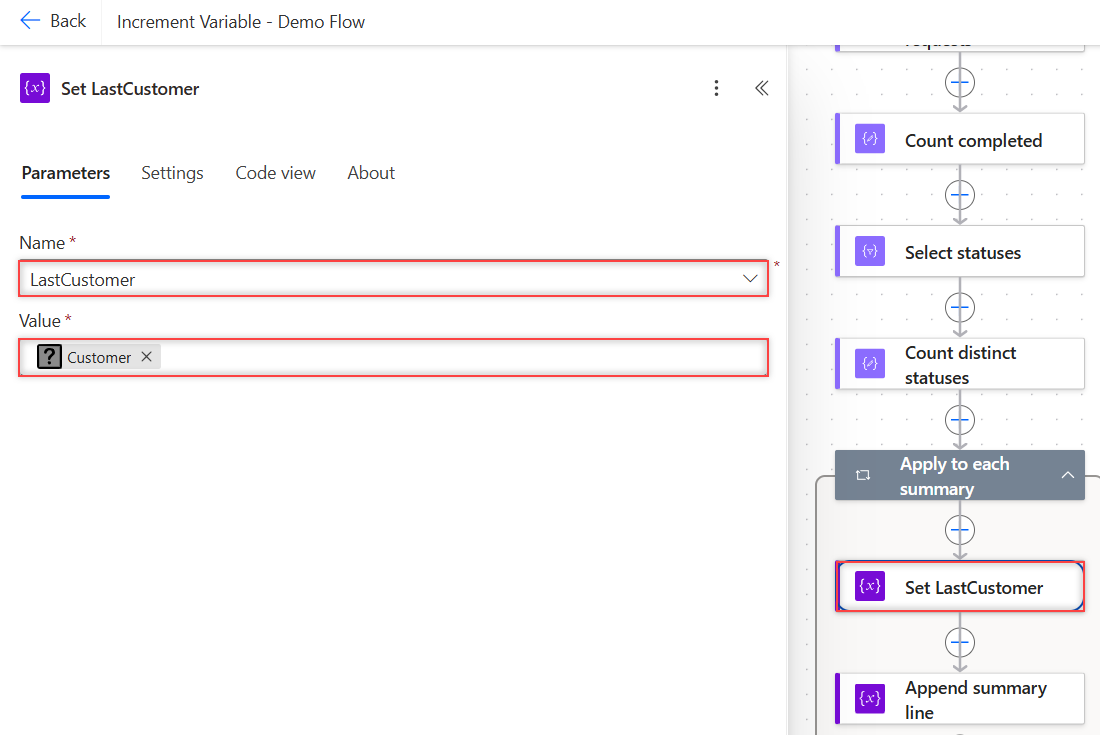
- Inside the loop, select the plus sign > Add an action, search for set variable, and pick Set variable.
- In Name, choose LastCustomer. In Value, select the fx icon and enter
item()?['Customer'].
Select Save, then Test. In Code view, the action looks like this:
"Set_LastCustomer": {
  "type": "SetVariable",
  "inputs": {
    "name": "LastCustomer",
    "value": "@item()?['Customer']"
  },
  "runAfter": {}
}
What Value Does the Variable Keep After a Loop?
The last one. Each pass overwrites the previous value, so after six customers, LastCustomer held the sixth name. My final Compose showed it:
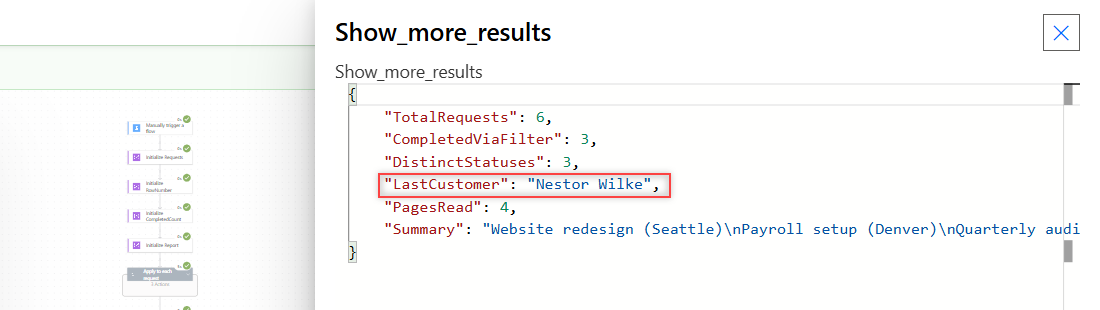
A separate test set an Integer to item() over the numbers 1 to 5. It ended at 5. To keep every value instead of the last one, collect them with Append to array variable, or create an array in Power Automate.
One thing to know about run history: the Set variable action shows the Name, but its Outputs say No outputs. Read the new value with variables('LastCustomer') in a later action.
Which Values Can You Set for Each Variable Type?
I ran each case on its own branch. Valid values worked as expected:
| Variable type | Value set | Result |
|---|---|---|
| Integer (0) | 5 | 5 |
| Integer (0) | int('42') | 42 |
| Float (0.5) | 3 | 3 |
| String (‘abc’) | empty | empty string |
| Boolean (false) | equals(1, 1) | true |
| Array (empty) | createArray('Seattle','Denver') | 2 items |
| Object (empty) | json('{"City":"Austin"}') | {“City”: “Austin”} |
Mismatches all saved fine and then failed when the flow ran. A text "5" into an Integer, a number into a String, and 2.5 into an Integer each returned BadRequest:
The variable 'SetIntToText' of type 'Integer' cannot be initialized or updated with value of type 'String'. The variable 'SetIntToText' only supports values of type 'Integer'.Convert first. Use int() for whole numbers, float() for decimals, and string() for text. My guide on how to convert a string to an integer covers int() errors.
Can You Set a Variable to Null or Empty?
Not an Integer. When I left Value empty on an Integer variable, the run failed:
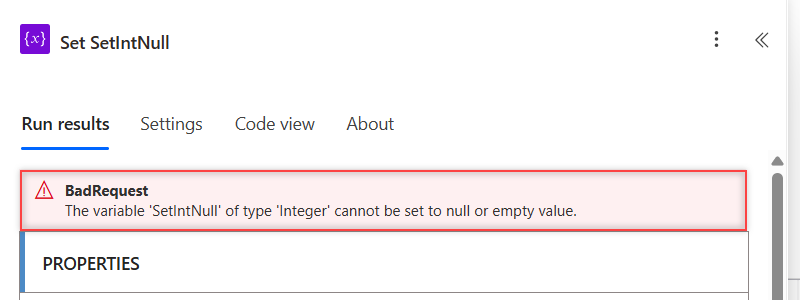
The variable 'SetIntNull' of type 'Integer' cannot be set to null or empty value.A String can be empty, which is the usual way to reset it. For a number, set it to 0. If the value comes from a field that might be blank, wrap it in coalesce(value, 0) first.
Blank values cause trouble in conditions too. My post on the Power Automate condition if blank shows which checks work.
Why Can’t Set Variable Use Its Own Value?
Power Automate blocks it. A Set variable whose value is add(variables('Running'), 1), using the same variable, was refused when the flow was saved:
The inputs of workflow run action 'Set_Running' of type 'SetVariable' are not valid. Self reference is not supported when updating the value of variable 'Running'.The fix is a Compose in between. Put add(variables('SetTotal'), 10) in a Compose, then set the variable to outputs('Compose_next_total'). Starting from 5, my variable ended at 15.
For text, the same rule applies, so use Append to string variable instead of setting a variable to itself plus more text.
Is Set Variable Safe in a Parallel Loop?
No. I ran Apply to each over 1 to 10 with concurrency at 10. Each pass set the variable to its own number, then logged what it read back right away:
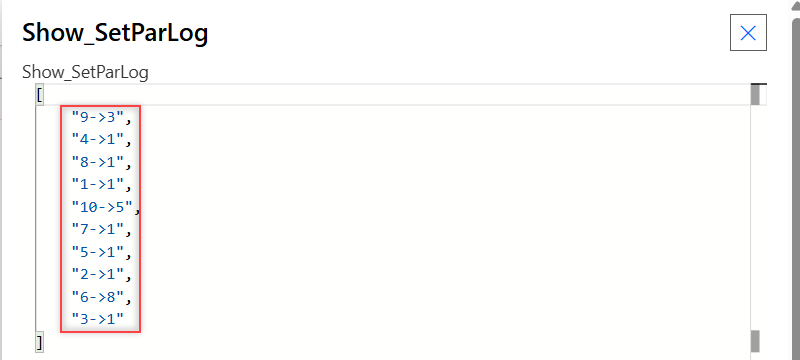
Pass 9 read 3, pass 6 read 8, and most read 1. The final value was 1, not 10. Microsoft Learn warns about this and says to keep loops sequential when you change variables in them.
Concurrency is off by default. If you turned it on under the loop’s Settings, turn it off for any loop that uses Set variable. To loop through arrays safely, see Apply to each on an array variable.
How Do You Use Set Variable to Stop a Do Until Loop?
Use a Boolean flag. I initialized Done as false, then inside a Do until loop set it with greaterOrEquals(variables('Page'), 4). The loop stopped when Done turned true, with Page at 4.
This doesn’t break the self-reference rule, because Done’s new value is based on Page, not on Done. The full pattern is in my Power Automate Do until loop guide.
How Do You Set a Variable to Today’s Date?
Use a String variable and an expression such as utcNow() in Value. Dates in Power Automate are text in ISO 8601 format, so a String type works.
Time zones and formats need more care. My guide on how to set a variable to today’s date covers five methods.
What Happened in My Tests?
| Test | Result |
|---|---|
| Set in sequential loop, 6 customers | Last customer kept |
| Set Integer in loop over 1 to 5 | 5 |
| Text “5” into Integer | Run failed: BadRequest |
| Number 5 into String | Run failed: BadRequest |
| 2.5 into Integer | Run failed: BadRequest |
| Empty value into Integer | Run failed: null or empty |
| Self reference with add() | Save refused |
| Compose, then Set | 5 + 10 = 15 |
| Parallel loop, concurrency 10 | Final value 1, reads mixed up |
Set Variable: Cheat Sheet
| Goal | How |
|---|---|
| Replace a value | Set variable, Name + Value |
| Add to a number | Increment variable (not Set) |
| Add to text | Append to string variable |
| Use the old value | Compose first, then Set from outputs() |
| Reset text | Set to an empty value |
| Reset a number | Set to 0 |
| Value might be text | int() or float() first |
| Set inside a loop | Keep concurrency off |
For more Power Automate patterns, the Power Automate tutorials hub lists every post in order.
Frequently Asked Questions
How do I set a variable in Power Automate?
Initialize the variable first. Then add the Set variable action, choose the variable in Name, and enter the new value or an expression in Value.
What is the difference between Initialize variable and Set variable?
Initialize variable creates the variable and its type, once, at the top level of the flow. Set variable changes the value of a variable that already exists, as often as you need.
Why does Set variable say self reference is not supported?
The value refers to the same variable. Calculate the new value in a Compose action first, then set the variable to the Compose output.
Can I use Set variable inside Apply to each?
Yes, with the loop running sequentially, which is the default. With concurrency on, my values got overwritten by other passes.
Does the value have to match the variable type?
Yes. The variables article on Microsoft Learn says both must have the same data type. A mismatch saves but fails at run time with BadRequest.
More Power Automate Tutorials
Here are a few related posts I’d read next:
- creating an array from a string
- formatting dates with formatDateTime()
- using trigger conditions
- building an HTML table from an array

Bijay Kumar is a 13-times Microsoft MVP in Business Applications with over 18 years of experience in the IT industry, recognized for his contributions to the Microsoft community. He is the Founder of TSinfo Technologies and shares practical, tested tutorials on Power Apps, Power Automate, Copilot Studio, and Power BI here on Power Platform FAQs. Read more.