
The Power Automate parse json action reads JSON text and turns each field into dynamic content you can pick in later steps. Give it the JSON in Content and a matching Schema, and fields like Customer and Budget show up as tokens.
In this tutorial, we’ll parse a request record, generate the schema from a sample, allow null values, use the parsed fields in math, and fix every validation error I hit. I tested each case in October 2026.
What Does Parse JSON Do in Power Automate?
JSON is the text format most APIs and many connectors use, like {"Customer":"Megan Bowen","Budget":1250}. Power Automate can’t offer its fields as dynamic content until it knows their names and types.
The schema is that description. Parse JSON checks the content against it, then gives you a token per field. If the content doesn’t match, the action fails with ValidationFailed.
You don’t always need it. For one quick value, an expression like json(text)?['Customer'] works without a schema. My guide to creating an array of objects shows json() in action.
How Do You Use Parse JSON Step by Step?
My demo flow stores this sample in a Compose action named Sample request text:
{"Title":"Website redesign","Customer":"Megan Bowen","City":"Seattle","Budget":1250,"DueDate":null}- Select the plus sign > Add an action, search for parse json, and pick Parse JSON under Data Operation.
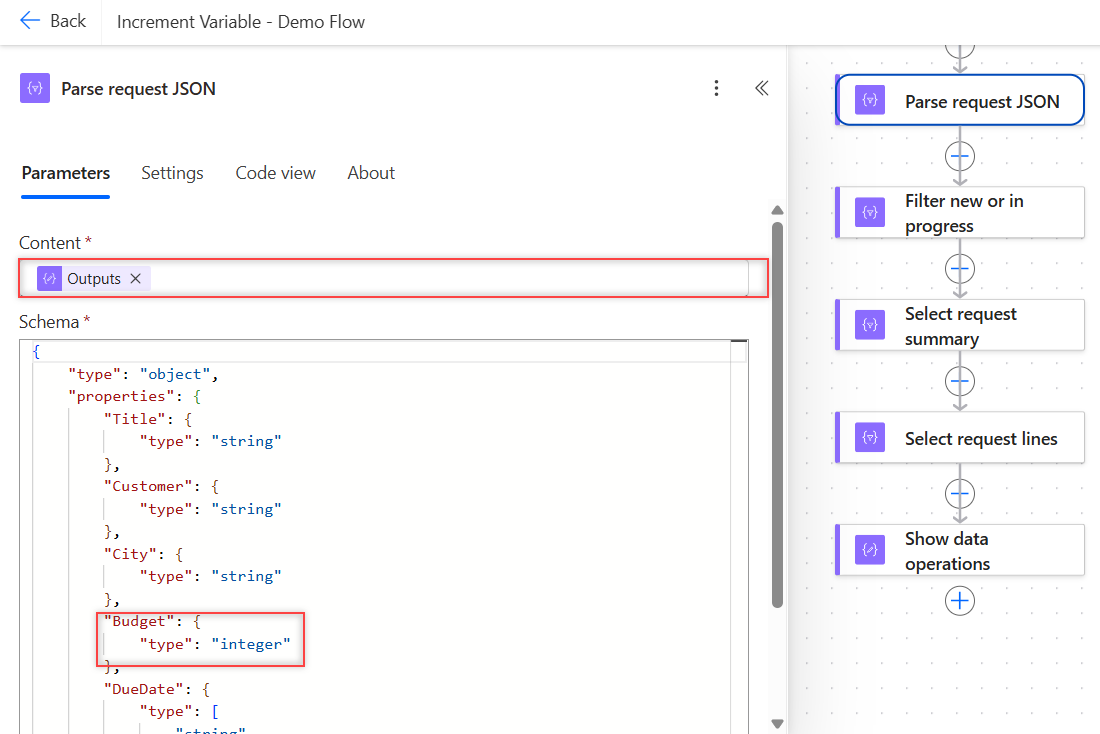
- In Content, pick the Outputs of the Compose (or your HTTP body).
- Below Schema, select Use sample payload to generate schema.
- Paste one realistic sample of your JSON and select Done.
- Check the generated schema, fix any types (next section), then save and test.
Use a sample with a real value in every field, then allow null by hand for fields that can be empty, as the next section shows.
How Do You Allow Null Values in the Schema?
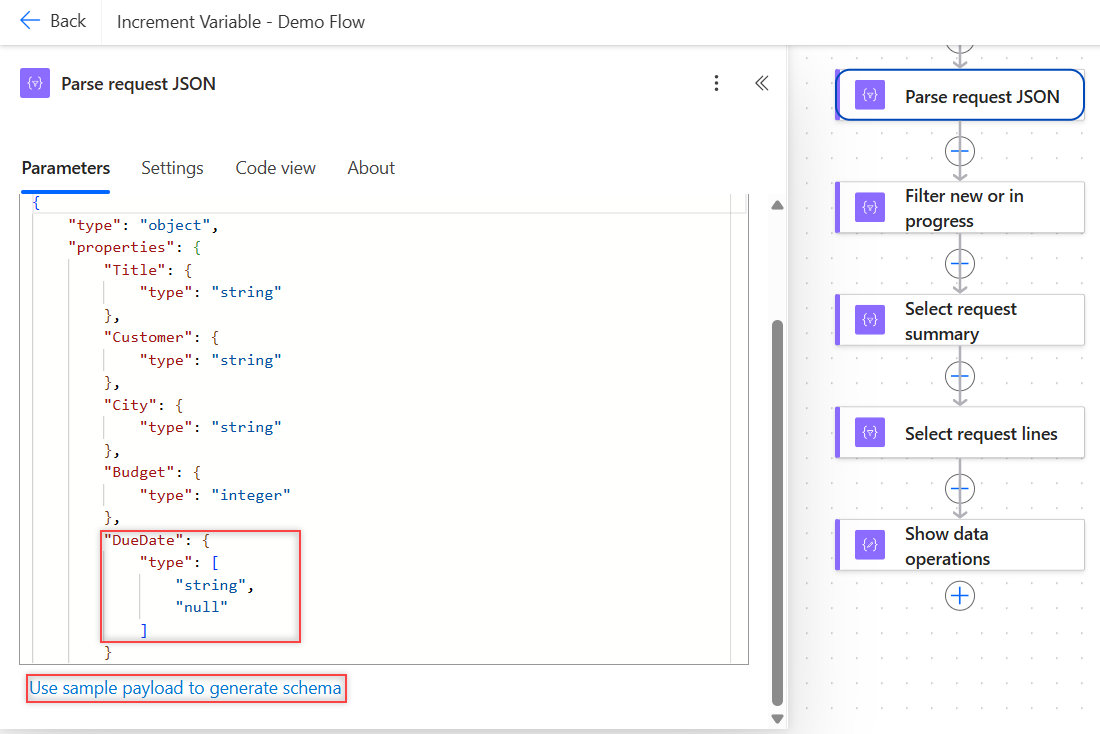
Change the field’s type to a list that includes null. This is the schema my demo used:
{
  "type": "object",
  "properties": {
    "Title": { "type": "string" },
    "Customer": { "type": "string" },
    "City": { "type": "string" },
    "Budget": { "type": "integer" },
    "DueDate": { "type": ["string", "null"] }
  }
}
With "type": "string" only, the same content failed, because DueDate was null:
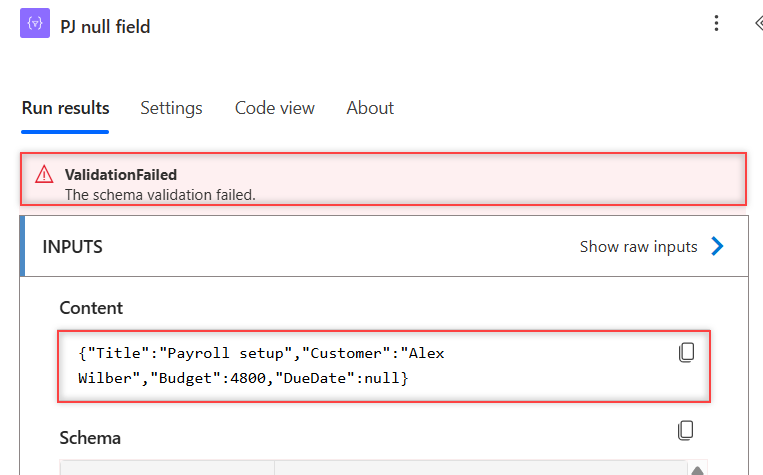
Invalid type. Expected String but got Null.With ["string", "null"], it succeeded and DueDate came through blank. Blank fields need care later too; see the Power Automate condition if blank.
How Do You Use the Parsed Fields?
Once the schema is set, the fields appear in the dynamic content list under Parse JSON. In expressions, read them from the body:
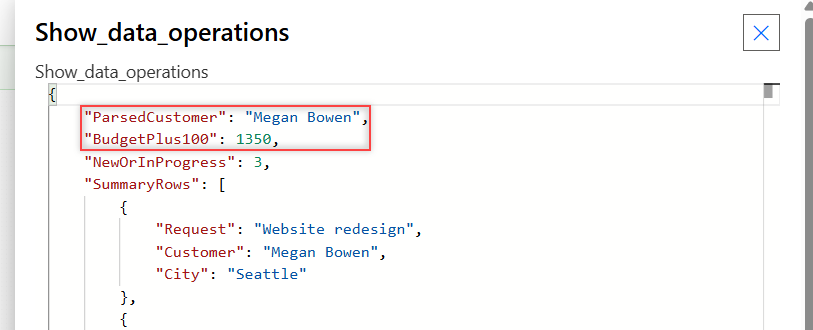
body('Parse_request_JSON')?['Customer']It returned Megan Bowen. Because the schema says Budget is an integer, math works directly. add(body('Parse_request_JSON')?['Budget'], 100) returned 1350:
To keep a parsed value for later steps, store it with the Set variable action.
How Do You Parse a JSON Array?
Use a schema with "type": "array" and describe each item under items:
{ "type": "array", "items": { "type": "object", "properties": { "Title": { "type": "string" }, "Status": { "type": ["string", "null"] } } } }My six-row array parsed fine, and length(body('PJ_array')) returned 6. Loop over the output with Apply to each, or narrow it first with Filter array.
Why Does Parse JSON Fail with ValidationFailed?
The content doesn’t match the schema. Open Show raw outputs on the failed action to see the exact reason. These are the ones I hit:
| Content problem | Error message |
|---|---|
| A field is null | Invalid type. Expected String but got Null. |
| A required field is missing | Required properties are missing from object: Customer. |
| Number sent as text “300” | Invalid type. Expected Integer but got String. |
| Decimal 1250.5 for an integer | Invalid type. Expected Integer but got Number. |
Fixes: allow null as shown above, remove the field from required, or loosen the type. Changing Budget to "type": "number" accepted 1250.5.
For a number that arrives as text, you can also convert it before parsing. My guide on how to convert a string to an integer shows int().
What If the Content Isn’t Valid JSON?
Then the action fails before any schema check. I passed {Title: VPN access}, without quotes around the names and values:
The 'content' property of actions of type 'ParseJson' must be valid JSON. The provided value cannot be parsed: 'Unexpected character encountered while parsing value: V. Path 'Title', line 1, position 8.'.Check what feeds Content. Text built by hand, an HTML email body, or a value with smart quotes are common causes. To build JSON text safely, see how to create an array.
What Else Did I Find About Schemas?
- Extra fields are fine. A City field that wasn’t in the schema didn’t fail, and it was still in the output.
- An empty schema
{}accepts anything, but you get no tokens, so you’re back to expressions. - Content can be an object, not just text. Passing the record as an object parsed the same.
What Happened in My Tests?
| Test | Result |
|---|---|
| Valid record, matching schema | Succeeded, tokens available |
| Customer token | Megan Bowen |
| Budget + 100 | 1350 |
| DueDate null, type string | ValidationFailed |
| DueDate null, type [string, null] | Succeeded |
| Required field missing | ValidationFailed |
| Budget “300” as text | ValidationFailed |
| Budget 1250.5, type integer / number | Failed / Succeeded |
| Extra field City | Succeeded |
| Invalid JSON text | InvalidJSON |
| Array of 6 rows | Succeeded, length 6 |
Parse JSON: Cheat Sheet
| Goal | How |
|---|---|
| Make a schema | Use sample payload to generate schema |
| Allow null | "type": ["string", "null"] |
| Allow decimals | "type": "number" |
| Optional field | Leave it out of required |
| Read a field | body('Parse_JSON')?['Field'] |
| Parse a list | "type": "array" + items |
| See why it failed | Show raw outputs on the failed action |
For more Power Automate patterns, the Power Automate tutorials hub lists every post in order.
Frequently Asked Questions
What does Parse JSON do in Power Automate?
It reads JSON content, checks it against a schema, and turns each field into dynamic content. The data operations article on Microsoft Learn lists it with the other data operations.
How do I generate a schema for Parse JSON?
Select Use sample payload to generate schema under the Schema box, paste a sample with real values, and select Done. Then adjust types such as null.
Why does Parse JSON fail with ValidationFailed?
The content doesn’t match the schema, such as a null in a string field or a missing required field. Show raw outputs on the failed action to read the exact message.
How do I allow null in a Parse JSON schema?
Set the field’s type to a list such as [“string”, “null”]. My null DueDate failed with type string and passed with the list.
Do I need Parse JSON to read one field?
No. An expression like json(text)?[‘Customer’] reads one field without a schema. Parse JSON helps when you need many fields as dynamic content.
More Power Automate Tutorials
These posts are good next steps:
- reshaping arrays with the Select action
- writing Get items filter queries
- building an HTML table from an array
- formatting dates with formatDateTime()

Bijay Kumar is a 13-times Microsoft MVP in Business Applications with over 18 years of experience in the IT industry, recognized for his contributions to the Microsoft community. He is the Founder of TSinfo Technologies and shares practical, tested tutorials on Power Apps, Power Automate, Copilot Studio, and Power BI here on Power Platform FAQs. Read more.