
To run Power Automate apply to each array variable loops, add Apply to each, put variables('Customers') in Select an output from previous steps, and use item() inside the loop to read the current item.
In this tutorial, we’ll reuse the demo flow from my array variable posts and add loops to it. You’ll read items, total a number, filter into a new array, number the rows, and fix the errors I hit. All results are from October 2026.
What Does Apply to Each Do with an Array Variable?
Apply to each is a loop. It takes an array, runs the actions inside it once per item, and hands each run one item. An array variable is a list you created with Initialize variable, so it’s a perfect input.
Inside the loop, item() returns the current item. If the item is an object, read a field with item()?['Name']. The ? returns null for a missing field instead of failing.
If you haven’t built the variable yet, start with my post on how to initialize an array variable with values. This tutorial picks up right where that demo flow ended.
Which Flow and Sample Data Do We Use?
I reused my Initialize Array Variable – Demo Flow, a manually triggered flow. It already holds a Cities array (Seattle, Denver, Austin) and this Customers array of objects, with budgets in USD:
[
  { "Name": "Megan Bowen", "City": "Seattle", "Budget": 1200 },
  { "Name": "Alex Wilber", "City": "Denver", "Budget": 850 },
  { "Name": "Adele Vance", "City": "Austin", "Budget": 2300 }
]
I added three variables at the top, because Initialize variable can’t sit inside a loop: TotalBudget (Integer, 0), BigBudgetNames (Array, []), and NumberedCities (Array, []).
Then I added two loops and a Compose named Show loop results at the end. Want other ways to build the starting list? See how to create an array in Power Automate.
How Do You Add Apply to Each for an Array Variable?
Here are the exact clicks in the new designer. Open your flow and select Edit first.
- Under the last Initialize variable action, select the plus sign > Add an action.
- Search for apply to each and pick Apply to each under Control.
- Click in Select an output from previous steps and select the lightning icon.
- Under Variables, pick Customers.
- Rename the loop: select its title and type Apply to each customer.
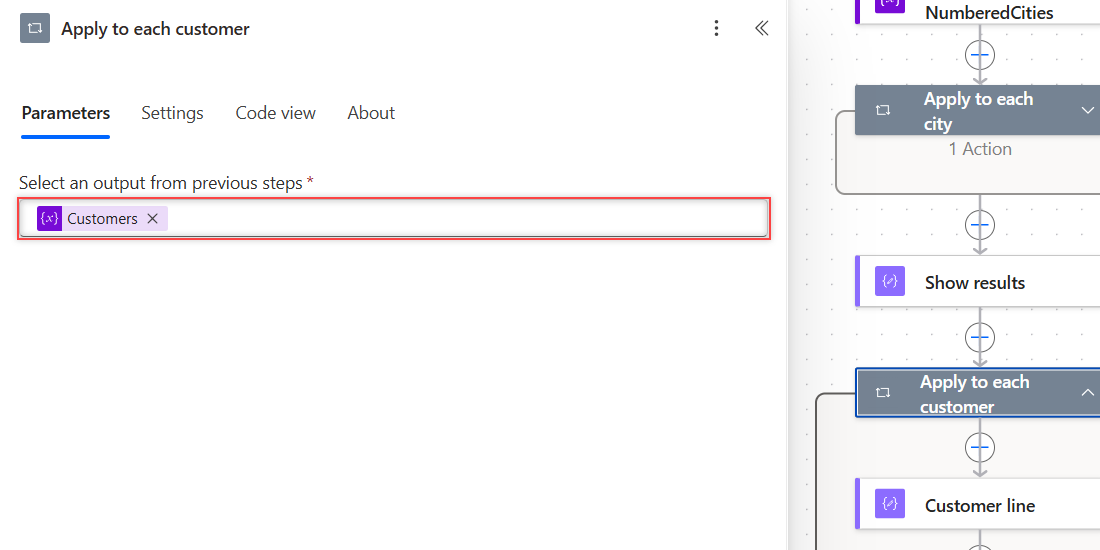
The token stands for @variables('Customers'). In Code view, the loop looks like this:
"Apply_to_each_customer": {
  "type": "Foreach",
  "foreach": "@variables('Customers')",
  "runtimeConfiguration": {
    "concurrency": { "repetitions": 1 }
  },
  "actions": { ... }
}
The input must be the whole array. Don’t pick a single item like variables('Customers')[0], because that’s an object, and the loop fails on objects.
How Do You Read the Current Item with item()?
Inside the loop, select the plus sign, add a Compose action, and name it Customer line. Click in Inputs, select fx, paste this expression, and select Add:
concat(item()?['Name'], ' - ', item()?['City'], ' - $', string(item()?['Budget']))Each run builds one line from the current customer. string() turns the Budget number into text so concat() can join it. For number conversions the other way, see how to convert a string to an integer.
For a plain text array like Cities, the current item is the text itself, so item() alone is enough. My older loop used toUpper(item()) to build SEATTLE, DENVER, and AUSTIN.
How Do You Total a Number Field Inside the Loop?
Use Increment variable. It adds a value to an Integer or Float variable on every run, which is how you sum a column of numbers.
- Inside the loop, under Customer line, add Increment variable.
- In Name, pick TotalBudget.
- In Value, select fx and enter
item()?['Budget'].
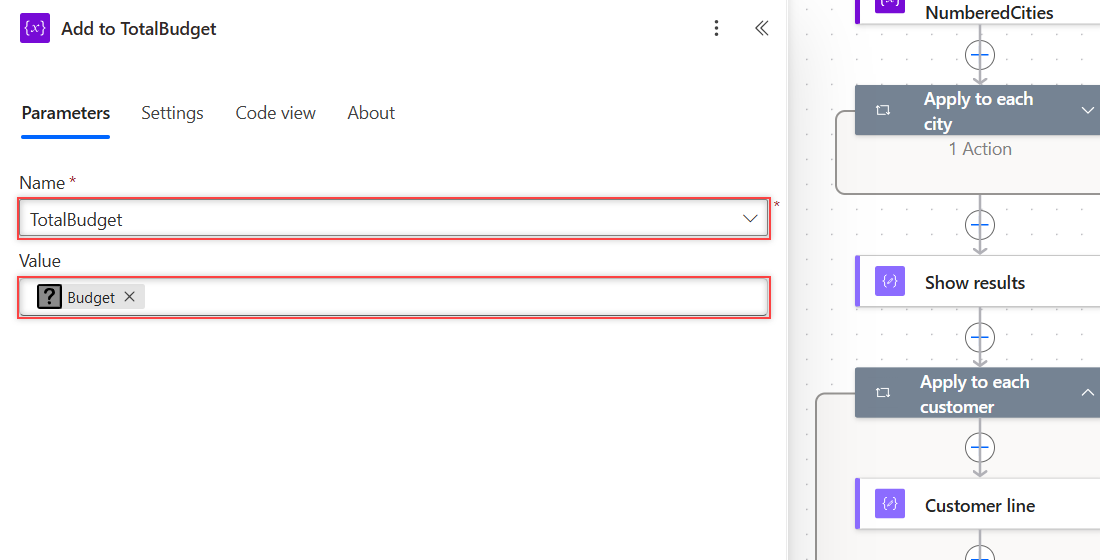
The designer showed my expression as a Budget token with a question-mark icon. That’s normal for a variable without a schema, and it ran fine. TotalBudget ended at 4350, which is 1200 + 850 + 2300.
Need to set a variable to a date instead of adding to it? My post on how to set a variable to today’s date covers Set variable.
How Do You Build a Filtered Array Inside Apply to Each?
Add a Condition in the loop and an Append to array variable action in its True branch. Only the matching items get added.
- Inside the loop, add Condition and name it Check budget.
- In the first box, select fx and enter
item()?['Budget']. - Pick is greater than and type
1000in the last box. - In the True branch, add Append to array variable, pick BigBudgetNames, and set Value to
item()?['Name'].
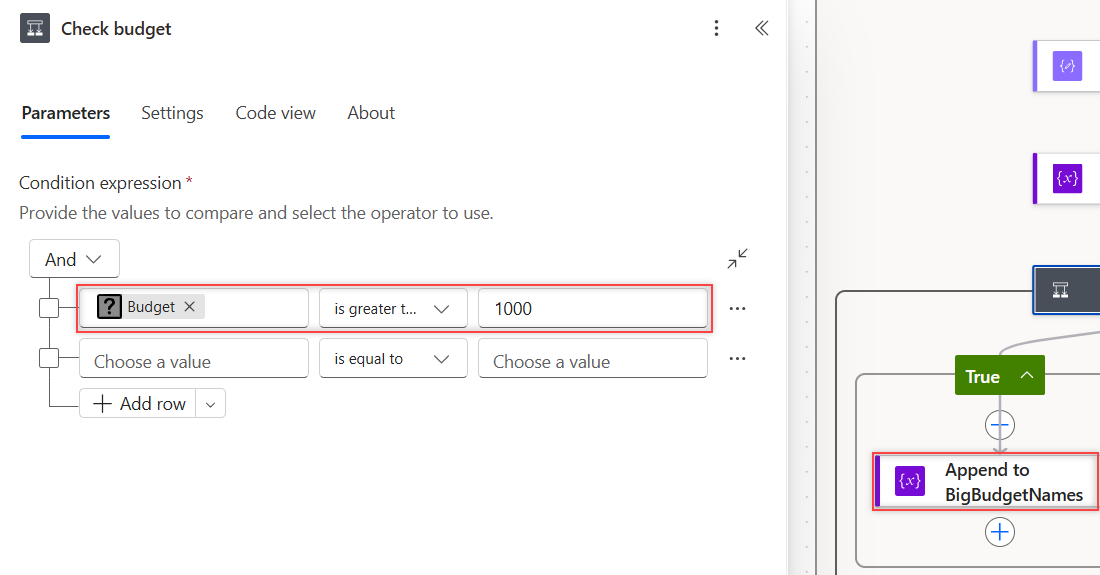
BigBudgetNames came back as ["Megan Bowen", "Adele Vance"]. Alex Wilber’s $850 budget went to the empty False branch, so he was skipped.
To check for empty values instead of numbers, my guide to the Power Automate condition if blank shows each test.
How Do You Get the Index Number in Apply to Each?
Apply to each doesn’t give you a counter, so loop over the index numbers instead. I set the input of my Apply to each index loop to this expression:
range(0, length(variables('Cities')))range(0, 3) returns [0, 1, 2], so item() is now the index. Inside, an Append to array variable action adds this to NumberedCities:
concat(string(add(item(), 1)), '. ', variables('Cities')[item()])The result was ["1. Seattle", "2. Denver", "3. Austin"]. add(item(), 1) makes the numbering start at 1 for people, while the index starts at 0. Numbered rows also look nice in an HTML table for an email.
What Did the Demo Flow Return?
The last action, Show loop results, is a Compose with these inputs:
{
  "TotalBudget": "@variables('TotalBudget')",
  "BigBudgetNames": "@variables('BigBudgetNames')",
  "NumberedCities": "@variables('NumberedCities')",
  "CustomerLines": "@outputs('Customer_line')"
}
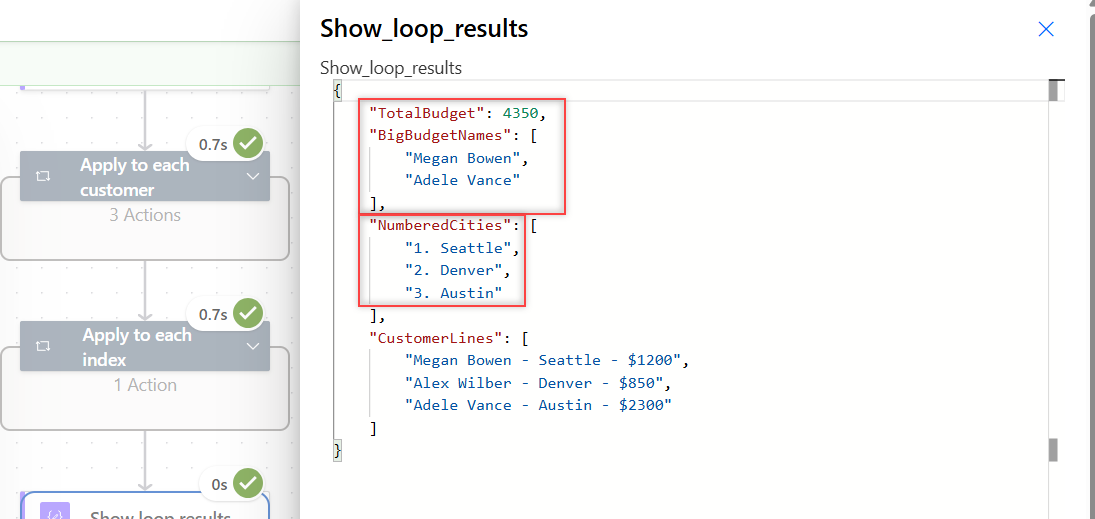
The run succeeded in about 3 seconds, and each loop took 0.7 seconds. Show raw outputs returned this JSON, which matches the screenshot at the top:
{
  "TotalBudget": 4350,
  "BigBudgetNames": ["Megan Bowen", "Adele Vance"],
  "NumberedCities": ["1. Seattle", "2. Denver", "3. Austin"],
  "CustomerLines": [
    "Megan Bowen - Seattle - $1200",
    "Alex Wilber - Denver - $850",
    "Adele Vance - Austin - $2300"
  ]
}
Look at CustomerLines. outputs('Customer_line') sits outside the loop, yet it returned all three lines as an array. That works for an action one loop level deep, but not deeper.
How Do You Check Each Loop Run in Run History?
Open the run from the flow’s details page and select the loop. A pager appears under its title. Use the arrows, or type a number, to move between runs.
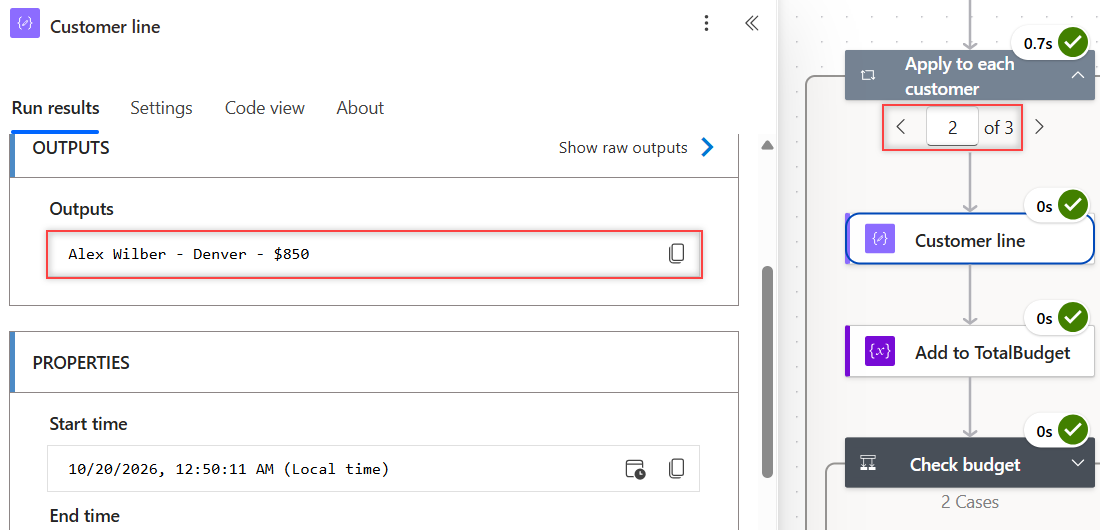
Select an action inside the loop to see its inputs and outputs for that run only. Run 2 of 3 showed Alex Wilber – Denver – $850. That’s the fastest way to find which item broke a loop.
If the flow shouldn’t start at all for some inputs, trigger conditions in Power Automate stop it before any loop runs.
Should Apply to Each Run in Parallel?
Power Automate’s limits page lists 1 as the default for Apply to each concurrency, and you can raise it to 50. I still set it to 1 on purpose in every loop that changes a variable.
- Select the loop and open the Settings tab.
- Turn Concurrency control on.
- Set Degree of parallelism to 1.
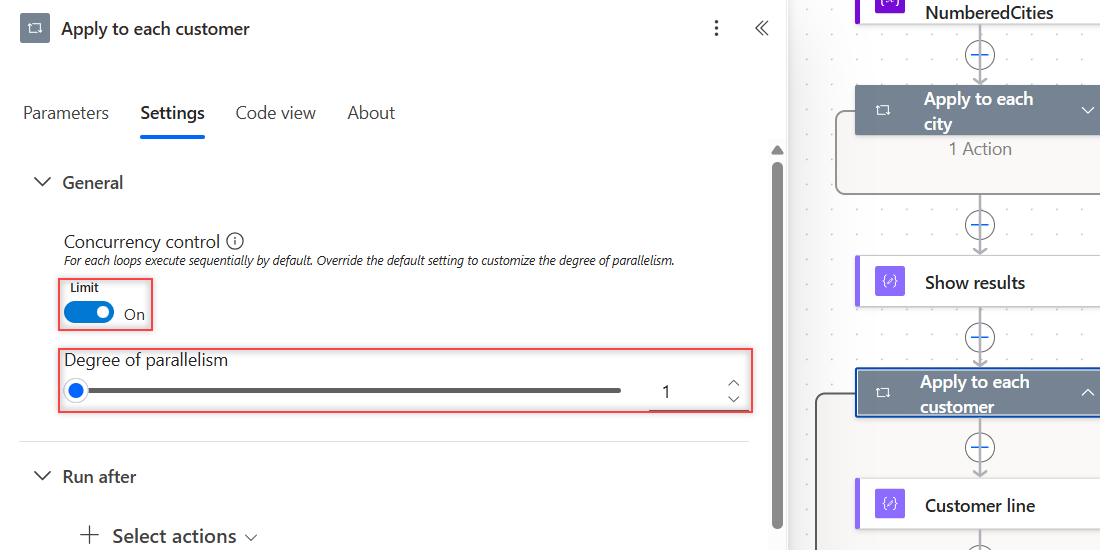
Here’s why. In my earlier test, a loop at concurrency 20 appended 1 to 10 as [3,5,8,6,1,9,7,2,10,4]. At 1, the order was 1 to 10.
Increment variable was safe in my test. A loop over range(1, 100) at concurrency 20 still summed to 5050. Order-dependent work is the risk, so keep it at 1 when order matters.
Why Does Apply to Each Fail with “Is of Type ‘String'”?
The loop only accepts an array. I pointed a loop at a String variable holding Seattle,Denver,Austin, and it failed at once. The action inside it was skipped.
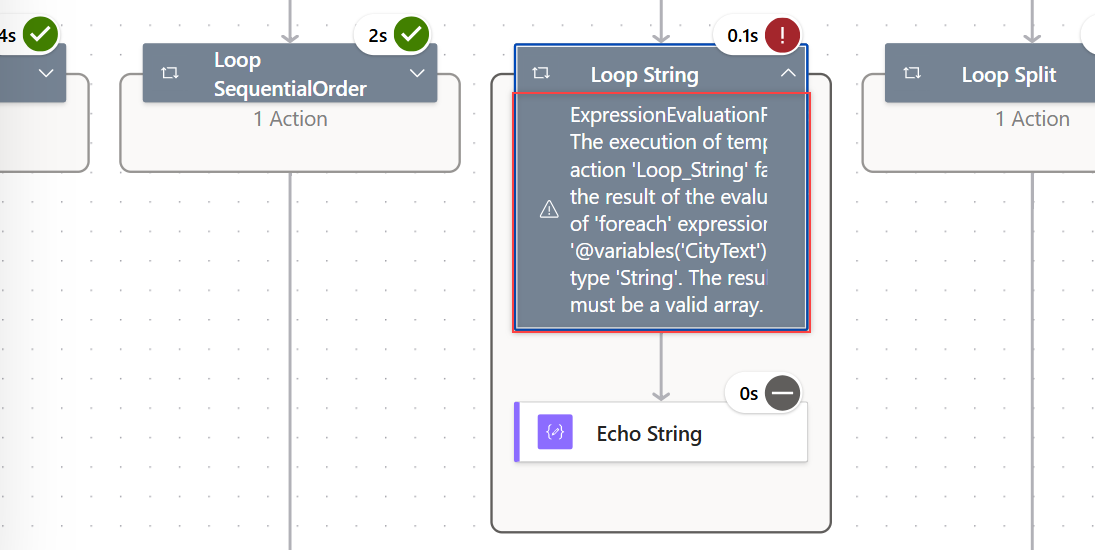
The execution of template action 'Loop_String' failed: the result of the evaluation of 'foreach' expression '@variables('CityText')' is of type 'String'. The result must be a valid array.The fix is to turn the text into an array first. With split(variables('CityText'), ',') as the input, the loop ran three times. An Object variable failed the same way, with type ‘Object’ in the message.
If the text holds whole records rather than single values, my guide to creating an array of objects shows json() and Parse JSON.
Two more things I tested ran without an error. A loop over an empty array ran zero times and the next action still ran. Appending to the array you loop over didn’t add runs, because the input is read once at the start.
Why Can’t Set Variable Use Its Own Value in a Loop?
I tried to keep a running total with Set variable, using add(variables('Running'), item()) as the new value. Power Automate refused to save the flow:
The inputs of workflow run action 'Set_Running' of type 'SetVariable' are not valid. Self reference is not supported when updating the value of variable 'Running'.Two fixes work. Use Increment variable for sums. Or add a Compose with add(variables('Running'), item()), then set the variable to outputs('Compose_Next'). That version returned 15 for 1 through 5.
Nested loops have a similar save-time rule. When I referenced an action two loops deep from outside both loops, the import failed with this message:
The action 'Echo_Nested' is nested in a foreach scope of multiple levels. Referencing repetition actions from outside the scope is supported only when there are no multiple levels of nesting.Inside nested loops, items('Outer_loop') reads the outer item by the loop’s name. My nested test over [[1,2],[3,4]] appended each number times 10 and returned [10,20,30,40].
What Happened in My Tests?
I added these checks to my existing test flow, in parallel branches after one manual trigger:
| Test | Result |
|---|---|
Loop over variables('Customers'), sum Budget | TotalBudget = 4350 |
| Condition Budget > 1000 + Append | [“Megan Bowen”, “Adele Vance”] |
Loop over range(0, length(...)) | “1. Seattle”, “2. Denver”, “3. Austin” |
outputs('Customer_line') after the loop | Array of all 3 lines |
| Loop over a String variable | Failed: is of type ‘String’ |
Loop over split(text, ',') | 3 runs, no error |
| Loop over an Object variable | Failed: is of type ‘Object’ |
Loop over [] | 0 runs, Succeeded |
| Increment in loop, concurrency 20, 1 to 100 | 5050 |
| Set variable with its own value | Flow refused: self reference |
| Append to the array being looped | No extra runs |
| Output referenced from 2 loops deep | Flow refused: multiple levels |
Apply to Each Array Variable: Cheat Sheet
| Need | Use |
|---|---|
| Loop input | variables('Customers') |
| Current text item | item() |
| Field of current object | item()?['Name'] |
| Outer item in a nested loop | items('Outer_loop') |
| Sum a number field | Increment variable |
| Keep only some items | Condition + Append to array variable |
| Index number | Loop over range(0, length(variables('Cities'))) |
| Loop over comma text | split(variables('CityText'), ',') |
| All outputs after the loop | outputs('Action_in_loop') |
| Predictable order | Concurrency control on, degree 1 |
For more Power Automate patterns, the Power Automate tutorials hub lists every post in order.
Need a running count while the loop works through your array? I tested the Increment variable action inside Apply to each, including what happens when concurrency is turned up, in my Power Automate increment variable by 1 guide.
Frequently Asked Questions
How do I use Apply to each on an array variable in Power Automate?
Add Apply to each, select the lightning icon in Select an output from previous steps, and pick your array variable under Variables. Inside the loop, item() returns the current item.
How do I get a property of the current item in Apply to each?
Use item()?[‘PropertyName’], such as item()?[‘Name’]. The question mark returns null when the property is missing instead of failing the action.
Why does Apply to each say the result must be a valid array?
The loop input is text, an object, or a single item. Point it at the whole array, or turn text into an array with split() first.
Can I set a variable to its own value inside Apply to each?
No. Set variable rejects a value that reads the same variable. Use Increment variable for sums, or calculate the new value in a Compose and set the variable from its output.
How many items can Apply to each process?
Microsoft lists 5,000 items for the Low performance profile and 100,000 for all others, with concurrency from 1 to 50, on the Power Automate limits page.
More Power Automate Tutorials
Want to keep building? These are good next reads:
- adding days to a date with addDays()
- creating a file in SharePoint
- saving email attachments to SharePoint
- Power Automate vs Power BI

Bijay Kumar is a 13-times Microsoft MVP in Business Applications with over 18 years of experience in the IT industry, recognized for his contributions to the Microsoft community. He is the Founder of TSinfo Technologies and shares practical, tested tutorials on Power Apps, Power Automate, Copilot Studio, and Power BI here on Power Platform FAQs. Read more.