
To save files from Power Apps to a SharePoint list item, pass the modern Attachments control’s Attachments output straight into Patch: Patch(Invoices, Defaults(Invoices), {Title: txtNewTitle.Text, Attachments: attNew.Attachments}). No edit form is needed.
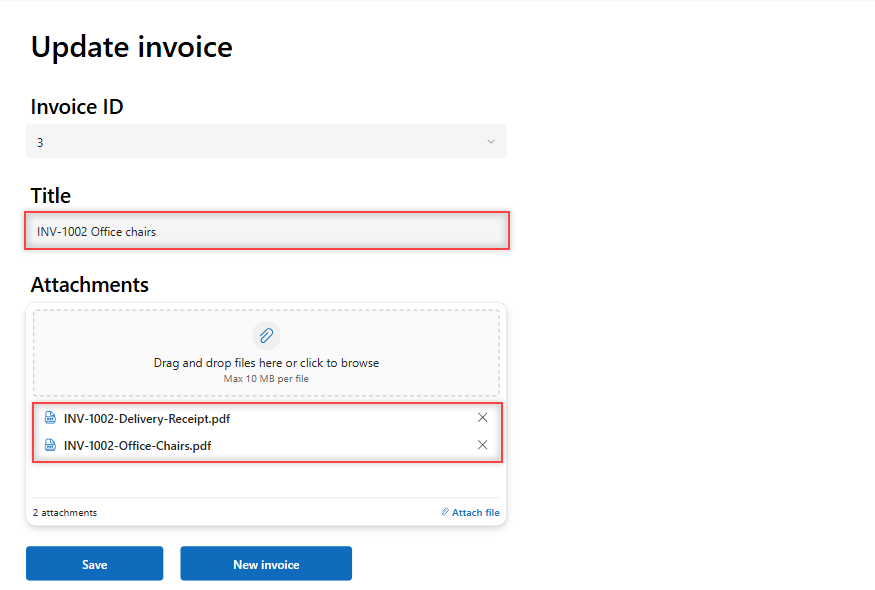
In this tutorial, we’ll use power apps patch attachments formulas to build a two-screen app. One screen creates an invoice with files, and the other picks an item ID and updates its title and files.
What Do You Need Before You Start?
You need a SharePoint list with attachments turned on. Mine is called Invoices, and it has only the default Title column. Attachments are on by default for new lists, so there’s nothing to add.
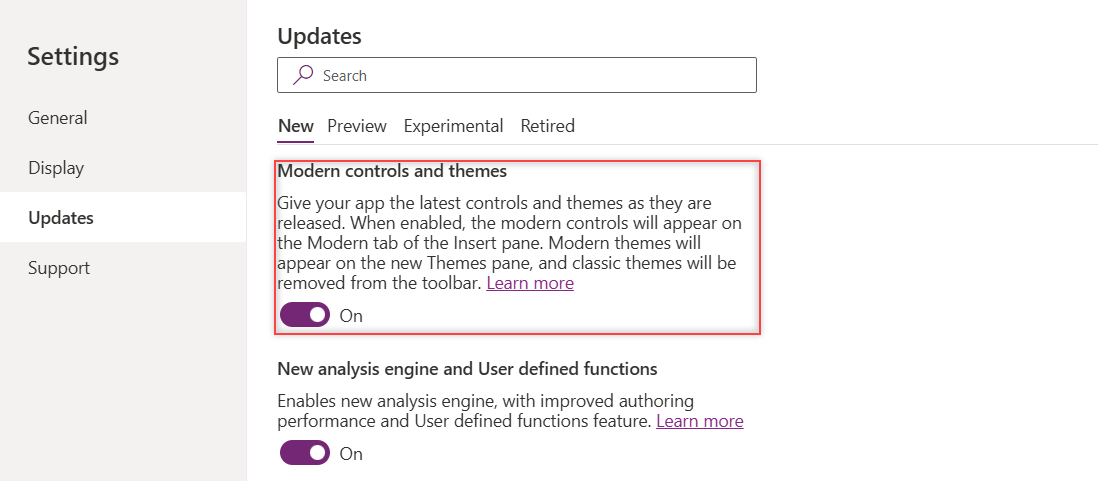
You also need the modern controls. In a new canvas app, open Settings (gear icon, bottom left) > Updates > New and turn on Modern controls and themes. In my app it was off until I switched it on.
New to canvas apps? My walkthrough on how to build a Power Apps app from scratch covers the Studio basics.
How Do You Build the App Step by Step?
- Go to make.powerapps.com, select Create > Start with a blank canvas > Tablet size, and name the app Invoices App.
- Turn on modern controls as shown above.
- Open the Data pane, select Add data > SharePoint, pick your connection, enter the site URL, tick Invoices and select Connect.
- Rename Screen1 to scrNewInvoice in the Tree view (double-click the name).
- Select Insert, search for Text input, and add it. Name it txtNewTitle.
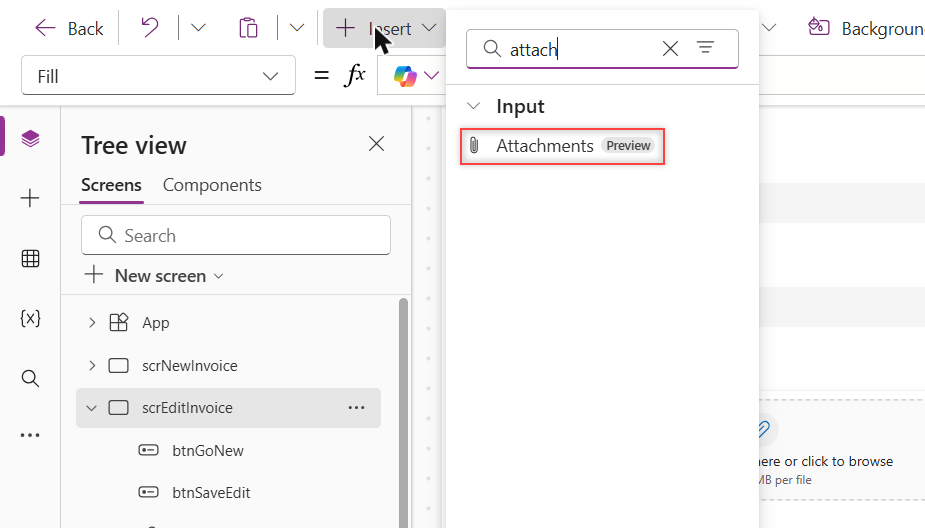
- Search the Insert menu for attach and add Attachments (it shows a Preview tag). Name it attNew.
- Add a Button, set its Text to “Save”, and name it btnSaveNew.
Add a label above each control if you like. I also added a second button that runs Navigate(scrEditInvoice); my post on the Power Apps Navigate function explains it.
How Do You Save a New Item with Attachments?
First, give the Attachments control a typed, empty table. Select attNew and set its Items property to:
Defaults(Invoices).Attachments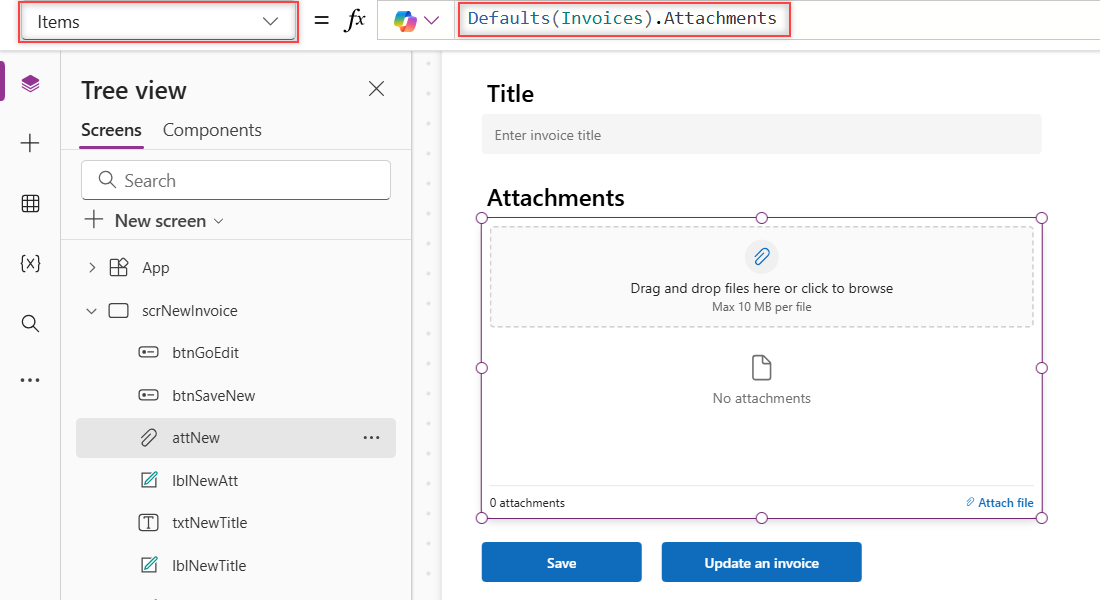
Next, select btnSaveNew, pick OnSelect in the property list, and paste this formula:
If(
    IsBlank(txtNewTitle.Text),
    Notify("Enter a title before saving.", NotificationType.Warning),
    IfError(
        Set(
            varNewInvoice,
            Patch(
                Invoices,
                Defaults(Invoices),
                {
                    Title: txtNewTitle.Text,
                    Attachments: attNew.Attachments
                }
            )
        );
        Notify("Invoice " & varNewInvoice.ID & " saved.", NotificationType.Success);
        Reset(txtNewTitle);
        Reset(attNew),
        Notify("Couldn't save the invoice. " & FirstError.Message, NotificationType.Error)
    )
)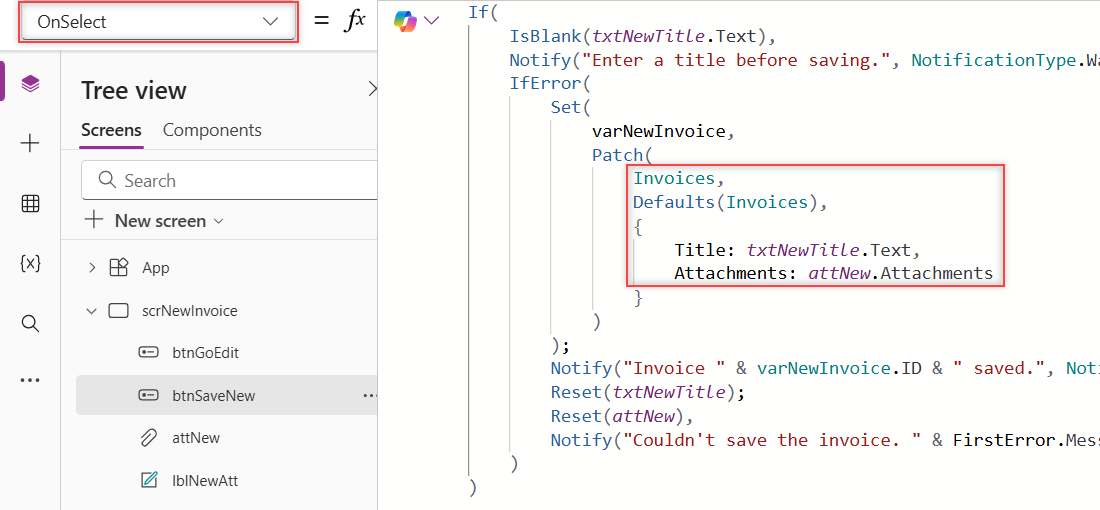
Defaults(Invoices) tells Patch to create a new item. Set stores the new record, so the message can show its ID. Then Reset clears the text box and the staged files.
IfError catches a failed save and shows the reason in red. For the full set of message types, see my guide to the Power Apps Notify function.
Why Does Patch Say the Attachments Type Doesn’t Match?
When I left attNew’s Items blank, App checker flagged the Save button with this error:
The type of this argument '{Attachments}' does not match the expected type 'Table (Attachment)'. Found type 'Table'.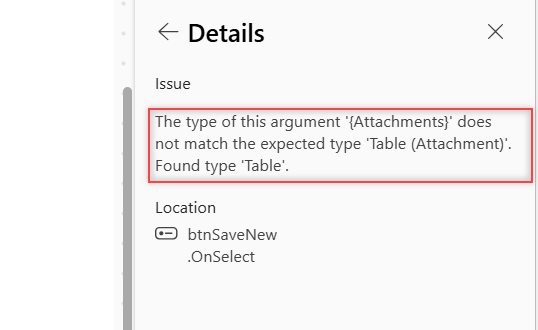
An empty control doesn’t know the list’s attachment columns. Setting Items to Defaults(Invoices).Attachments fixed it right away, and App checker showed no errors.
On the update screen you won’t hit this, because Items points to a real item’s attachments. The Patch function guide covers the other Patch patterns.
How Do You Update an Existing Item and Its Attachments?
Add a blank screen named scrEditInvoice. Insert a modern Dropdown (ddInvoiceId), a Text input (txtEditTitle), an Attachments control (attEdit) and a Save button (btnSaveEdit).
Set the dropdown’s Items so the newest IDs come first, and show the ID as text:
Items:           Sort(Invoices, ID, SortOrder.Descending)
ItemDisplayText: Text(ThisItem.ID)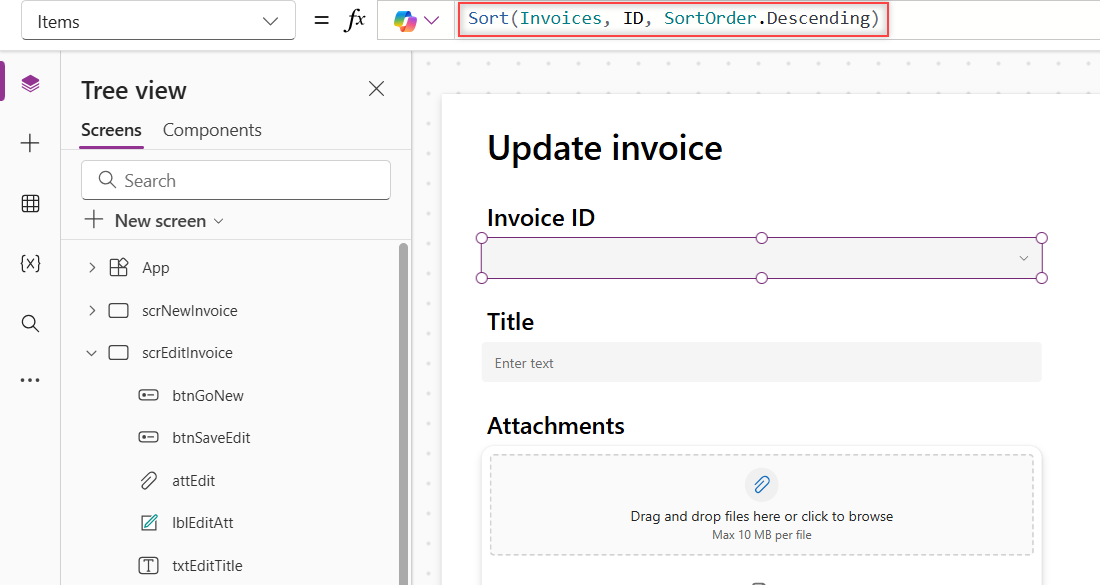
Now bind the other two controls to the picked item:
txtEditTitle.Default: ddInvoiceId.Selected.Title
attEdit.Items:        ddInvoiceId.Selected.Attachments
Note the modern Text input uses Default for its starting value and .Text for what the user typed. To set a dropdown from code instead, see how to set a dropdown value on a button click.
Finally, set btnSaveEdit’s OnSelect:
If(
    IsBlank(ddInvoiceId.Selected),
    Notify("Select an invoice ID first.", NotificationType.Warning),
    IfError(
        Patch(
            Invoices,
            ddInvoiceId.Selected,
            {
                Title: txtEditTitle.Text,
                Attachments: attEdit.Attachments
            }
        );
        Notify("Invoice " & ddInvoiceId.Selected.ID & " updated.", NotificationType.Success),
        Notify("Couldn't update the invoice. " & FirstError.Message, NotificationType.Error)
    )
)
The control’s output holds the files you kept, the ones you added, and the ones you removed. Patch writes all of that to the item in one call.
What Happened When I Tested It?
I pressed F5 and saved a new invoice, INV-1002 Office chairs. The app showed “Invoice 3 saved.” and cleared the form. Earlier, a new item saved with a CSV and an Excel file attached; both files landed on it.
For the update test, item 3 had two PDFs. Opening the dropdown showed IDs 3, 2 and 1:
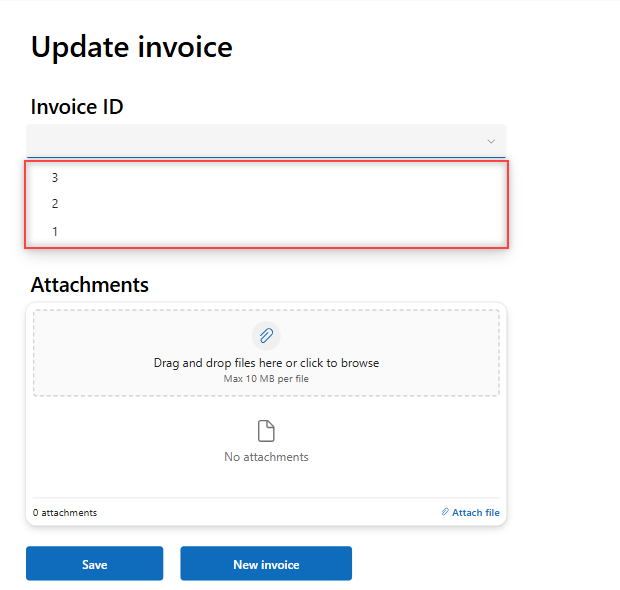
Picking 3 filled the title and both files. Then I removed the delivery receipt with its X and added “(delivered)” to the title. The control struck the file through and marked it Unsaved:
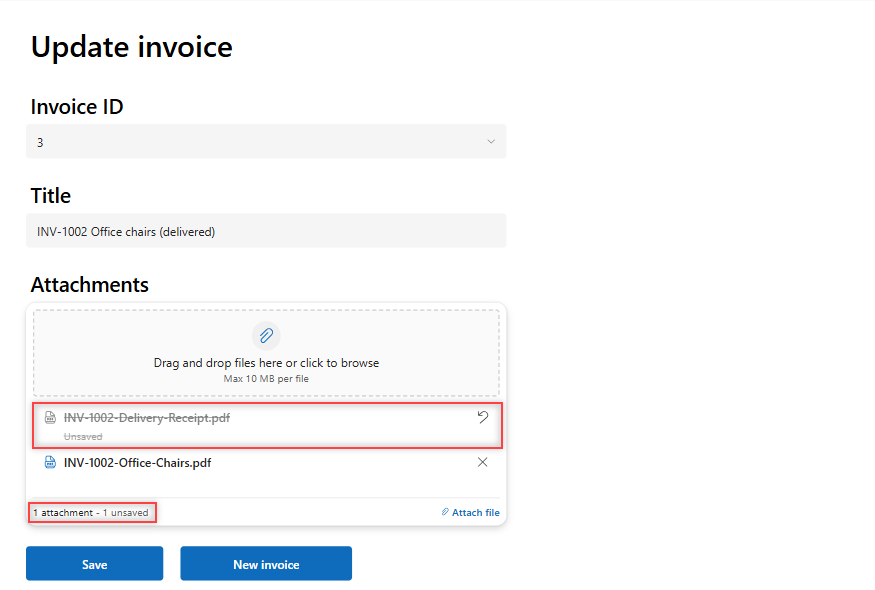
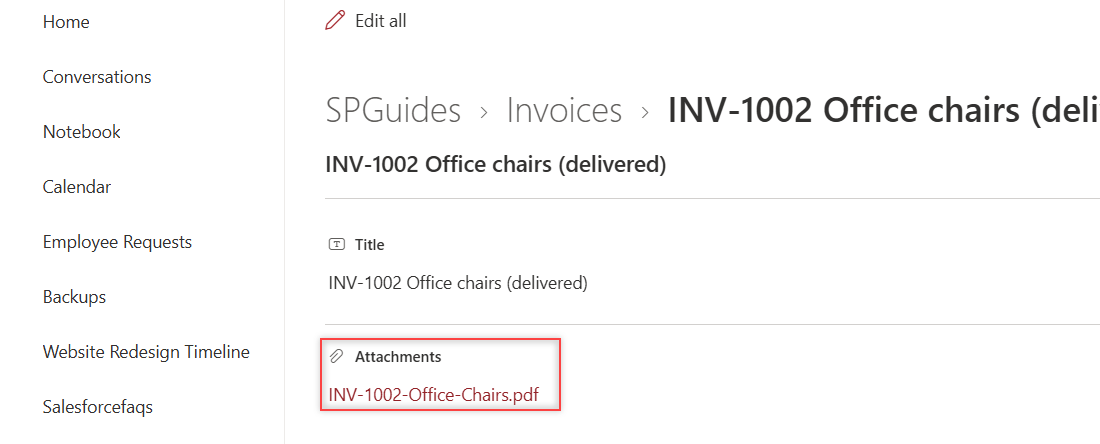
After Save, the app showed “Invoice 3 updated.” The SharePoint item had the new title and only the office-chairs PDF:
| Test | Result |
|---|---|
| Save new item, title only | “Invoice 3 saved.”, form cleared |
| Save new item with 2 files | Both files attached to the item |
| Attachments Items left blank | Type error on Patch: Table vs Table (Attachment) |
| Pick ID 3 on the Update screen | Title and 2 PDFs loaded |
| Remove 1 file, edit title, Save | “Invoice 3 updated.”, 1 file left in SharePoint |
What Should You Watch Out For?
- Files are staged, not saved. Adding or removing a file changes nothing in SharePoint until Patch runs. Microsoft recommends giving users a way to save or discard before they switch records.
- The control is in preview. Microsoft doesn’t recommend preview features for production apps yet, so test it well before you roll it out.
- Size limits. The control showed “Max 10 MB per file” and allowed 10 files by default. Change MaxAttachmentSize and MaxAttachments in the Properties pane.
- Same file name. Uploading a file with an existing name adds a suffix; it doesn’t replace the saved file.
- Big lists. A dropdown of IDs is hard to use with thousands of items, and large lists bring row limits. Read up on Power Apps delegation.
Should You Use Patch or a Form for Attachments?
The classic Attachments control only works inside an edit form. The modern one also works on its own, which is why this app needs no form and no gallery.
Use Patch when you want a simple custom layout like this one. Use a form when you have many columns and want validation built in; see how to create a form with the modern Form control.
Patch Attachments: Cheat Sheet
| Goal | Formula |
|---|---|
| New item with files | Patch(List, Defaults(List), {Attachments: att.Attachments}) |
| Empty typed control | Items: Defaults(List).Attachments |
| Show an item’s files | Items: ddId.Selected.Attachments |
| Update an item’s files | Patch(List, ddId.Selected, {Attachments: att.Attachments}) |
| Clear staged files | Reset(att) |
| Text input value | txtTitle.Text |
Frequently Asked Questions
Can you patch attachments to SharePoint without a form in Power Apps?
Yes. The modern Attachments control works outside a form, and its Attachments output goes straight into Patch. The Attachments modern control article on Microsoft Learn shows the same pattern.
Why does Patch fail with ‘Table (Attachment)’ on a new item?
The control has no Items, so its output is an untyped table. Set Items to Defaults(YourList).Attachments and the error goes away.
How do I delete an attachment from a SharePoint item in Power Apps?
Load the item’s files into the control, select the X next to the file, and run the same Patch. The control marks the file as Unsaved until you save.
Does the classic Attachments control work with Patch?
Not on its own. The classic control is built for an edit form card and saves with SubmitForm. The modern control is the one designed to pass its files to Patch.
What is the maximum file size in the modern Attachments control?
It showed 10 MB per file and 10 files by default in my app. You can change MaxAttachmentSize (in MB) and MaxAttachments, within SharePoint’s own limits.
More Power Apps Tutorials
Want to keep building? Try one of these next:
- working with collections using Collect
- loading data in App OnStart
- showing list items in a data table
- saving email attachments to SharePoint with a flow

Bijay Kumar is a 13-times Microsoft MVP in Business Applications with over 18 years of experience in the IT industry, recognized for his contributions to the Microsoft community. He is the Founder of TSinfo Technologies and shares practical, tested tutorials on Power Apps, Power Automate, Copilot Studio, and Power BI here on Power Platform FAQs. Read more.